Scroll-Stopping Designs: How to Create Stunning Social Media Graphics (Posts, Stories, Ads) in Minutes with Photoshop Templates!
- Your Social Media Presence in a Scroll-First World
- Why Your Social Media Visuals Are Your Most Powerful Asset
- The Instant Visual Impact
- Your Secret Weapon for Social Media Domination
- Creating Scroll-Stopping Social Media Graphics with Pixflow Templates
- The Strategic Impact of Templated Social Media Design
Your Social Media Presence in a Scroll-First World
But here’s the problem: creating unique, professional, and consistent social media graphics from scratch in Photoshop is time-consuming. You need deep design skills, a sense of visual trends, and a lot of patience to maintain brand consistency across platforms.
The result for many creators and small businesses? Generic posts, inconsistent branding, low engagement, and a diluted message that gets lost in the noise.
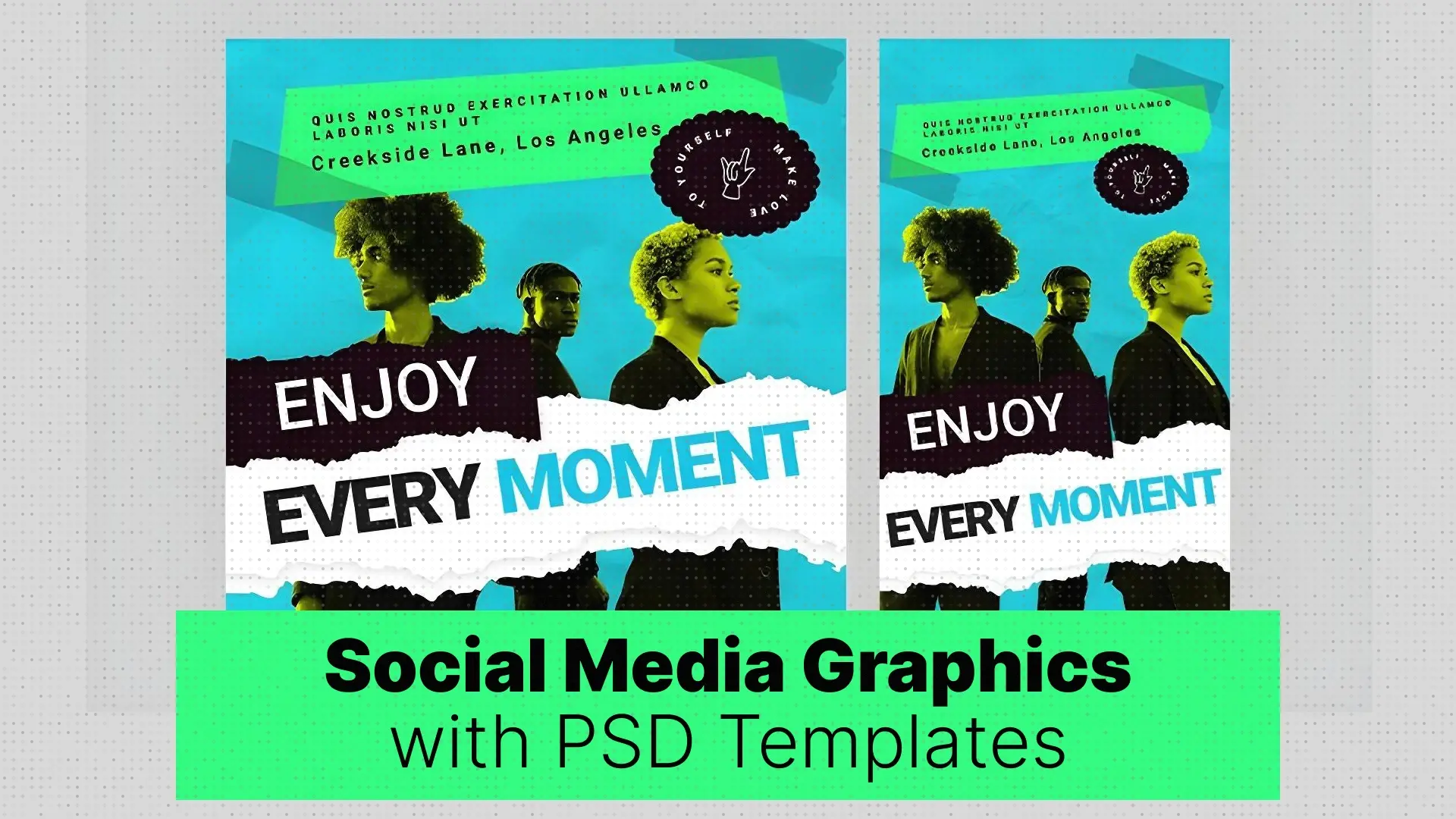
The good news? You don’t have to go it alone. In this guide, we’ll show you how to create stunning social media graphics in minutes using professionally designed Photoshop templates from Pixflow’s Social Media Graphic Templates. Say goodbye to creative burnout — and hello to effortless, engaging content.



Why Your Social Media Visuals Are Your Most Powerful Asset
Here’s what great social media visuals can do:
- Grab Instant Attention: First impressions happen in milliseconds. Eye-catching visuals stop users mid-scroll.
- Build Brand Recognition: A consistent visual identity makes your brand recognizable and trustworthy.
- Drive Engagement: Better visuals = more likes, shares, comments, and saves.
- Boost Conversions: Strong Facebook ad graphics and story designs lead to higher click-through rates.
- Tell a Story: Great visuals communicate messages faster and more emotionally than text alone.
- Elevate Your Brand: A polished, professional look increases your perceived value.
Whether you’re running a product launch, a seasonal campaign, or just posting daily updates, your visuals are the frontline of your brand’s communication.
The Manual Design Grind vs. The Instant Visual Impact
- Start from a blank Photoshop canvas
- Research current design trends
- Select fonts, choose color palettes, and source royalty-free images
- Design multiple versions for Instagram posts, stories, Facebook banners, etc.
- Test, tweak, export, resize, repeat…
It’s exhausting. Not to mention, it takes hours for each post — and the consistency often suffers.
Now imagine having access to a library of pre-designed, trend-proof layouts made by professionals. Templates you can drag, drop, and customize in minutes.
That’s what Pixflow offers.
Pixflow Templates: Your Secret Weapon for Social Media Domination
🎯 Pixflow’s Photoshop Social Media Graphic Templates.
These aren’t generic layouts. They’re bold, modern, and designed specifically for posts, stories, banners, and ads on all major platforms.
Here’s why creators and businesses love them:
- ✅ Pre-Designed & Trend-Proof: No guesswork. Get layouts that match current social trends.
- ✅ Drag-and-Drop Simplicity: Swap in your images, text, and logos in seconds.
- ✅ Platform-Ready: Sizes optimized for Instagram, Facebook, Pinterest, and YouTube.
- ✅ Fully Customizable: Change fonts, colors, and effects to match your brand.
- ✅ Consistent Branding: Maintain a unified style across your feed and campaigns.
- ✅ Beginner-Friendly: You don’t need to be a Photoshop pro to use them.
- ✅ Diverse Styles: From minimalist to vibrant, there’s something for every niche.
With Pixflow’s professional social media kits, you’re getting a shortcut to great design — without sacrificing quality.
Your Quick Guide: Creating Scroll-Stopping Social Media Graphics with Pixflow Templates
Step 1: Define Your Message & Choose a Template (3 minutes)
Decide what you want to communicate — a product launch, a flash sale, a quote, an event?
Then browse Pixflow’s Social Media Templates. Look for something that fits your tone — elegant, bold, modern, or playful.
Step 2: Download & Open in Photoshop (1 minute)
Download your chosen .PSD file and open it in Photoshop. All layers will be neatly organized.
Step 3: Insert Your Content (5–10 minutes)
Use Smart Object layers to insert images or video clips.
Edit the text with your headline, subhead, and CTA.
Step 4: Customize Branding & Colors (3–5 minutes)
Change background colors, update fonts, and add your logo. Many templates include global color controls for faster editing.
Step 5: Export for Web (1 minute)
Use “Export As” or “Save for Web” to get optimized graphics for Instagram, Facebook, or Stories. You’re done!
Just like that, you’ve designed an eye-catching Instagram post quickly with Photoshop — without starting from scratch.
Beyond the Single Post: The Strategic Impact of Templated Social Media Design
- Save Time: Spend less time designing, and more time focusing on content planning.
- Stay Consistent: Build a recognizable and cohesive brand across all channels.
- Improve ROI: Create Facebook ad banners fast that convert better with cleaner design.
- Look Like a Pro: Achieve an agency-level look, even if you’re a team of one.
- React Fast: Easily launch trend-based or time-sensitive posts with minimal effort.
- Empower Everyone: Even team members without design experience can use customizable social media templates in Photoshop effectively.
With the right templates, you can operate like a well-oiled marketing machine.
Conclusion
With Pixflow’s professional Photoshop branding templates, you can create stunning social media graphics posts, stories, and ads in minutes — without sacrificing quality or consistency.
Whether you’re a freelancer, small business owner, or content creator, the tools are here to help you stand out and connect more effectively.
Ready to transform your social media presence and capture endless scrolls?
Stop wasting time on repetitive design! Explore Pixflow’s incredible collection of Adobe Photoshop Social Media Graphic Templates today and start creating stunning visuals that get noticed!
Disclaimer : If you buy something through our links, we may earn an affiliate commission or have a sponsored relationship with the brand, at no cost to you. We recommend only products we genuinely like. Thank you so much.