Efficient Video Editing Workflow: A Step-by-Step Process to Elevate Your Post-Production

- Key Takeaways
- The Essence of Video Editing Workflow
- Organizing and Managing Raw Footage
- Using Proxy Files for Smoother High-Resolution Editing
- Key Stages in the Editing Process
- Exporting and Delivering Your Final Video
- Collaborative Video Editing
- Streamlining the Editing Process
- Navigating Common Challenges
Key Takeaways
- The video editing workflow is a structured process comprised of four distinct stages for delivering captivating content.
- Customizing your workflow through the use of software and hardware upgrades can improve efficiency and optimize performance.
- Navigating common challenges in video editing, such as managing large file sizes or juggling multiple projects, can be achieved with tools and project management strategies and services.
The Essence of Video Editing Workflow

Basic Video Editing Workflow
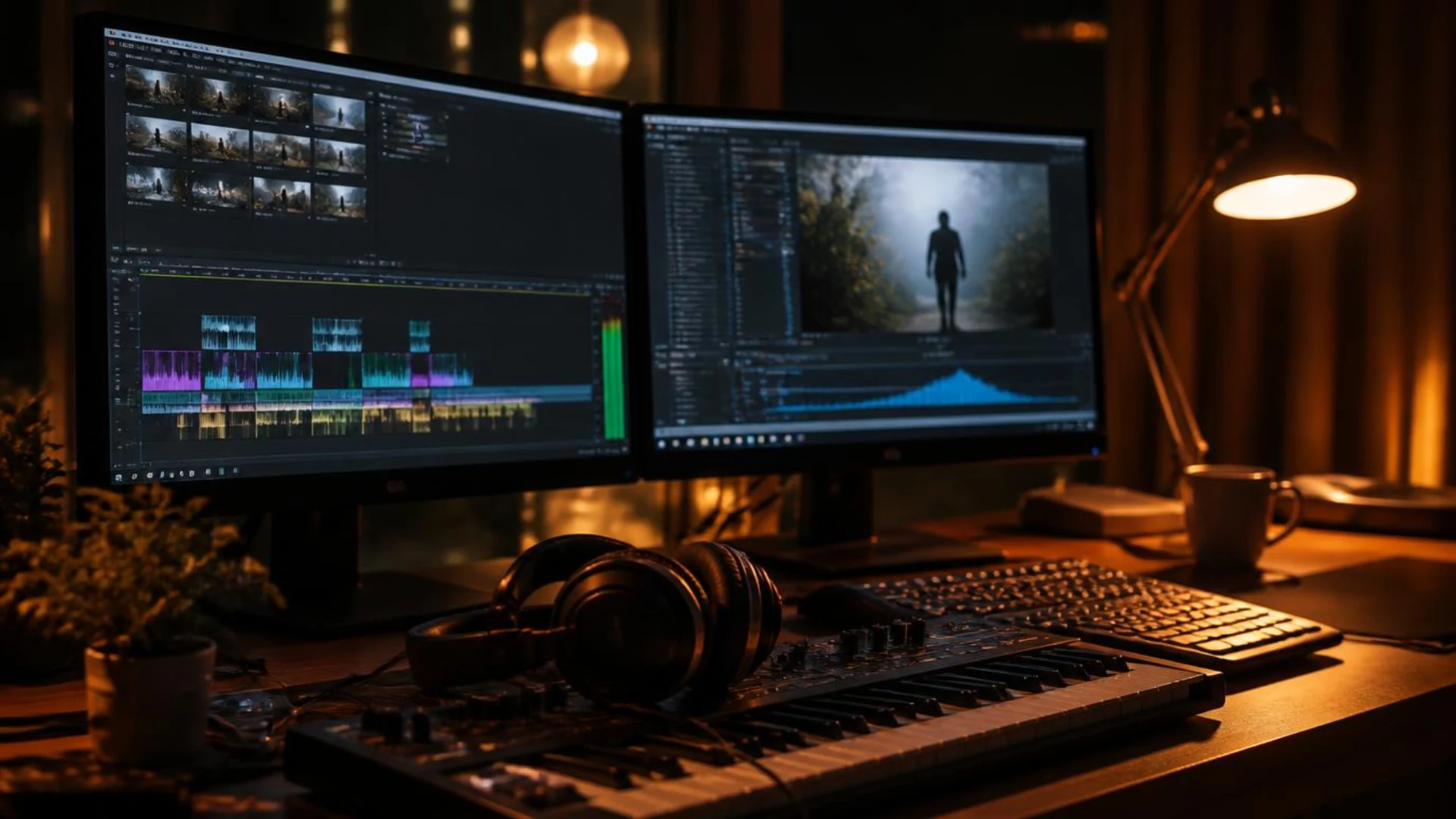
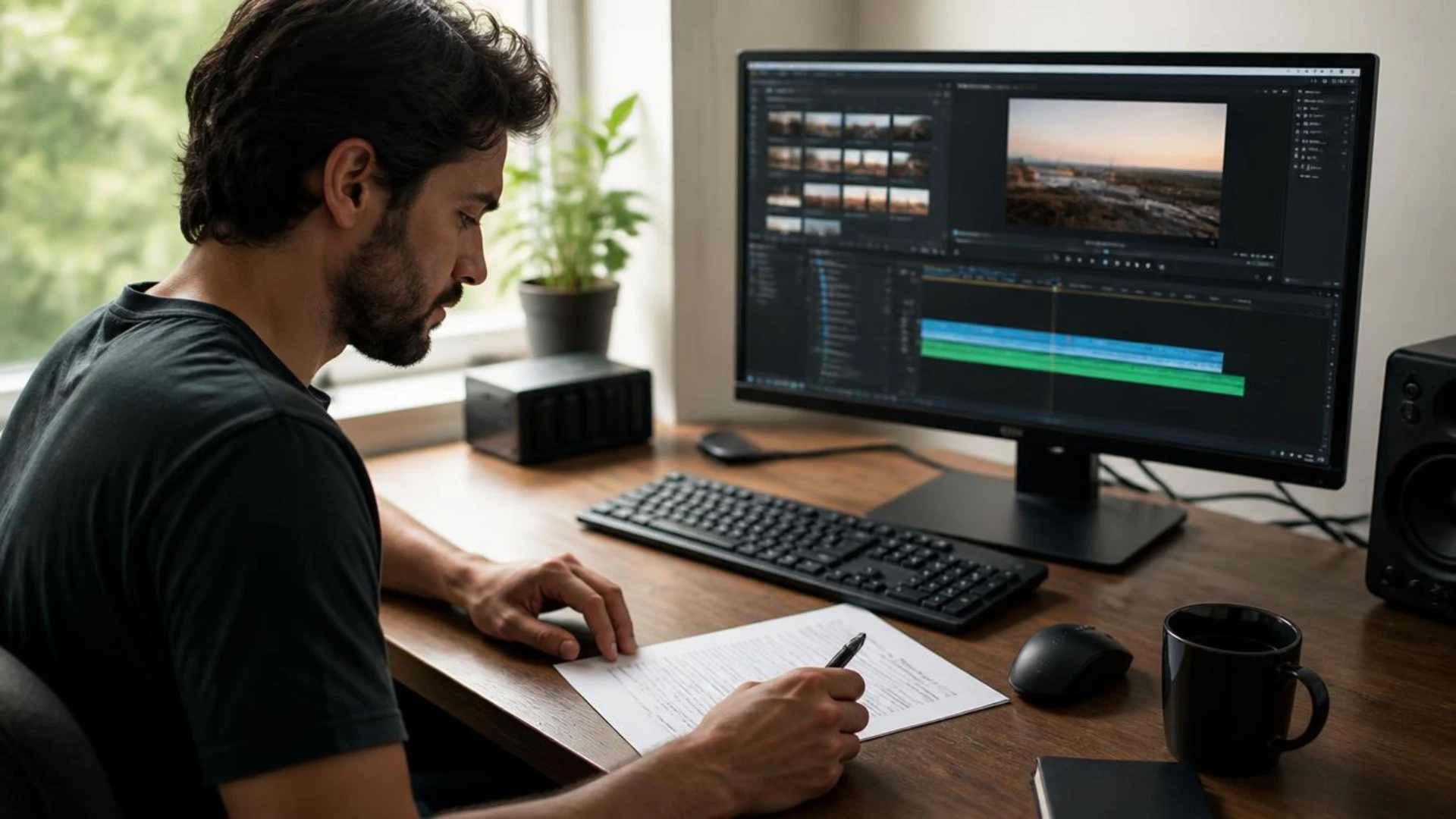
Starting a basic video editing workflow starts with importing camera raw clips into an editing software like Adobe Premiere Pro, After Effects, or Blackmagic Davinci Resolve. These files can either be RAW or LOG files like RAW, DNG, ARRI RAW, or R3D, or typical compressed video files like MP4, MOV, and AVI. Audio files can also be recorded separately in WAV and MP3 formats. This creates the foundation for your project. The process then moves on to creating a rough cut by assembling these elements together. Refining it by focusing on individual frames or transitions, applying visual effects to add interest, as well as color correction adjustments. To ensure consistency in projects, you’ll need to adapt this structure accordingly. With an appropriate editing workflow established, you can be sure that your progress is efficient and effective each time you craft a video edit or finished product.
Customizing Your Workflow
For optimization of your video editing workflow, you can try different techniques and detect useful methods that may be applied consistently. Video editing software such as Adobe Premiere Pro, DaVinci Resolve, Avid Media Composer, or Wondershare Filmora all provide a personalized experience adapted to user needs and tastes.
Upgrading the hardware could also considerably influence the outcome of the project. Some suggestions include updating CPU performance, increasing RAM capacity, and improving graphics cards. Boosting storage speed can also greatly impact your workflow, providing faster rendering, export, and playback during editing projects. All this is going to lead to improved results when dealing with video production processes in general, but especially editing workflow.
Build Your Workstation in the Right Order
Customizing your workflow isn’t only about software — your physical setup has a direct impact on how fast and comfortably you edit. If you’re upgrading on a budget, spend in this order of priority:
- Chair — Long sessions demand proper lumbar support and adjustability. A bad chair creates fatigue that no software tweak can fix.
- Monitor placement — Center your main display with your keyboard (not the desk). Keep the top third of the screen at eye level and position dual monitors close enough that you’re not constantly turning your head. Correct placement reduces neck and eye strain before you spend a dollar on new screens.
- Input devices — A comfortable keyboard angle and minimal mouse travel save your wrists over thousands of edits. Commit to 10 core shortcuts first, then expand.
- Storage strategy — Separate your drives by role: main drive for OS, apps, and current project files; scratch drive for cache, previews, and temp files; storage drive for archives, backups, and completed projects. When media and cache compete on the same drive, playback stutters and exports slow down.
- Audio monitoring — Add speakers for overall balance during long sessions and closed-back headphones for detail checks (clicks, hum, plosives) before final export.
This order ensures the upgrades you feel every day come first, and the ones that protect your work come next.
Organizing and Managing Raw Footage

Cloud storage systems such as Dropbox or Postpace enable post-production teams’ better access in terms of centralized file management and back-ups, ensuring an efficient assembling towards achieving that final product with premium quality results.
For remote teams accessing shared cloud storage and studio servers across different locations, using a dedicated IP VPN adds a consistent and secure layer of protection, ensuring only authorized editors can access sensitive project files without the risk of IP-based access blocks or data exposure. Freelance editors testing access from different networks sometimes start with a free proxy before committing to a dedicated VPN setup.
File Organization Best Practices
Good file organization is vital for a successful video editing experience. Employing standard naming protocols and file arrangements can help editors quickly find clips within their project. Naming by scene, sequence, and shot will make searching easier, while keeping the date (YYYY-MM-DD) should be adhered to regarding audio/video documents. To keep consistency between team members in how the files are organized, it’s advised that supervisors provide an outline with technical details, thus enabling more time spent on creativity rather than struggling through organizational aspects of the assignment.
Cloud Storage Solutions
Cloud storage solutions, such as Dropbox and Postpace, enable post-production teams to easily access RAW footage for their video editing workflows. For instance, Postpace allows secure transfers into cloud storage while seamlessly giving creators a unique set of tools for review, feedback, and collaboration during the creative process. Similarly, Dropbox files can be instantly stored, shared, and collaborated on in real time.
These services provide an advantageous process when it comes to managing project materials, allowing video editors to focus more on improving creative aspects rather than dealing with technical tasks related to transferring content securely or organizing assets intelligently.
Using Proxy Files for Smoother High-Resolution Editing
If you are working with 4K, 6K, or 8K footage, you have likely experienced sluggish playback, dropped frames, and painfully slow scrubbing in your timeline. The problem is not your edit; it is your system struggling to decode massive files in real time. Proxy files solve this by letting you edit with lightweight, lower-resolution copies of your footage while preserving the full-resolution originals for final export.
A proxy is a smaller, compressed version of your original clip. Your NLE swaps in these lighter files during editing so that playback stays smooth, scrubbing feels responsive, and effects preview without lag. When you export, the software automatically switches back to the full-resolution source files, so your final output is pixel-perfect.
How to Create Proxy Files in Adobe Premiere Pro
- Select your clips in the Project panel.
- Right-click and navigate to Proxy > Create Proxies.
- Choose a proxy preset (ProRes Proxy or GoPro CineForm are common choices for a good balance between quality and file size).
- Click OK. Premiere Pro sends the clips to Adobe Media Encoder for background processing.
- Once rendering finishes, toggle proxies on or off using the Toggle Proxies button in the Program Monitor toolbar. If you do not see the button, click the “+” icon on the toolbar and drag it in.
With proxies enabled, your timeline uses the lightweight copies. Toggle them off at any time to preview full-resolution quality. The switch is instant and does not affect your edit or export.
Proxy Workflows in DaVinci Resolve
DaVinci Resolve uses a similar concept called Optimized Media. Navigate to Playback > Optimized Media and select Generate Optimized Media for your clips. Resolve creates intermediate files at a resolution and codec you define under Project Settings > Master Settings > Optimized Media Resolution. Like Premiere Pro proxies, Resolve automatically uses full-resolution files during final delivery.
Proxy Best Practices for a Clean Workflow
- Choose the right codec and resolution. ProRes Proxy, DNxHR LB, or H.264 at 1/4 or 1/2 resolution are popular choices. The goal is a file small enough for smooth playback but clean enough to judge framing and composition accurately.
- Store proxies on a separate drive. Keep proxy files on a dedicated scratch drive (or SSD) so they do not compete with your original media for read speed. This is especially important on systems with a single internal drive.
- Create proxies before you start editing. Batch-generate proxies for all footage right after import. Generating them mid-edit interrupts your creative flow and forces you to wait for background rendering to catch up.
- Always verify your final export. After exporting, spot-check the output at full resolution to confirm the NLE correctly linked back to the original high-resolution files. A quick scrub through the exported file catches any proxy artifacts before delivery.
- Delete proxies when the project wraps. Proxy files can consume significant disk space over time. Once the project is delivered and archived, remove the proxy folder to reclaim storage. </aside>
Proxy editing is one of the most effective performance optimizations available in any modern NLE. It costs nothing, requires minimal setup, and makes the difference between a frustrating, laggy edit session and a responsive, creative one, especially on laptops or mid-range workstations handling high-resolution footage. For teams handling large-scale video projects collaboratively, pairing local performance optimizations with cloud storage on a dedicated VPS ensures footage stays accessible and backed up without bottlenecking shared workflows.
Crafting the Perfect Edit: Key Stages in the Editing Process

At first, you have to shape your sequence during the rough cutting period before carrying out any meaningful alterations or visuals. In this way, it’s possible to develop an understanding as well as give form for future edits while preparing material footage filmed previously. Next is the refinement phase known as “fine cutting” which allows single frame alteration plus improved transition shots between sequences, leading up to achieving ‘picture lock’ within Final Cut, ensuring no major changes without prior notice from here on forward unless necessary cases arise. By passing through these key stages, users can attain ideal output when crafting their ultimate edited version all together, resulting in stronger compositions overall and escalating even more technical capacities derived by its Post Production possibilities already present beforehand.
Rough Cut
The production of a rough cut requires the use of your preferred NLE (non-linear editing system) to organize your footage, allowing easier access when it comes time for editing. Clips can be imported into the NLE program, from which they can then be marked, arranged, and edited in sequences using sub-clips as an aid to pre-editing pieces of film. The timeline plays a key role during this stage since its purpose is to arrange scenes and sequences so that one may observe both how far along the project has progressed as well as its tempo. Through assembling their clips effectively at this point (coupled with organizing all raw material correctly), editors are sure to find themselves off on solid footing heading down their creative journey towards completion.
Fine Cut
During the editing process, attention to detail is essential when it comes to fine-cutting. This includes emphasizing and reinforcing the existing structures of the video in order to create a more professional look overall. When performing this type of edit, one should consider how each frame impacts emotion or story as well as manipulate the footage accordingly with accurate proportions and rhythms involved.
Transitions play an integral part in linking up parts within your final edited project by creating smooth scenes throughout while still engaging viewers alike at all times, achieved via various types such as cutting between shots, fades, dissolves, or wipes.
When refining any kind of video, you will be taking into consideration specific techniques during its progress from rough cut onwards so that everything looks polished at completion, making sure they match the tone and story requirements too, which have been laid out previously if necessary!
Think Like a Storyteller, Not Just a Technician
The fine cut is where your edit stops being an assembly and starts becoming a story. Beyond frame-accurate trims and smooth transitions, ask yourself these narrative design questions at every cut point:
- Precision pacing: Does each scene stay exactly long enough to land its point — and not a second longer? Holding a shot too long kills momentum; cutting too early robs the viewer of an emotional payoff.
- Meaningful transitions: Every fade, dissolve, or hard cut should advance the narrative, not just connect two clips. A dissolve can signal the passage of time; a smash cut can create shock or urgency. Choose transitions that serve the story, not ones that simply look polished.
- Emotional beats: Map out where tension should build, where the viewer needs a breath, and where the resolution lands. A well-paced fine cut guides the audience through rising action, climax, and resolution — even in projects with no dialogue at all.
- Rhythm the viewer can feel: Great edits have an internal rhythm, almost musical. Vary your shot lengths deliberately: quick cuts for energy, longer holds for weight. When the pacing feels natural, viewers stay engaged without knowing why.
If your fine cut feels technically clean but somehow flat, the missing ingredient is almost always narrative intention. Let the story drive every trim.
Final Cut
The final cut stage is when your completed video comes into being. Here, you’ll tie up the edit by incorporating visual effects and audio elements, as well as color grading and correction. As soon as “picture lock” has been achieved, meaning no more adjustments will be necessary unless it’s absolutely essential, post-production work can concentrate on perfecting the visual and acoustic components of the project.
This also includes adding titles, designs, and other aspects that increase your footage’s impact while effectively displaying what needs to be relayed in the message form. By following these stages meticulously during the editing process with special attention paid to details, a slick finished product that stands out from others can now be created!
A Practical Color Grading Workflow for the Final Cut Stage
Color grading is one of the most impactful steps in your final cut, yet many editors skip a structured approach. Follow this general workflow for consistent, professional results:
- Start with scopes, not your eyes. Open your editor’s histogram or waveform monitor before touching any sliders. Scopes give you a mathematically accurate read of luminance and color — so your corrections hold up on any screen, regardless of your monitor’s calibration.
- Basic correction first. Adjust contrast by pushing highlights up and pulling shadows down. Manage exposure only when truly needed (over- or underexposed footage). Add a touch of saturation to taste. This step alone transforms flat or LOG-style footage into a workable image.
- Isolate and refine with secondary color. Use HSL or hue-based qualifiers to target specific tonal ranges — for example, warming skin tones (typically in the red-orange range) without shifting the rest of the frame. Small, targeted lifts here can make a huge visual difference.
- Apply creative adjustments. Dial in sharpening sparingly (over-sharpening is a common mistake) and add vibrance to boost muted colors without clipping already-saturated areas.
- Shape the mood with curves. Use curves to fine-tune the relationship between highlights and shadows. The top of the curve controls brights, the bottom controls darks, and the midpoint sets overall contrast — giving you precise tonal control.
- Finish with color wheels. Use the three-way color wheels (shadows, midtones, highlights) primarily for final luminance balancing — lower midtones and shadows slightly while lifting highlights to add depth and dimension to the image.
This order — scopes → basic correction → secondary isolation → creative touches → curves → color wheels — works in any major NLE and keeps your grade structured, repeatable, and non-destructive.
Sound Design Awareness: The Audio Side of Your Final Cut
Color grading handles the visual polish — but the final cut is equally about audio finishing. A few core sound design concepts will elevate your mix from passable to professional:
- Think in layers, not single tracks. Professional sound design stacks multiple elements: a bass-heavy base layer for weight, a mid layer for body and presence, high-frequency detail for texture, subtle sweeteners for character, and an environment layer (room tone or reverb) that glues everything together. Even a simple scene benefits from two or three deliberate layers rather than one flat audio clip.
- Sync hard effects frame-accurately; stagger soft effects. Impacts, doors, and footsteps must land on the exact frame — the audience notices instantly when they don’t. Atmospheric or emotional sounds (wind swells, tonal drones) can lead or lag by a few frames to build anticipation or soften a transition. When stacking layers, offset them by 5–20 ms to avoid phase cancellation that thins out your mix.
- Let dialogue sit on top — always. Set your dialogue levels first, then build effects and music underneath. Use automation to ride effect levels around speech so nothing competes. Apply a high-pass filter to dialogue to clear low-end rumble, and boost the 2–5 kHz presence range on key sound effects so they cut through without needing higher volume.
- Separate frequencies, don’t stack them. Give each layer its own frequency space through EQ: bass effects own the low end, dialogue owns the midrange, detail and ambience live in the highs. High-pass everything that doesn’t need deep bass. When each element occupies its own sonic lane, the full mix sounds clear and dimensional instead of muddy.
You don’t need to be a dedicated sound designer — but understanding layering, timing, and frequency separation turns “audio elements” from an afterthought into a genuine finishing discipline alongside your color grade.
Exporting and Delivering Your Final Video
Once your final cut is locked — color graded, sound-designed, and fully polished — the last step in the editing workflow is exporting and delivering your project in the right formats for every destination. This stage is often rushed or treated as an afterthought, but getting delivery wrong can undermine all the creative work that came before it. A structured export workflow ensures your video looks and sounds exactly as intended, no matter where it plays.
Platform-Specific Export Settings
Different platforms have different technical requirements, and exporting a single “one-size-fits-all” file rarely produces the best results:
- YouTube: H.264 or H.265 codec, 16:9 (1920×1080 or 3840×2160), bitrate 15–50 Mbps, AAC audio at 48 kHz.
- Instagram Feed: H.264, 1:1 (1080×1080) or 4:5 (1080×1350), under 60 seconds, AAC stereo audio.
- Instagram Reels / TikTok: H.264, 9:16 vertical (1080×1920), 15–90 seconds, high bitrate to survive platform re-compression. Many creators also use quick online tools to crop a video into vertical format before publishing across social platforms.
- TV / Broadcast: ProRes 422 HQ or DNxHR HQ in MOV, broadcast-safe levels (16–235 IRE), embedded PCM audio at 48 kHz / 24-bit.
- Web / General: H.264 in MP4 — the most universally compatible format for websites, presentations, and email delivery.
Most NLEs let you save these as export presets so you can apply them with one click on future projects.
Creating Multiple Versions
Professional delivery almost always requires more than one version of your final video:
- Aspect ratio versions: Export a 16:9 master, then reframe for 9:16 (vertical), 1:1 (square), and 4:5 (portrait) using auto-reframe or manual repositioning — so your content fills the screen on every platform instead of appearing letterboxed.
- Length variants: Create a full-length cut alongside shorter edits (30-second, 15-second, and 6-second bumper versions) for paid ad placements and social stories. Each cut should stand on its own narratively — don’t just trim the ending off a longer version.
- A/B testing versions: Export alternate versions with different intros, calls to action, or thumbnail moments. Even small changes can significantly impact click-through and completion rates. Label these clearly (e.g., ProjectName_v1A_YouTube_16×9.mp4) so you can track performance back to the exact variant.
Delivery File Naming and Organization
A clean naming convention prevents confusion when handing off files:
- Use a consistent pattern: ProjectName_Version_Platform_AspectRatio.extension (e.g., BrandLaunch_Final_YouTube_16×9.mp4).
- Keep a dedicated “Deliverables” folder in your project structure, separate from working files and renders.
- Include a brief delivery note or README listing each file, its intended platform, resolution, codec, and duration. This small step saves significant back-and-forth with anyone receiving the files.
By treating export and delivery as a deliberate, structured stage — not a last-minute scramble — you ensure your polished edit reaches every screen exactly as you intended.
Collaborative Video Editing: Working with a Post-Production Team

Communication Tools
Project planning, video editing, and feedback in a collaborative environment are made easier with the use of effective communication tools.
Post-production teams often rely on clear visual communication to stay aligned, especially when multiple editors or stakeholders are involved. Using AI presentations can help break down editing workflows, explain sequences, or train team members in a more structured and engaging way—making it easier for everyone to understand the process and contribute effectively.
Postpace and Evercast are two great options that can streamline your workflow processes. Live collaboration, project management, video call and streaming, and content organization are all easily accessible via Postpace. You will get things done faster!
Evercast has great functionalities to enhance post-production, such as video chatting for instantaneous feedback during recordings or annotating both pre-recorded material and even online streams, which guarantees clear communications within the team leading to an optimal final result in the form of high-quality videos at endgame stages.
Collaboration Best Practices for Post-Production Teams
Great tools alone don’t guarantee a smooth edit. Pair them with strong collaboration habits: give specific, constructive feedback tied to timecodes rather than vague notes. Approve milestones promptly — delays in sign-offs ripple through the entire post-production timeline. Establish regular check-ins (daily standups or weekly reviews) so the team stays aligned on creative direction without waiting for scattered email threads. Use a shared project tracker to log revision rounds, deadlines, and deliverable status in one place. When everyone follows a clear feedback loop, the creative vision stays consistent from rough cut to final delivery.
Remote Collaboration Platforms
Postpace and Dropbox Replay are two efficient remote collaboration platforms that can improve your video editing workflow. Featuring a user-friendly interface, Dropbox Replay facilitates real-time content review with ease while streamlining the entire process for increased productivity. With its specialized feature set, Postpace enables multiple reviewers to leave frame-specific comments in one central location as well as view existing annotations from other people, eliminating duplicate feedback entirely. By leveraging these powerful tools effectively, you will be able to get great results out of your video edits at a faster rate!
Streamlining the Editing Process with Advanced Techniques and Tools

Keyboard shortcuts permit executing actions in no time with minimal effort, whereas automation instruments let one finish mundane routines seamlessly, so they are free to focus on developing their project artistically. Incorporating these methods into your workflow leads not only to better-quality videos but also to an efficient approach to creating them!
Keyboard Shortcuts
When it comes to video editing, keyboard shortcuts can greatly improve efficiency and productivity. Memorizing them enables editors to quickly complete tasks without using a mouse or browsing menus. Saving time and boosting work output. To configure the desired shortcuts in Adobe Premiere Pro or Final Cut Pro, simply go into their keyboard shortcut menu and assign each keystroke according to the command needed. Utilizing this method while managing your creative project allows you to focus on other elements of the process rather than navigating around software menus with a mouse cursor.
AI-Powered Automation Tools Reshaping the Editing Workflow
- Scene detection and auto-assembly. AI can scan raw footage, identify individual scenes based on visual and audio cues, and split clips at the correct cut points automatically. Some NLEs also offer rough-cut assembly features that analyze transcripts or shot composition to build an initial timeline, giving you a starting structure instead of a blank sequence.
- Auto-enhancement and intelligent correction. AI-driven auto-enhancement tools analyze each frame and apply exposure, white balance, and noise reduction adjustments in real time. These tools are especially useful for footage shot in mixed lighting conditions or with consumer cameras where manual correction of every clip would be impractical.
- Smart object and face tracking. Traditional motion tracking requires manually placing track points and correcting drift. AI-powered tracking locks onto faces, objects, or regions of interest and follows them through complex motion, occlusion, and even camera shake. This accelerates tasks like applying blurs to faces for privacy, attaching graphics to moving objects, or isolating subjects for targeted color grading.
- Generative effects and content-aware fill. AI can now generate visual elements that did not exist in the original footage. Content-aware fill removes unwanted objects from scenes by intelligently reconstructing the background. Generative tools can extend frames, create smooth slow-motion from standard frame rates, or even synthesize entirely new visual elements based on surrounding context. Platforms like Runway extend this further with in-context video editing (Aleph) and full text-to-video generation. Our Runway ML video editing tutorial shows the full workflow.
- AI voice synthesis and narration. Voice synthesis technology allows editors to generate professional-quality voiceover narration directly within their workflow. Instead of scheduling recording sessions, editors can produce narration from a text script, adjust tone and pacing, and iterate instantly. This is particularly valuable for explainer videos, product demos, and social media content where turnaround time matters more than a signature voice.
Integrating AI Tools Without Losing Creative Control
- Treat AI as a first draft, not a final decision. Let AI handle the initial pass (scene splits, rough color correction, tracking setup), then refine the results manually. This gives you speed without sacrificing the creative judgment that makes your edit distinctive.
- Audit AI output before committing. Auto-generated cuts, color adjustments, and tracked paths are not always accurate. Scrub through AI-processed sections at full resolution before locking anything. Catching errors early is far faster than fixing them after they propagate through your timeline.
- Use AI selectively, not universally. Not every clip or task benefits from automation. Apply AI tools where they save the most time (large batches of B-roll, repetitive corrections, privacy blurs across dozens of clips) and handle hero shots, key narrative moments, and nuanced grading by hand.
- Keep your project non-destructive. Apply AI-generated effects on adjustment layers or as non-destructive filters whenever possible. This lets you dial back or remove AI processing at any stage without rebuilding your edit from scratch.
The editors who benefit most from AI automation are not the ones who hand over creative decisions to algorithms. They are the ones who use AI to eliminate the repetitive, time-consuming grunt work so they can invest more energy into storytelling, pacing, and the creative choices that no tool can automate.
Handling Large Files
When it comes to video editing, managing large files is often a challenge. This can be resolved by making use of secure and efficient file transfer solutions such as Dropbox Transfer and Postpace. Using Dropbox. Transfer will give you the capacity to collect any size file within your account without worry, while employing Postpace ensures that data security protocols are kept in place throughout the process, plus no performance concerns or costly contracts for users!
By turning these tools into part of your workflow when handling big videos with ease now means you’re free to focus on other creative aspects for your project at hand rather than being weighed down. So ultimately allowing yourself complete flexibility in producing top-notch content.
Balancing Multiple Projects
Organizing multiple video editing assignments can be a difficult challenge. Crafting an individualized workflow coupled with project management resources makes managing the workload doable. Dividing projects by deadlines, criticality, and complexity allows you to allocate time effectively.
Utilization of preset templates and settings helps make the editing procedure simpler while saving effort on repeated tasks as well. These tools will support balancing many jobs while sustaining good-quality results across all videos being edited.
Conclusion
To achieve optimal results when producing videos, an efficient video editing workflow is essential. Through the utilization of organized techniques and advanced tools discussed in this blog post, it’s possible to focus on creating engaging films with a polished look while streamlining your entire process at the same time. By mastering the fundamentals of organization, collaboration, and knowledge about production capabilities, you can take your post-production skillset to the next level. More than ever before, making sure that all projects reach their full potential.
Disclaimer : If you buy something through our links, we may earn an affiliate commission or have a sponsored relationship with the brand, at no cost to you. We recommend only products we genuinely like. Thank you so much.
Blog Label:



Write for us
Publish a Guest Post on Pixflow
Pixflow welcomes guest posts from brands, agencies, and fellow creators who want to contribute genuinely useful content.
Fill the Form ✏