How To Export Videos For Instagram In Adobe Premiere Pro
Instagram, like it or not, has turned into one of the biggest social media platforms out there. Almost everybody who is somebody has an account and anybody who wants to become somebody is trying to grow there!
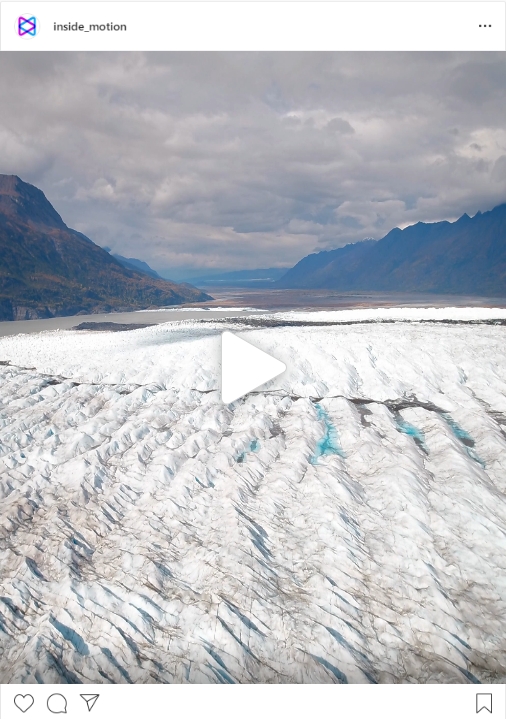
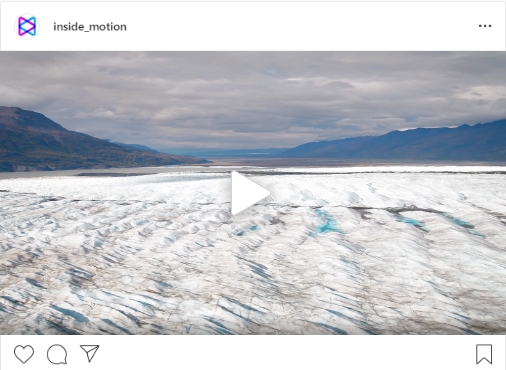
As you already know, Instagram insists mostly on scrolling down. Since you generally scroll in the portrait mode, aspect ratios should change based on that. As a result, Instagram, while still supports 16:9, has made 1.91:1, 1:1, and 4:5 as its preferred aspect ratios.
ALso, if you are interested in spicing up your Instagram posts, why not check out the Pixflow Instagram Templates Store and get inspired?


Weird Aspect Ratios!
That 1.91:1 is so close to being a 2:1, or as mobile manufacturers like to call it, 18:9, but no, they didn’t feel like giving us a number easy to remember or even pronounce. Add to that the fact that Instagram videos do not support 4k! The maximum supported square resolution on Instagram reels is 1080×1920. So all this makes Instagram is one hell of a platform to record and export videos for. Let’s see how it works.
Creating a Sequence, suggested sizes
The first thing we have to do is creating a new sequence. In premiere pro go to: File ~> New ~> Sequence.
Now you should go to the settings tab and in editing mode, choose Custom.
The time base will be 23.976. For the resolution, I highly suggest using 1080×1350 which is a 4:5 aspect ratio. This aspect ratio not only will fill the phone screen as much as possible but will also give us more real estate to work with.
Also, if you are trying to make content for your Insta Stories or Reels, you can go for 1080×1920 which is a rotated Full HD video with the aspect ratio of 9:16.
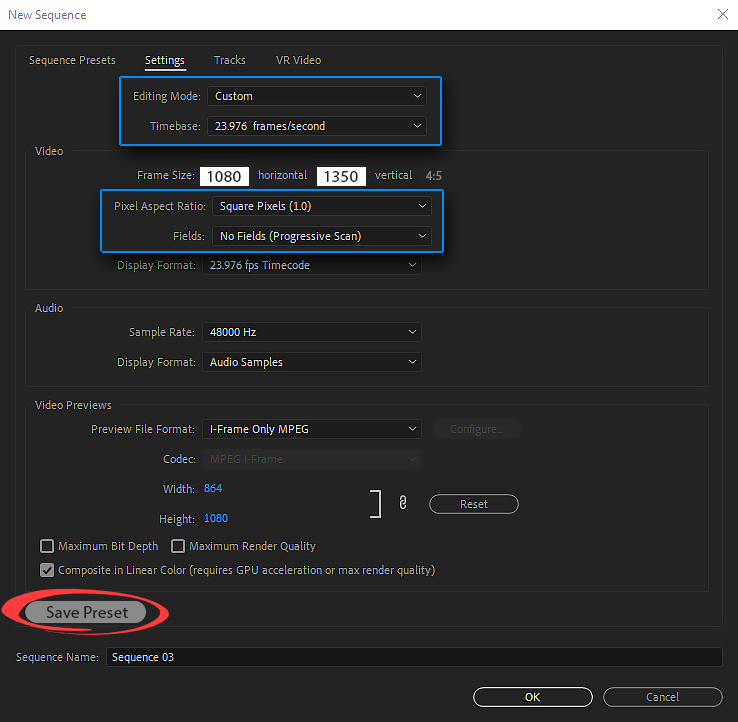
OK, Pixel will be square and For Fields, choose no fields. The rest information is fine and needs no change. For more convenience, you can save this as a preset for future use. Remember to give it a name that will be easy to search and remember in the future.
Let’s read our another blog about “Converting 24 fps Footage to 30 fps in Premiere Pro for YouTube“.
Skip the Manual Setup: Use Auto Reframe Sequence Instead
If you already have a finished horizontal (16:9) video and just need to resize it for Instagram, Premiere Pro has a built-in tool that can do the heavy lifting for you. The Auto Reframe Sequence feature uses AI-powered motion tracking to automatically reposition and crop your footage for any target aspect ratio, keeping your main subject in frame without manual scaling or keyframing.
How to use it:
- Right-click your existing sequence in the Project Panel and select Auto Reframe Sequence.
- Choose your target aspect ratio: Square (1:1) for Instagram feed posts, Vertical (9:16) for Stories and Reels, or 4:5 for portrait feed posts. You can also enter a custom ratio.
- Select a motion tracking preset: Slower Motion for talking-head or interview content, Default for most edits, or Faster Motion for action-heavy footage. This controls how aggressively the reframe tracks movement.
- Premiere Pro creates a new sequence at your chosen aspect ratio with the reframing already applied. Review the result and fine-tune any keyframes where the auto-tracking missed an important subject or cut off text overlays.
When Auto Reframe saves the most time:
- You need to deliver the same video in multiple Instagram formats (1:1 feed post, 4:5 portrait, 9:16 Reel) and do not want to manually rebuild each version.
- Your footage has a clear primary subject (a person, product, or text) that the AI tracker can follow reliably.
- You are repurposing existing horizontal YouTube or website content for Instagram without re-editing from scratch.
Auto Reframe is not a replacement for the manual sequence method described above. If your video has complex multi-subject compositions or precise text placement that needs to shift between formats, the manual approach gives you more control. But for straightforward reframes, especially batch conversions across multiple aspect ratios, it can cut your adaptation time from minutes to seconds per video.
Begin Editing!
-
You will see the aspect is automatically set to 4:5. You can now import a video into your timeline. If you are going to upload this video as a post on your Instagram page, then it can not be longer than 60 seconds.
-
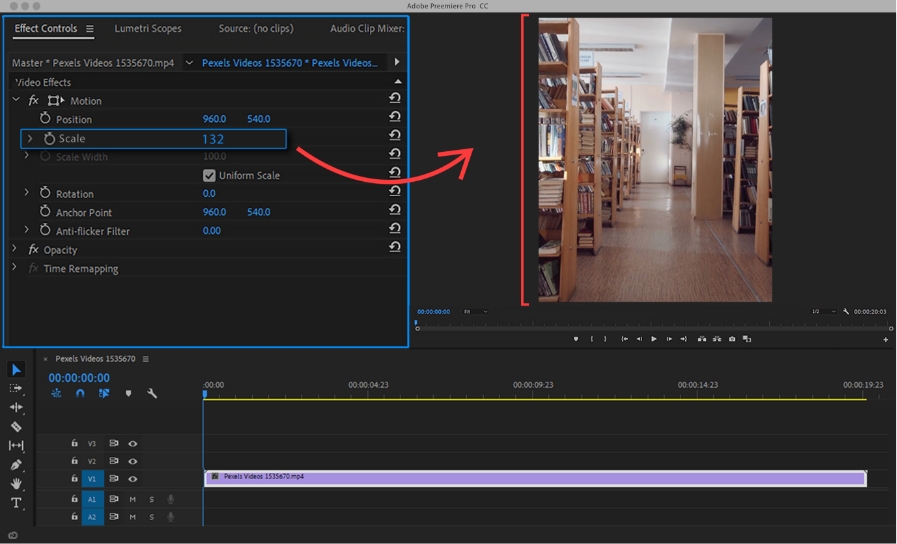
You will see there are black bars on the top and bottom of the screen. One way to solve this is by going to the Effects Control panel and changing the scale to fill in the black parts. That can work for videos where there is not much important stuff in the margins of the video.
-
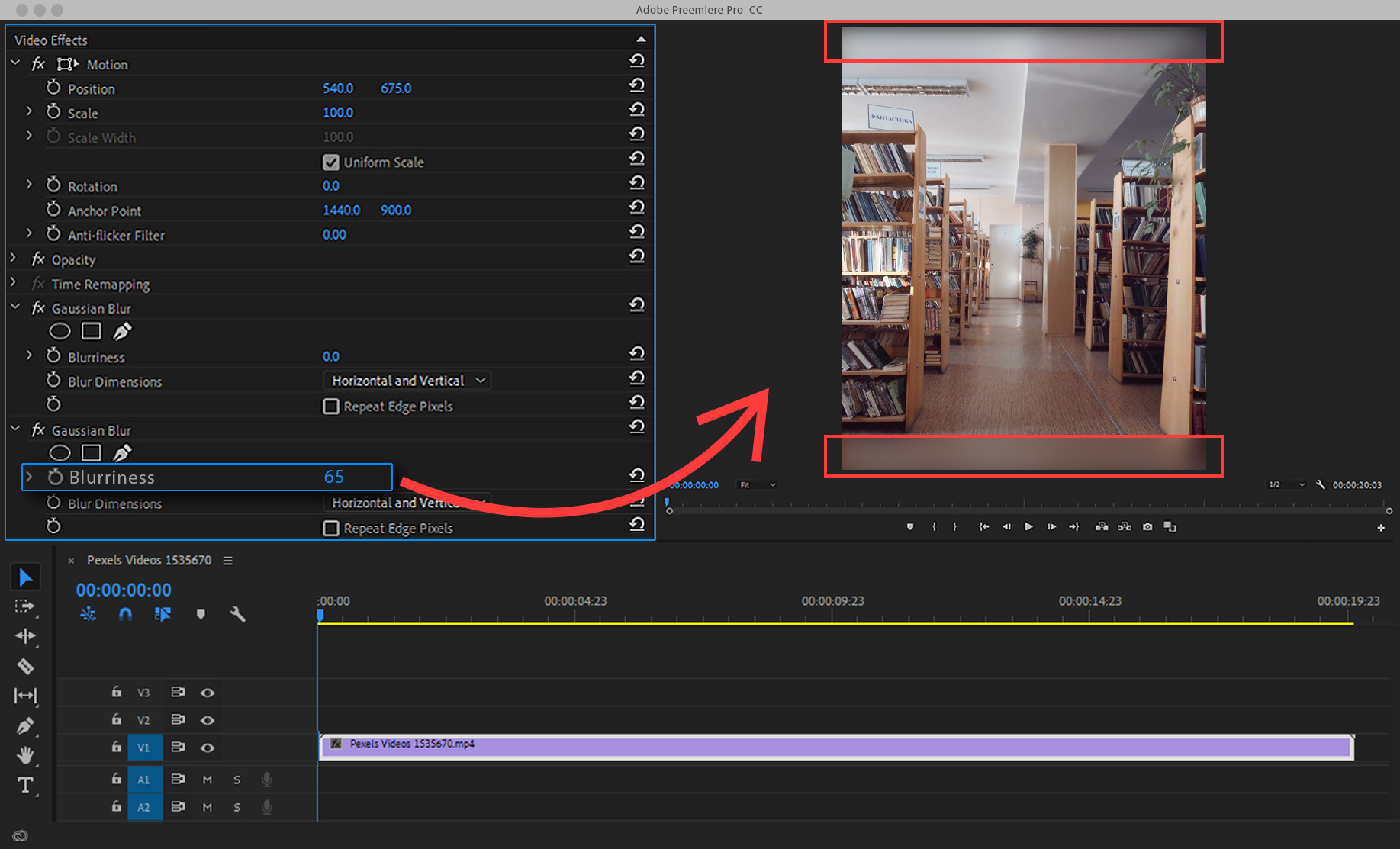
The method I prefer to use is like this. I am going to make a copy of the video in the timeline and stack them on top of each other.
-
I will choose the bottom one and scale it up inside the Effects Control to fill in the background.
-
I’m going to click on the Effects panel and choose Gaussian Blur.
As you must have guessed by now, I am creating a blurry duplicate in the background which is much cooler than black bars and cropped in videos. But again, it’s all about the taste and style of your video. Do what you feel is best for the content.
Social Media Video Tips
Hook viewers in the first 3 seconds — front-load motion or bold text. Keep posts under 60 seconds and Reels between 15–90 seconds for optimal reach. Maintain brand consistency across posts with recurring fonts, colors, and intro styles. Key resolutions: 1080×1080 (square posts), 1080×1920 (Stories/Reels), 1080×1350 (portrait feed posts).
Export Premiere pro for Instagram
-
When that’s all done, you should export your audio and video: File ~> Export ~> Media.
-
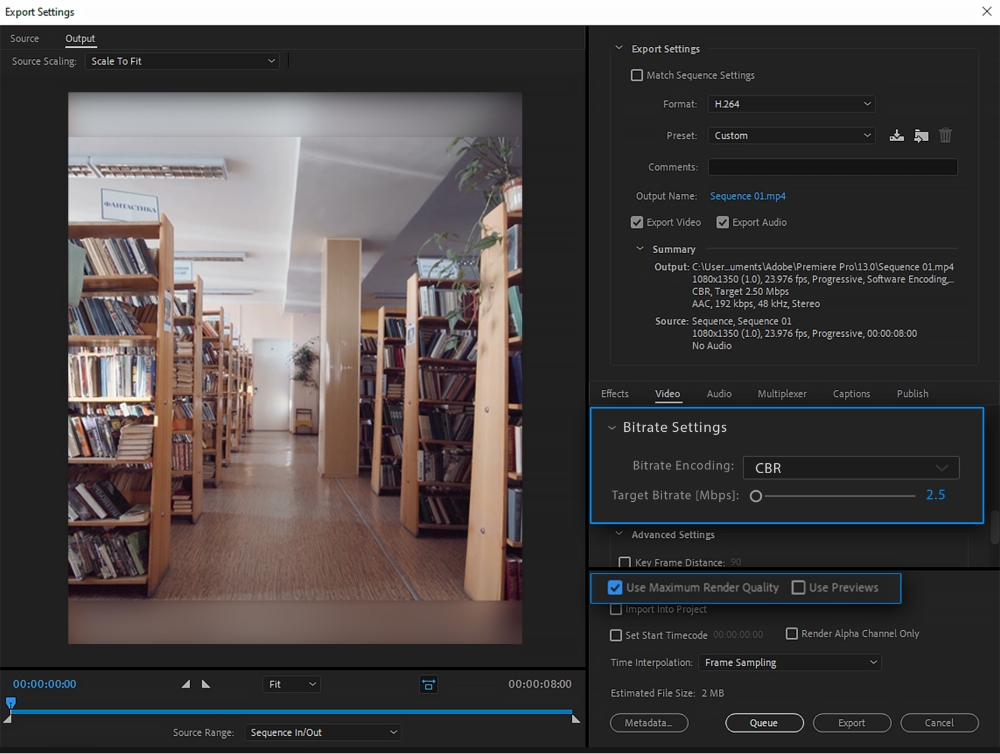
In the export settings, the format is going to be H.264 and for preset choose Match Source – High Bitrate.
-
All you need to change will be Bitrate Settings. A good bitrate for Instagram videos is around 2.5 up to 4. So choose CBR and set Target Bitrate to 2.5.
A thing to keep in mind is to keep an eye on Estimated File Size. The general consensus is that for a 60-sec video the size should be around 20MB. And the best option to tweak for reaching that number is Bitrate. Move it back and forth till you hit that 20 sweet spots. When you reach this perfect point, all that’s left is to click on Use Maximum Render Quality and either hit Export or Queue.
Why H.264 in MP4 and How to Choose the Right Bitrate
The export settings above recommend H.264 for a reason. Instagram requires video uploads in an MP4 container with H.264 encoding. If you upload a file in a different format (MOV with ProRes, AVI, MKV, or even raw camera files), Instagram’s servers will re-encode it to H.264 themselves, and that automatic re-compression almost always produces worse results than if you had exported in H.264 from the start. You lose control over the quality, and the extra compression pass can introduce visible artifacts, especially in areas with fine detail, gradients, or fast motion.
Choosing your bitrate: size vs quality
The 2.5-4 Mbps CBR range recommended above is a solid approach when file size is your priority, particularly for keeping a 60-second post under 20 MB. However, Instagram’s compression pipeline has evolved, and uploading at a higher bitrate can preserve noticeably more detail after Instagram re-encodes your video on their servers.
- 2.5-4 Mbps (size-optimized): Best when you need a small file, have limited upload bandwidth, or your content is relatively simple (text on solid backgrounds, minimal motion).
- 5-8 Mbps (quality-optimized): Better for footage with lots of movement, color gradients, or fine textures. Instagram will still re-compress it, but starting with more data gives the platform’s encoder more to work with, resulting in a cleaner final output.
If you are unsure, try VBR 1-pass at a target of 6 Mbps as a middle ground. The file will be slightly larger than CBR at 2.5, but the visual quality after Instagram’s processing will be noticeably better, especially on Reels where viewers often watch in full screen.
One more thing: never upload ProRes or other intermediate files directly. These large, editing-optimized formats (ProRes, DNxHD, CineForm) can be hundreds of megabytes for a short clip. Instagram will accept the upload but will aggressively compress the file down to its streaming bitrate, and the quality loss from that extreme compression is far worse than exporting a properly configured H.264 file from Premiere Pro in the first place.
Conclusion
If any of these exporting settings were confusing for you, you can check my youtube video and blog which talks about all the exporting settings in full detail.
For now, thank you for sticking with me to the end. Be sure to leave your comments down in the comments section. Until the next time, best of luck and bye!
Disclaimer : If you buy something through our links, we may earn an affiliate commission or have a sponsored relationship with the brand, at no cost to you. We recommend only products we genuinely like. Thank you so much.
Blog Label:

Write for us
Publish a Guest Post on Pixflow
Pixflow welcomes guest posts from brands, agencies, and fellow creators who want to contribute genuinely useful content.
Fill the Form ✏