How Annapolis Small Businesses Can Organize Digital Records Without Extra Software
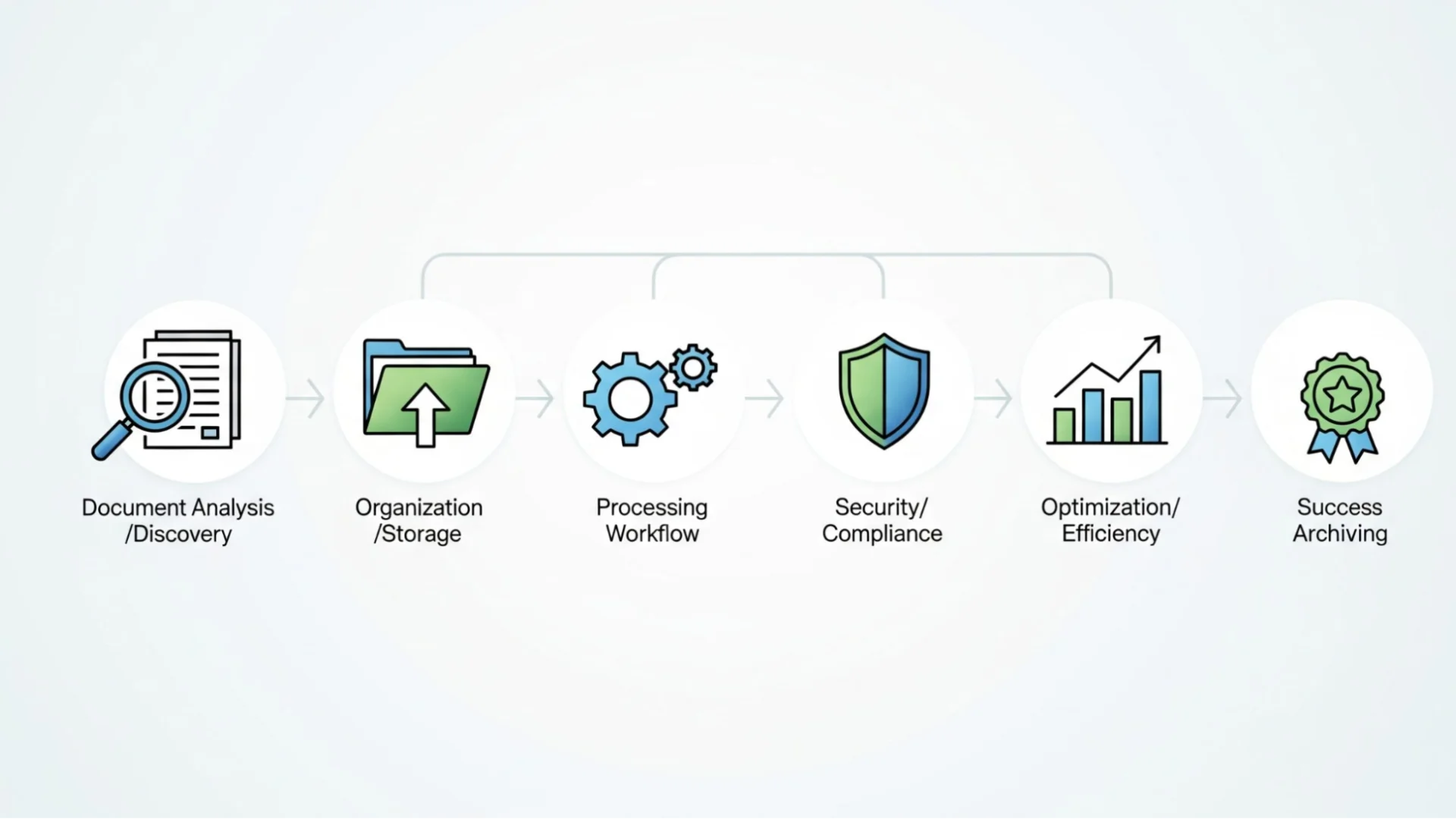
Annapolis shops, service firms, contractors, clinics, and local groups do not need more apps to fix this. They need a clear record system. With smart folder names, clean file habits, and simple email handling, a team can turn scattered digital paper into a neat, searchable archive.
Why Digital Records Get Messy Fast
Email causes the most trouble. Many key records start as messages: approvals, price quotes, delivery notes, service requests, and customer complaints. When those emails stay only in an inbox, they act like loose papers in a drawer. Staff can search for them, but they cannot always edit, label, or store them with the rest of a project file.
A simple fix is to turn important emails into regular documents when needed. For example, a business can convert EML to Word online and save the result in the same folder as the invoice, contract, or client notes. This keeps the record close to the work it supports.
The goal is not to save everything. The goal is to save the right items in the right place. A clean record system should answer three questions fast: What is this file? Who does it belong to? When was it created?
Build A Folder System That Mirrors Real Work
Start with the work your business already does. A contractor may sort files by client and job address. A law office may sort them by client and matter. A café may sort them by vendor, payroll, and permits. Use names that match daily speech.
A simple structure can look like this:
- Clients: contracts, requests, notes, approvals, and finished work
- Vendors: quotes, invoices, orders, receipts, and service records
- Finance: tax files, payroll records, bank statements, and reports
- Operations: licenses, insurance, staff forms, and internal policies
- Marketing: photos, menus, flyers, social posts, and ad copy
Keep the top level short. Five to seven main folders work better than twenty. Too many folders turn order into another maze.
Inside each folder, use the same pattern. For example: Client Name > Year > Project. This gives every file a clear home.
Use File Names That Tell The Whole Story
Use one pattern for the whole business. Keep it short, but include the facts that matter: date, client or vendor, document type, and status. This makes search faster and prevents duplicate files.
Create A Simple Email Record Habit
A simple fix is to turn important emails into regular documents when needed. For example, a business can convert EML to Word online and save the result in the same folder as the invoice, contract, or client notes. For teams that also need clean payment records, tools like Zintego can help create receipt documents that fit neatly into the same record system.
Set a clear rule for what becomes a business record. Do not save every message. Save emails that prove a decision, confirm a price, approve work, explain a change, or document a complaint.
Use this simple test:
- Save it if it affects money, service, legal terms, or customer trust.
- Save it if it confirms an order, quote, meeting, approval, or deadline.
- Save it if a staff member may need it six months from now.
- Skip it if it only says “thanks,” “received,” or “see you then.”
- Archive it if it has value but does not belong in a client or vendor folder.
This habit keeps the inbox light and the record system useful.
Keep Records Clean With A Weekly Review
Set aside a short weekly review. Move files from the desktop and downloads folder. Rename loose documents. Place email records into the right client, vendor, or finance folder. Delete duplicates when the final version already exists.
One person can own this task in a very small business. Larger teams can assign it by area. For example, the bookkeeper can check finance files, while the office manager checks client folders.
The review should not become a meeting. It should be a habit. Fifteen focused minutes can prevent hours of searching later.
Protect Important Files Without Buying New Tools
Use cloud storage if the business already has it. Turn on two-factor authentication for email and file accounts. Limit access to folders that contain payroll, tax forms, contracts, or client data. Do not let every staff member see every file.
Keep a backup of key records. Store it away from the main computer. This can be a secure cloud folder or an external drive kept in a safe place. Test it now and then. A backup that no one can open is just a locked box with no key.
Security does not need drama. It needs routine care.
Final Thoughts For Annapolis Small Businesses
Start with one folder structure. Name files the same way each time. Move key emails out of the inbox when they prove a decision, price, order, or promise. Keep only what the business may need later.
Good records act like a clean counter at closing time. Staff can see what matters. They can find what they need. They waste less time digging through old messages, mystery files, and duplicate copies.
For Annapolis small businesses, that means fewer delays, cleaner handoffs, and better control over daily work. The system does not have to be perfect. It has to be simple enough that people use it every day.
Disclaimer : If you buy something through our links, we may earn an affiliate commission or have a sponsored relationship with the brand, at no cost to you. We recommend only products we genuinely like. Thank you so much.
Blog Label:



Write for us
Publish a Guest Post on Pixflow
Pixflow welcomes guest posts from brands, agencies, and fellow creators who want to contribute genuinely useful content.
Fill the Form ✏