How to Recover Deleted Videos on PC: Find and Preview the Footage You Need
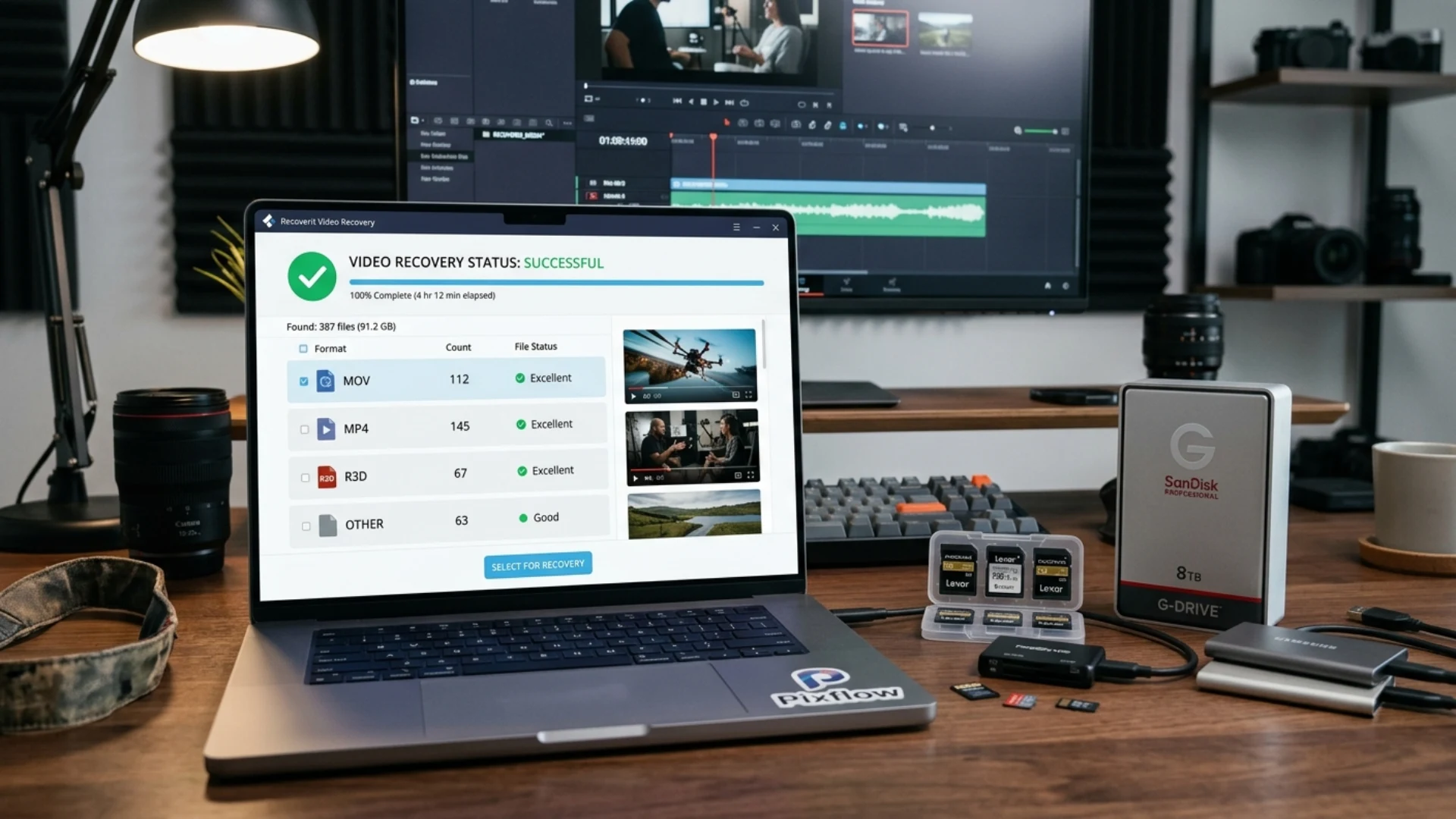
To decide how to recover deleted videos on a PC, establish whether the original file is actually missing. If deletion is confirmed, stop writes to its source volume and check copies. Recoverit video recovery software can then help scan readable storage, narrow candidates, and preview suitable footage before you recover it elsewhere.
Part 1: Separate missing media from a missing project
If the project file itself is missing, look for application backups or autosaved project versions. A timeline describes edits and references; it does not necessarily contain the camera originals. Recovering only the project may leave its media offline, while recovering clips alone will not reproduce every cut or effect.
Where cloud deleted-items recovery or File History was enabled, check those copies before scanning. A browser download or restore should go to a healthy destination. Do not recreate the archive on the affected volume while trying to recover deleted content from it.
Part 2: Prepare a scan that protects the source
Software recovery depends on surviving data. Overwriting and SSD TRIM can make files unrecoverable. A drive that clicks or repeatedly disconnects needs hardware assessment rather than repeated scans. A request to recover permanently deleted videos is therefore a request to assess what remains, not a guarantee that the deletion can be reversed.
Why filtering and preview matter more than result counts
A scan may return multiple versions, fragments, small proxies, and unrelated files. Restoring everything before inspecting it can consume substantial space without locating the intended take. Build a short list of useful clues: shoot, camera, approximate duration, expected resolution, and subject.
Recoverit V15 supports selective recovery and high-bitrate video previews, including suitable professional formats and 4K/8K footage. File-status evaluation helps assess candidates and can lead into repair for supported damaged files. These features are useful for deciding what deserves recovery; they do not guarantee a fully editable clip.
Part 3: Find the footage in three recovery stages
Step 1: Select the original source location
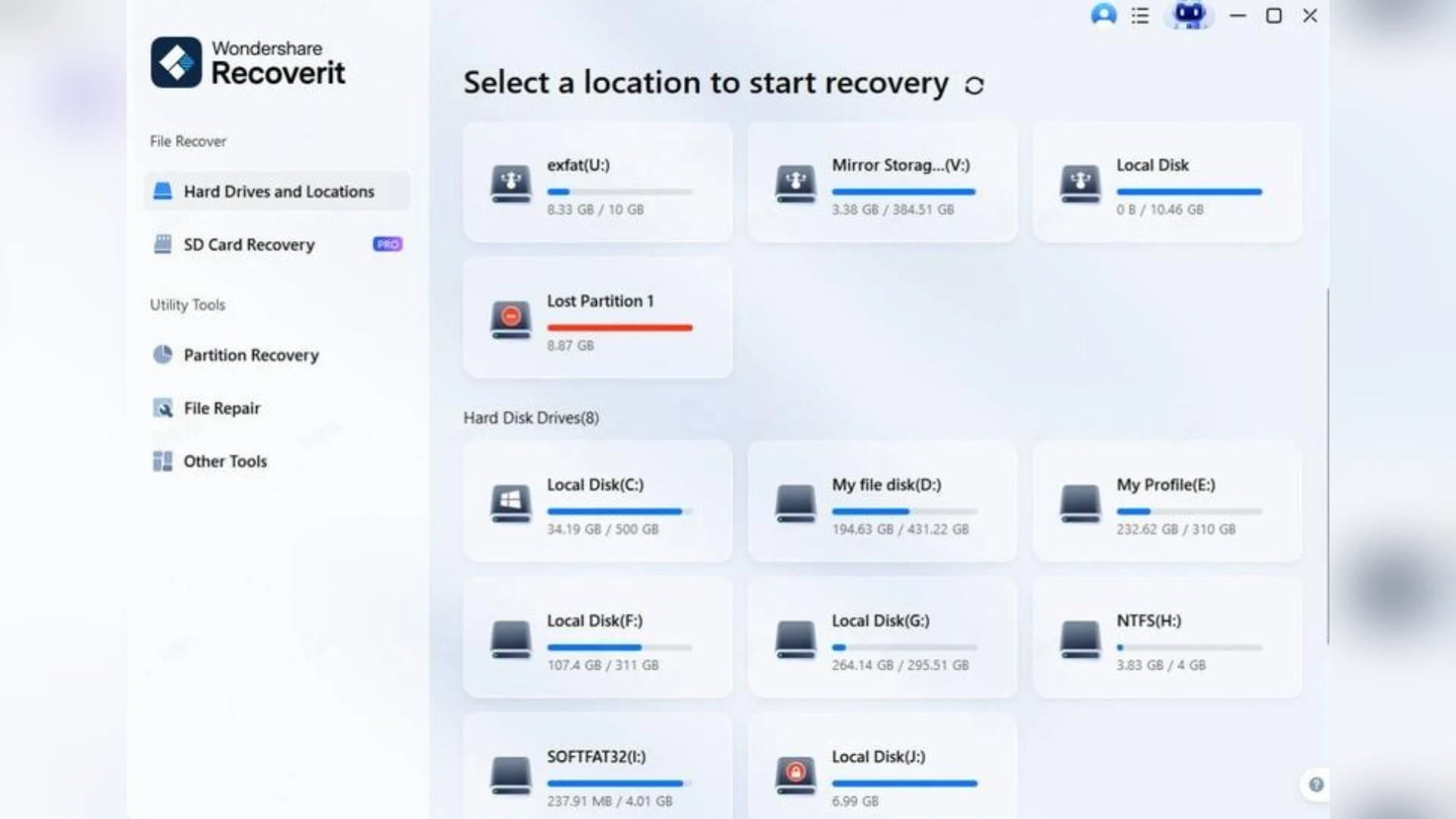
Open Recoverit and choose Hard Drives and Locations. Select the volume or folder that held the camera originals and start scanning. The source list should let you distinguish the working disk from your destination and backup drives. Choosing the correct location avoids spending the scan on media that was never there.
Step 2: Browse results and narrow the candidates
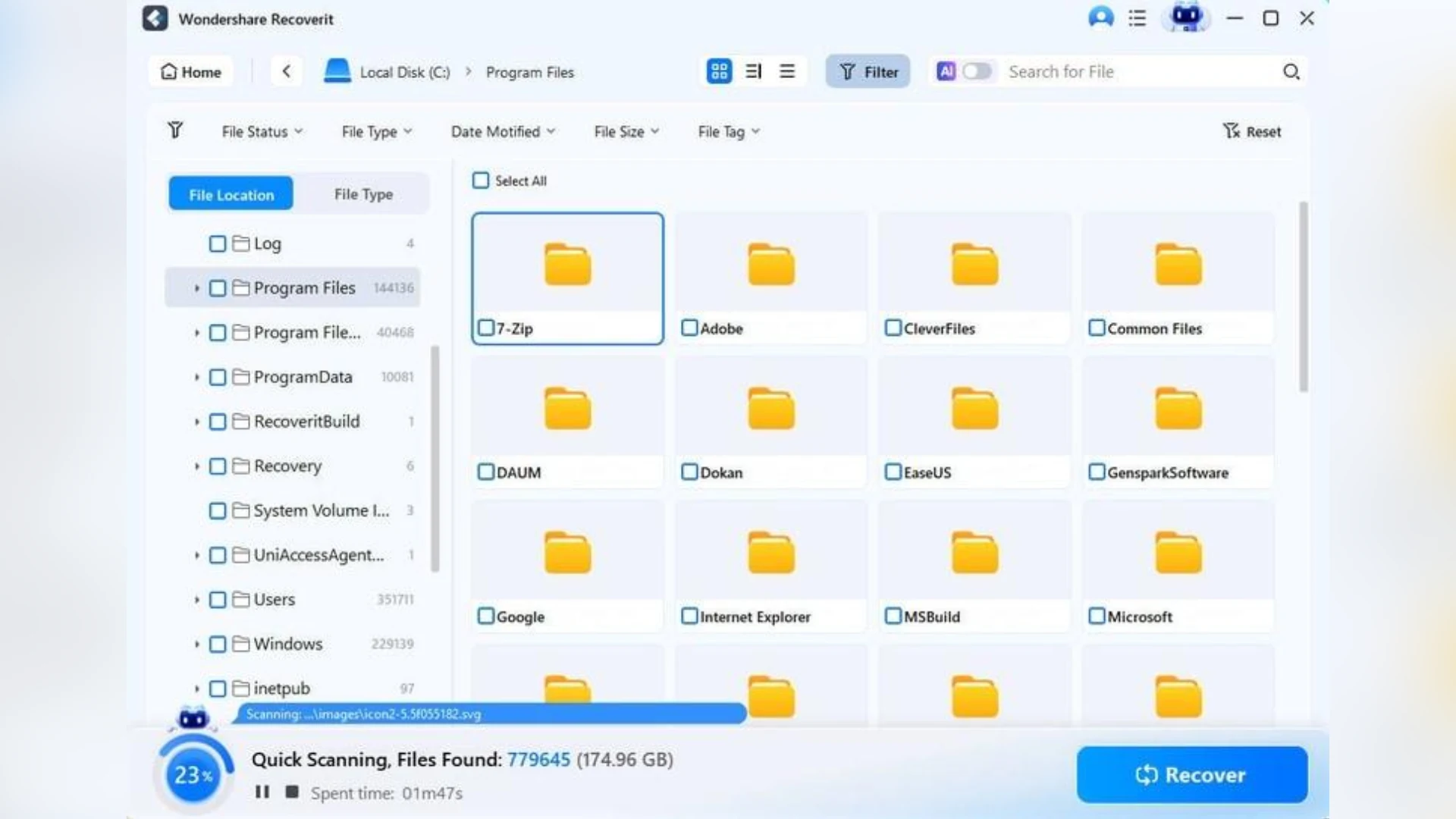
As files appear, use File Location or File Type to review them. Open the Video group and apply available type, size, date, or status filters. Try a broad search first, then narrow it using the shoot notes. If names or folder paths were reconstructed, an exact filename search may hide the clip you need.
Step 3: Preview the take and recover it to another disk
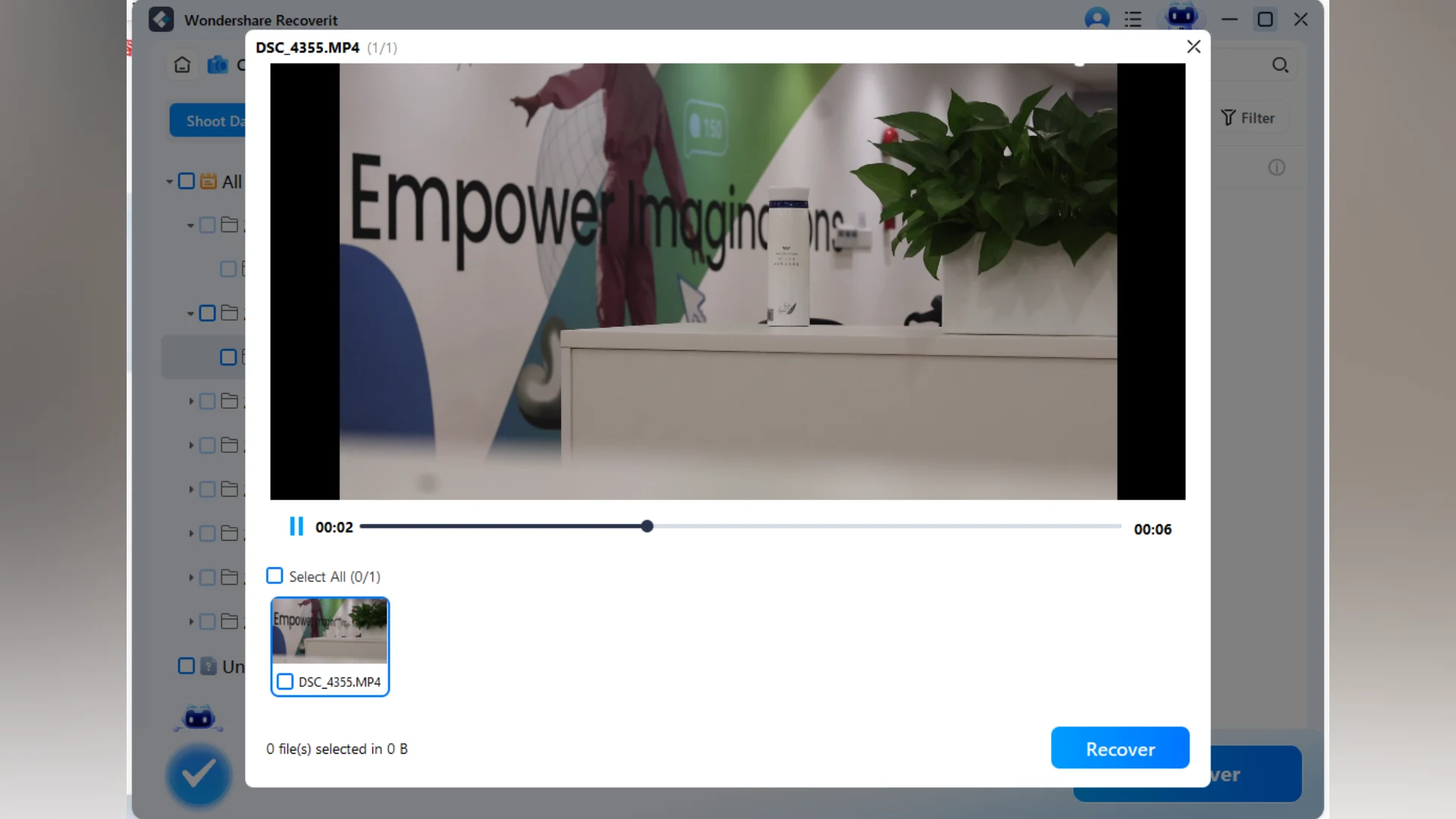
Open supported candidates in preview and compare the image, duration, and available media details with the intended shot. Select the correct clip, click Recover, and choose another physical drive. Previewing first helps avoid saving several large, nearly identical takes when only one is relevant.
Confirm that the recovered media can return to the timeline
Open a duplicate project and relink one clip first. Scrub through the affected edits and check that in and out points correspond to the correct take. Watch for repeated filenames, timecode differences, and missing companion audio. Then test a short export containing the recovered material before relinking the entire sequence.
If V15 identifies a damaged file, consider the supported repair workflow and retain its output separately. Repair cannot recreate arbitrary missing footage that was overwritten. Document which clips are verified, which need further work, and which still require a replacement source.
Conclusion
Disclaimer : If you buy something through our links, we may earn an affiliate commission or have a sponsored relationship with the brand, at no cost to you. We recommend only products we genuinely like. Thank you so much.
Blog Label:



Write for us
Publish a Guest Post on Pixflow
Pixflow welcomes guest posts from brands, agencies, and fellow creators who want to contribute genuinely useful content.
Fill the Form ✏