Top Video Editing Trends 2026: Master New Styles & Premiere Pro Techniques

Whether you’re an aspiring editor or a seasoned pro, mastering trending video editing styles is no longer optional—it’s essential. In this guide, we’ll explore the top video editing trends for 2025, show you how to implement them in Adobe Premiere Pro, and help you bring your creative vision to life.
Professional Premiere Pro Templates
The Evolving Landscape of Video Editing
Today’s audiences expect high-quality video content—not just in resolution, but in creativity, pace, and personalization. From social media reels to cinematic short films, every format demands its own style. Editors must embrace constant change, adapt new tools, and rethink the style of video editing to thrive in 2025.
Top Video Editing Trends in 2025
Trend 1: AI-Powered Editing Tools
Artificial intelligence is revolutionizing how editors work. From automated scene detection to smart cropping and audio cleanup, AI tools are speeding up workflows and enhancing creative decision-making.
These tools are gaining traction because they reduce manual tasks—giving editors more time to focus on storytelling. In fact, AI is becoming one of the most influential forces behind the future edits of video production.
🔗 Explore AI-compatible templates in Premiere Pro
Trend 2: Vertical Video Optimization
Thanks to platforms like TikTok, YouTube Shorts, and Instagram Reels, vertical video is no longer a novelty—it’s a must. Editors are now building entire projects vertically from the start, optimizing every transition and text element for mobile-first experiences.
This shift signifies a new trending video editing style that emphasizes intimacy, fast pacing, and thumb-stopping visuals. Much of this vertical, mobile-first content is now cut entirely on a phone, and our guide to the best mobile video editing apps in 2026 compares CapCut, VN, InShot, and LumaFusion for the job.
Designing Transitions and Overlays for Vertical-First Editing
Building a vertical project from scratch is only the first step. The transitions, overlays, and graphic elements you use also need to be rethought for the 9:16 canvas, not simply cropped from horizontal originals.
- Design for the first second – Vertical viewers scroll fast and decide in a fraction of a second whether to stop. Opening transitions need bold, immediate movement that fills the full 9:16 frame rather than subtle wipes designed for a wider canvas. If the motion does not command attention instantly, the viewer is already gone.
- Match format to platform natively – Build vertical (1080×1920) for TikTok and Instagram Stories, but keep horizontal (1920×1080) masters for YouTube long-form. Repurposing a horizontal transition by cropping it into a vertical frame almost always looks wrong because the motion, spacing, and focal points were designed for a different aspect ratio. Treat each format as its own deliverable.
- Follow platform aesthetic trends – Each platform develops its own visual language over time. Glitch effects, kinetic typography, and neon color palettes currently perform well on short-form platforms, while cleaner, more restrained transitions suit longer YouTube content. Staying aware of what feels native to each platform prevents your edits from looking out of place to the audience.
- Scale text and graphic elements up – Elements designed for a 16:9 frame become too small on a phone screen when placed in 9:16. Increase font sizes, stroke weights, and graphic scale by at least 30 to 40 percent when building transitions and overlays for vertical delivery. What looks fine on a desktop preview will be unreadable on a mobile device at arm’s length.
Trend 3: Enhanced Color Grading Techniques
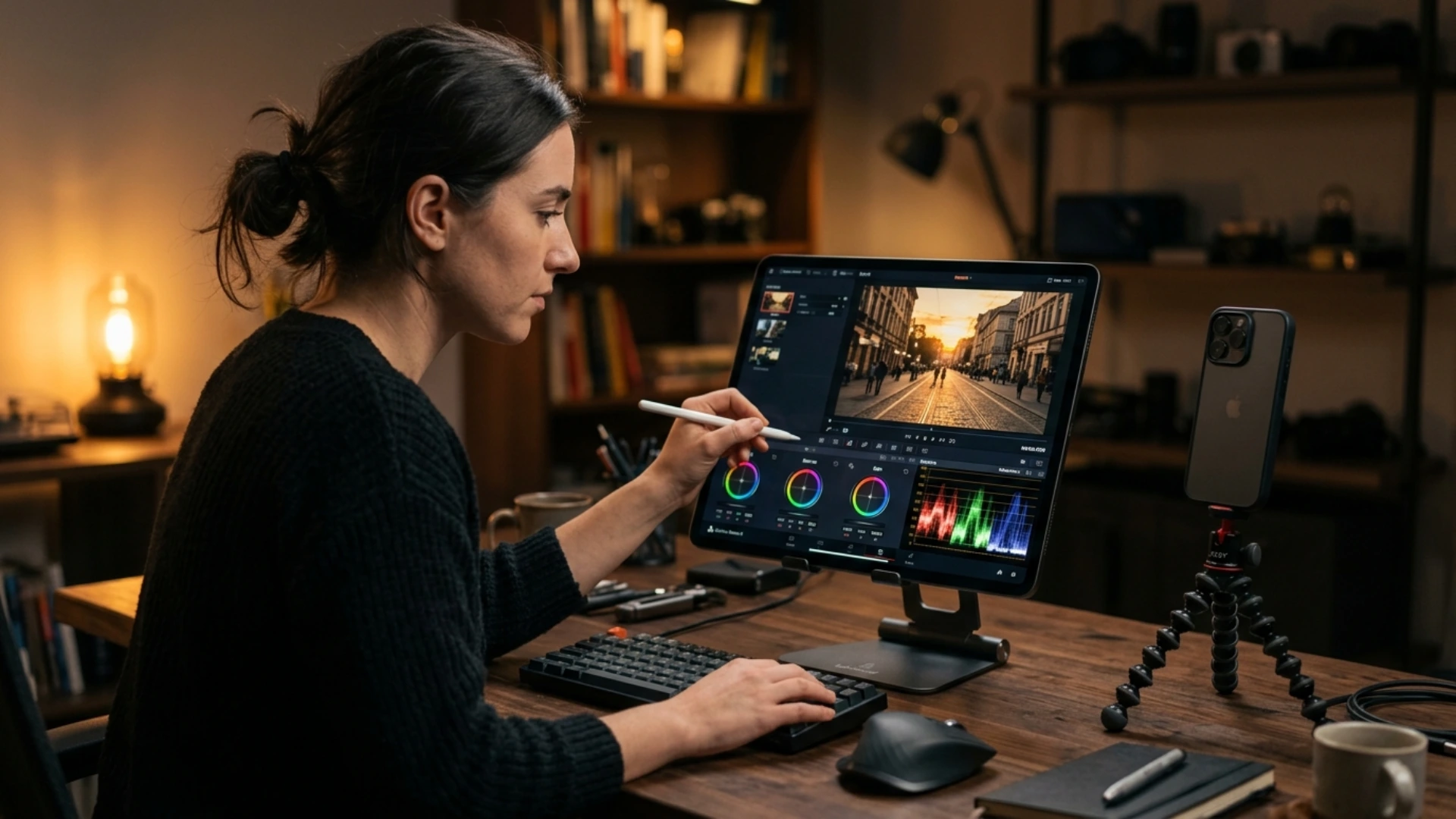
2025 is the year of expressive, cinematic color grading. Editors are pushing boundaries with bolder hues, stylized LUTs, and mood-driven palettes. Whether you’re going for a gritty documentary feel or a dreamy pastel aesthetic, color is your narrative weapon.
This trend redefines the video styles editing approach, allowing you to set the emotional tone without saying a word.
🔗 Get color-grading templates for Premiere Pro
S-Log Color Grading Workflow in Lumetri Color
To get the most out of cinematic color grading in Premiere Pro, work through the Lumetri Color panels in order — especially when grading flat Log footage like Sony S-Log:
- Basic Correction — Increase contrast first. Push highlights up and pull shadows down to restore dynamic range. Lower whites to tame overexposed areas (common with natural light). Leave blacks alone for S-Log — adjusting them rarely helps with Sony Log files. Bump saturation to taste.
- HSL Secondary — Target the red-orange range to isolate and brighten skin tones. This is not always needed, but it makes a noticeable difference when subjects appear underlit after the initial correction.
- Creative — Add subtle sharpening (avoid overkill) and a touch of vibrance. Use this panel for stylistic nudges, not heavy lifting.
- Curves — Fine-tune the highlight and shadow balance. The top of the curve controls highlights, the bottom controls shadows, and the midpoint adjusts their contrast relationship.
- Color Wheels — Lower midtone and shadow luminance while increasing highlight luminance for a punchy, cinematic look. Use the tint controls to push shadows toward warm tones or add a green tint for a filmic feel.
Pro tip: Open Lumetri Scopes alongside the Color panel. The histogram gives you a mathematically accurate read of luminance (0 = pure black, 100 = clipped white) and color — so your grade stays consistent regardless of your monitor’s calibration.
Trend 4: Dynamic Typography and Motion Graphics
Kinetic typography and animated text are becoming centerpieces rather than side elements. Think bouncing letters, liquid transitions, and 3D motion combined with music sync.
These effects add a layer of cool video editing style that grabs attention—especially in fast-paced social content or brand intros.
🔗 Discover 2025 motion design influences
Why Typography Is a Strategic Tool, Not Just a Style Choice
Kinetic typography looks impressive, but its real power goes beyond visual appeal. When used intentionally, animated text becomes a strategic asset that strengthens every video it appears in.
- Branding consistency – Using the same font families, animation styles, and color treatments across your videos builds recognition over time. Audiences begin to associate specific typographic choices with your content before they even read the words, which strengthens recall and loyalty across platforms.
- Viewer retention – Well-designed motion text guides the viewer’s eye through the frame and reinforces key messages without competing with the visuals. When typography complements the visual flow rather than cluttering it, audiences stay engaged longer and absorb more of the information you want them to take away.
- Instant tone-setting – Typography communicates mood before a single word of dialogue is spoken. Bold, high-energy kinetic text signals excitement and urgency, while refined, minimal type treatments convey authority and professionalism. Choosing the right typographic style sets the emotional context for the entire video from the first frame.
Trending Typography Styles Defining 2025
Dynamic typography has evolved well beyond simple animated text. In 2025, editors are working with a diverse range of specific styles, each suited to different moods and project types:
- 3D Animated Typography – Fully dimensional letterforms that rotate, extrude, and interact with lighting and shadow. These titles add cinematic depth to intros and scene transitions, making flat text feel immersive and tactile. Ideal for trailers, brand reveals, and high-production content.
- Chrome and Metallic Title Effects – Reflective, high-gloss text treatments that mimic polished metal surfaces. Chrome titles convey premium quality and are widely used in product launches, tech content, and high-energy trailers where a sleek, futuristic tone is needed.
- Glitch Text Effects – Distorted, fragmented type that simulates digital interference and signal corruption. Glitch typography works especially well in cyberpunk aesthetics, gaming content, and any project that benefits from raw, edgy energy and a sense of controlled chaos.
- Vintage Typography – Retro-inspired text styles ranging from film grain overlays to hand-lettered serif animations. These evoke nostalgia and are popular in documentary intros, lifestyle content, and brand storytelling where warmth and authenticity matter more than polish.
- Cinematic Title Styles – Bold, sweeping title sequences inspired by feature film openings. These combine scale animation, atmospheric light leaks, and layered depth effects to set a dramatic tone from the very first frame.
Each of these styles can be applied across intros, lower thirds, captions, callouts, and end credits, giving editors a versatile toolkit for matching typography to any project’s mood and audience expectations.
Motion Graphics and VFX: The Other Half of Trend 4
While typography dominates the conversation, motion graphics and visual effects are equally central to this trend. In 2025, advanced VFX techniques that once required specialist knowledge are now accessible to editors at every skill level, opening up creative possibilities that were previously out of reach.
- VHS and Retro-Style Transitions – Analog tape distortions, scan lines, color bleeding, and tracking artifacts are being used as intentional stylistic tools rather than flaws. These retro transitions add nostalgic texture and gritty character to modern edits, working especially well in music videos, lifestyle content, and any project that benefits from a lo-fi, vintage aesthetic.
- Illustrated Action FX Overlays – Cartoonish visual effects like hand-drawn explosions, energy bursts, impact flashes, and smoke trails are trending across social media and branded content. These overlays inject playful energy into edits and can be layered over live-action footage to create a hybrid animated look that stands out in crowded feeds.
- Sci-Fi and Cinematic Overlays – HUD elements, holographic displays, particle systems, and light leak effects allow editors to build futuristic or cinematic atmospheres without compositing from scratch. These overlays are especially popular in tech reviews, trailers, and gaming content where a high-production feel is expected.
- Democratized VFX Workflows – The most significant shift in 2025 is accessibility. Pre-built motion graphics and VFX tools now integrate directly with After Effects and Premiere Pro, letting editors apply complex effects through simple drag-and-drop workflows. This lowers the barrier to entry dramatically, meaning editors can experiment with advanced visual effects without years of compositing experience.
Together with dynamic typography, these motion graphics and VFX tools give editors a complete creative toolkit for building visually rich, trend-forward content across any format.
Trend 5: Immersive Video Experiences (VR/360)
As hardware becomes more accessible, immersive formats like VR and 360° video are gaining serious ground. Travel, education, and branded experiences are all leveraging this trend to tell stories in new dimensions.
This is one of the most exciting videography trends shaping the future edits of how we see and feel content.
Applying These Trends in Premiere Pro
- AI-Powered Editing: Use features like Auto Reframe and Scene Edit Detection. Explore third-party plugins like Runway ML or Adobe’s Sensei-based integrations to automate edits.
- Vertical Video: Set your sequence to 1080×1920 resolution. Use the “Auto Reframe” tool to quickly convert landscape content to portrait while keeping the subject centered.
- Enhanced Color Grading: Utilize Lumetri Color panel. Create custom LUTs or use built-in cinematic presets. Adjust curves, HSL secondaries, and color wheels for mood-based results.
- Speed Up Color Grading with Adjustment Layers: Instead of applying Lumetri Color to each clip individually, create an Adjustment Layer (Project Panel → New Item → Adjustment Layer), drag it above your video clips on the timeline, and apply your color grade to that single layer. Every clip beneath it inherits the look instantly, making global color changes effortless and avoiding duplicated work — especially valuable in longer edits with dozens of cuts.
- Dynamic Typography: Add motion titles using Essential Graphics. Explore presets or use After Effects-linked compositions for more control.
- Immersive Formats: Import 360° footage, use the VR Projection effects, and export in H.264 with equirectangular layout. Use VR preview to test interactions.
Why After Effects Expressions Are the Engine Behind Kinetic Typography
Essential Graphics handles basic motion titles, but the complex kinetic typography driving Trend 4 requires After Effects expressions. These are automation rules that replace manual keyframing with dynamic, responsive behavior across your text layers.
- Automate repetitive motion – Expressions apply organic movement like random jitter, smooth oscillation, or continuous rotation to text layers with a single rule. What would take dozens of individually placed keyframes per character takes one expression applied across the composition.
- Loop animations seamlessly – Instead of duplicating keyframes to repeat a text animation, expressions create infinite cycles automatically. This is essential for looping title sequences, animated lower-thirds, and any typography that needs to repeat without visible seams or manual effort.
- Link parameters across layers – Expressions can synchronize properties between multiple text layers so that changing one value (timing, scale, color) updates them all simultaneously. This makes it fast to adjust complex kinetic typography compositions without touching each layer individually.
The workflow stays anchored in Premiere Pro: build the expression-driven composition in After Effects, then bring it into your Premiere Pro timeline via Dynamic Link. The composition updates live, so you get the automation power of expressions without leaving your editing environment.
Advanced Text Animation Techniques You Can Do Directly in Premiere Pro
You do not always need After Effects to push beyond basic titles. Premiere Pro itself supports several advanced text animation techniques that add depth and creativity to your typography, using only native tools.
- Faux 3D text without plugins – Duplicate your text layer and offset the copy by a few pixels horizontally and vertically. Change the lower copy to a darker tone and apply a subtle Directional Blur. This creates a convincing shadow and depth illusion that makes flat text feel dimensional. Combine this with scale or rotation keyframes for a punchy 3D-style entrance that works well in intros and scene openers.
- Simulating text on a curved path – Premiere Pro does not support native text-on-path like After Effects, but you can achieve the effect manually. Break your sentence into individual word or letter layers, then position and keyframe each one along a curved reference (such as an imported PNG guide). Offset the timing slightly between layers to create a flowing, organic reveal along the path.
- Nesting clips for compound animations – Group multiple animated text layers into a nested sequence, then apply additional transforms (scale, rotation, position) to the nest as a single unit. This lets you build layered animations where individual letters move independently while the entire composition also shifts, scales, or rotates as one. Nesting is especially useful for building complex title cards from simpler building blocks.
- Syncing text motion to audio – Use the Audio Waveform view on your timeline to visually align text keyframes with beats or vocal cues. Place position, scale, or opacity keyframes precisely on audio peaks to create rhythm-driven typography that feels locked to the soundtrack. This technique is essential for music videos, lyric videos, and any content where text and audio need to feel connected.
These Premiere Pro-native techniques complement the After Effects expression workflow above. Use them when you want to stay entirely inside Premiere Pro, or combine both approaches for maximum creative flexibility.
Premiere Pro, paired with the right plugins and templates, makes these techniques not just possible—but powerful.
Tips for Staying Ahead of the Curve
Join editing communities, share your work, and seek feedback—it’s one of the best ways to evolve your video editor ideas and stay connected with what’s next.
Conclusion
Whether you’re producing short-form content or cinematic stories, Adobe Premiere Pro remains your go-to toolkit to bring these styles to life.
Now it’s your turn: Dive into these trends, experiment with them in your next project, and share your edits with the world.
Disclaimer : If you buy something through our links, we may earn an affiliate commission or have a sponsored relationship with the brand, at no cost to you. We recommend only products we genuinely like. Thank you so much.


Write for us
Publish a Guest Post on Pixflow
Pixflow welcomes guest posts from brands, agencies, and fellow creators who want to contribute genuinely useful content.
Fill the Form ✏