Video Editor Review: Filmora Video Editor for PC Worth It in 2026?
- Part 1. Video Editor Features: Filmora Video Editor Tools Explained
- Part 2. Video Editor Pricing: Filmora Video Editor Plans and Value
- Part 3. Video Editor Pros: Why Filmora Video Editor Stands Out
- Part 4. Video Editor Cons: Where Filmora for PC Falls Short
- Part 5. Video Editor Use Cases: Who Should Use Filmora for PC
- Part 6. Video Editor Setup: How to Install and Use Filmora for PC
- Conclusion
This review examines Filmora through those practical needs, not brand hype alone. It considers feature depth, AI assistance, learning curve, plan value, and everyday workflow fit. The aim is simple: determine whether this Filmora video editor for PC still feels worth paying for in 2026 for many users.
Part 1. Video Editor Features: Filmora Video Editor Tools Explained
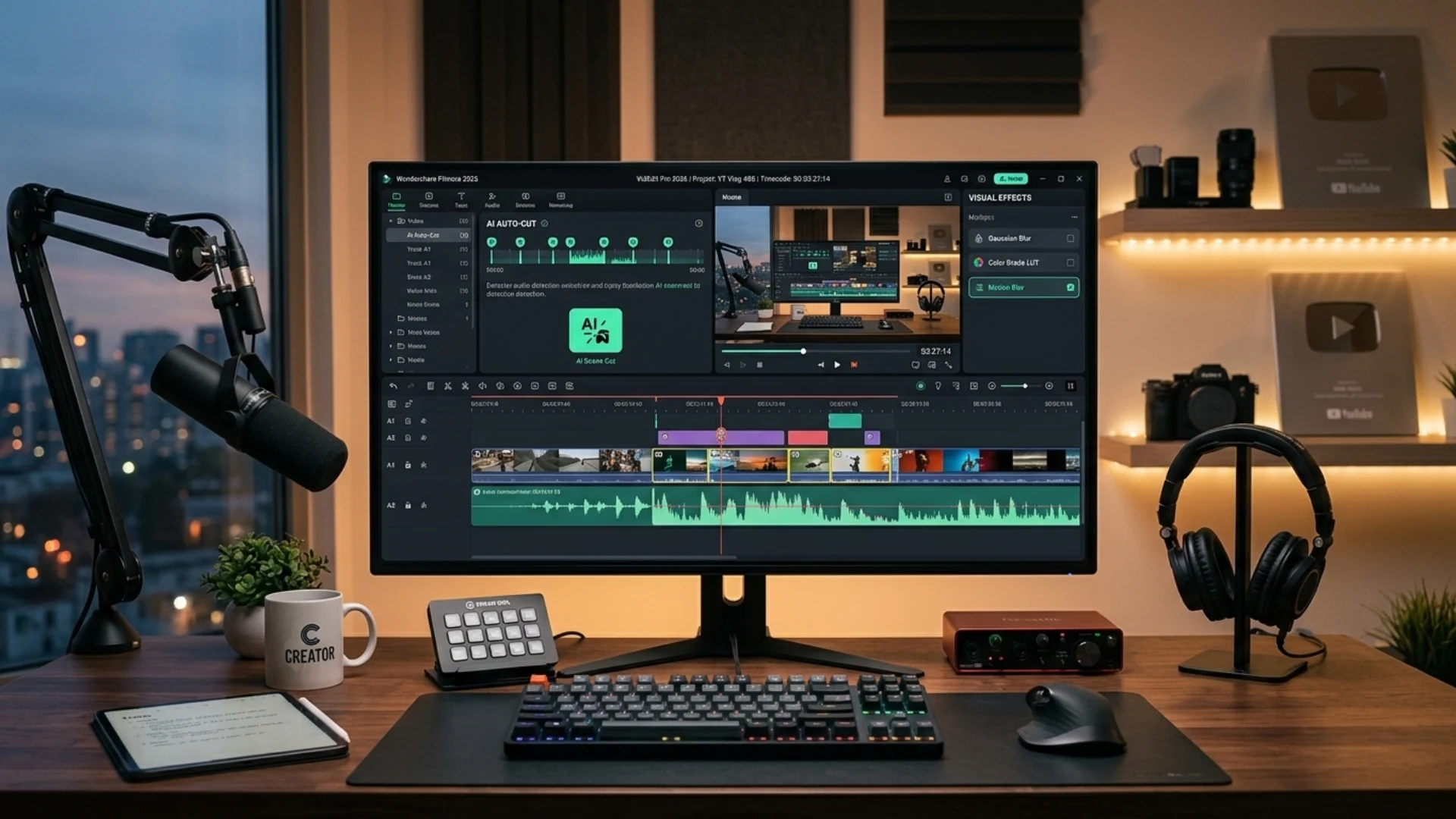
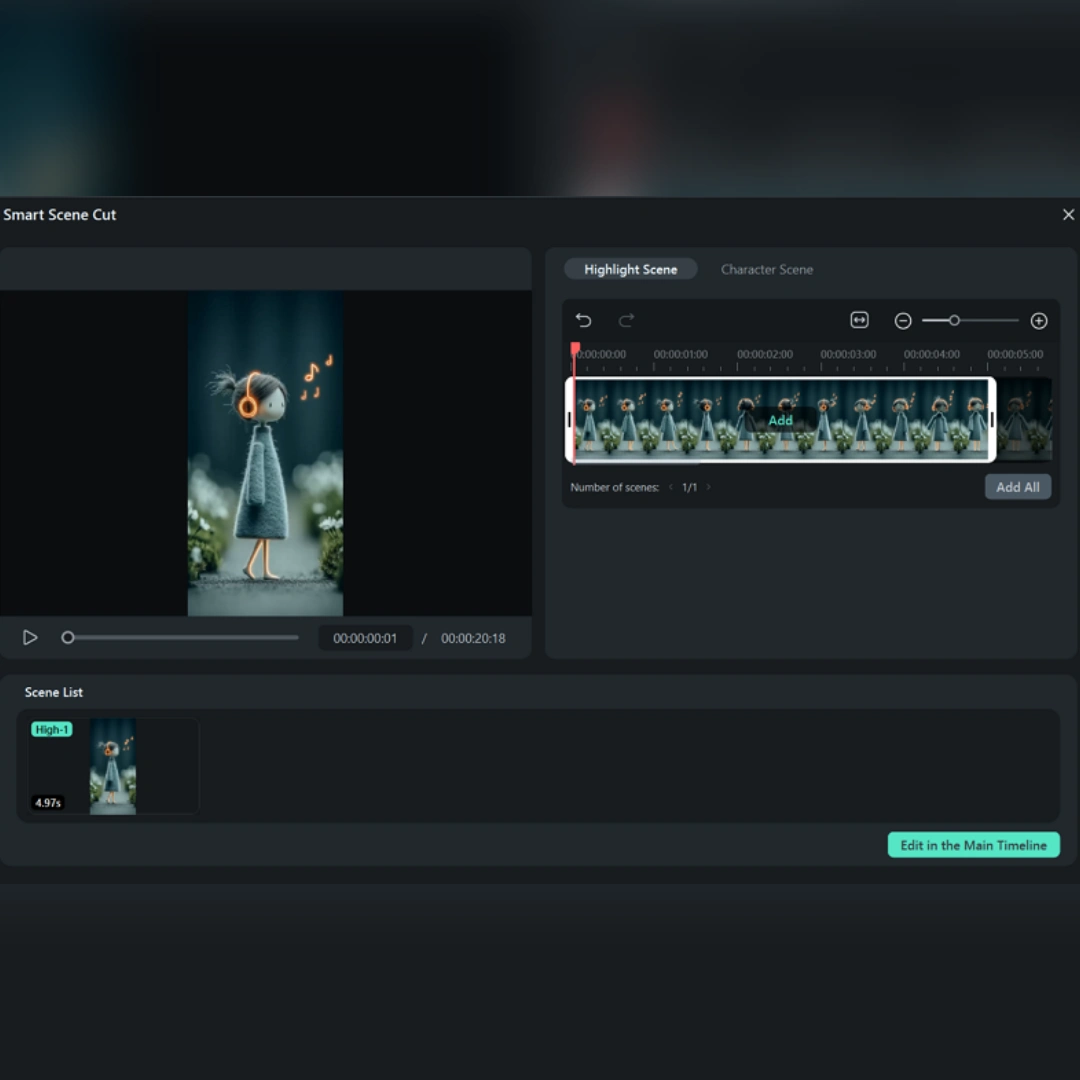
AI Auto Cut
Long clips become easier to handle when Smart Scene Cut finds usable moments. Instead of sorting everything manually, editors can start with a cleaner, rough structure. That saves time during first cuts, highlight edits, and fast turnaround projects.
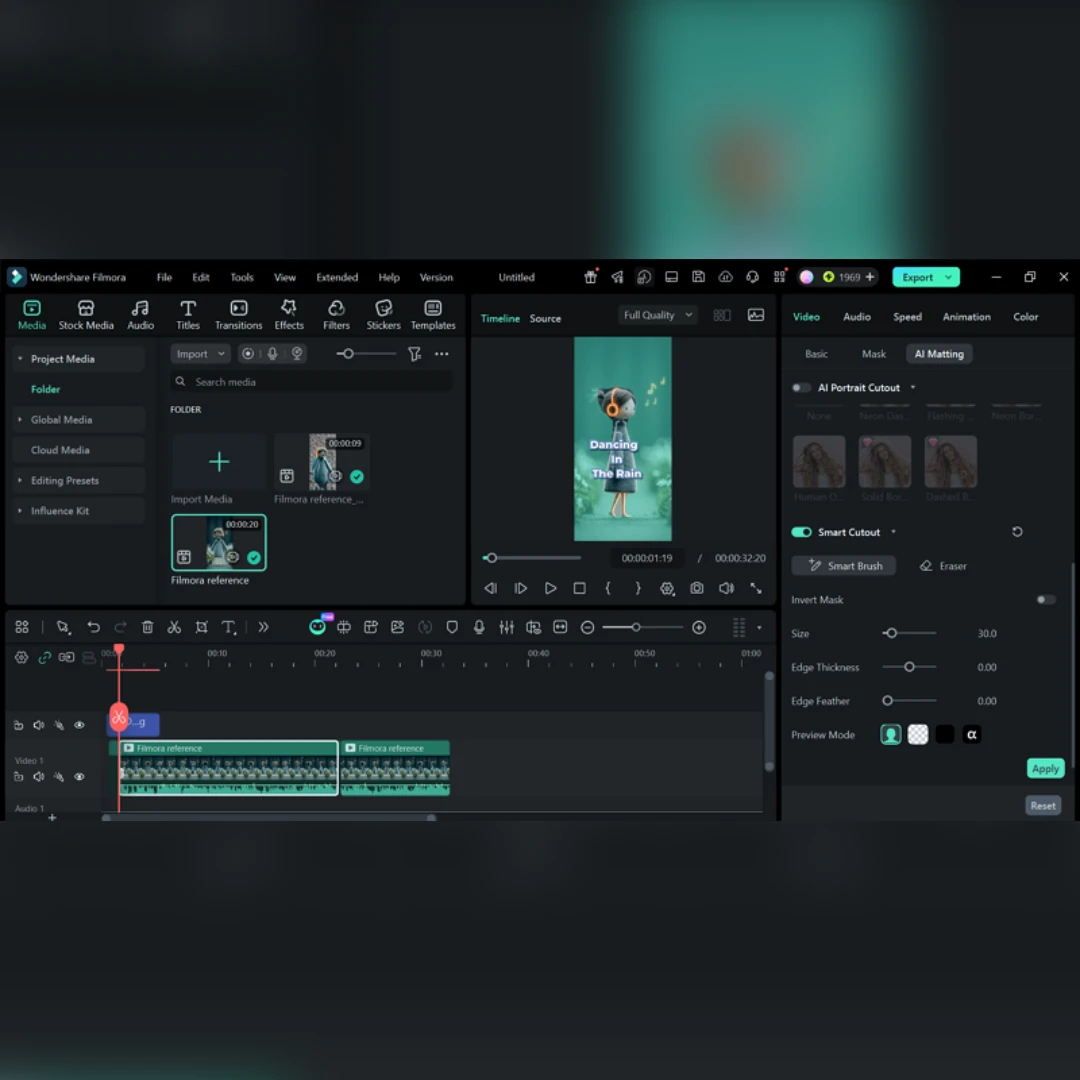
AI Background Removal
Smart Cutout helps remove backgrounds, objects, or subjects with more control. It is especially useful when footage comes from busy rooms or casual recording spaces. The result is a cleaner frame that supports overlays, replacements, and polished composition.
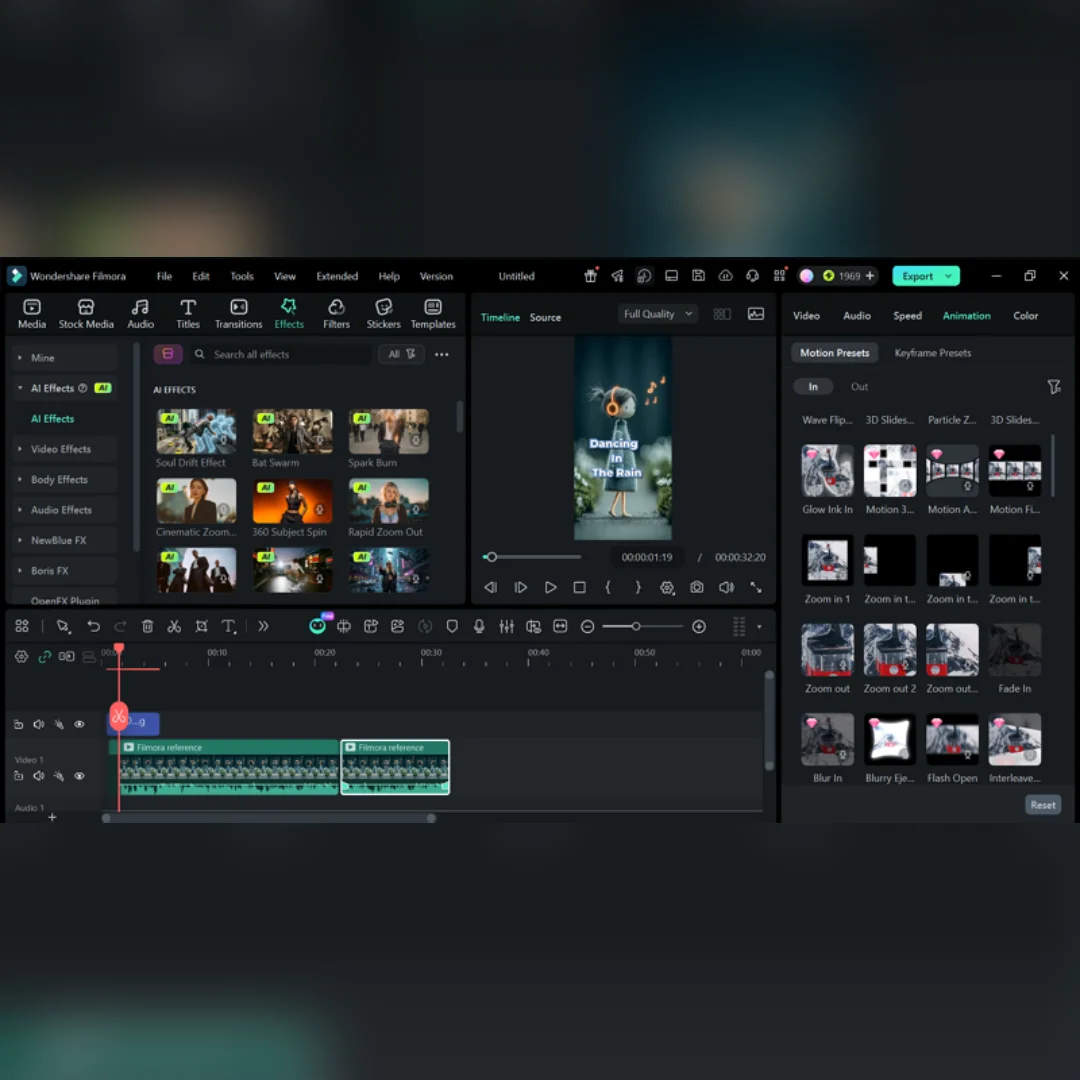
Effects, Transitions, and Filters
Visual tools are most useful when they support clarity instead of distraction. Filmora provides filters, transitions, templates, and effects for different editing styles. Applied selectively, they help maintain pacing, continuity, and a more finished screen look.
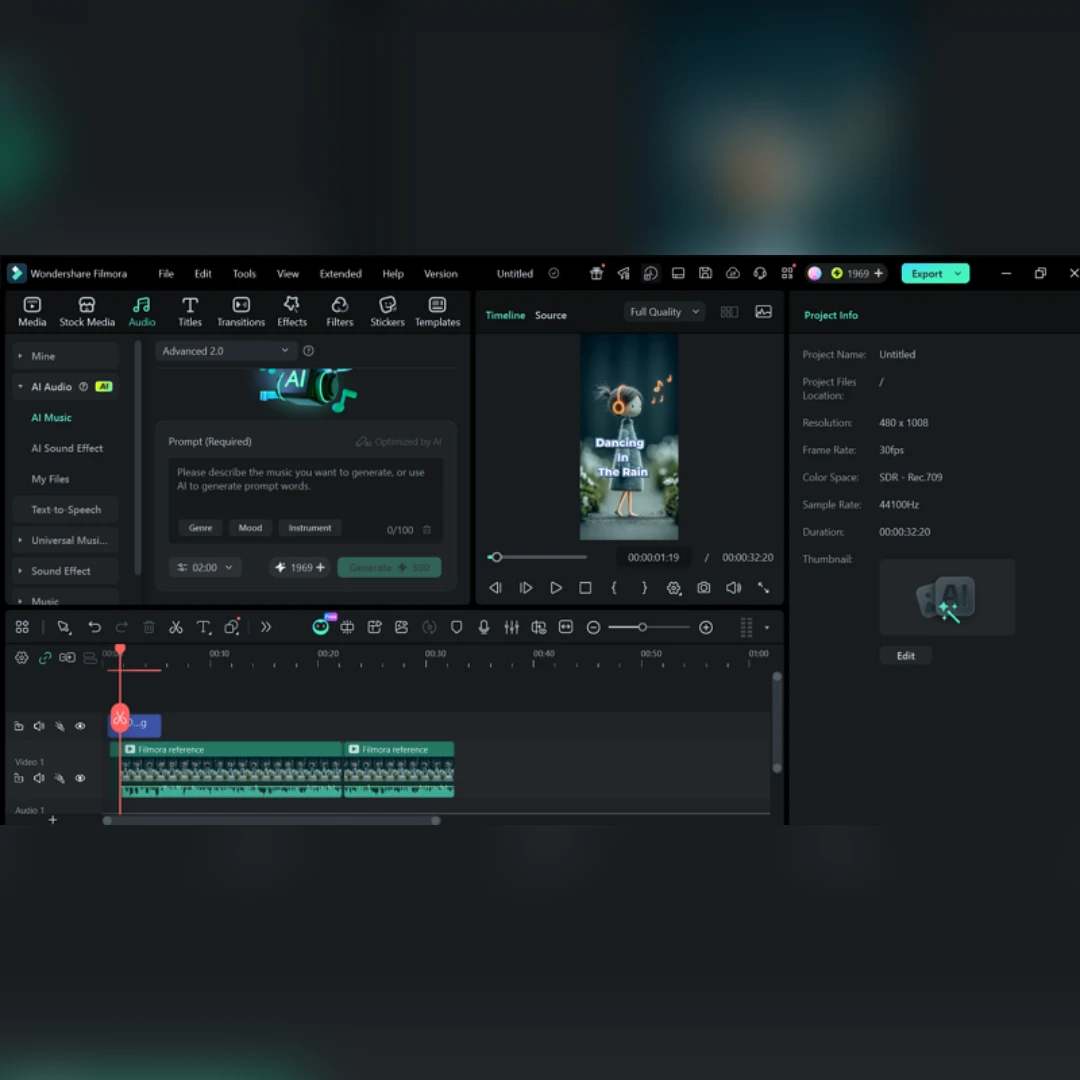
Audio Editing Tools
Viewers often notice weak sound before they notice visual flaws. Filmora gives editors practical ways to lower music and improve voice clarity. That matters most in tutorials, reviews, interviews, and other spoken formats. Better audio control usually makes the whole edit feel more complete.
Text Editing Tools
Many projects depend on readable text as much as strong visuals. Filmora supports subtitles, animated titles, labels, and speech-to-text conversion tools. That improves clarity for tutorials, promos, social clips, and multilingual content.
Part 2. Video Editor Pricing: Filmora Video Editor Plans and Value
Part 3. Video Editor Pros: Why Filmora Video Editor Stands Out
- AI Mate Guidance: Tool suggestions appear during editing, helping beginners find features without extra searching. Early guidance shortens hesitation and keeps project decisions moving with less confusion.
- Smart Short Clips: Long videos can turn into shorter social cuts with captions included automatically. It saves time on repurposing podcasts, interviews, webinars, and promotional snippets.
- AI Smart Search: Specific dialogue, faces, or objects become easier to locate inside larger projects. That reduces review time when important clips or quotes need faster access.
- Batch Editing Control: Shared changes can apply across multiple clips without repeating each adjustment manually. Editors save time when color, framing, text, or volume must stay matched.
- Auto Reframe Support: One project can adapt faster for vertical, square, and widescreen publishing formats. This helps teams prepare content for reels, shorts, feeds, and presentations.
- AI Lip Sync: Translated dialogue can more naturally match mouth movements across multilingual video edits. That makes localization easier without rebuilding scenes or re-recording every voice track.
Part 4. Video Editor Cons: Where Filmora for PC Falls Short
- Add-On Costs: The Windows pricing page lists separate add-ons such as Silence Detection and AI Portrait.
- Monthly Cost Buildup: The US$19.99 monthly plan can be more costly than annual pricing.
- Less Specialist Positioning: Wondershare markets Filmora around speed and all-in-one convenience, not deep post-production control.
- Busier Interface Style: Since the workspace foregrounds assets, tabs, and templates, minimalist editors may prefer a leaner layout.
Part 5. Video Editor Use Cases: Who Should Use Filmora for PC
- YouTube Creators: Talking-head videos, reviews, and explainers benefit from Filmora’s faster editing tools. Captions, scene cutting, and audio ducking help longer videos stay watchable.
- Tutorial Makers: Clear lessons need readable text, stable pacing, and easy screen flow. Speech-to-text and title tools help guide videos to be easier to follow.
- Short-Form Editors: Fast edits matter most when short videos need speed and visual energy. Transitions, cutouts, and effects help reels feel sharper and more dynamic.
- Small Marketing Teams: Marketing teams often need polished content without long production delays. Templates, stock assets, and audio tools support faster campaign video creation.
- Beginners Moving Up: Desktop editing can feel difficult after basic mobile video tools. Filmora makes that shift easier with a clear and user-friendly workflow.
Part 6. Video Editor Setup: How to Install and Use Filmora for PC
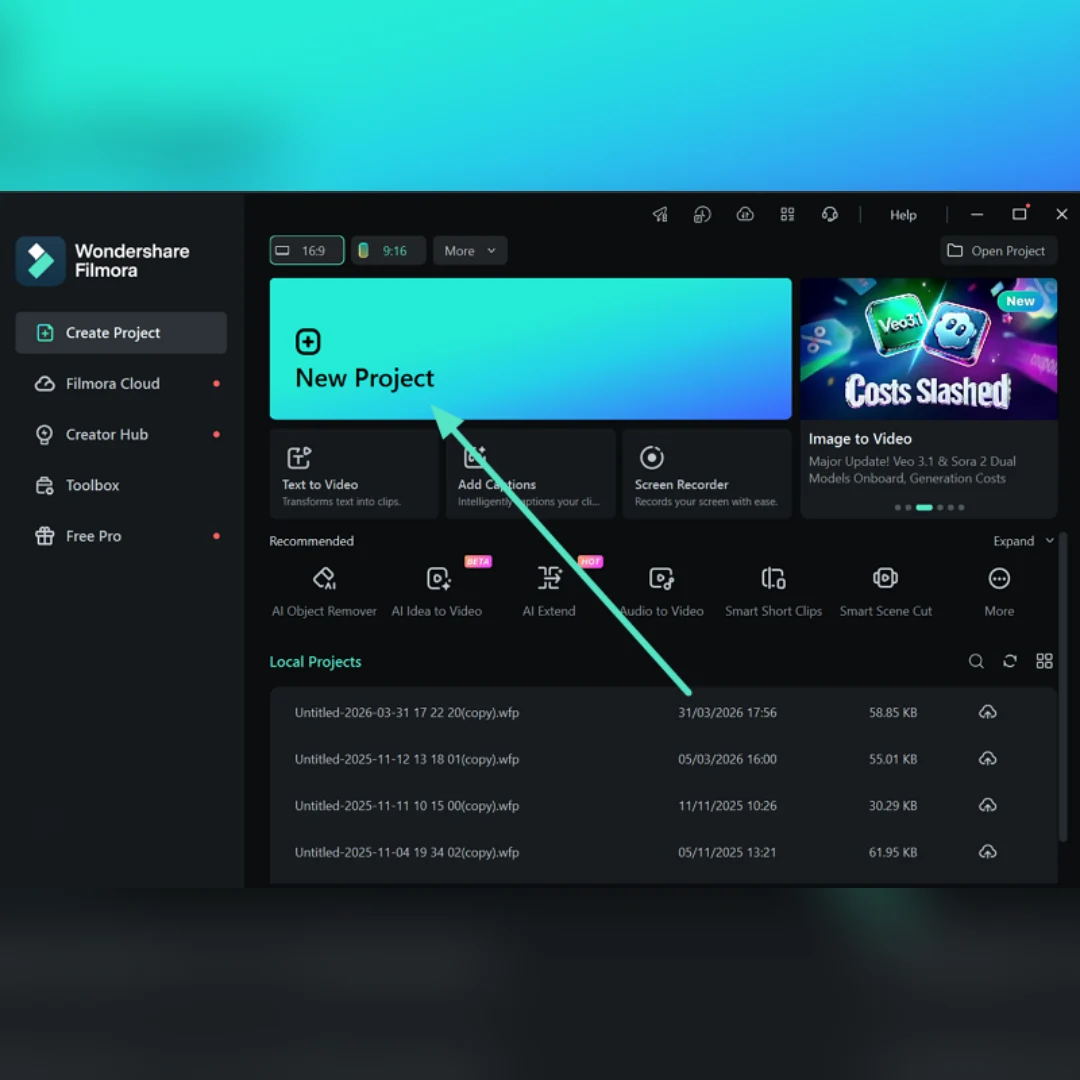
Step 1. Start a New Project and Upload Media
First, choose the “New Project” option on the main interface to further import the file to proceed.
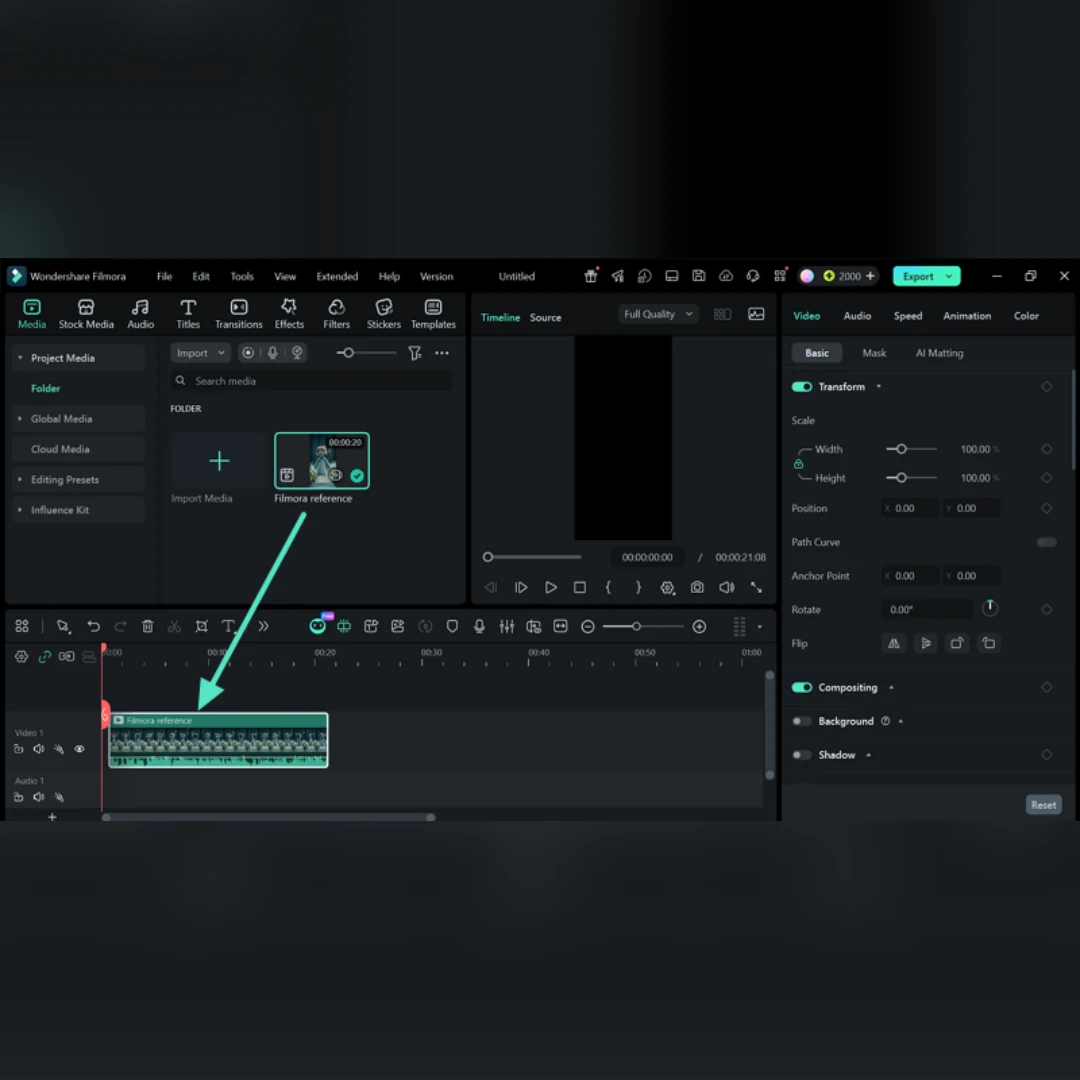
Next, move the selected media from the library to the “Timeline” in the right order. Place each clip carefully so the video structure stays organized from the beginning.
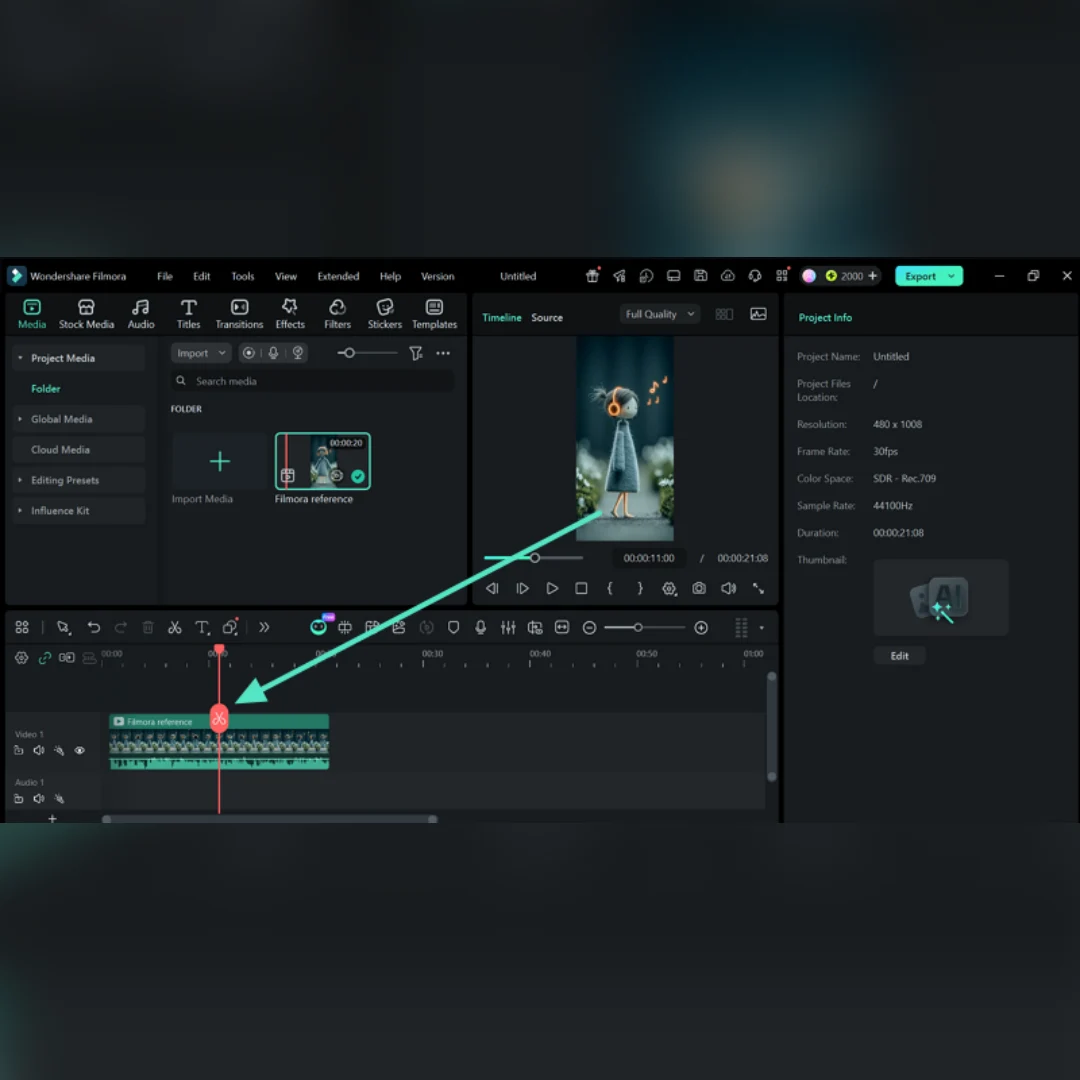
Then use “Split” and trim controls to remove unwanted parts or shorten longer clips. Reorder scenes where needed so the pacing looks cleaner and more natural.
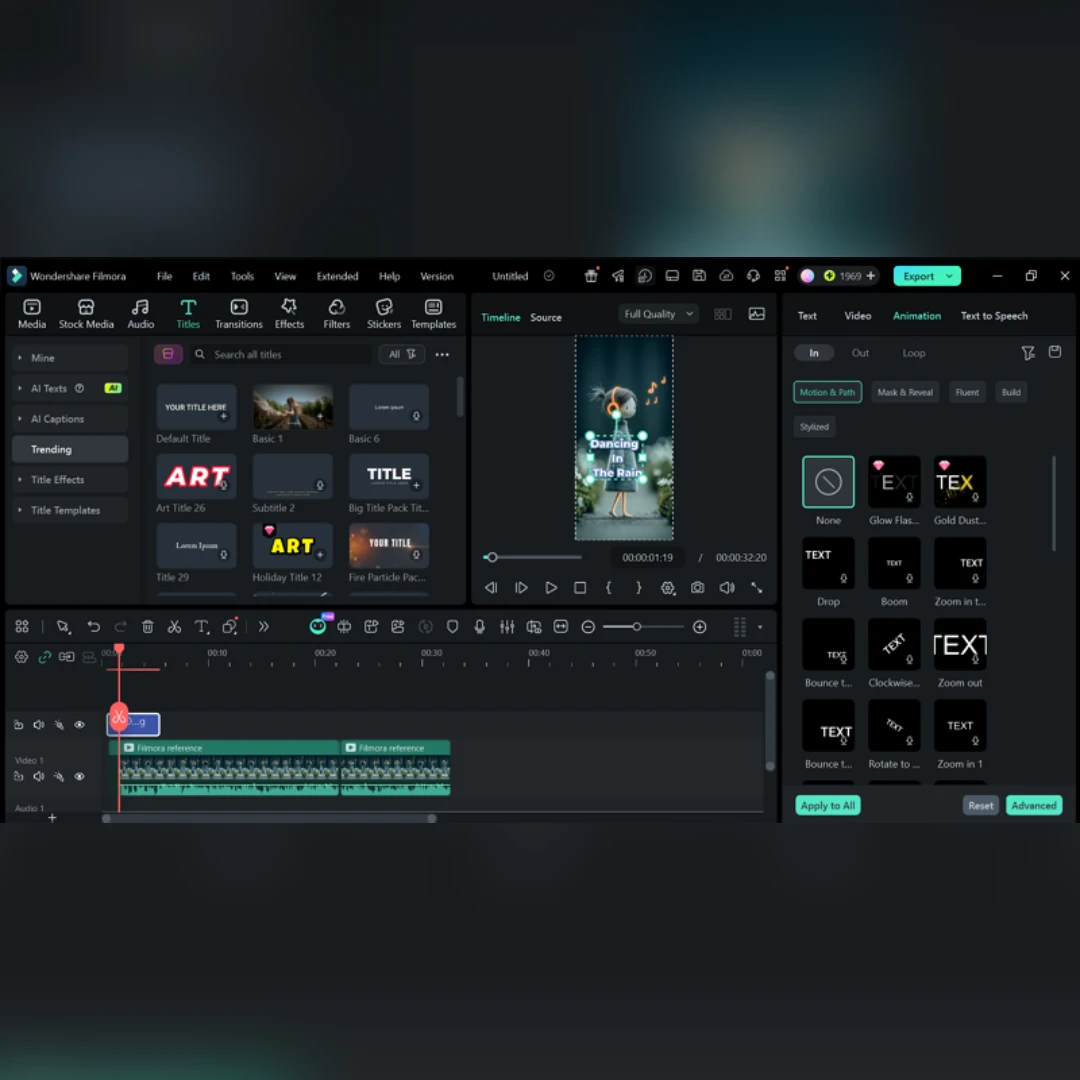
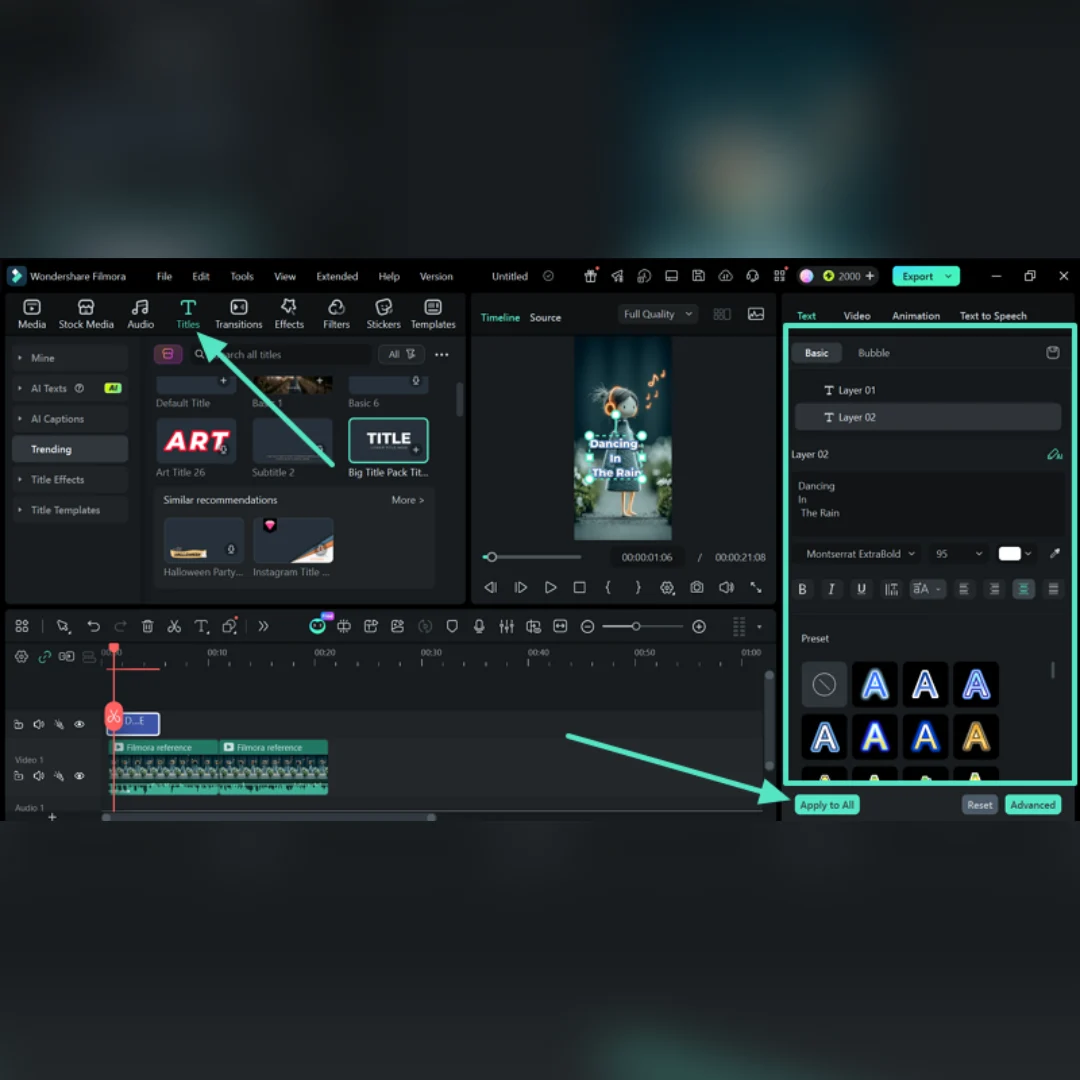
After that, open the “Titles” section and add headings, captions, or lower-thirds where required. Select a preset that fits the project, then click “Apply to all” to keep the style consistent.
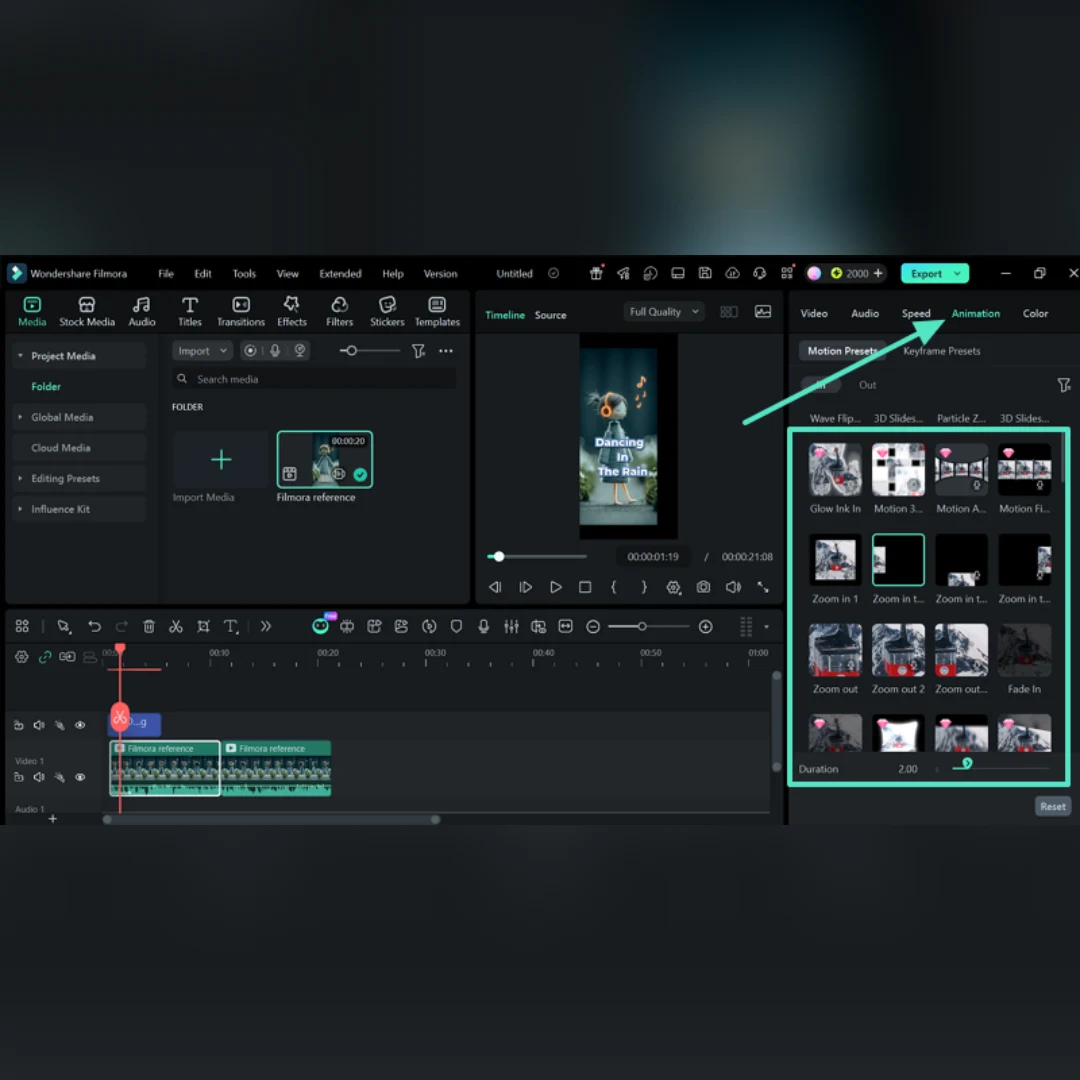
Now open the “Animation” tab and go to “Motion Presets” for built-in movement styles. Choose options such as “Zoom In,” “Fade In,” or “Slide,” then adjust “Duration” to control the effect timing.
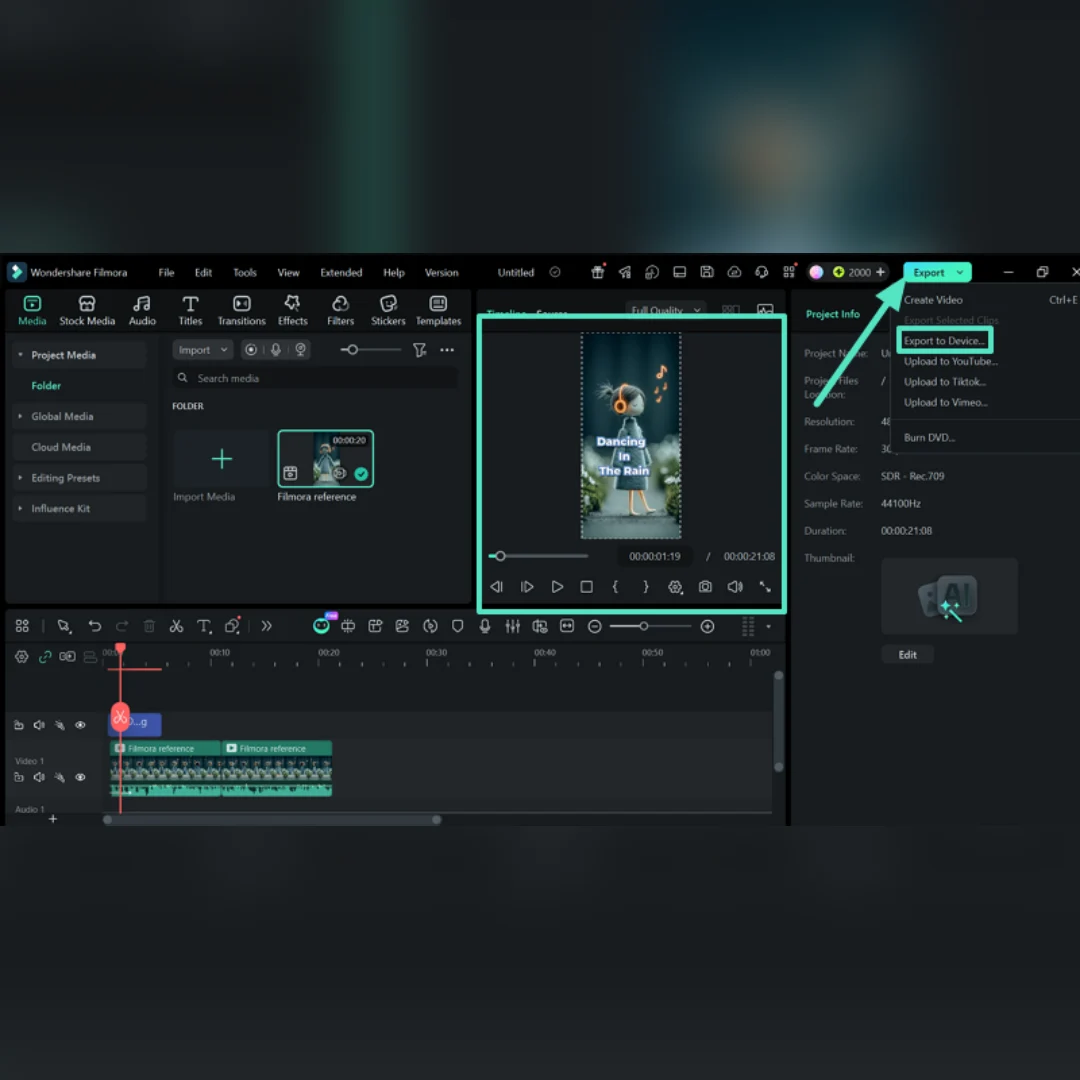
When everything looks ready, click “Export” and select “Export to Device”. Further choose the required format, quality, and output settings to download.
Conclusion
Note: This review is an independent editorial assessment based on publicly available product pages and feature descriptions. It does not represent the official position of any publishing outlet or software vendor.
Disclaimer : If you buy something through our links, we may earn an affiliate commission or have a sponsored relationship with the brand, at no cost to you. We recommend only products we genuinely like. Thank you so much.
Blog Label:



Write for us
Publish a Guest Post on Pixflow
Pixflow welcomes guest posts from brands, agencies, and fellow creators who want to contribute genuinely useful content.
Fill the Form ✏