Deleted Video Recovery: 5 Free Tools to Recover Deleted Video Files
At Pixflow, we’ve spent more than a decade building templates, plugins, and tools for editors and motion designers, so we know how much every clip matters. This guide walks you through deleted video recovery step by step. You’ll learn why deleted videos are often still recoverable, which 5 free tools work best, and how to get footage back without any software at all.
Can You Recover Deleted Videos?
That’s why video recovery software works: it scans the drive for those leftover pieces and rebuilds the files.
Why Did My Videos Disappear?
How to Recover Deleted Videos Without Software
Method 1: Restore from the Recycle Bin or Trash
- Windows: Open the Recycle Bin, right-click the video, and choose Restore.
- Mac: Open the Trash, right-click the video, and choose Put Back.
Method 2: Check Your Cloud’s Deleted Items
Cloud services keep deleted files for a limited time.
- Google Photos and Google Drive: open Trash or Bin and restore the clip.
- OneDrive: sign in on the web, open Recycle bin, select the video, and click Restore.
- iCloud Photos: open the Recently Deleted album and tap Recover.
- Dropbox: go to Deleted files and restore the video.
Method 3: Check Your Phone’s “Recently Deleted” Album
On iPhone, open Photos > Albums > Recently Deleted.
On most Android phones, open Gallery or Google Photos and look in Trash or Recycle bin.
Deleted videos usually stay there for 30 days.
Method 4: Restore from File History or Time Machine
If you set up backups before the video was deleted, you can restore it:
- Windows File History: open Control Panel > File History > Restore personal files, find the folder, select the video, and click Restore.
- Mac Time Machine: open the folder that held the video, enter Time Machine from the menu bar, browse back to a date before the deletion, select the clip, and click Restore.
If none of these work, it’s time to use recovery software.
5 Free Tools to Recover Deleted Video Files
Best Video Recovery Software: Comparison Table
Stellar Photo Recovery
Stellar Photo Recovery allows you to recover lost or deleted videos, photos, and audio files, making it a suitable choice for content creators. Despite its name, the software supports a wide range of video formats, including MP4, MOV, AVI, MKV, MTS (AVCHD), MXF, WMV, M4V, 3GP, VOB, and more.
Its free version requires no registration and lets you recover up to 10 photo, video, or audio files, with each file limited to 100 MB, on Windows or Mac. The software supports various storage devices, including SD, microSD, CF, CFast, and XQD memory cards, as well as HDDs, SSDs, and USB drives.
Its Deep Scan feature can help locate videos on formatted or corrupted memory cards by identifying file signatures, while the full-screen preview lets you play recoverable videos before saving them. You can also pause and resume lengthy scans as needed.
Additionally, the Premium edition includes a repair feature for fixing corrupted videos and photos after recovery.
Pros:
- Recovers 10 files without any charges
- Supports all video file formats, including professional RAW files
- Available for Windows and Mac
- Clean, beginner-friendly interface
- Customer support available on Chat, Call, Email and Whatsapp
Cons:
- No Linux version available
- In the free version – no preview is available for files larger than 10 MB
2. Recuva
Recuva is a free video recovery software for Windows that helps you recover deleted videos from computers, memory cards, USB drives, and other supported storage devices. It can recover common video formats, including MP4, MOV, and AVI, depending on the file’s condition and the storage device.
The software offers a Quick Scan for recently deleted files and a Deep Scan to search for files that are harder to find. Its free version supports basic file recovery, while the Professional edition adds features such as virtual hard drive support, automatic updates, and premium support.
Recuva is a practical option for recovering accidentally deleted videos, but success depends on whether the deleted data has been overwritten. For better recovery chances, stop saving new files to the affected drive before scanning it.
Pros:
- Commendable recovery in benchmark tests with an advanced scanning engine
- Enhanced Recovery mode for large, fragmented video files
- Available for Windows and Mac
- Remote Recovery mode for network-connected devices
Cons:
- Preview feature for video files is blocked with paywall
- A bit slower scanning speed than others
- The interface is a bit complex for beginners
- Only 100 MB of free recovery
3. PhotoRec
PhotoRec is a free, open-source video recovery software that helps recover deleted videos, photos, and other files from hard drives, memory cards, USB drives, and other storage devices. It uses file-signature recovery to locate lost files, making it useful even when a file system is damaged or a drive has been formatted.
It supports a wide range of file formats, including common video formats, and works on Windows, macOS, and Linux. Unlike many commercial recovery tools, it is completely free with no file recovery limits or paid upgrades. However, PhotoRec primarily uses a command-line interface, which may be challenging for beginners, and it typically does not preserve original filenames or folder structures.
It also lacks built-in video preview and video repair features, so recovered files may require additional checks before use.
Pros:
- Works with formatted or corrupted storage:
- Supports Windows, macOS, and Linux.
- Can recover files from hard drives, SSDs, USB drives, and memory cards.
Cons:
- No original filenames or folder structure recovered
- The default command-line interface can be difficult for non-technical users.
- No built-in video preview: Users generally need to recover files before checking whether the videos are playable.
- PhotoRec focuses on file recovery rather than repairing corrupted or unplayable videos.
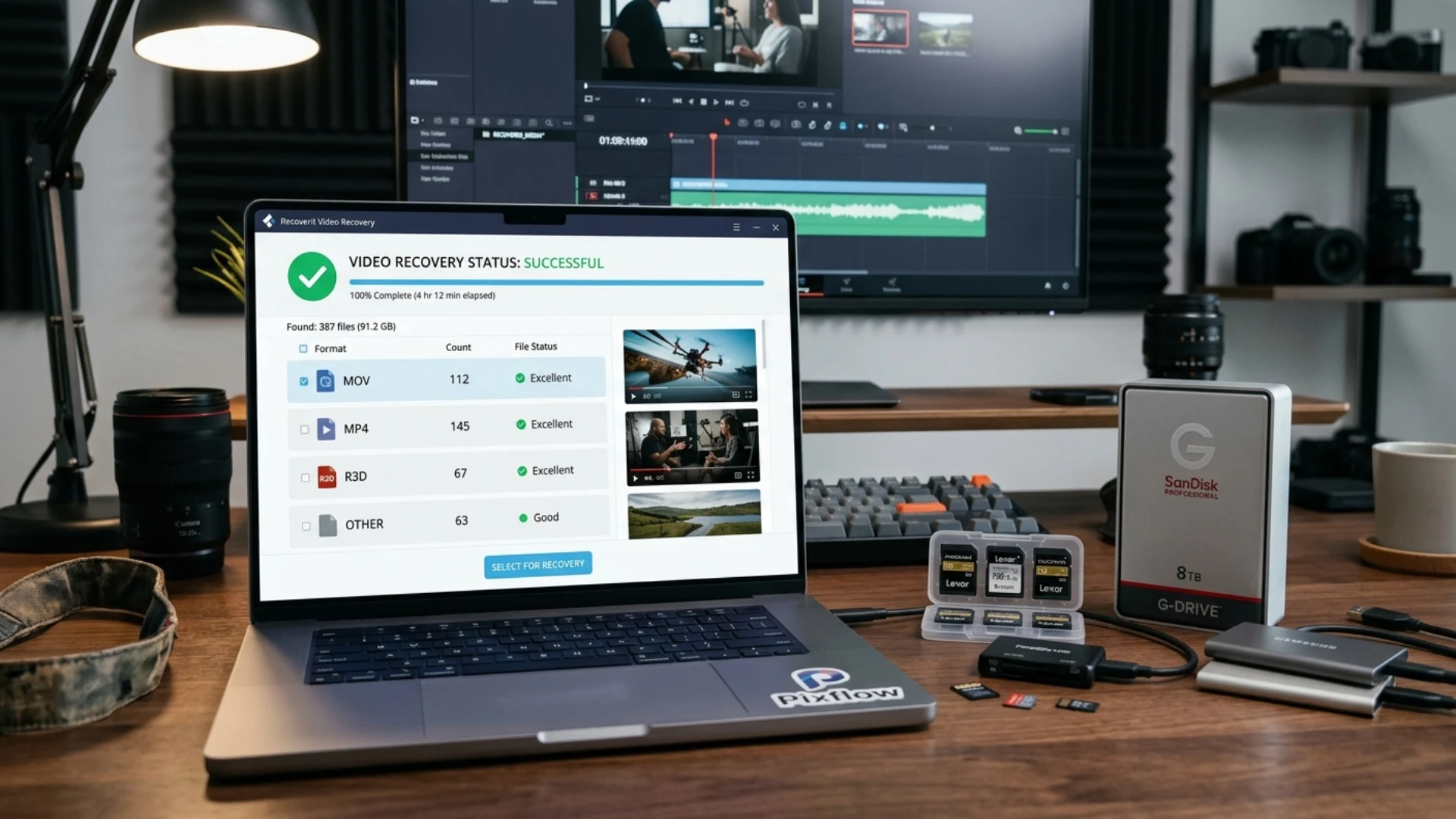
4. Wondershare Recoverit
Wondershare Recoverit is a video recovery software that helps recover deleted, lost, or inaccessible videos from computers, memory cards, USB drives, external hard drives, and other storage devices.
It supports a wide range of video formats and offers scanning options to locate lost files from formatted or corrupted storage media. Users can preview recoverable videos before restoring them, making it easier to identify the files they need.
Recoverit is suitable for content creators, photographers, and everyday users who have accidentally deleted video footage or lost files due to storage errors. However, recovery success depends on the condition of the storage device and whether the lost data has been overwritten.
Pros:
- Offers Quick Scan and Deep Scan to locate deleted, formatted, or lost video files.
- Supports recovery from hard drives, SSDs, USB drives, SD cards, cameras, and other storage devices.
- Preview before recovery: Lets users preview supported files before restoring them.
- Beginner-friendly interface
Cons:
- The free edition generally allows recovery of up to 500 MB
- Features such as enhanced video recovery and corrupted-video repair depend on the selected edition.
- Deep scans of large-capacity drives may take considerable time to complete.
- Videos with missing or overwritten data may remain corrupted even after recovery or repair attempts
5. EaseUS Data Recovery Wizard
EaseUS Data Recovery Wizard is a popular video recovery software that helps users recover deleted, lost, or formatted video files from computers, external hard drives, USB drives, memory cards, and other storage devices. It supports multiple video formats, including MP4, MOV, AVI, and other commonly used formats.
The software offers quick and advanced scanning options to locate recoverable files and lets users preview certain files before restoring them. It can also help recover videos lost due to accidental deletion, formatting, partition loss, or file system errors.
EaseUS provides a free version with limited recovery capacity, while its paid editions offer additional recovery features. It is a practical option for users looking for a straightforward video recovery solution, although the available recovery limit and supported features depend on the edition.
Tips to Prevent Losing Video Files
- Back up after every shoot. Copy footage off the card before you format it, and follow the 3-2-1 rule: three copies, on two types of storage, with one offsite or in the cloud.
- Turn on automatic backups with Windows File History or Mac Time Machine.
- Sync key projects to the cloud using Google Drive, OneDrive, iCloud, or Dropbox.
- Avoid Shift + Delete for footage, so deleted clips still land in the Recycle Bin.
- Format cards only in-camera, and only after you’ve confirmed your backups.
- Label and organize footage by project and date so you don’t delete the wrong folder during cleanup.
With your footage safe, you can focus on the creative part. Pixflow’s video templates, plugins, and AI tools help you turn raw clips into polished content for YouTube, social media, and client work.
Final Thoughts
Once your footage is back, make it stand out. Explore Pixflow for professional video templates, Motion Factory plugins, presets, and AI voiceovers for After Effects, Premiere Pro, Final Cut Pro, and DaVinci Resolve.
Frequently Asked Questions
Can I recover permanently deleted videos for free?
Yes. Free tools like Stellar Data Recovery Free Edition, Recuva, and PhotoRec can recover permanently deleted videos, as long as new data hasn’t overwritten them. Stellar’s free version recovers up to 1 GB.
How do I recover deleted videos without software?
Check the Recycle Bin or Trash, your cloud service’s deleted items, and your phone’s Recently Deleted album. If you use File History or Time Machine, you can restore an earlier backup.
Can I recover videos from a formatted SD card?
Often, yes. A quick format only removes the file index. Run a deep scan with Stellar Data Recovery or PhotoRec before you record anything new on the card.
Why won’t my recovered video play?
Part of the file may have been overwritten, or the video may be corrupted. Try playing it in VLC, then use a video repair tool if it still won’t open.
How long do deleted videos stay recoverable?
There’s no fixed time. A deleted video stays recoverable until new data overwrites it, which can happen within minutes on a busy drive. Act as soon as you notice the loss.
Can I recover deleted videos from an SSD?
It’s harder. Most SSDs use TRIM, which clears deleted data quickly. Try recovery right away, and rely on backups for footage stored on SSDs.
Disclaimer : If you buy something through our links, we may earn an affiliate commission or have a sponsored relationship with the brand, at no cost to you. We recommend only products we genuinely like. Thank you so much.
Blog Label:



Write for us
Publish a Guest Post on Pixflow
Pixflow welcomes guest posts from brands, agencies, and fellow creators who want to contribute genuinely useful content.
Fill the Form ✏