How to Repair Corrupt MP4 Video Files Online for Free
At Pixflow, we’ve been building templates, plugins, and tools for video creators since 2010, so we know that a broken clip can stop a whole project. This guide shows why MP4 files get corrupt and the fastest way to repair MP4 files online for free, plus what to try when a quick fix isn’t enough.
What is MP4 and Why MP4 Files Get Corrupted?
Common causes include:
- Interrupted recording: the battery dies, the camera overheats, or the memory card fills up mid-shot.
- Bad transfers: unplugging a card or drive while copying, or a download that stops early.
- Storage problems: bad sectors on an SD card, SSD, or hard drive.
- Crashes during export: your editor, OS, or render queue stops before the file is finalized.
- Malware or file system errors on the drive that holds your footage.
Method 1: Repair Corrupted MP4 Online with Stellar
The quickest way to repair a corrupted MP4 for free is Stellar Online Video Repair. It’s a browser-based video repair service from Stellar, a data care expert company working since 1993, so there’s nothing to download or install.
Why creators use it:
- Fixes frozen, glitchy, blurry, unplayable, and out-of-sync videos.
- Supports MP4 plus MOV, AVI, MKV, HEVC, MTS, M4V, 3GP, WEBM, Sony RSV, and more.
- Repairs footage from DSLRs, drones, GoPro, iPhone, Android, and CCTV cameras.
- Keeps the original resolution, frame rate, and bit rate.
- Works in any browser on Windows, Mac, iPhone, or Android.
- Encrypts uploads, processes files in read-only mode, and deletes them automatically after 24 hours.
How to Use Stellar Online Video Repair: Step by Step
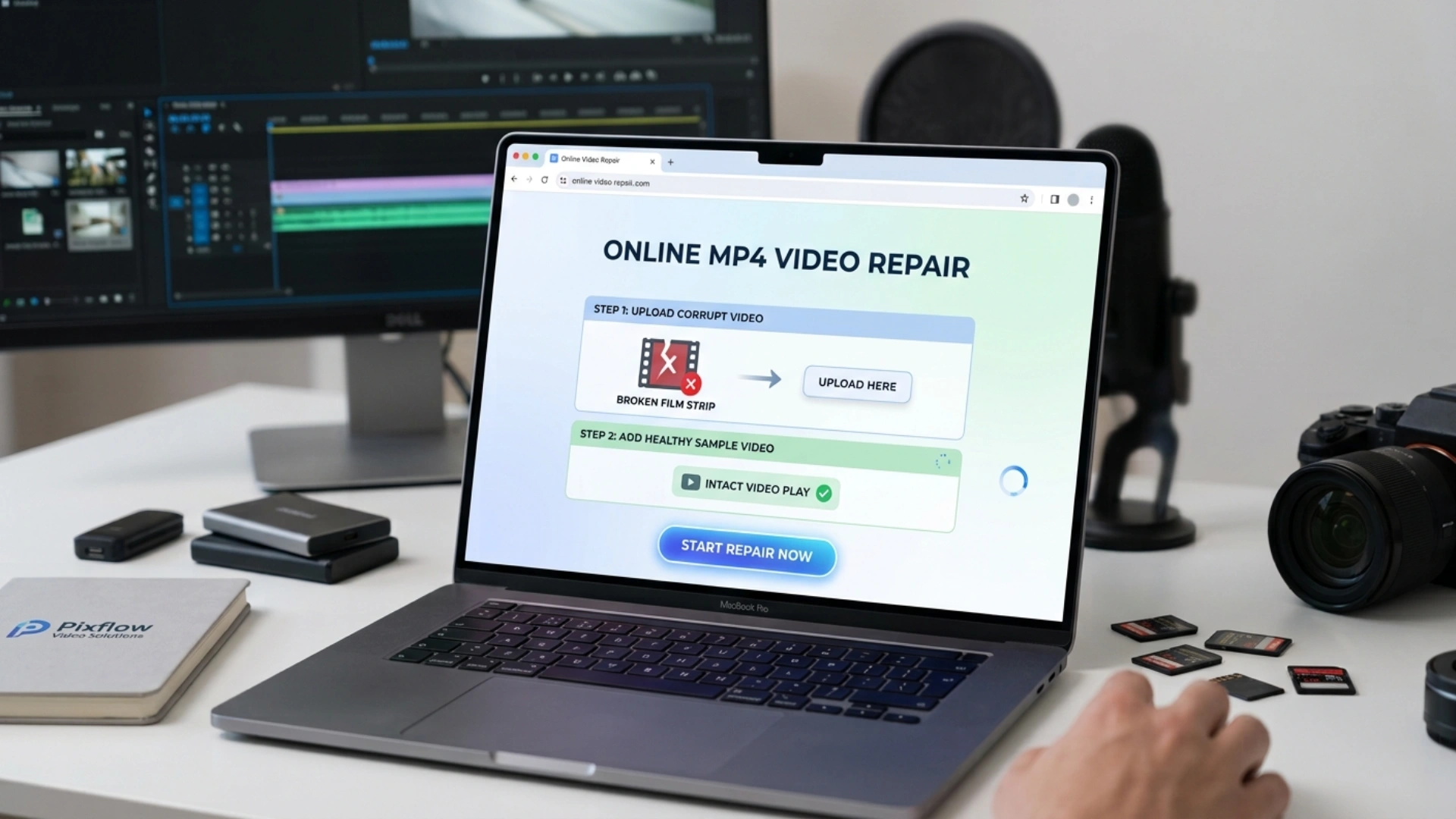
Step 1: Go to Stellar Online Video Repair
Step 2: Upload your broken or corrupt MP4 video file.
Step 3: Next, add a sample MP4 video file shot from the same device and click Start Repair
The tool will analyze the video file for corruption-related issues. Wait until the video repair is in progress. It usually takes a little over a few minutes for a bigger video file size.
Step 4: Once the video is fixed, you can preview and save the repaired video.
Tip for creators: Keep one short test clip from each camera you use, recorded at your usual settings. It makes a perfect sample file whenever a repair tool asks for one.
Method 2: Repair MP4 with VLC Media Player
VLC Media Player is a free, open-source multimedia player that can help fix certain MP4 playback issues. Although VLC does not offer a dedicated MP4 repair tool, its Convert/Save feature may resolve some problems by reprocessing a video. VLC also includes a video repair option that can attempt to fix damaged AVI files, but this feature does not directly repair MP4 files.
Try fixing MP4 video with VLC:
VLC can sometimes rebuild a damaged file by converting it.
- Open VLC and go to Media > Convert / Save.
- Add the corrupted MP4 and click Convert / Save.
- Choose a profile such as Video – H.264 + MP3 (MP4).
- Set a new file name and click Start.
This works best when the file plays partly or stutters. It won’t fix a file VLC can’t open at all.
Method 3: Repair MP4 with HEX Editor
A hex editor can help repair certain MP4 file corruption issues by allowing you to inspect and modify the file’s underlying binary data. MP4 files contain structural components called atoms or boxes, such as ftyp, mdat, and moov, which store information about the file format, media data, and playback metadata.
If an MP4 file has a damaged header or incorrect structural information, a hex editor may help identify the problem and correct specific bytes, provided the expected data is known.
How to Prevent MP4 Corruption: Tips for Video Creators
• Charge before you shoot. Start with full batteries and carry spares so a recording never cuts off mid-take.
• Use quality memory cards rated for your camera’s bit rate, and format them in-camera, not on your computer.
• Stop recording before powering off or removing the card.
• Eject drives safely and let transfers finish completely.
• Back up right away. Follow the 3-2-1 rule: three copies, on two types of storage, with one offsite or in the cloud.
• Edit from copies, never directly from the camera card.
• Keep your editing software updated and save project files often.
• Don’t interrupt renders. Let exports finish before closing your editor or sleeping your computer.
When your footage is safe and ready, Pixflow’s video templates, plugins, and AI tools can help you turn it into polished content for YouTube, social media, and client projects.
Final Thoughts
Once your footage is back, make it shine. Explore Pixflow for professional video templates, Motion Factory plugins, presets, and AI voiceovers that work inside After Effects, Premiere Pro, Final Cut Pro, and DaVinci Resolve.
Disclaimer : If you buy something through our links, we may earn an affiliate commission or have a sponsored relationship with the brand, at no cost to you. We recommend only products we genuinely like. Thank you so much.
Blog Label:



Write for us
Publish a Guest Post on Pixflow
Pixflow welcomes guest posts from brands, agencies, and fellow creators who want to contribute genuinely useful content.
Fill the Form ✏