5 Best AI Avatar Tools for Explainer Videos with Motion Graphics
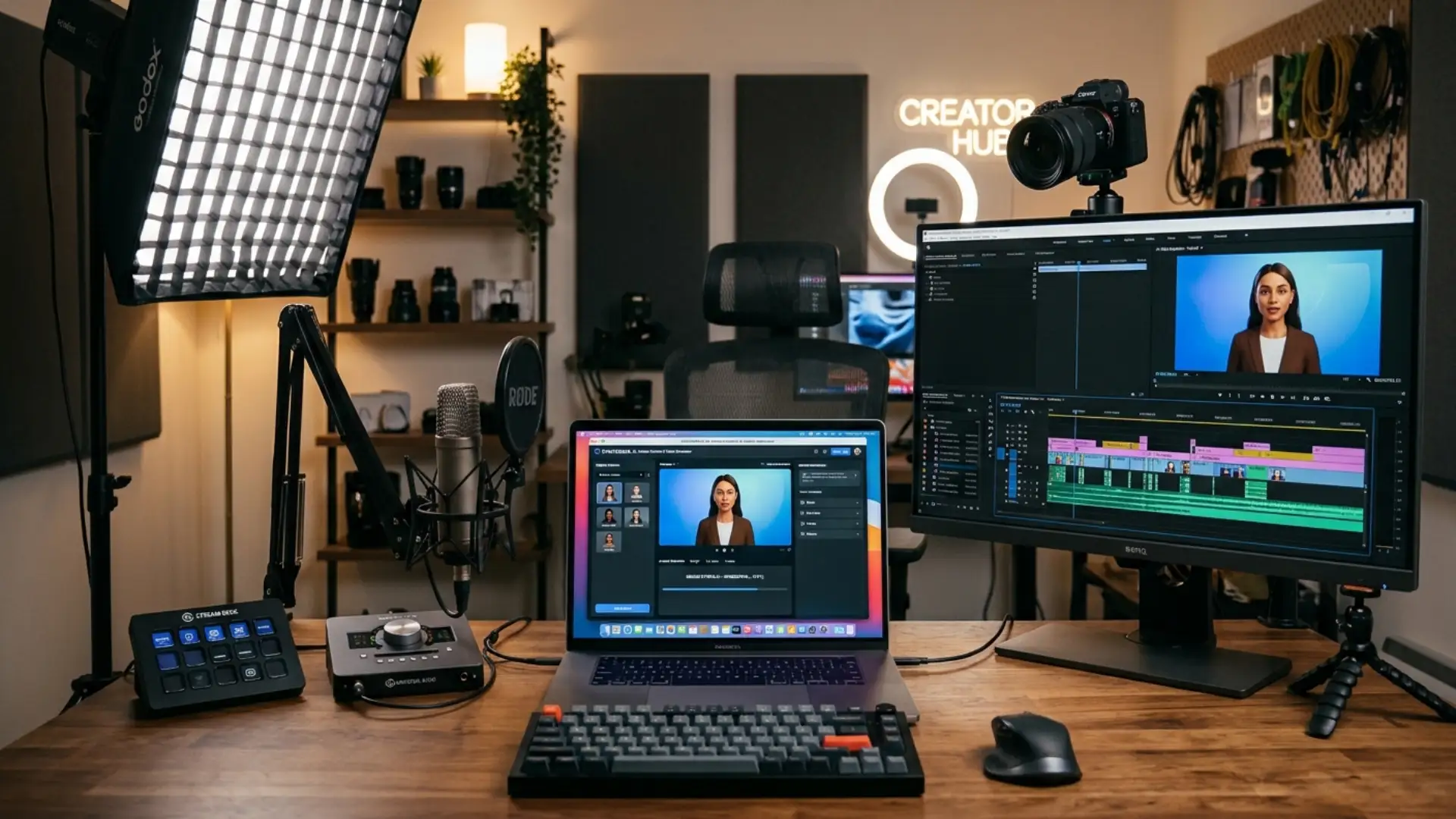
The five platforms below cover all three, and each one handles visuals differently.
Each tool was compared on the same four points: presenter options, the formats you can start from, built-in visual tools, and how you can try it.
Every detail comes from the vendor’s own product pages, checked in October 2026.
Key takeaways
- Match the tool to the visual job. Realistic presenters, screen walkthroughs and animation suit different explainers.
- Check the starting point. Some tools build a draft from a document, slide deck or URL, which saves scripting time.
- Look past the avatar. Screen recording, animations and templates decide whether a viewer actually understands the feature.
- Confirm downloads before you commit. Free access often limits exports, which matters if you finish in an external editor.
What to look for in an AI explainer video tool
- Presenter options: stock avatars for speed, a personal avatar when a real person should front the video, or animated characters for a lighter tone.
- Starting point: whether the tool can draft a video from a script, document, slide deck or URL.
- Visual tools: screen recording, animations and templates that show the process while the presenter talks.
- Trial and export limits: what the free option includes, and whether you can download the file for an external editor.
Each entry below follows the same format, so you can compare the tools side by side.
The 5 best AI avatar tools for explainer videos
1. Synthesia
Best for: realistic presenters for product explainers and training.
Synthesia offers stock, personal and prompt-built avatars, and lists product explainers among its core use cases. Personal avatars need a live consent recording that can’t be skipped or uploaded later.
- Presenters: 240+ ready-made avatars, a personal avatar from a single photo, or a character built from a prompt.
- Visual tools: outfit and background changes using your own brand assets, plus prompted scenes generated with Veo 3.
- Starting point: a document, prompt, PowerPoint or blank canvas.
- How to try it: a free plan with no credit card required.
2. Colossyan
Best for: product walkthroughs that mix screen recordings with a presenter.
Colossyan is an AI video platform for workplace learning with a screen recorder built into its editor. You capture your screen in the browser, then place the recording beside avatars, narration and slides.
- Presenters: stock AI avatars, custom avatars and AI narration voices.
- Visual tools: a built-in screen recorder with trimming and zoom, plus music, animations and graphics.
- Starting point: text, documents or templates.
- How to try it: a 14-day free trial with no credit card required.
3. D-ID
Best for: quick talking-presenter clips built from a photo.
D-ID’s Creative Reality Studio turns a script and a face into a talking presenter video. It centers on the presenter, so plan to add diagrams and screen footage in a separate editor.
- Presenters: 100+ stock avatars, a personal avatar from an uploaded photo, or a photorealistic or illustrated face.
- Visual tools: presenter generation exported as an MP4 for use in your own edit.
- Starting point: a typed script paired with a chosen voice.
- How to try it: a 14-day free trial that includes 3 minutes of video.
4. Elai.io
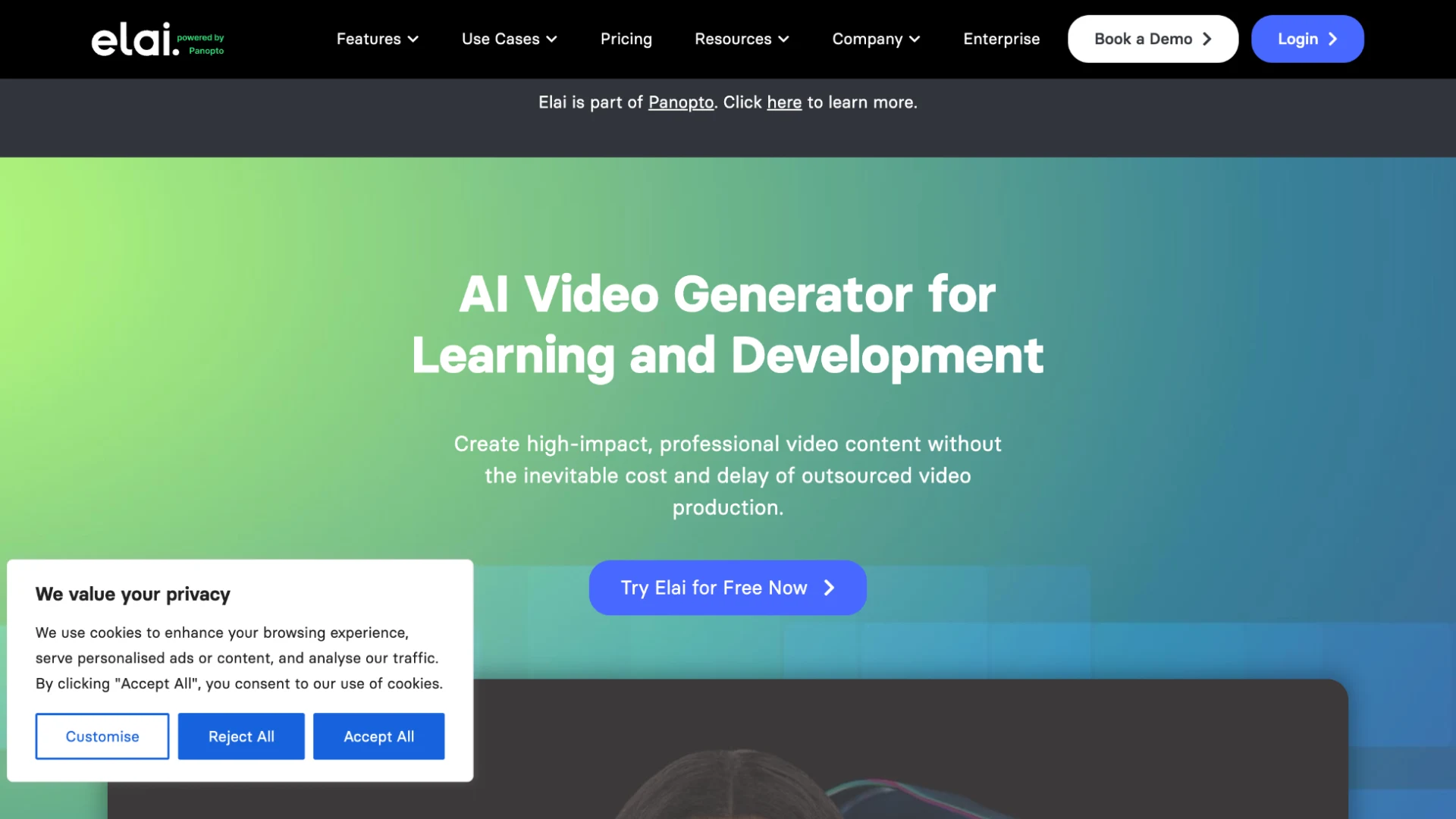
Elai.io, now part of Panopto, builds presenter videos for learning and development teams. It can place two avatars on one slide, which suits scenario-based explanations.
- Presenters: 80+ stock avatars, plus selfie, studio, photo and animated mascot custom avatars.
- Visual tools: screen capture and recording, plus ready-made video templates.
- Starting point: text, a PPTX file or a URL.
- How to try it: a free option offered from its homepage.
5. Vyond
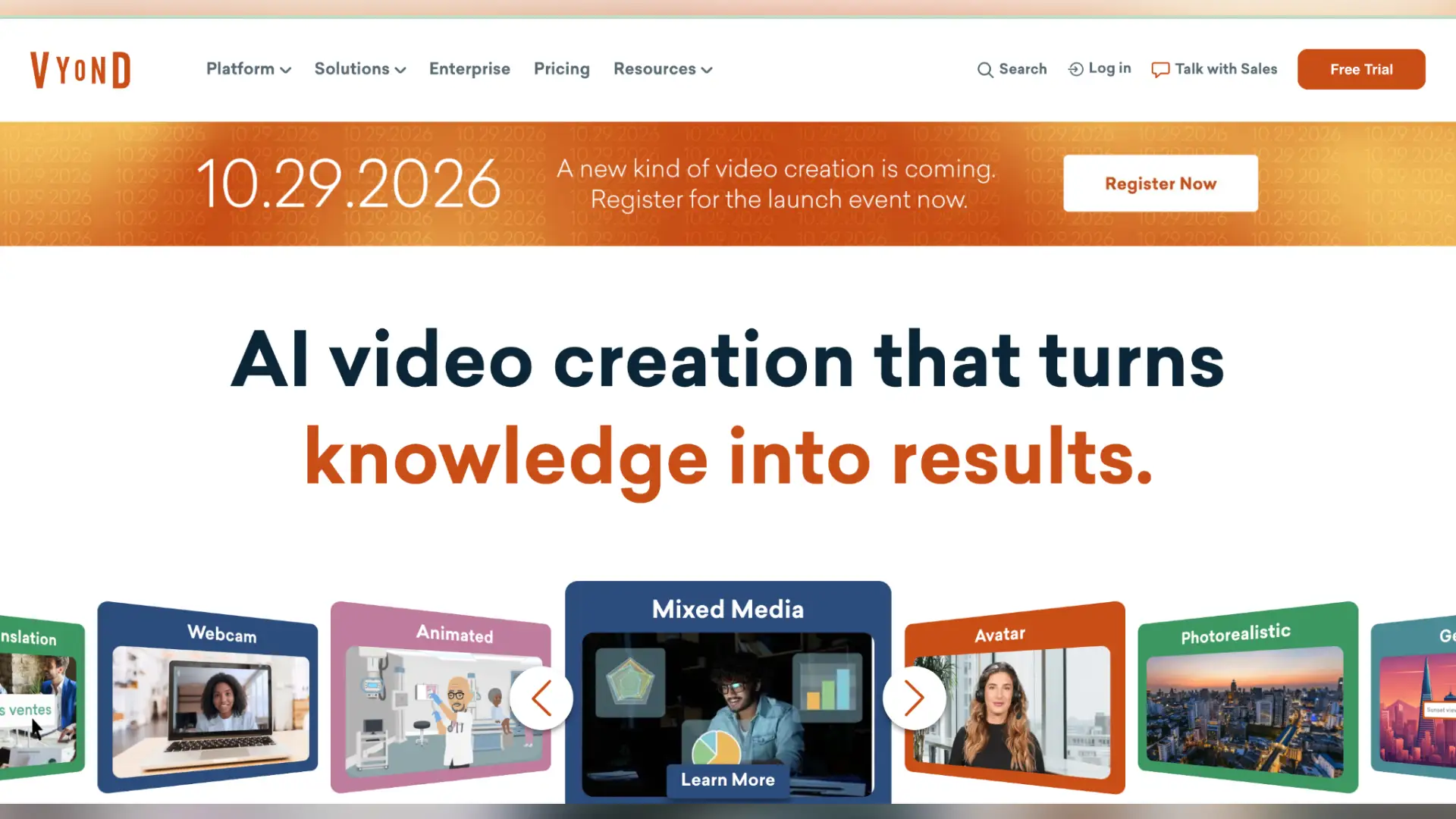
Vyond pairs Vyond Studio, a drag-and-drop animation editor, with Vyond Go, which drafts a video from an idea, URL or document. Its mixed media templates can include AI avatars alongside animated scenes.
- Presenters: animated characters, plus AI avatars in selected templates.
- Visual tools: a large library of pre-animated assets arranged by drag and drop.
- Starting point: an idea, URL or document through Vyond Go.
- How to try it: a free trial, though free plans can’t download Vyond Go videos.
How to build the explainer once you pick a tool
- Storyboard first. Write a two-column script with narration on the left and the matching visual on the right. A practical guide to turning client documents into video makes the same case: plan what the viewer sees while you write, not during the edit.
- Approve the presenter before the graphics. Test one short scene containing a product name, a number and a pause. Fix pronunciation and timing, then lock the narration.
- Add motion graphics in your editor. In current versions of Premiere Pro, install a Motion Graphics template (.mogrt) from Window > Graphics Templates, drag it into the sequence, and adjust it in the Edit tab of the Properties panel. In After Effects, a marker can cover a duration, so one marker can set a label’s full on-screen span.
- Review before publishing. Watch once without sound, listen once without the picture, then watch both together. Correct captions, since YouTube tells creators to review automatic captions for errors, and apply its disclosure for realistic synthetic content.
Conclusion
Whichever you choose, the presenter should guide the viewer while diagrams, recordings and labels carry the explanation. Plan those visuals as carefully as the script.
Disclaimer : If you buy something through our links, we may earn an affiliate commission or have a sponsored relationship with the brand, at no cost to you. We recommend only products we genuinely like. Thank you so much.
Blog Label:


Write for us
Publish a Guest Post on Pixflow
Pixflow welcomes guest posts from brands, agencies, and fellow creators who want to contribute genuinely useful content.
Fill the Form ✏