Codec vs Container: The Simplest Explanation for Editors

The codec vs container confusion is one of the most common mix-ups in video editing. It trips up beginners, intermediate editors, and even some professionals who’ve been cutting footage for years. The terminology gets tangled because camera menus, export dialogs, and online tutorials often use these terms loosely, sometimes even interchangeably.
Here’s the thing: codecs and containers are two completely different concepts that work together. Once you understand what each one actually does, a lot of video editing decisions suddenly start making sense.
This is the simplest breakdown you’ll find. No jargon overload, no deep technical dives. Just a clear, practical explanation you can actually use.
The Timeline Analogy: Think Like an Editor
Picture your Premiere Pro or After Effects timeline. You’ve got video clips on V1 and V2, audio on A1 and A2, maybe some adjustment layers, subtitles, and markers. The sequence holds all of these different elements together in one organized structure.
That’s what a container does for a video file.
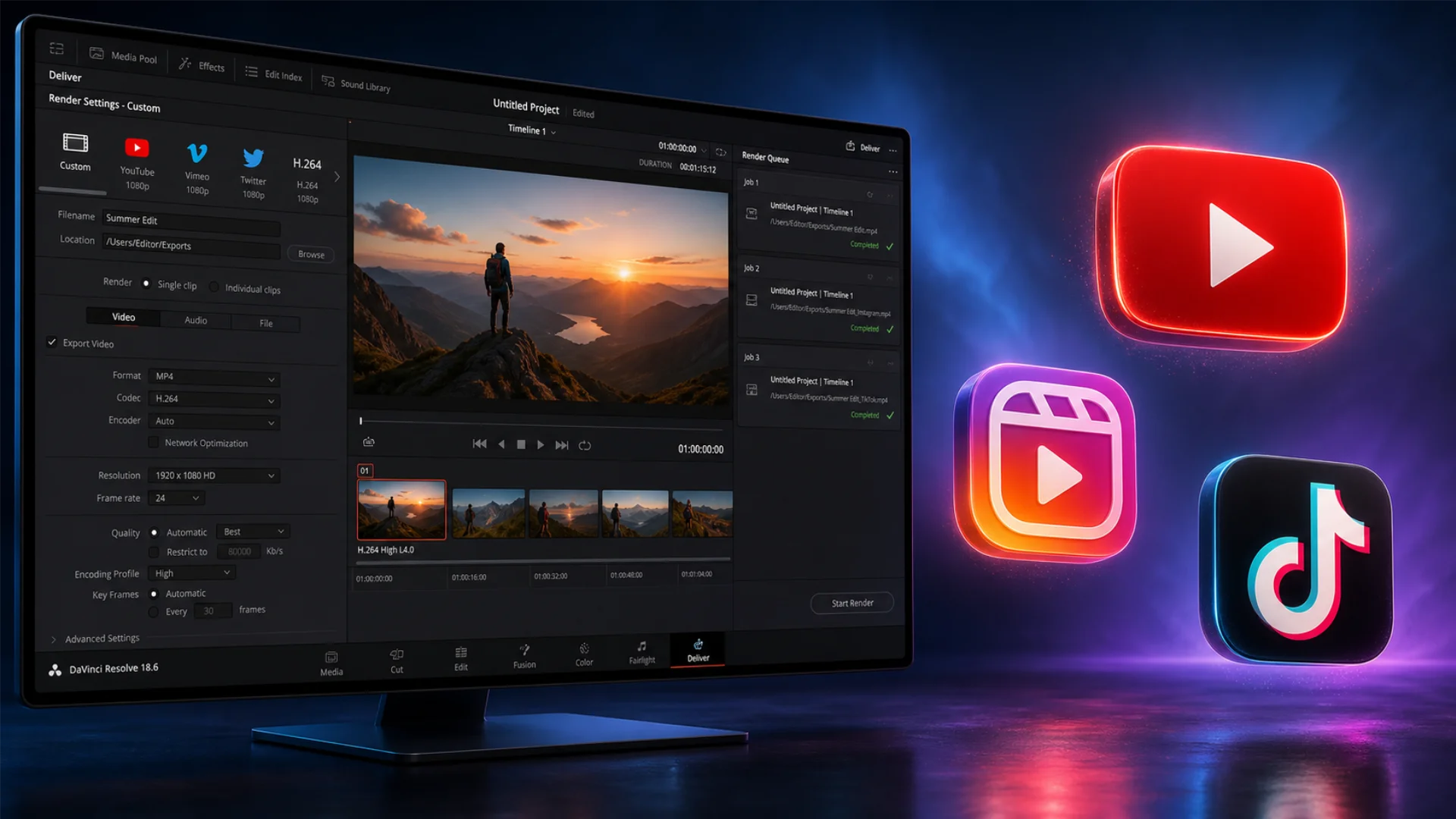
Now, when you hit Export and choose your render settings (H.264, ProRes, HEVC), you’re choosing how all that content gets compressed and encoded into a deliverable file.
That’s the codec.
Same timeline. Same footage. Same audio. But export it with H.264 and you get a small, web-ready file. Export it with ProRes, and you get a massive, edit-friendly file. The container (MP4, MOV) holds everything together. The codec (H.264, ProRes) determines how it all gets packed.
What is a Container?
The container doesn’t compress anything. It doesn’t touch your image quality. It simply organizes and holds multiple streams of data together so your media player (or editing software) can read them as one cohesive file.
Here are the most common containers you’ll encounter:
- MP4 (.mp4): The universal standard. Works everywhere, on every device, every platform.
- MOV (.mov): Apple’s format. Preferred in professional editing, especially with ProRes.
- MKV (.mkv): Open-source and flexible. Great for archiving and multi-track files.
- AVI (.avi): Microsoft’s legacy format. Still around, but largely outdated.
- WebM (.webm): Google’s web-optimized format. Built for browsers and streaming.
For a deeper look at each container and when to use it, check out our guide on common video formats and containers explained.
What is a Codec?
Without codecs, a single minute of uncompressed 1080p video would eat up roughly 10 GB of storage. Codecs make it possible to shrink that down to a fraction of the size while keeping the video looking clean.
The most common codecs today:
- H.264 (AVC): The most widely used codec in the world. Compatible with virtually everything.
- H.265 (HEVC): The successor to H.264. Better compression, roughly 50% smaller files at the same quality.
- ProRes: Apple’s professional editing codec. High quality, large files, designed for post-production.
- DNxHD/DNxHR: Avid’s professional codecs. Cross-platform, widely used in broadcast.
- VP9: Google’s open-source codec. Powers most YouTube playback.
- AV1: The newest open-source codec. Best compression efficiency, still gaining hardware support.
Want to understand how these codecs compare in practice? Our detailed breakdown of H.264, H.265, VP9, and AV1 covers the strengths and trade-offs of each.
The Key Difference at a Glance
A Real-World Example
Export 1: MP4 container + H.264 codec
Export 2: MP4 container + H.265 codec
Both files are .mp4. Same container. But the second file will be significantly smaller because H.265 compresses more efficiently than H.264. The container didn’t change. The codec did.
Now flip it:
Export 3: MP4 container + H.264 codec
Export 4: MOV container + H.264 codec
Both use the same codec, so the visual quality is identical. But the MOV file might handle metadata differently or support features that MP4 doesn’t (like certain professional workflows). The codec stayed the same. The container changed.
This is exactly why renaming a .mov file to .mp4 doesn’t actually change anything meaningful. You’ve changed the label on the box, but the contents inside are still packed the same way. To learn when each container actually matters, our MP4 vs MOV comparison walks through the practical differences.
Common Codec + Container Combos
Conclusion
Once this clicks, every export dialog, every camera menu, and every format recommendation starts making sense. You’ll stop saying “I exported in H.264 format” and start saying “I exported in MP4 with H.264,” and you’ll know exactly what that means.
If you want to go deeper, our complete beginner’s guide to video formats and codecs covers the full picture from the ground up.
Disclaimer : If you buy something through our links, we may earn an affiliate commission or have a sponsored relationship with the brand, at no cost to you. We recommend only products we genuinely like. Thank you so much.
Blog Label:

Write for us
Publish a Guest Post on Pixflow
Pixflow welcomes guest posts from brands, agencies, and fellow creators who want to contribute genuinely useful content.
Fill the Form ✏