Premiere Pro Multicam Editing: The Complete Workflow for Multi-Camera Projects
- What Is Multicam Editing in Premiere Pro
- Before You Start: Multicam Project Prep
- Method 1: Create a Multi-Camera Source Sequence (the Standard Workflow)
- Method 2: Manual Sync plus Nest plus Multicam Enable (the Alternative Workflow)
- How to Edit in Multicam View
- Multicam Audio Workflow
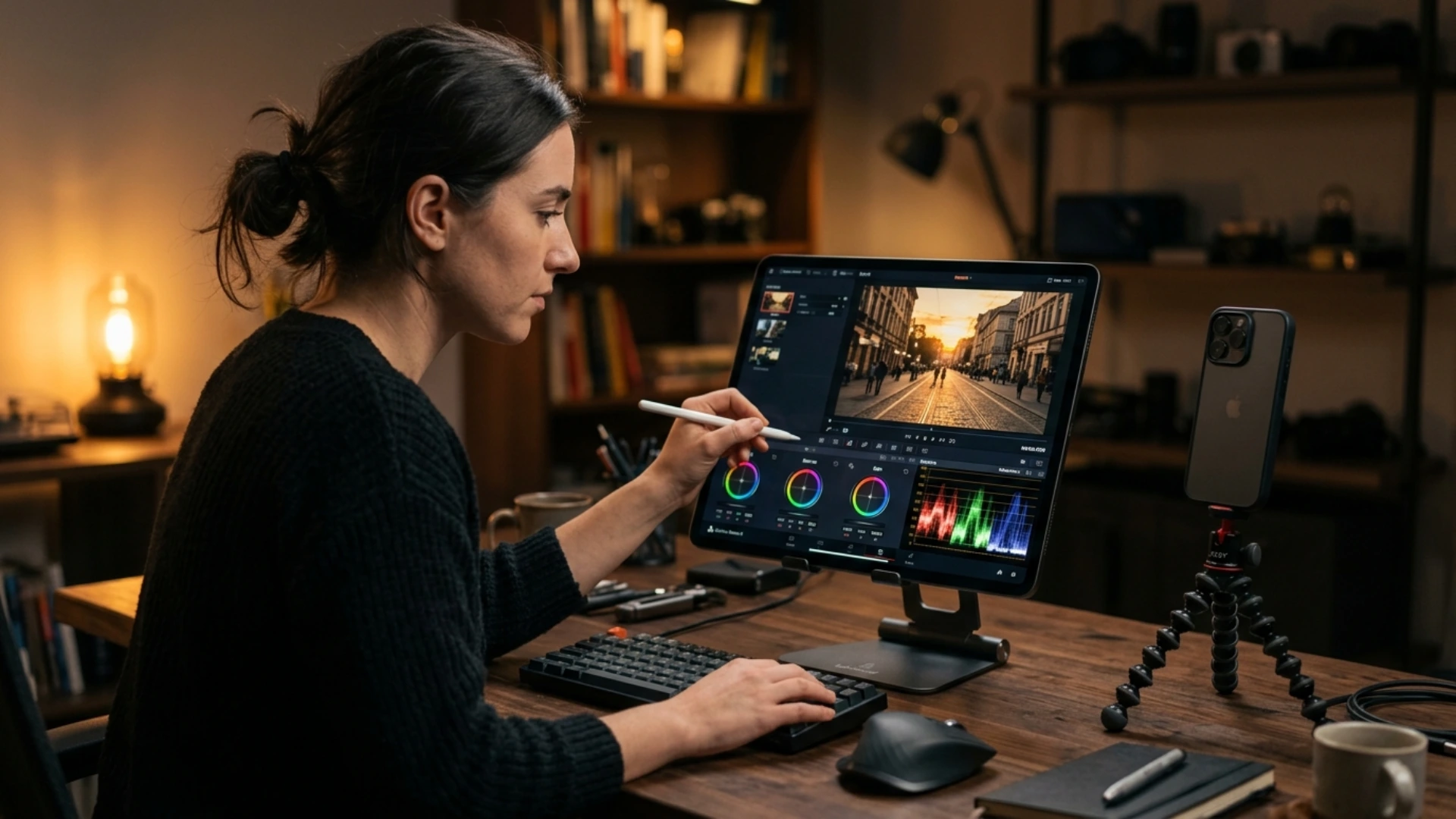
- Multicam Color Grading
- Performance and Playback Tips for Multicam
- Multicam Keyboard Shortcuts (and How to Customize Them)
- Advanced Multicam Workflows
- Common Multicam Problems and How to Fix Them
- Pro Tips From Real-World Multicam Editors
- Conclusion
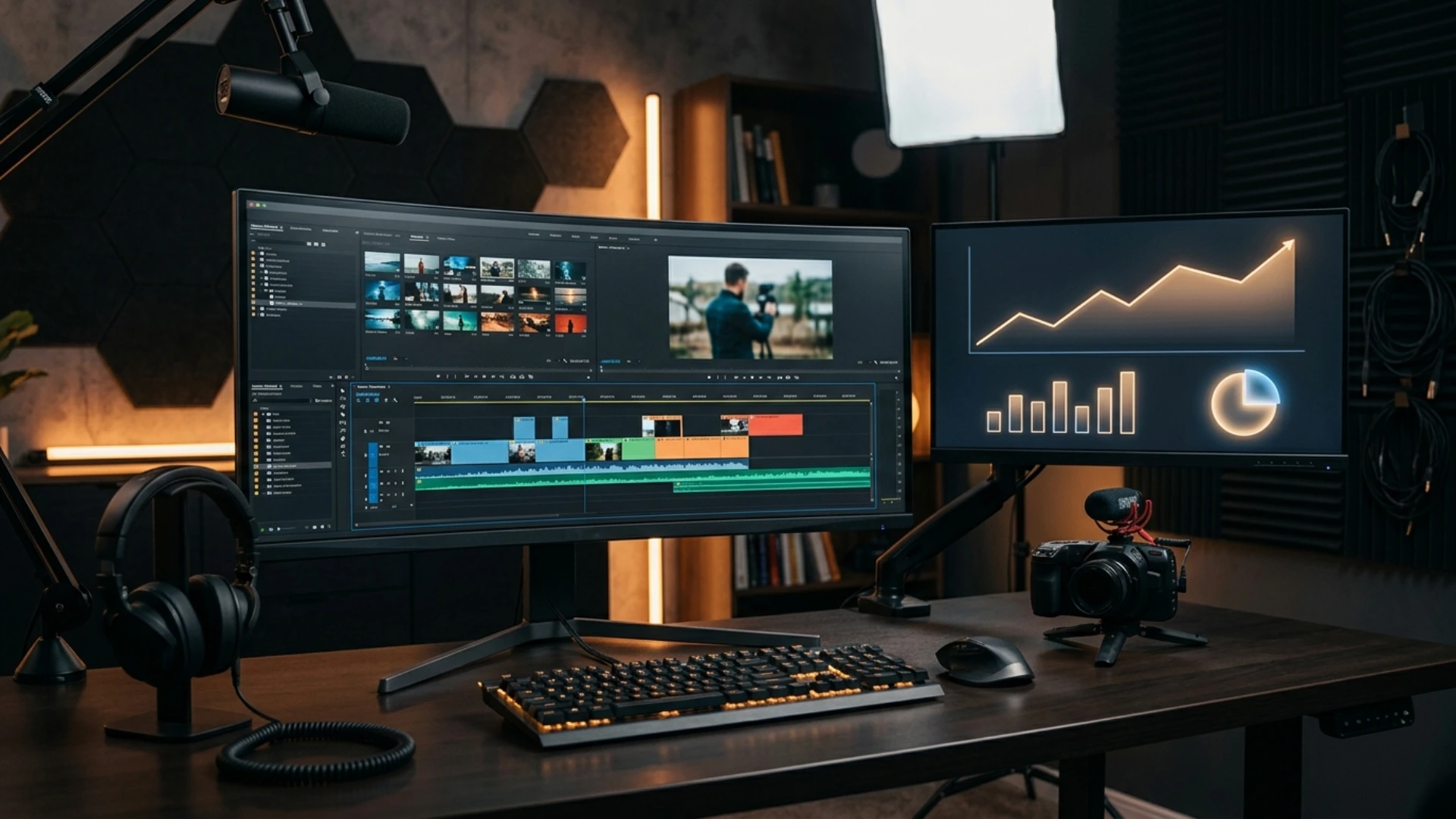
That is what multicam editing in Premiere Pro is for: turning a pile of synced angles into a single editable clip you can switch live. This guide covers the entire workflow from prep through finishing. Every audio decision. The most common sync failures and how to fix them. Performance tweaks for heavy 4K projects. The advanced tricks pro editors use that are not in the official documentation.
Multicam editing in Premiere Pro works by selecting your camera clips, creating a multi-camera source sequence, syncing by audio waveform or timecode, then editing live by tapping number keys to switch angles during playback. The fundamentals take ten minutes to learn. The advanced workflow (audio routing, color grading, troubleshooting, more than nine angles) is what separates a usable cut from a professional one.
What Is Multicam Editing in Premiere Pro?
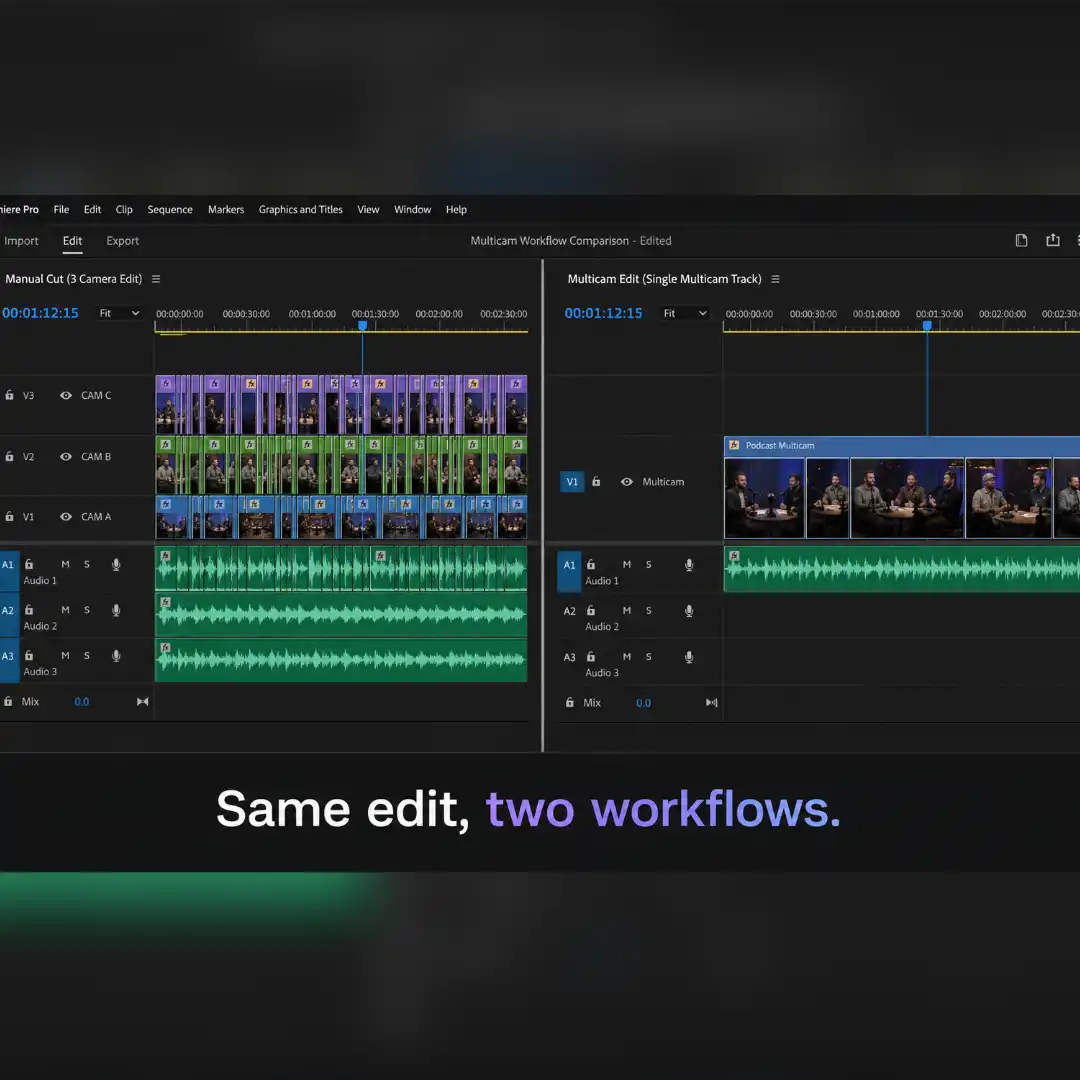
Under the hood, a multi-camera source sequence is a special kind of nested sequence with angle switching enabled. Premiere Pro takes the source sequence (which holds all your camera tracks) and exposes it as a single clip. When you change angles, you are telling Premiere which video track inside the underlying nest to display.
The win over manual cutting is huge. Instead of dragging clips on top of each other, scrubbing through every minute, and chopping cuts by hand, you press play, watch the multi-view, and tap 1, 2, 3 to switch angles as the action happens. A thirty-minute interview that takes four hours to manually cut takes about thirty-five minutes in multicam: the runtime of the interview plus a few minutes of refinement.
Common multicam use cases
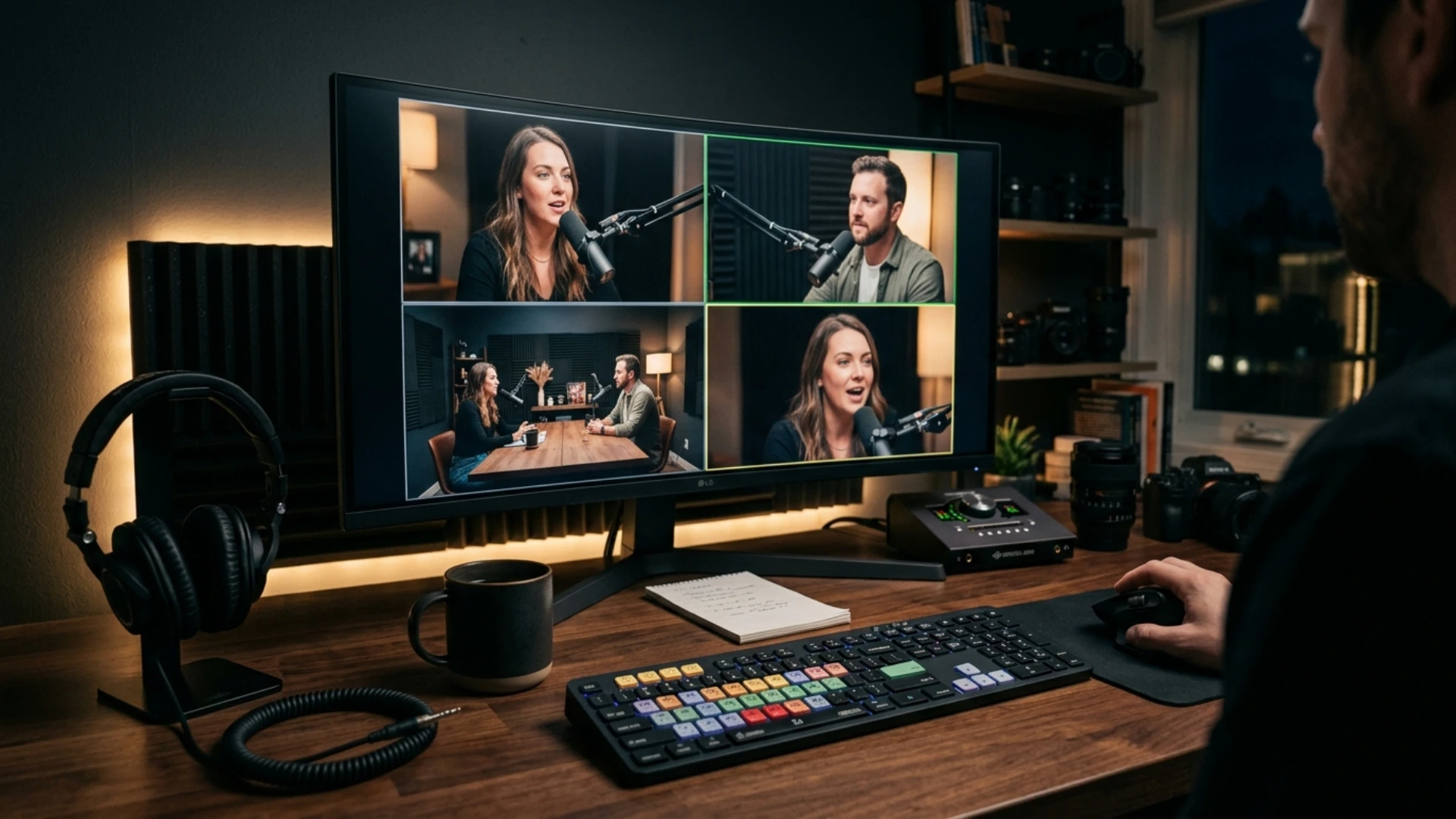
- Interviews and podcasts with two to four cameras and a lav mic
- Music performances and music videos covered by multiple operators
- Weddings, especially the ceremony, vows, and speeches
- Conferences, panels, and stage events
- Sports and live events with locked-off plus chase cameras
- Talk shows and YouTube channels with multi-angle setups
- Narrative film scenes shot with two or more simultaneous cameras
Most of these end products lean heavily on transitions to soften hard cuts between angles. For music videos and weddings especially, light leak transitions take the edge off rapid camera changes and give a cinematic feel. Pixflow’s Luminous Light Leak Transitions pack ships eighty 4K transitions across film burn and light leak categories that drop straight onto multicam cuts without plugins.
Before You Start: Multicam Project Prep
Record with sync in mind
If you have any control over the shoot, plan for sync up front:
- Run a continuous reference audio track on every camera, even if it is rough scratch audio from the on-board mic. Premiere syncs by audio waveform, and the only requirement is that every camera hears the same sound.
- Slate the start with a clap, a clapboard, or even a hand clap in front of each camera. A single transient is enough to anchor the sync.
- If your cameras support timecode and you can jam-sync them, do it. Timecode sync is the fastest method by a wide margin and works even when audio is unusable.
- Avoid stopping and restarting cameras unless you have to. Cameras that auto-split recordings every thirty minutes (a common mirrorless behavior) create gaps that need extra handling, covered later.
Organize files and bins
Before you import, structure the project:
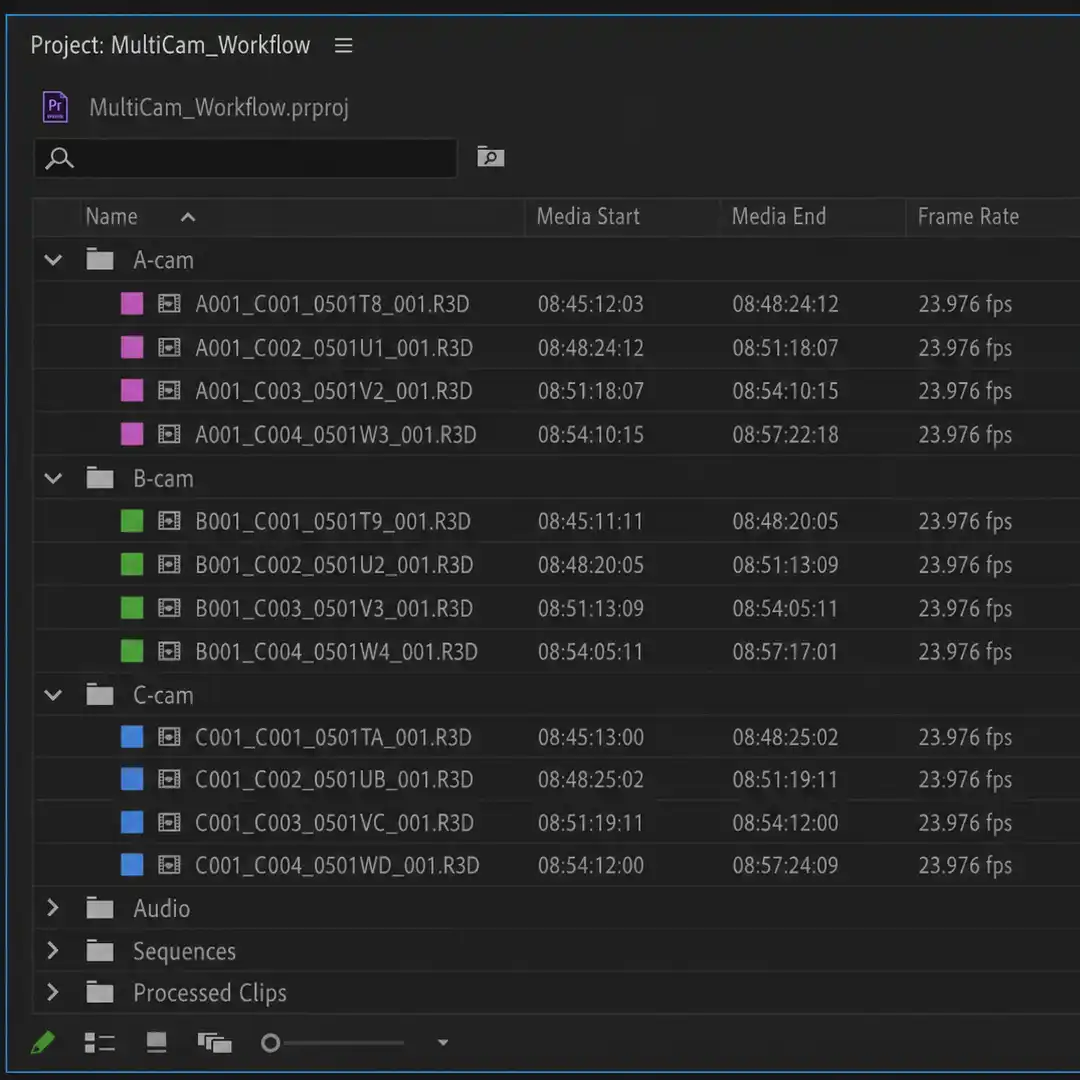
- One bin per camera (
A-cam,B-cam,C-cam) - One bin for separate audio files (
Audio) - One bin for finished sequences (
Sequences) - One bin for the source sequence Premiere will create (Premiere will auto-create a
Processed Clipsbin if you let it, or you can pre-makeMulticam Sources)
Color-label every clip in each camera bin. Right-click in the bin, choose Label, and assign distinct A, B, C colors. Later, when you flatten or troubleshoot, the colors tell you instantly which angle came from where.
Decide on proxies before building the multicam
If your raw media is 4K, 6K, ProRes, R3D, BRAW, or any flavor of variable frame rate, generate proxies before you build the multicam. Multicam playback is heavy: Premiere is decoding multiple streams in real time, and every additional camera multiplies the load. Common proxy formats:
- ProRes Proxy at 1280×720 for clean fast preview
- CineForm at 480p for the slimmest possible preview
Variable frame rate (VFR) media, like footage from a phone or some mirrorless cameras, is the single most common cause of multicam playback bugs. Convert VFR to constant frame rate (CFR) with a tool like Shutter Encoder before you proxy or build the multicam. Adobe’s own community threads keep returning to this fix.
If your media management is messy or you have moved files between drives, sort that out first. Our walkthrough on offline media in Premiere Pro and how to relink files without chaos is worth running before you commit to a multicam, because relinking after the multicam is built is significantly more painful.
Method 1: Create a Multi-Camera Source Sequence (the Standard Workflow)
Step by step
- Import every camera clip and any external audio into the project.
- In the Project panel, hold
Ctrl(Windows) orCmd(macOS) and click each camera clip you want in the multicam. Add the external audio file too if you have one. - Right-click any selected clip and choose
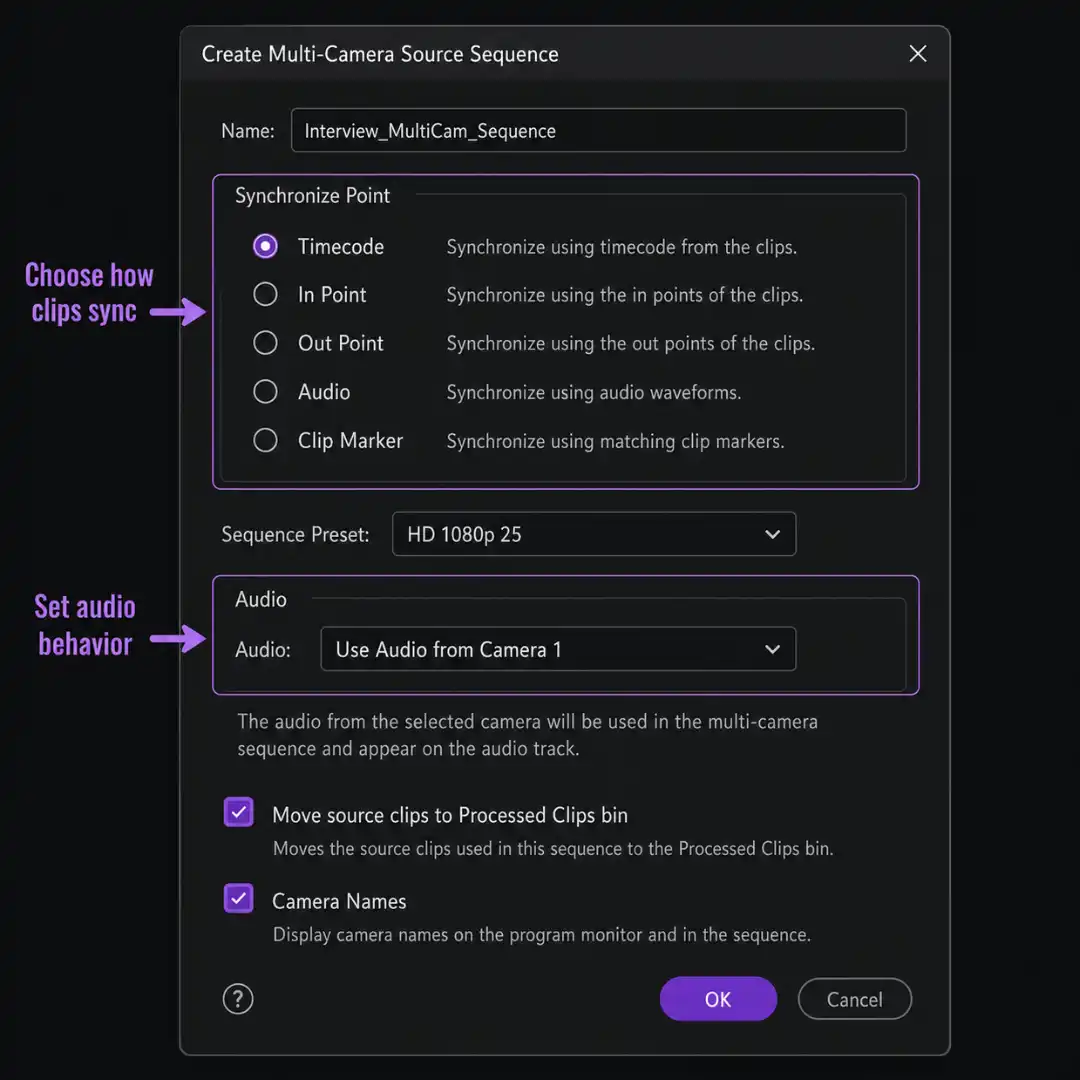
Create Multi-Camera Source Sequence. Or use the menu:Clip > Create Multi-Camera Source Sequence. - In the dialog that opens, switch the name field from
DefaulttoCustomso you can name the sequence yourself. Default names appendMulticamto the first clip name and turn into a mess across many sequences. - Choose your synchronization method (covered next).
- Set
Sequence PresettoAutomaticso Premiere matches your footage settings, unless you have a specific reason to use a custom preset. - Choose your audio routing (covered after sync).
- Leave
Move Source Clips to Processed Clips Binchecked so your Project panel stays clean. - Click
OK.
Premiere builds the multi-camera source sequence in your Project panel. To start editing it, right-click the new source sequence and pick New Sequence From Clip. This creates a normal editing sequence with the multicam clip already on the timeline, ready to cut.
Synchronization options explained
Premiere offers five sync methods. Pick the one that matches what you have:
- Timecode is the fastest method when your cameras were jam-synced on set. Premiere reads the embedded timecode and aligns clips to the frame. Use this whenever you can.
- Audio is the most common real-world method. Premiere analyzes the audio waveforms across all cameras and aligns them automatically. As long as every camera recorded a usable scratch track of the same sound, this works.
- Clip Marker is for when you placed a marker at a specific frame on every clip (for example, the moment of the clap). Premiere lines those markers up.
- In Points is the manual fallback. You open each clip in the source monitor, set an
I(In Point) at the frame of the clap or sync event, and Premiere lines those in points up. - Out Points is the same idea using out points instead of in points. Use this when your sync event is at the tail of every clip.
If the audio sync fails (a common frustration), in points are your reliable fallback. Mark the exact frame of the clap or any shared transient on each clip, then use the In Points option.
Sequence Preset
Leave this on Automatic for the first build. Premiere copies the settings of the first selected clip and that is usually what you want. If you need to change frame rate, frame size, or color space later, you can do it in the resulting sequence’s Sequence Settings (right-click the sequence, choose Sequence Settings).
Audio routing: Camera 1 vs All Cameras vs Switch Audio
This is the option people get wrong most often. The choice is not just about which audio you hear in the edit. It defines what your multicam can do later.
If your sync is by audio and you only need a single clean track, you can leave the audio choice on Camera 1 and replace its content later inside the multicam source sequence (see the audio workflow section below).
Move Source Clips to Processed Clips Bin
Leave this checked. After the multicam is built, Premiere moves the original camera clips into a new Processed Clips bin so your main Project panel is not cluttered with the now-redundant raw media. They are not deleted. You can still open them.
Camera Names: Enumerate vs Use Clip Names
If you renamed your clips before selecting them (A-cam_01, B-cam_01), check Use Clip Names. The angles in the multicam will inherit those names, which is useful in the Edit Cameras dialog later. If you did not rename, leave Enumerate Cameras selected and Premiere labels them Camera 1, Camera 2, and so on.
Create Single Multicam Source Sequence (the gap option)
This hidden checkbox is gold for messy shoots. With it on, Premiere builds one continuous multicam source sequence that preserves any gaps where coverage was missing on some cameras. With it off, only the overlapping portions of the clips are combined and the rest is left out. Turn this on when your cameras stopped and started at different times during the shoot.
Method 2: Manual Sync + Nest + Multicam Enable (the Alternative Workflow)
Step by step
- Drop a single clip into the timeline to create a sequence with the right settings, then delete it.
- Stack each camera clip on its own video track (V1, V2, V3, and so on).
- Drop your separate audio file on its own audio track.
- Marquee select every clip plus the audio, right-click, and choose
Synchronize. SetAudio Track Channelto1orMix Downand clickOK. Premiere lines them all up by waveform. - Trim the heads and tails so all clips share the same start and end. The pre-roll on each camera will not match.
- Select the camera audio tracks (the ones from the on-board mics), right-click, choose
Unlink, then delete them. Keep the clean external recording. - Marquee select every video clip (not the audio), right-click, choose
Nest, and name it something obvious likeMULTICAM NEST. - Right-click the resulting nested clip on the timeline. Choose
Multi-Camera > Enable. The nest is now treated as a multicam. - In the Program Monitor, click the wrench icon (or the
+Button Editor) and switch the Display Mode fromComposite VideotoMulti-Camera. You can also pressShift + 0if that shortcut is mapped.
You can now switch angles using the multicam view exactly like Method 1. The advantage of Method 2 is that you can hand-trim the underlying tracks any time, which is much easier than diving back into a source sequence.
When to use long-form fragmented files
If one of your cameras shut off and restarted (auto-split every twenty-nine to thirty minutes is a common mirrorless behavior), build a per-camera sequence first. Drop all of camera B’s split clips end-to-end on a single sequence, line them up to fill any gaps, then use that sequence as a single “angle” when you build the multicam. From the multicam’s perspective, the camera was running continuously.
How to Edit in Multicam View
Activate the multi-camera view
Three ways to turn on the multi-camera display in the Program Monitor:
- Click the multi-camera button at the bottom of the Program Monitor (a 2×2 grid icon).
- Right-click the Program Monitor, choose
Display Mode > Multi-Camera. - Click the wrench icon at the bottom-right of the Program Monitor, choose
Multi-Camera.
If the multi-camera button is missing, click the + icon at the bottom of the Program Monitor to open the Button Editor, then drag the multi-camera button into the toolbar. Once it is there, the keyboard shortcut Shift + 0 toggles the view.
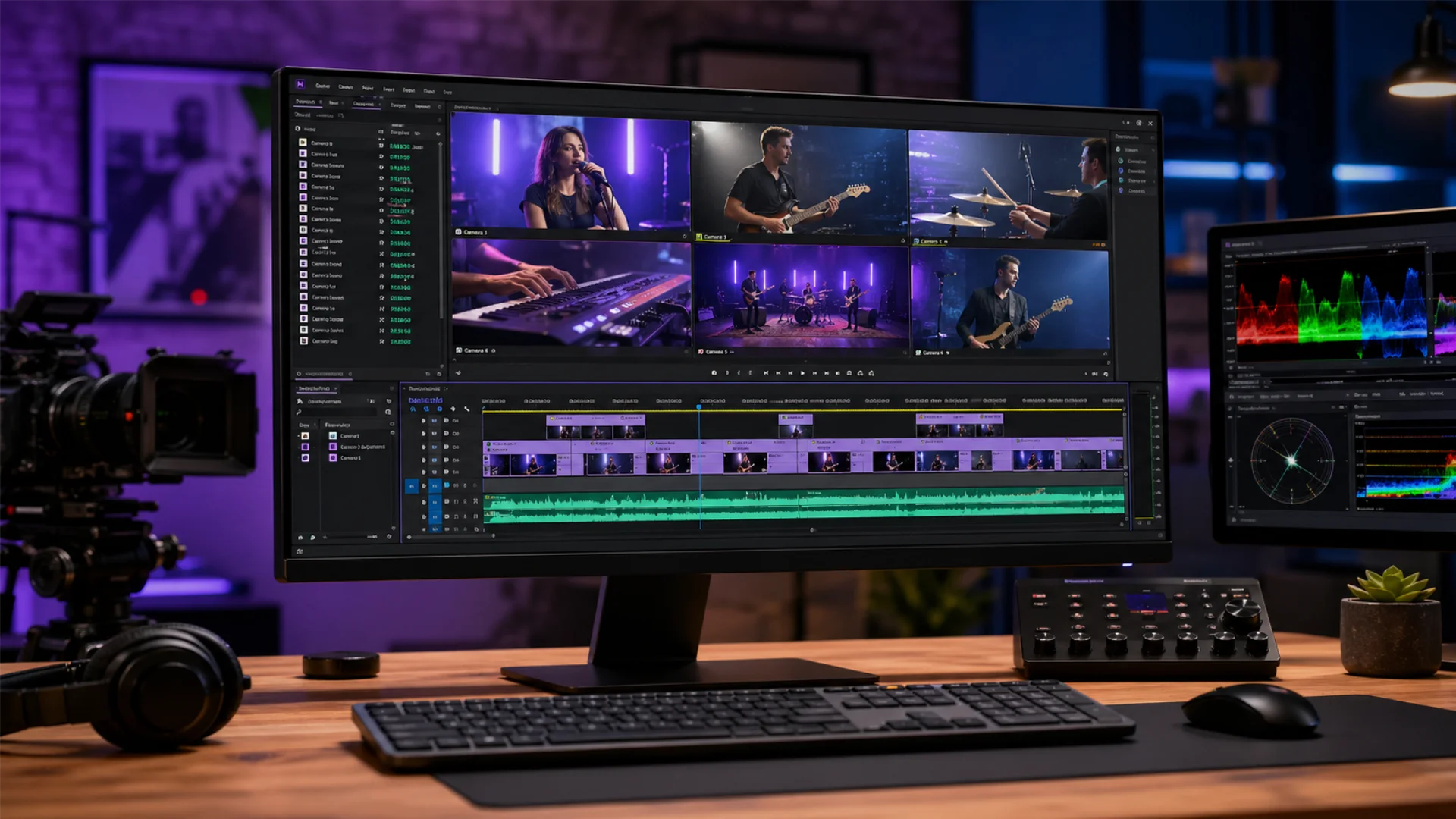
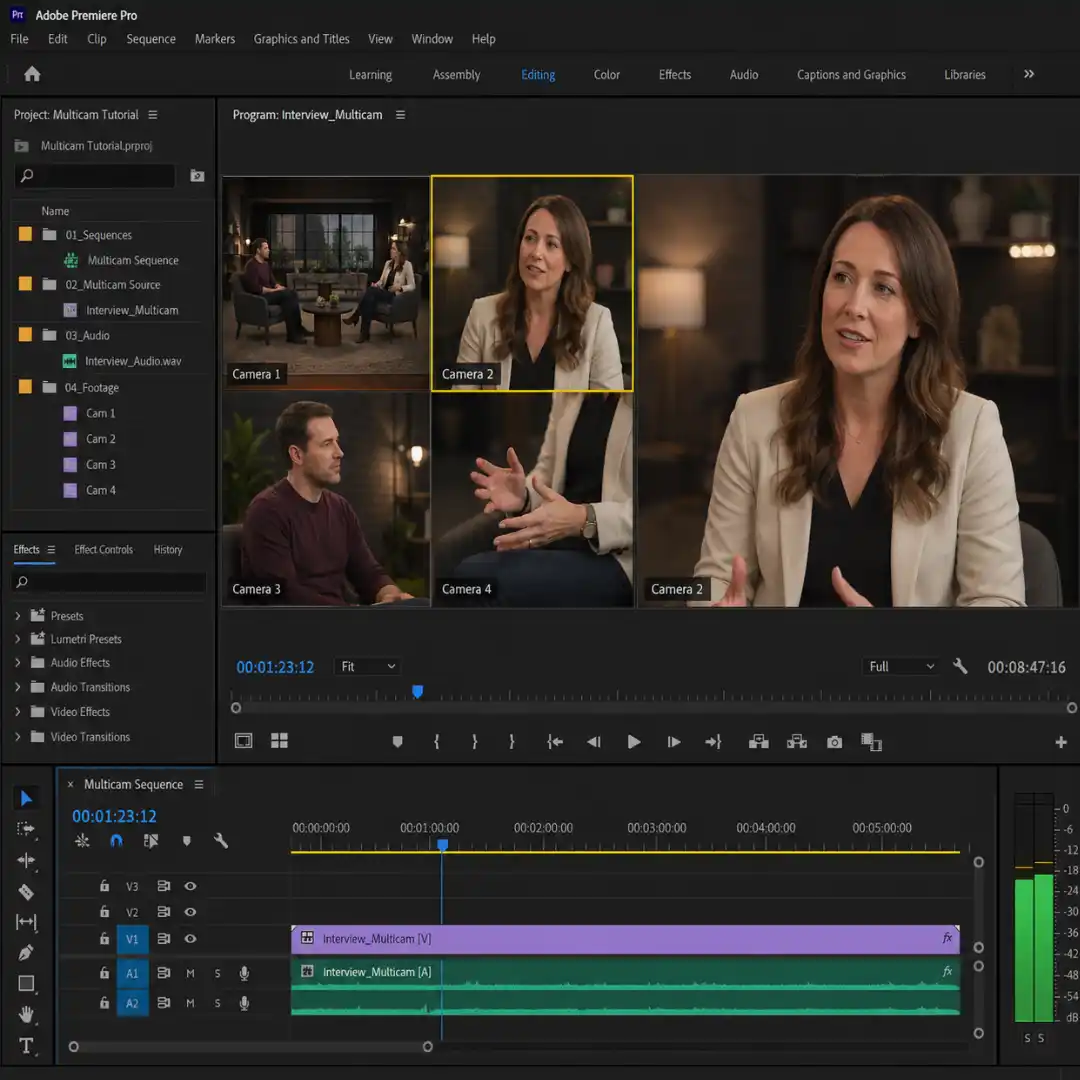
The Program Monitor splits into two panes. The left pane shows every camera angle in a grid. The right pane shows the active angle. Above the grid, a small indicator shows the active camera number.
Tags in 2026: still useful, but secondary
YouTube has publicly stated tags are not a primary ranking factor, but they help disambiguation (misspellings, synonyms, related concepts). Use 5 to 10 tags per video:
- Tag 1: your exact primary keyword
- Tags 2 to 4: close variations and synonyms
- Tags 5 to 7: broader category tags
- Tag 8 to 10: your channel name and one or two recurring series tags
Do not stuff irrelevant tags. The 2026 algorithm penalizes this, and there is now confirmed evidence that misleading tags reduce reach.
Closed captions and transcripts: the editor’s secret weapon
Captions are arguably the single highest-leverage SEO move in 2026, because they:
- Get fully indexed by YouTube and Google search
- Are used by AI features (Ask Studio, AI summaries, auto-dubbed audio tracks) to understand your content
- Improve accessibility and watch time (people watch with sound off more than ever)
- Boost retention by giving viewers an alternate way to follow along
Always upload your own .srt file rather than relying on auto-captions. Auto-captions miss niche terminology (“S-Log3,” “keyframe,” “alpha matte”) that your audience is literally searching for.
File name and upload metadata
Before you click upload, rename your video file to your primary keyword: youtube-seo-for-video-editors.mp4, not Final_Final_v7_REAL.mp4. YouTube reads file metadata at ingest. It is a small signal, but in a tight race, small signals win.
Cards, end screens, and session time
End screens are ranking gold. They drive session time (the amount of time a viewer spends on YouTube after watching your video), which is now one of the strongest recommendation signals. Always end screen to:
- Your most-relevant next video (an editor’s optimized end-screen choreography makes a measurable difference here)
- A playlist that loops viewers deeper into your channel
- A subscribe button overlaid on a moment of maximum engagement
Switch angles live during playback
This is where multicam earns its name:
- Press play (
spacebar). - As playback rolls, press
1to cut to camera 1,2for camera 2,3for camera 3, and so on up to9. - Each number press makes a real cut on the timeline.
- Stop playback (
spacebar) when you are done.
The trick is to commit. Most editors do a fast pass that gets the obvious cuts right (cut to whoever is talking, cut wide for emphasis, cut close on reactions), then refine. This is much faster than agonizing over every cut on the first pass.
Yellow box vs red box
In the multi-camera view:
- A yellow outline shows the currently active angle.
- A red outline shows that you have just made a cut to that angle live (during playback).
- When you stop playback, all red outlines turn yellow.
If the red box never appears even though you are pressing number keys during playback, check that the multi-camera record toggle is on (the small icon next to the multi-camera display).
Refine cuts after the live pass
Nothing about a multicam cut is permanent. Every angle change is an editable cut on the timeline:
- Click any clip in the timeline and press a number key to change its angle.
- Hold
Ctrl(orCmdon macOS) and drag a cut point to perform a rolling edit, shifting where one angle ends and the next begins without affecting clip duration. - Use
Q(Ripple Trim Previous) andW(Ripple Trim Next) to slide cuts around the playhead. - Press
FforMatch Frameto open the source angle in the Source Monitor (useful for the color trick described later). - Use
Ctrl/Cmd + K(Add Edit) to slice in an extra cut at the playhead.
The Edit Cameras dialog
Click the wrench icon in the Program Monitor and choose Edit Cameras. You can:
- Reorder cameras (drag them up or down).
- Disable cameras you do not want visible in the multicam view.
- Rename cameras for clarity (especially helpful when you used
Enumerate Camerasand want better names later). - Paginate when you have more than nine cameras: Premiere shows the first nine on page one, the next nine on page two, and so on. Number keys always control the visible page.
Multicam Audio Workflow
Decision matrix recap
- One clean external recording, one subject: Camera 1 with the external recording on camera 1.
- Two or more lav mics that you want to mix independently: All Cameras.
- Each camera has its own dedicated audio that should follow the picture: Switch Audio.
Mix multiple mics inside the source sequence
If you chose All Cameras and need to balance mics, do not mix on the editing timeline. Mix inside the multicam source sequence. Right-click the multicam clip in the Project panel and choose Open in Timeline. You will see every audio track laid out in parallel. Set levels, apply EQ and noise reduction once, and every cut on every editing sequence inherits the result.
If you skip this step, you will end up tweaking levels per cut, which adds hours to even a short edit.
Replace bad camera audio with a clean external recording
A classic interview trap: you sync by audio, then realize you do not want the camera audio at all. Open the multicam source sequence in the timeline. Mute the camera audio tracks (or delete them). Drop the clean external recording onto an empty audio track in the source sequence, line it up to the existing waveform, and lock it in. Every editing sequence using this multicam now has the clean audio with no per-cut work.
This is the manual fix that the BrookerFilms YouTube tutorial walks through, but it applies to any multi-mic shoot.
Unlink audio at problem cuts
In an interview where the host and guest sometimes talk over each other, you do not want to mute one mic for the whole edit. You only want to mute it during the cross-talk. Select the audio at the cut point, press Shift + L (or right-click and choose Unlink) to break the audio’s connection to the video, then mute (Shift + E) only the offending segment. The video cut stays unchanged.
Mono vs stereo channel interpretation
If one of your cameras records mono audio but Premiere interprets it as stereo with a silent right channel (a recurring multicam bug), you will hear audio only on the left in the multicam. Fix it before you build the multicam: right-click the affected clip in the Project panel, choose Modify > Audio Channels, and switch the clip’s preset from Stereo to Mono (or duplicate channel 1 to both channels). Re-create the multicam after the fix.
For deeper audio sync work outside multicam, our step-by-step tutorial on syncing audio and video in Premiere Pro covers waveform sync, merge clips, and the nuances of double-system sound.
Add lower thirds for interview multicams
When the multicam is for an interview, every cut to a new speaker is a chance to title them. Drop your lower-third graphic on a track above the multicam (it sits on top of every angle change automatically) and let it run while the speaker is on. Pixflow’s Premiere Pro lower thirds templates for interview videos give you a ready-made starting point.
Multicam Color Grading
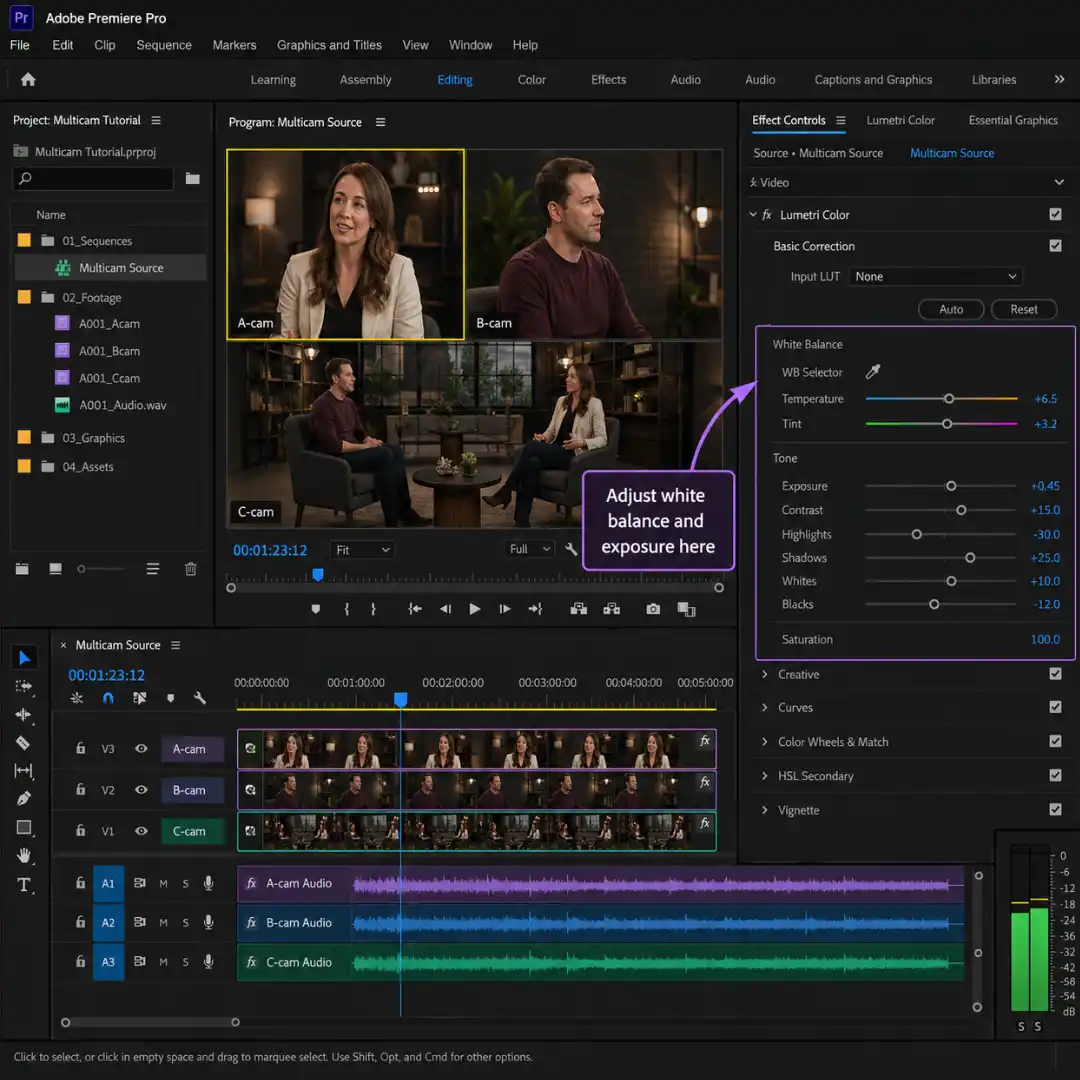
Approach 1: Grade inside the multicam source sequence
This is the cleanest approach when all your cameras need a similar grade and you want every cut to inherit it automatically.
- Right-click the multicam clip in the Project panel and choose
Open in Timeline. - Apply your
Lumetri Coloreffect to each camera’s video track. Set white balance, exposure, and a base look per camera so all the angles match. - Save the project. Every editing sequence using this multicam now shows the graded picture.
This is exactly the workflow Scott Simmons described back in the CS6 era and it still works the same way today. The catch: if you create your editing sequence and then go back to grade in the source sequence, sometimes the grade does not propagate immediately. Closing and reopening the editing sequence usually forces the refresh.
Approach 2: Match Frame and grade the source clip
When you only need to grade one angle, or when you want the grade tied to the source media (so it travels with the clip wherever it is used), use Match Frame:
- Click any cut from the angle you want to grade.
- Press
F(Match Frame). The original source clip opens in the Source Monitor. - Apply Lumetri to the source clip itself.
Every instance of that source on every multicam in the project inherits the grade.
Why adjustment layers can fail in multicams
Dropping an adjustment layer on top of a multicam edit looks like a clean approach, but adjustment layers grade the composite, not per angle. If your cameras have different white balance or exposure (and they almost always do), the adjustment layer cannot fix that. Use adjustment layers for stylistic looks that should apply to all angles, but always do per-camera correction inside the source sequence first.
Flatten before color finishing
When you hand a multicam-heavy edit to a colorist (or to DaVinci Resolve via XML), flatten the multicam first. Right-click the multicam clip and choose Multi-Camera > Flatten. Premiere replaces every multicam reference with the actual underlying angle for that cut. The XML now exports the discrete clips a colorist expects.
For a deeper walkthrough of Lumetri-based grading, our Premiere Pro color grading tutorial covers white balance, exposure, secondaries, and creative looks step-by-step.
Performance and Playback Tips for Multicam
Lower playback resolution
In the Program Monitor, click the dropdown next to the resolution indicator (it usually defaults to Full) and switch to 1/2, 1/4, or even 1/8. This reduces what Premiere has to decode for the preview. Export quality is unaffected.
Disable High Quality Playback
Click the wrench icon in the Program Monitor and uncheck High Quality Playback. The preview gets less pretty, the playback gets dramatically smoother.
Generate proxies
For 4K, 6K, RAW, and ProRes 422 HQ media, proxies are the difference between a working multicam and an unusable one. Generate proxies using File > Adobe Media Encoder > Generate Proxies, pick a preset (CineForm or ProRes Proxy at half resolution is a good baseline), and toggle the Toggle Proxies button in the Program Monitor (you may need to add it via the Button Editor) to switch between full-res and proxy playback.
Our in-depth walkthrough on editing 4K videos smoothly using proxy in Premiere Pro covers the full proxy generation, ingest, and toggle workflow.
Convert variable frame rate footage to constant
If playback is choppy or audio drifts even with proxies, you almost certainly have VFR footage. Phones, action cameras, and some mirrorless cameras shoot VFR by default. Run the source files through Shutter Encoder or Handbrake first, set the output to a constant frame rate matching your sequence, then build (or rebuild) proxies and the multicam from the converted files.
Render In to Out
For a section that consistently chokes during preview, set in and out points around it and press Enter (or use Sequence > Render In to Out). Premiere creates pre-rendered previews and plays them back smoothly even on a slow machine.
Hardware ceilings
Larry Jordan benchmarked Premiere on a Mac Pro and found a practical ceiling around thirty-five streams of 4K media before dropped frames begin. On modest hardware, expect to manage:
- Two to three streams of 4K comfortably
- Four to six streams of 1080p ProRes Proxy comfortably
- Up to nine streams of CineForm 480p comfortably
If you need to edit ten or more 4K cameras simultaneously, you must proxy down to 720p or lower regardless of GPU, or your machine will not keep up.
If you are on an older or slower machine, our guide to faster video editing in Premiere Pro on slow computers covers cache locations, GPU acceleration, and other speed-ups that compound nicely with multicam tweaks.
Multicam Keyboard Shortcuts (and How to Customize Them)
Customize for more cameras
Premiere maps angles 1 through 9 to the number row by default. If you have ten or more cameras, or you want angles on the function keys, JKL hand position, or a Stream Deck:
- Open
Edit > Keyboard Shortcuts(Windows) orPremiere Pro > Keyboard Shortcuts(macOS). - In the search bar, type
multi-camera. - Find the
Multi-Camera Camera 1throughMulti-Camera Camera 16entries. - Click the shortcut field and press the new key combination.
- Click
OK.
Stream Deck and Loupedeck setups
For heavy multicam workflows (live event re-edits, weekly podcasts), a hardware controller pays for itself fast. Map number keys 1 to 16 to a Stream Deck profile and you can switch angles without taking your eyes off the program monitor.
For a complete shortcut reference outside multicam, our 100 Premiere Pro shortcuts to edit faster catalogues every shortcut worth memorizing across the application.
Advanced Multicam Workflows
Edit more than nine cameras
The number row caps you at nine angles, but the multicam itself does not. There is no hard limit on cameras (Larry Jordan confirms thirty-two channels per audio track and no documented video angle cap). To use more than nine:
- Open the
Edit Camerasdialog (wrench icon in the Program Monitor). - Set the cameras-per-page count to nine, sixteen, or whatever your screen comfortably shows.
- Use the page buttons to flip between camera sets. Number keys always control the visible page.
- Or remap angles ten through sixteen to function keys in Keyboard Shortcuts.
The split-screen “third angle” trick
This is the most clever multicam hack we found in the research, popularized by Premiere Gal: use a split-screen as a virtual third (or fourth) angle.
- Build the multicam with your real cameras.
- Right-click the multicam source sequence in the Project panel and pick
Duplicate. Rename the duplicateSplit Cam. - Open
Split Camin the timeline. - Crop one camera to the left half of the frame, the other camera to the right half.
- Drop a thin white solid between them as a divider line if you want.
- Save and close.
- Build a new multicam from the original cameras plus the
Split Camsequence. The split-screen now appears as an angle you can switch to.
The payoff: in an interview, you can cut from a single-speaker shot to a split that shows both speakers when one of them reacts, without leaving the multicam workflow. To get the split clean, you may need Premiere Pro masking techniques to feather the seam between the two halves.
One-camera multicam
If you shot a 4K talking head on a single camera, you can fake a multicam:
- Drop the clip on the timeline three times on three different tracks.
- Crop track 1 to a wide framing, track 2 to a medium, track 3 to a close-up.
- Nest the three tracks and enable multicam.
You now have three angles you can cut between, all from one source. Reframing in 4K to a 1080p delivery preserves enough resolution to make this look intentional.
The stringout multicam
For long-form interview projects, build a master multicam clip, then drop that multicam into the source monitor and enable multicam there. This lets you edit from the multicam as if it were a clip while preserving full match-back to the entire interview. The Reddit r/editors community calls this the stringout multicam, and it is the cleanest workflow for documentary editors who need to reference the original recording at any point.
Text-based multicam editing
Since Premiere Pro 2024, multicam sequences can be transcribed and text-edited. Generate the transcript on the multicam source, then cut by deleting transcript paragraphs. The multicam preserves angles, so you keep the camera switching while ripping out unwanted dialogue. Our text-based editing in Premiere Pro guide covers the full workflow.
Roundtrip to After Effects for compositing
For multicam shots that need motion graphics on top (lower thirds with motion, animated callouts, picture-in-picture), select the multicam clip on the timeline and choose Replace With After Effects Composition. Premiere builds an AE comp containing the multicam clip, ready for compositing. When you save in AE, the comp updates live in Premiere. The full Pixflow walkthrough on After Effects and Premiere Pro integration covers Dynamic Link, comp settings, and gotchas.
Add transitions between angles
Hard cuts work for most multicam edits, but for music videos, weddings, and creative content, transitions soften the edit. Drop a transition on any cut between multicam angles exactly as you would on a normal clip: select the cut, press Ctrl/Cmd + D for the default video transition, or drag a custom transition from the Effects panel. For artistic styles (paint, ink, brush), Pixflow’s Brush Stroke Transitions pack of fifty handcrafted transitions slots in cleanly without plugins, ideal for music video multicams that want a non-corporate feel. For the broader transition reference, our Premiere Pro transitions guide covers when and how to use transitions without overdoing them.
Common Multicam Problems and How to Fix Them
“Could not synchronize one or more clips”
Most common cause: clips do not actually overlap in time, or one or more clips have no audio. Premiere can only sync overlapping audio. Fixes:
- Trim a single very long clip into shorter chunks that overlap with the other cameras.
- Sync the long clip first by audio, then sync the shorter clips against it.
- If audio is the problem, fall back to In Points sync after manually marking each clip.
Audio drops when enabling multicam
When you right-click a nest and choose Multi-Camera > Enable, sometimes the audio goes silent. Fix: hold Alt while clicking the clip to select only the video portion, then enable multicam on the video only. Audio stays linked and untouched.
Multicam not showing both angles
You see only one angle in the Program Monitor instead of the multi-camera grid. Cause: the Display Mode is on Composite Video. Fix: click the wrench icon and switch to Multi-Camera.
Choppy playback even with proxies
Three usual suspects:
- VFR media. Convert to CFR before proxying.
- GPU acceleration is off. Check
File > Project Settings > General > Rendererand selectMercury Playback Engine GPU Acceleration. - Color grading on every cut. Move grades into the source sequence, not the editing sequence.
Sequence settings mismatch
If the multicam picture looks cropped, scaled, or wrong-aspect, your editing sequence settings do not match the multicam source. Right-click the editing sequence, choose Sequence Settings, and match the frame size and frame rate to the source.
Mono interpreted as stereo with one silent channel
Fix it before building the multicam. Right-click the affected clip in the Project panel, choose Modify > Audio Channels, and reset the preset to mono. Re-build the multicam.
Mixed frame sizes or frame rates
Multicam sources can hold mixed frame sizes (Larry Jordan covers this in detail). Premiere scales each angle to fit the multicam frame size. If the result looks wrong, set the multicam sequence frame size to your largest source, then either use the Set to Frame Size setting or scale individually inside the source sequence.
Mixed frame rates are trickier. Use Modify > Interpret Footage to override the frame rate of any mismatched clip to match the sequence before building the multicam.
Multicam treated as nest in Premiere 2024+
In Premiere Pro 2024 and later, multicam sequences sometimes get treated as nested sequences when inserted into edits, instead of as multicam source clips. The fix: in the Program Monitor’s wrench menu (or the timeline overflow menu), toggle off Insert and Overwrite Sequences as Nests. New multicams now insert as discrete multicam source clips again.
Multicam duplicates raw clips into the editing sequence
When you cut a multicam into a sequence and the editing sequence shows the underlying raw clips on stacked tracks, you have an inconsistency in the multicam source. Right-click the source in the Project panel, choose Multi-Camera > Flatten, then re-build the multicam. The clean source will insert as a single multicam clip from then on.
For a broader Premiere Pro troubleshooting reference, our top 10 common Premiere Pro problems and how to fix them guide cover the issues that come up across the application, not just in multicam.
Multicam vs Nesting: What Is the Difference?
Pro Tips From Real-World Multicam Editors
- Always run a continuous reference audio track on every camera. Even on a wedding ceremony with terrible scratch audio. The reference is for sync only, you will replace it. The five seconds it takes to enable on-camera mics saves hours later.
- Color-label cameras in the bin before syncing. When the multicam fails or you flatten for finishing, the colors tell you which clip came from which camera at a glance.
- Build a stringout of selects before final cuts. For interviews, do a first pass that drops every usable answer onto a stringout sequence in order. Cut the final from the stringout, not from the raw multicam. The hierarchy keeps you organized.
- Use Match Frame plus grade-once. When the same source clip appears on five cuts because the speaker stays in frame, grade the source once via Match Frame and every instance updates.
- Keep the source sequence and editing sequence separate. Source sequence holds grading, audio mixing, and any one-time adjustments. Editing sequence holds cuts only. The separation lets you re-edit endlessly without breaking finishing work.
- Save a multicam template project for recurring shoots. If you record a podcast or interview show every week with the same camera setup, save the project with bins, sequence settings, and shortcut layouts pre-configured. Drop new files into the camera bins and rebuild the multicam in two minutes.
- Review cuts at full speed before refining. Live cutting tends to land cuts a few frames early or late. Watch the live pass back at full speed before cleaning up. Some “mistakes” are exactly right.
For more general workflow tips that compound nicely on top of multicam, see our seven essential Premiere Pro tips and tricks to edit faster, our how to speed up Premiere Pro workflow guide, and our list of seven underrated Premiere Pro tools you need to try.
If you are applying multicam specifically to music videos, our music video editing guide for Premiere Pro walks through pacing, beat-matched cuts, and the rhythm-driven decisions that make multicam music edits feel alive. For multicam used to support narrative coverage, our cinematic b-roll editing in Premiere Pro tutorial covers when to break out of the multicam to a b-roll insert and back.
Conclusion
The second is the workflow that scales: thoughtful prep, clean audio routing, color grading at the source, proxies for performance, the right shortcuts mapped to your hands, and the troubleshooting reflexes that turn an hour of frustration into a thirty-second fix. That is what makes multicam usable for real-world projects with real deadlines.
The sooner you internalize the source sequence and editing sequence as separate spaces (one for finishing work, one for cuts), the sooner multicam stops feeling like a feature and starts feeling like a workflow. From there, scaling from two cameras to thirty is just more of the same craft.
When the cuts are locked, finish the piece with titles and a clean export. Pixflow’s CineTitles pack of twenty-nine cinematic title templates drops in cleanly for chaptering interviews, opening multicam-edited films, or naming each speaker as the cut lands. And before you ship, our best export settings for YouTube in Premiere Pro guide covers the bitrate, codec, and color settings that preserve your multicam’s quality through YouTube’s compression.
Now open Premiere, build a multicam, and cut something faster than you thought possible.
Disclaimer : If you buy something through our links, we may earn an affiliate commission or have a sponsored relationship with the brand, at no cost to you. We recommend only products we genuinely like. Thank you so much.
Blog Label:



Write for us
Publish a Guest Post on Pixflow
Pixflow welcomes guest posts from brands, agencies, and fellow creators who want to contribute genuinely useful content.
Fill the Form ✏