Differences Between RAW, LOG, and Rec 709 Camera Footage

Behind every beautiful piece of video, there are codes, secrets, and data that are well designed by the videographer who’s created it. There are codes for the camera and post-production adding. Each of these must be designed in a way that’s matched with the other one. These codes are later translated to recording modes like Log and Raw formats and post-production ones like LUTs that can be easily incorporated by editing apps like Adobe Premiere Pro and After Effects. So dealing with them needs a good command of knowing how each one will work out in terms of quality, color representation, and post-production process. So let’s dig in and see how we can work with them.
Before diving into the specifics, it’s important to mention that if you’re looking for professional cinematic color grading LUTs, check out our color presets and enhance your visuals with them.


What is Log Footage?
To put it simply, Logarithmic Footage, generally known as Log, is very flat footage but that contains more details of the scene it’s baking into the image. This kind of footage is not intended to be used without editing so it needs further alterations to be used as the final footage. In Log footage the purpose is to capture highlights, shadows, and whites, with the highest range of precision by getting the most out of the camera’s dynamic range. But what’s missing in this recording mode are the colors. So it’s necessary to color grade the Log footage in post to get the colors back into the image. Videographers use Log in order to get the best out of the shadows and all other details because they know they can regenerate the colors but not those details.
If you’re interested, you can learn further about “Post Production Workflow Steps” in our blog as well.
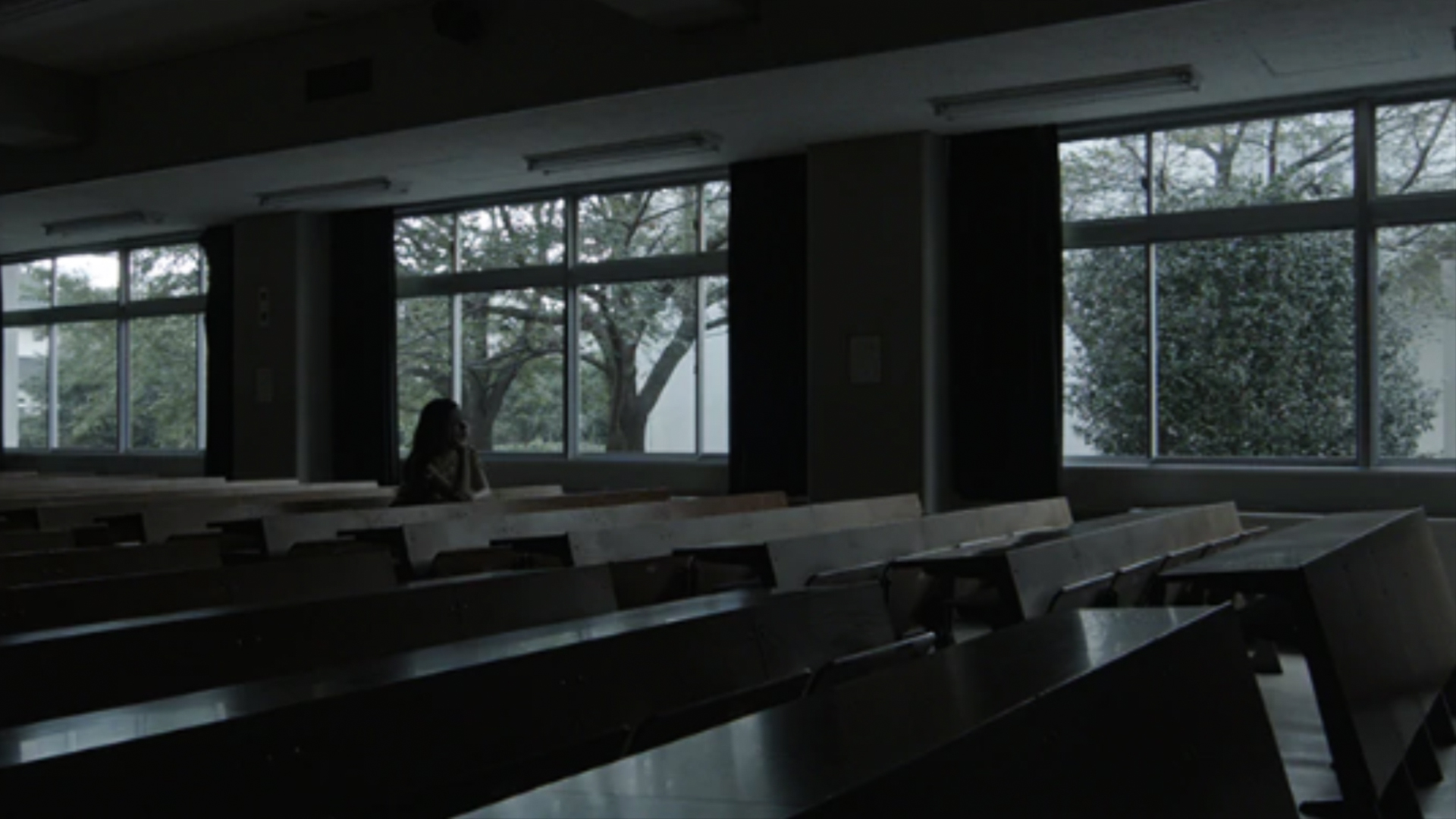
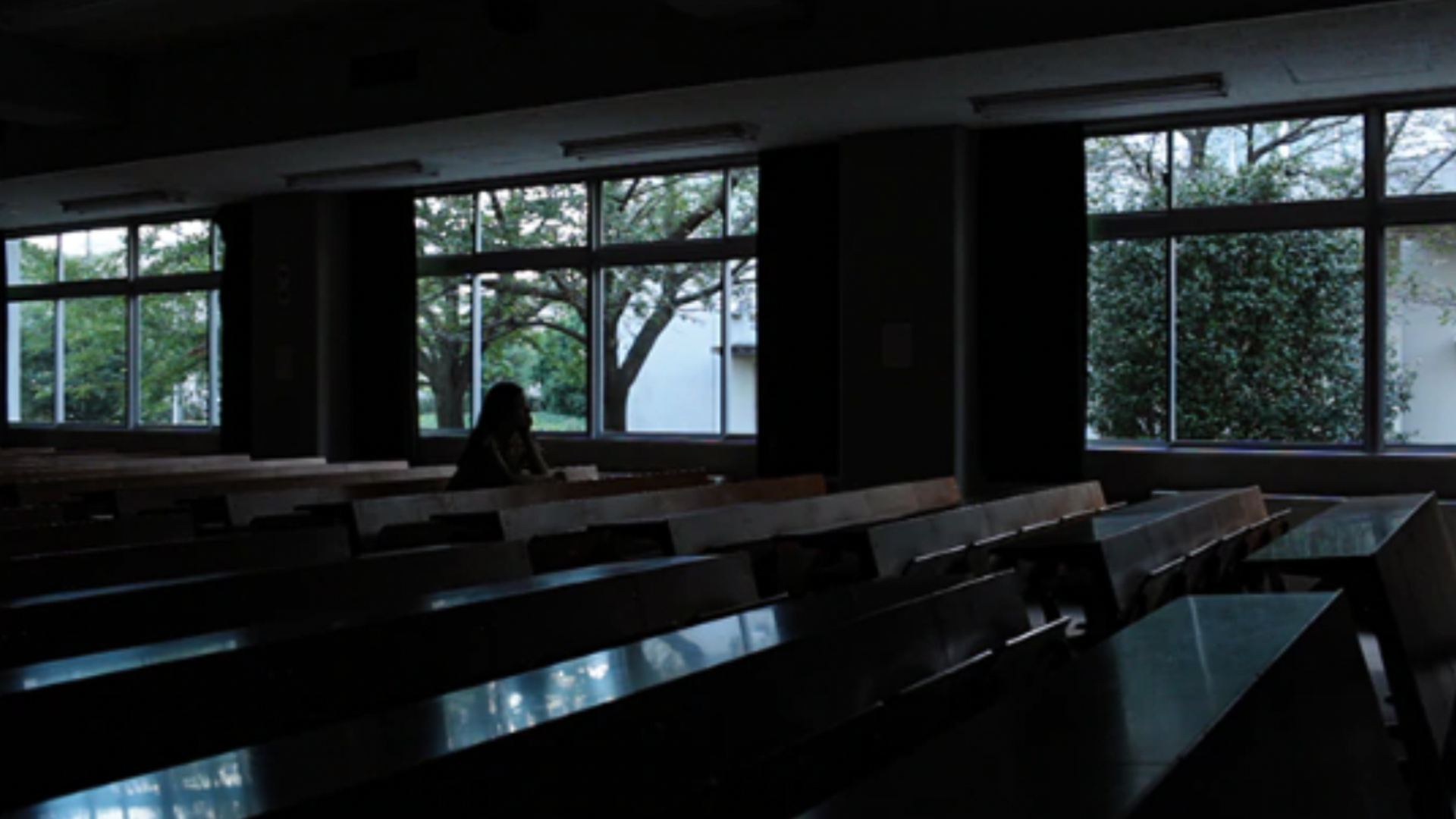
Although there are many types of Log footage each one specified for a camera’s sensor side, they don’t necessarily look the same. S-Log 2&3 (Sony), LogC (Arri), Canon Log, V-Log (Panasonic), Red Logfilm, Blackmagic Log are all made by camera manufacturers as their approach to Log color space. These files are generally very big-sized and take a lot of space and bandwidth on camera storage, but that means they have tons of data that make coloring a lot easier and higher quality. So let’s see how this particular color space is different than the others.
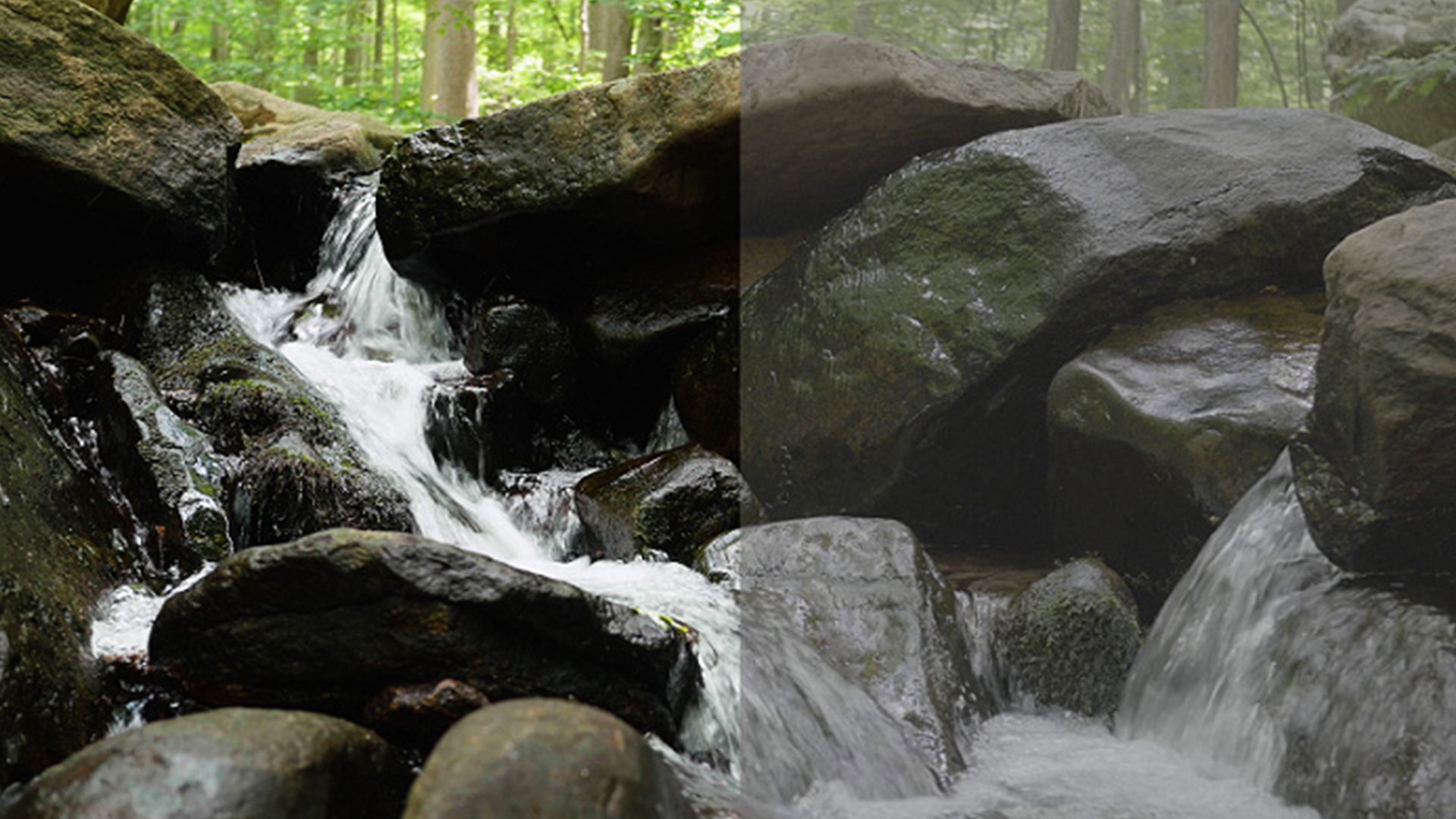
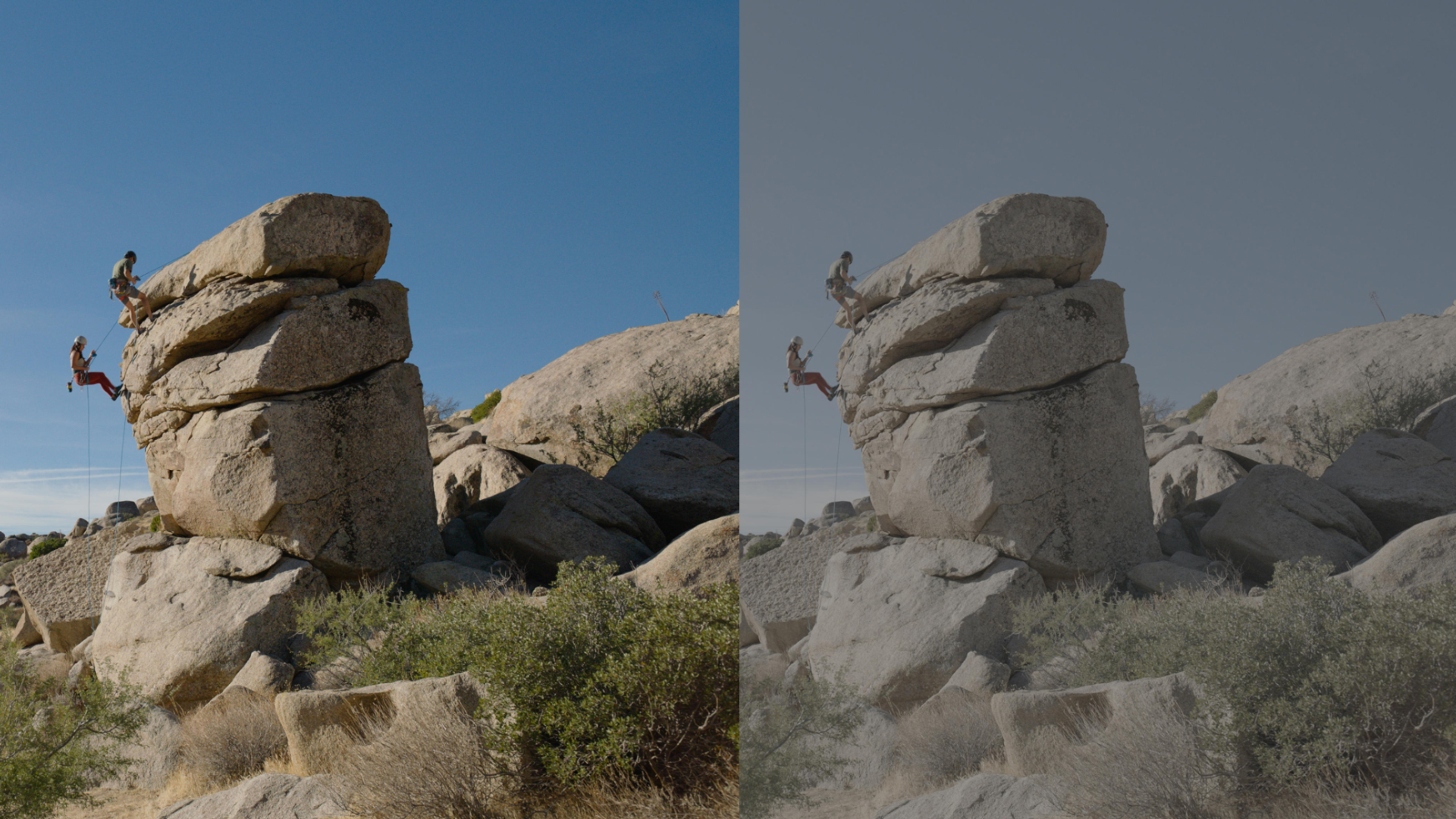
Working with S-Log in Practice: A Quick Premiere Pro Starting Point
If you are shooting on a Sony cinema camera, S-Log footage will look extremely flat straight out of the card. Here is a practical starting point for getting it into shape using the Basic Correction panel in Lumetri Color. Start by raising the highlights and pulling down the shadows to restore contrast. If your scene has bright light sources like direct sunlight, lower the whites to tame overexposed areas. Adjust exposure only when the shot is noticeably over or underexposed, not as a general first step.
One S-Log-specific quirk: the Blacks slider has very little visible impact on Sony Log files compared to other camera profiles. You can leave it at its default in most cases without losing anything. For saturation, S-Log footage typically needs a noticeable boost (roughly +15 to +25) just to return to a natural baseline, since the profile captures color information in a deliberately muted state.
Why Lumetri Scopes matter for Log shooters: When working with Log footage, your monitor can be misleading because the image starts so flat. Lumetri Scopes provide a mathematical readout of luminance and color that is independent of your monitor’s calibration. On the waveform, 100 marks full white (anything above is clipped) and 0 marks pure black. Checking scopes while adjusting ensures your corrections are accurate regardless of what screen you are editing on.
Log and Color Space
In contrast with the log color space, there is a linear color space that captures fewer details of blacks, whites, highlights, and shadows in an image. Log color space, as you can see in the picture below, is set in a way that maintains more shadows and highlights than flat image.
linear color space, on the other hand, is loyal to the actual colors as far as it’s possible for the sensor but doesn’t provide that details for the image so it is less suitable for color grading.
Color Correction vs. Color Grading: Why Log Gives You More Room
When working with footage, there are two distinct stages of color work, and understanding the difference matters when choosing a recording format. Color correction is the technical first pass: fixing exposure, adjusting white balance, and balancing contrast so the image looks neutral and true to life. Color grading comes after, and it is entirely creative: shifting hues, pushing saturation, and shaping luminance to build a specific mood or visual style.
The reason this distinction is so important for Log shooters is that Log color space preserves far more tonal information in the shadows, midtones, and highlights than a linear or Rec709 recording. That extra data means the correction stage is smoother, with fewer artifacts when you push exposure or recover blown highlights. And once correction is done, the wide dynamic range of Log gives you significantly more headroom for creative grading. You can shift colors aggressively, build contrast curves, or apply LUTs without the banding or clipping that would appear in footage recorded in a narrower color space. In short, Log is designed to keep your options open through both stages of color work.

Log vs Rec.709
Rec709 is a color space that produces images that are very normal and realistic, with a good amount of contrast and saturation. Unlike Log footage that’s somehow colorless, Rec709 is close to the linear color space. It is considered as standard and this is why there are Rec709 LUTs, to be able to get that color space on Log footages in post.
As expected, Rec709 footage has a more dynamic range of colors and contrast but less flexibility in post-processing as it’s already baked some colors into the image, but Log gives you more room for color alteration. You can learn more about it in this blog post too: “What is Rec709?“. So using Log mode is still recommended but how do we do color grading on these videos? One way is using LUTs so let’s dig in a bit.

Log and LUTs
As you know, LUT stands for Look Up Table and it’s a conversion table of color data that changes the colors of the video output of the footage in many ways. As I mentioned, there’s LUT to create Rec709 color space for your footage but this is only one type of LUT as there are tons of them out there so if you want to know more about them and want to know how they can help you do your intended color grading, reading our blog about “Color Correction and Grading” in Postpace.
How LUTs Actually Work: Pixel-Level Conversion
At the technical level, a LUT is a mathematical conversion table that remaps every pixel’s luminance and color values from one color space to another. When you apply a LUT, the software reads each pixel’s current RGB values, looks them up in the table, and outputs a new set of values according to the predefined mapping. This pixel-by-pixel remapping is what makes a LUT so fast compared to manual grading: the entire conversion is pre-calculated, so the software only needs to perform a lookup rather than run complex math on every frame in real time.
LUT file formats are standardized across the industry. The two most common are .cube (used by Adobe Premiere Pro, DaVinci Resolve, Final Cut Pro, and most modern NLEs) and .3dl (an older format still supported by many applications including Nuke, Flame, and Lustre). Because these formats are universal, a single LUT file can be shared between colorists working in completely different software without any conversion step.
Applying a LUT in Premiere Pro is straightforward: open the Lumetri Color panel, expand Basic Correction, and use the Input LUT dropdown to browse to your .cube or .3dl file. The Input LUT slot is specifically designed for technical conversions (such as Log-to-Rec709), while creative LUTs are better applied through the Creative section of Lumetri Color so you can control their intensity separately.
1D LUTs vs. 3D LUTs
Now that you know what LUTs do, it helps to understand that not all LUTs are built the same way. There are two main types, and the difference between them matters when you are grading Log or Raw footage.
A 1D LUT is essentially a flat conversion table. It adjusts tonal values along a single axis, meaning it can change brightness, contrast, and basic color balance, but it treats RGB channels together. Think of it as a simple curve adjustment applied uniformly across the image. For basic corrections or quick on-set monitoring, a 1D LUT does the job, but it lacks the precision needed for serious color grading.
A 3D LUT, on the other hand, works with a three-dimensional color cube where each axis represents one of the RGB channels independently. Instead of shifting all colors along a single curve, a 3D LUT can remap any input color to a completely different output color by changing its position within the cube. This allows for far more accurate and realistic color transformations, which is exactly what you need when working with the wide dynamic range of Log footage.
3D LUTs also use a grid measurement that defines how many sample points exist within the color cube. A higher grid size (for example, 33x33x33 versus 17x17x17) means more color data points and smoother transitions between colors. For Log footage with its flat, desaturated starting point, a higher-grid 3D LUT preserves subtle gradations that a lower-grid or 1D LUT would simply miss.
So when should you use each type? If you are shooting in Rec709 and only need a quick contrast or exposure tweak on set, a 1D LUT is perfectly fine. But if you are working with Log or Raw footage and plan to do any meaningful color grading in post, a 3D LUT is the clear choice. It gives you the control and accuracy to bring out the full range of color information that Log and Raw formats are designed to capture.
Log vs Raw
Raw in a simple term, is not a compressed video format but it’s a collection of data that needs to be converted to video format later on. While Log and Rec709 are a kind of video format and Raw isn’t, both Log and Raw share a special trait and that is getting the most out of the camera sensor in order to capture more details. This is why in many cameras, the highest resolution is possible only when shooting in Raw but just like Log, each camera manufacturer creates their own Raw format and some of them even create their own camera software to help users with Raw files.
There are Raw files that have problems with playback outside of the software But for the sake of the high resolution with more details, many professionals tend to use Raw when filming.
Intra-frame Compression and Intermediate Codecs
One key technical difference that explains why Raw gives more flexibility lies in how data is compressed. Most delivery codecs like H.264 use inter-frame compression, meaning they reference neighboring frames to reduce file size. Raw footage, on the other hand, stores each frame as an independent data set, with no compression tying one frame to another. This intra-frame approach is what makes Raw so powerful for color grading and effects work: every frame holds its own complete information, so adjustments to exposure, white balance, or color channels are far more precise.
Of course, this comes at the cost of massive file sizes. That is where intermediate codecs like the ProRes family serve as a practical middle ground between Raw flexibility and manageable storage. ProRes Proxy and ProRes LT keep file sizes small for offline editing, ProRes 422 is the industry standard for most professional timelines, and ProRes 4444 supports advanced compositing with full chroma detail. Because these formats also use intra-frame compression, each frame is compressed individually, resulting in smoother scrubbing, faster timeline playback, and minimal generational loss across multiple rounds of editing and exporting. For many workflows, converting Raw or even Log footage into a ProRes variant before editing can save significant time without sacrificing the quality you need in the grade.

Achieving Cinematic Looks from Log Footage
One of the biggest practical payoffs of shooting Log is how much control it gives you when crafting a cinematic look in post. Because Log footage starts flat and desaturated, you have a clean canvas for applying stylized color grades that would be difficult, or impossible, to pull off from Rec709 footage without introducing noise or banding.
A classic example is the teal and orange color scheme widely used in action and drama films. The technique works by pushing cooler teal tones into the shadows while warming the highlights with orange. In Log footage, the wide separation between shadow and highlight data makes this split-toning precise and artifact-free. From a Rec709 starting point, the same adjustment often clips the highlights or crushes the shadows because there is simply less data to work with.
Beyond split-toning, Log footage supports other cinematic finishing techniques more gracefully. Slight desaturation can give your project a gritty, documentary feel without losing skin-tone accuracy. Adding subtle film grain on top of a Log-originated grade looks more organic because the underlying tonal transitions are smoother. And pulling contrast for deeper blacks is far cleaner when the original recording captured a full range of shadow detail. Warm tones tend to evoke comfort and nostalgia, while cooler palettes can create tension or melancholy, and Log lets you lean into either direction without technical compromise.
If you are choosing a recording format for a project where the final look matters as much as the content, Log is consistently the stronger starting point for creative color work.
Conclusion
At the end of the day, each of these recording modes is designed for a priority. If you want your footage to look realistic and very close to what the human eye can see, or you don’t want to color grade your video afterward, like wedding films and very long series that can’t be color graded because of the shortage of time, or obviously in live streaming for TV shows, you better use Rec709 as it looks good enough.
If you want more room to add colors to log video and color grade it better, it’s good to use Log format and if you want the highest resolution of the camera, Raw is your choice but bear in mind that nothing is absolute in videography so using Log, for example, doesn’t mean your footage will definitely have low resolution. So begin thinking about your priorities in each project and then create something awesome. Good luck!
Disclaimer : If you buy something through our links, we may earn an affiliate commission or have a sponsored relationship with the brand, at no cost to you. We recommend only products we genuinely like. Thank you so much.

Write for us
Publish a Guest Post on Pixflow
Pixflow welcomes guest posts from brands, agencies, and fellow creators who want to contribute genuinely useful content.
Fill the Form ✏