How to Fix Bad Audio in Premiere Pro? 7 Easy Steps for Clear, Professional Sound

The truth is, poor sound quality is one of the fastest ways to lose your audience’s attention. Even visually stunning videos won’t hold viewers if they’re distracted by low-quality audio. Thankfully, fixing bad audio in Premiere Pro doesn’t require advanced audio engineering skills. With the right tools and steps, you can quickly edit audio in Premiere Pro to sound clean and polished.
In this blog, we’ll walk you through 7 quick ways to fix bad audio in Premiere Pro, helping you create clearer, more professional-sounding videos, even if you’re working with less-than-perfect recordings.
Of course, to follow every trick step-by-step, you have to be doing your editing inside Adobe Premiere Pro.
Professional Cinematic Sound Effects


Understanding the Problem
“Bad audio” can refer to a range of issues: background noise, muffled speech, clipping, harsh sibilance, or unwanted reverb. These problems often stem from poor recording conditions, low-quality microphones, automatic gain control, or even overlooked equipment issues. Remember that audio is the most important part of your production, so investing in a good microphone, either a lav mic or a USB mic, can go a long way in leveling up your production.
Whether you’re asking, “How do I fix bad sound quality in Premiere Pro? ” or wondering, “What causes these problems in the first place? ” Understanding the source of audio problems is the first step to fixing them.




7 Quick Tips to Fix Bad Audio in Premiere Pro
1. Use the Essential Sound Panel
The Essential Sound Panel in Premiere Pro is your best friend when it comes to quick audio fixes.
- How to access: Go to Window > Essential Sound.
- Tag the audio (e.g., Dialogue, Music, SFX).
- Use built-in repair tools:
- Reduce Noise to eliminate background hums or static.
- Reduce Rumble for low-frequency disturbances.
- De-esser for harsh “s” sounds.
- Reduce Reverb to clean up echoey recordings.
This panel offers an intuitive interface for audio repair, making it ideal for creators who don’t have time to deep-dive into complex sound design.
📌 Want more tips on how to remove background noise like a pro? Check out this ultimate guide on noise removal in Premiere Pro.
2. Use the Parametric Equalizer for Clearer Sound
If your audio sounds muffled or flat, it’s time for some EQ.
- Add the Parametric Equalizer effect to your clip.
- Use high-pass filters to cut out low-frequency rumble.
- Boost the 2–4 kHz range to make voices clearer.
- Cut the 300–500 Hz range if the voice sounds muddy.
EQ is one of the most powerful tools for enhancing dialogue clarity and eliminating unwanted frequencies. It’s also great when you’re wondering “How do I fix muffled audio in Premiere Pro?”
Pro Tip: Use EQ for Frequency Separation, Not Just Cleanup
EQ isn’t only for fixing individual tracks — it’s also a mixing strategy. When dialogue, music, and sound effects compete for the same frequency range, they become muddy and unclear. The solution is frequency separation: giving each element its own sonic space.
- Apply a high-pass filter to every track except bass-heavy elements (music bass, rumble SFX). This clears low-end clutter across your entire mix.
- Carve a pocket for dialogue by cutting 2–4 kHz on your music and SFX tracks — the same range you’re boosting on dialogue. This creates space for voices to cut through without raising their volume.
- Boost presence frequencies (2–5 kHz) on whichever element needs to stand out at any given moment — dialogue during conversation, SFX during action beats.
- Think in layers: each track should occupy a primary frequency band. If two elements fight for the same range, one must yield through EQ cuts.
3. Use Compression for Balanced Audio
Uneven audio levels? Sudden volume jumps? Use a compressor to smooth them out.
- Apply the Tube Model Compressor effect for a natural-sounding compression.
- Set the threshold to catch loud peaks.
- Adjust the ratio to control how much gain reduction is applied.
- Tweak the makeup gain if the signal becomes too quiet.
Compression helps maintain consistent audio levels, improving overall audio dynamics without distortion.
Looking to polish your video further? Enhance your project with these professional Premiere Pro templates to add visual flair that matches your upgraded audio.
4. Reduce Sibilance with a De-Esser
Sibilance — those harsh “s” or “sh” sounds — can distract viewers. The De-Esser effect in Premiere Pro targets those frequencies and reduces their intensity.
- Apply the De-Esser from the effects panel.
- Choose the “Ess” frequency range (typically around 5–8 kHz).
- Adjust the threshold to apply it gently — too much can make speech sound dull.
This is especially important when you’re editing voiceovers or interviews.

5. Fix Clipped Audio
Clipping happens when your audio level exceeds the maximum threshold, resulting in distortion. It often sounds like loud crackling or popping.
While Premiere Pro can’t perfectly recover clipped audio, here are a few ways to soften it:
- Use the Gain control to lower overall volume.
- Apply EQ to reduce harshness.
- Use the Hard Limiter to prevent future peaks.
- In severe cases, send the clip to Adobe Audition for spectral repair.
If you’re asking “How to fix clipped audio in Adobe Premiere Pro?” this is your starting point.
6. Adjust Audio Levels & Mix Thoughtfully
Clean audio is more than fixing problems — it’s about balancing everything.
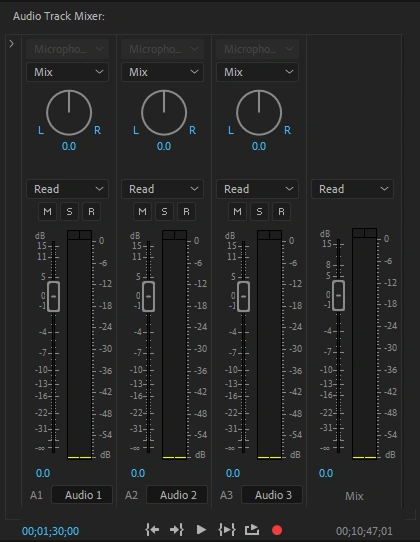
- Use the Audio Track Mixer to control each track’s levels.
- Aim for dialogue peaking around -6dB to -3dB.
- Adjust background music to sit below -12dB so it doesn’t overpower voices.
- Pan stereo effects for a dynamic mix.
Proper audio mixing ensures that everything sounds balanced and intentional.
Pro Tip: Use Automation to Ride Levels Dynamically
Static fader positions rarely produce a professional mix. Instead of setting levels once and leaving them, use track automation to ride levels throughout your timeline:
- Dialogue always takes priority. When sound effects or music overlap with dialogue, automate those tracks down during speech and bring them back up in gaps. This keeps voices clear without permanently lowering your other elements.
- Automate for dramatic emphasis. Pull music and ambient tracks down before a key line, then swell them back up afterward. This creates contrast that makes important moments land harder.
- How to do it: In the Audio Track Mixer, click the “Write” or “Latch” automation mode, then adjust faders in real time during playback. Premiere records your movements as keyframes. Alternatively, use the Pen tool directly on the track’s volume rubber band in the timeline for precise, manual keyframe placement.
7. Prevent Bad Audio at the Source
Prevention is always better than post-production fixes. For your next recording session:
- Use a quality microphone (avoid built-in laptop or camera mics).
- Monitor your input levels manually.
- Record in a quiet space with sound treatment.
- Capture multiple takes if possible.
These small steps can save you hours of editing time later.
Record Dialogue in Mono, Not Stereo
Stereo splits the voice across two channels, creating directional sound that feels unnatural for a single speaker. Our ears expect dialogue to come from one fixed point, so recording in mono keeps it centered and natural. Reserve stereo recording for music and sound effects, where spatial depth actually enhances the listening experience.
Professional Cinematic Sound Effects
Additional Tips and Tricks
- Denoise effect: Perfect for eliminating steady background hums.
- Noise gate: Mutes quieter portions of the track to eliminate soft background noise.
- Reverb reduction: Great for echoey indoor recordings.
- Combine multiple effects using the Effects Rack for maximum control.
Third-Party Plugins Worth Trying
When Premiere Pro’s built-in effects hit their limit, dedicated audio plugins can pick up the slack. Three standouts for noise cleanup:
- CrumplePop AudioDenoise processes audio in real time with a simple, visual interface. Drag it onto a clip, and it instantly identifies and reduces noise. Great for fast turnarounds when you need results without tweaking multiple parameters.
- Waves NS1 Noise Suppressor uses a single slider to control noise reduction intensity. It adapts to the noise floor automatically, making it ideal for editors who want effective cleanup without a learning curve.
- iZotope RX Elements offers surgical-level audio repair, including spectral de-noising, voice isolation, and artifact removal. Best suited for severe audio problems where built-in tools fall short, such as layered noise, clipping recovery, or recordings with multiple overlapping issues.
All three integrate directly with Premiere Pro as audio effects, so you can apply them the same way you would any native plugin.
Need some extra help making your video shine? Explore our Premiere Pro templates for transitions and effects that complement your polished sound.
And don’t forget to read the full background noise removal guide to go even deeper into sound repair.
Conclusion
Premiere Pro audio editing can transform your project when done right — and these tips will get you there faster.
🎧 Ready to improve your next project? Open Premiere Pro, apply these tips, and experience the difference for yourself.
Disclaimer : If you buy something through our links, we may earn an affiliate commission or have a sponsored relationship with the brand, at no cost to you. We recommend only products we genuinely like. Thank you so much.
Blog Label:
- Audio effects Premiere
- denoise audio Premiere Pro
- Denoise effect Premiere Pro
- Edit sound in Premiere Pro
- Improve audio in Premiere Pro
- Parametric equalizer effect Premiere
- Premiere Pro
- Premiere Pro audio cleanup
- Premiere Pro reduce wind noise
- Premiere Pro remove noise
- reduce background noise Premiere Pro
- Reduce rumble Premiere Pro
- remove background noise Premiere Pro
- Video editing
- Video editing techniques

Write for us
Publish a Guest Post on Pixflow
Pixflow welcomes guest posts from brands, agencies, and fellow creators who want to contribute genuinely useful content.
Fill the Form ✏