Simple Ways to Improve Your Mac’s Performance for Creative Work
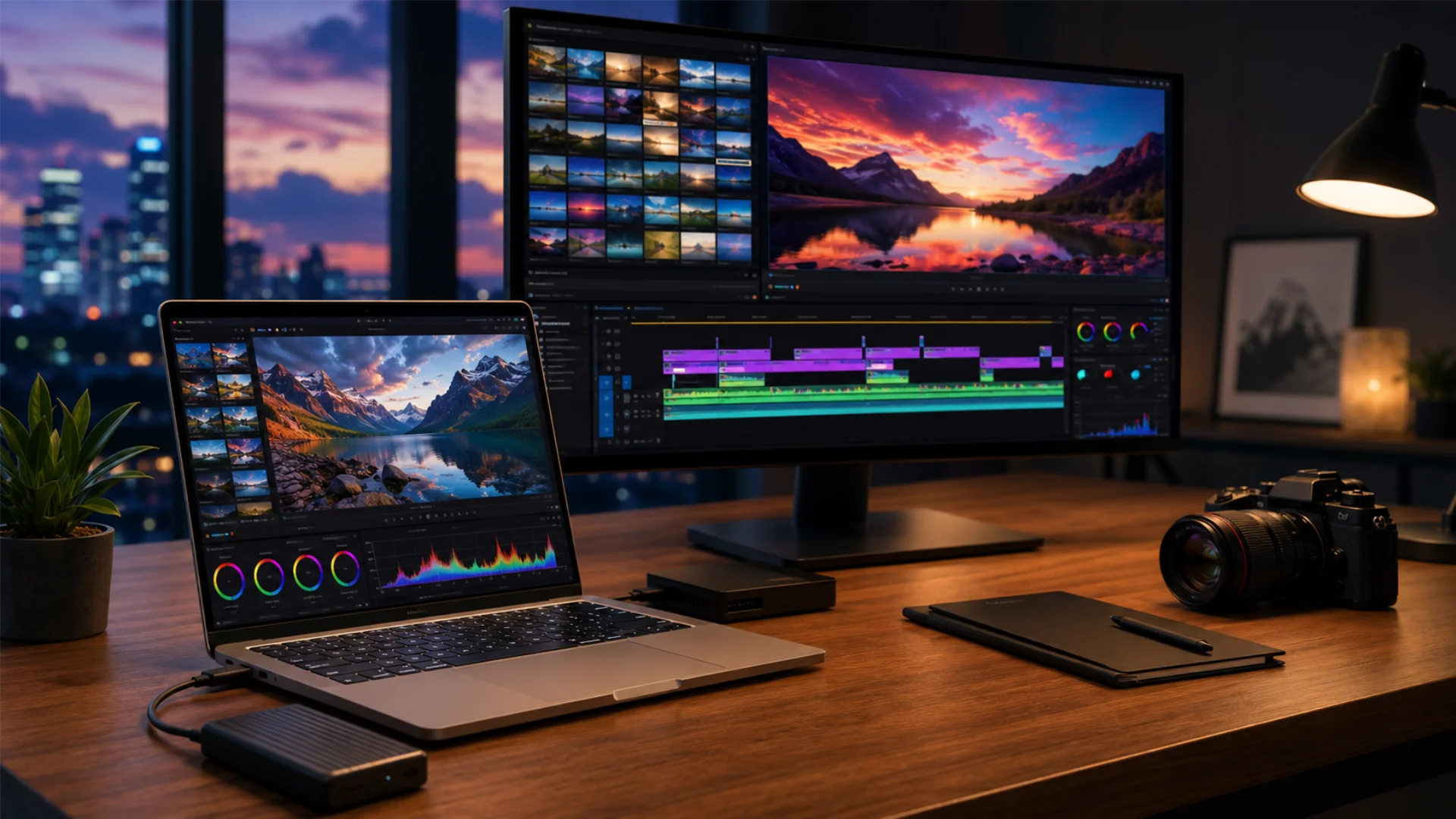
The fix usually isn’t complex. Most slowdowns come from everyday buildup: old apps, full storage, stale cache files, and skipped updates. With regular care, your Mac has more room for the tools you rely on.
Step 1: Clear Unused Applications from Your Computer to Free Up Resources
For creative work, every extra process competes for:
- RAM needed for large design files, video timelines, or audio sessions
- CPU cycles used during rendering, exporting, and previewing
- Startup speed when your Mac loads unnecessary items at boot
- System stability when old helper files conflict with current apps
Dragging an app to the Trash only removes the app itself. However, preference files, cache folders, plugins, logs, and support files may stay behind in your Library folders.
What to do
Review your Applications folder once a month. Look for apps you have not opened in three months. If you cannot name a current use for an app, remove it.
For a cleaner removal, fully delete programs on Mac so the main app and related files are left together.
A lean app list leaves more memory and processing power for demanding creative software.
Step 2: Keep Your macOS Updated for Faster Creative Work
Newer macOS releases handle memory, background tasks, and app launches better than older versions. Security patches also block malware and system exploits that drain CPU power, fill storage, or interrupt normal work.
What to do
Check for updates regularly. Here’s how to do it:
- On newer macOS versions, go to System Settings > General > Software Update. On older versions, go to System Preferences > Software Update
- Turn on automatic update downloads if you tend to forget
- Back up active projects before a major macOS upgrade
For creative teams, timing matters. Check that your core apps, plugins, audio drivers, drawing tablets, and external devices support the macOS version you plan to install.
A current Mac is less likely to crash during exports, plugin work, or large file edits.
Step 3: Manage Cache So Your Mac Runs Faster
Cache is useful when it stays healthy. It becomes a problem when folders grow too large or files become corrupted. Then your Mac may spend extra time sorting through stale data.
Cache types worth checking
- Browser cache: Usually safe to clear from browser settings
- App cache: Worth clearing for apps you no longer use
- User cache: Found in ~/Library/Caches
- System cache: Leave it alone unless you know the file’s purpose
What to do
Start with the browser cache: open your browser settings, find the privacy or history area, and clear cached images and files.
For user cache, open Finder, choose Go > Go to Folder, then enter ~/Library/Caches.
Delete cache folders only for apps you recognize and no longer use. Avoid clearing active project data unless the app’s documentation says it is safe.
A light monthly cache check keeps storage from getting clogged with old temporary files.
Step 4: Use External Drives and Check Hardware Upgrade Options
A golden rule: keep at least 20% of your internal drive free. If storage stays near full, expect slower exports and slower interface moments.
Yes, the previous version added the right depth but got a little heavy. Here’s a tighter, more scannable version that keeps the meaning without turning the section into a storage goblin parade:
Move large files to external storage
When the drive gets too full, macOS has less room for temporary files, scratch disks, and virtual memory. To remove that pressure from your computer, move files that are not part of your current work to external storage.
Keep your internal drive focused on macOS, apps, active projects, and files that need the fastest access, and use external storage for files that don’t need to live on your main drive. Those can be:
- Completed client projects
- RAW footage and photo libraries
- Old exports
- Audio sample libraries
- Project archives
- Time Machine backups
For active projects, you can use an external SSD.
If you keep backups of your important projects, it’s best to keep them on a separate drive from the one you use for your active projects. That way, you reduce strain on your Mac and don’t create a single point of failure.
Storage habits matter even more for heavy tasks such as 3D rendering, motion graphics, or custom AI development, where slow file access can interrupt the whole workflow.
Check whether your Mac supports hardware upgrades
Storage cleanup goes a long way, but older Macs may need a hardware check, too. If app launches or multitasking still feel slow after basic maintenance, look at RAM and storage.
More RAM gives creative apps more working space. It also reduces slowdowns with large files, complex timelines, and plugin-heavy projects.
An SSD can make an older Mac feel dramatically faster. If your Mac still uses a hard drive, switching to an SSD improves boot times, app launches, file transfers, and general responsiveness.
Before buying parts, check your exact Mac model. Many newer Macs have built-in memory and storage, so upgrades are not possible after purchase. Some older iMacs, Mac minis, and MacBook Pro models offer more flexibility.
The right tools for UX designers matter, but they also need enough memory, storage speed, and free disk space.
Keep Your Mac Ready for Creative Work
Move large projects to external drives, keep backups separate, and check upgrade options if you use an older model. Small maintenance habits keep creative work moving without constant slowdowns.
Disclaimer : If you buy something through our links, we may earn an affiliate commission or have a sponsored relationship with the brand, at no cost to you. We recommend only products we genuinely like. Thank you so much.
Blog Label:



Write for us
Publish a Guest Post on Pixflow
Pixflow welcomes guest posts from brands, agencies, and fellow creators who want to contribute genuinely useful content.
Fill the Form ✏