How to Scale Your Freelance Video Editing Business with Templates and Automation
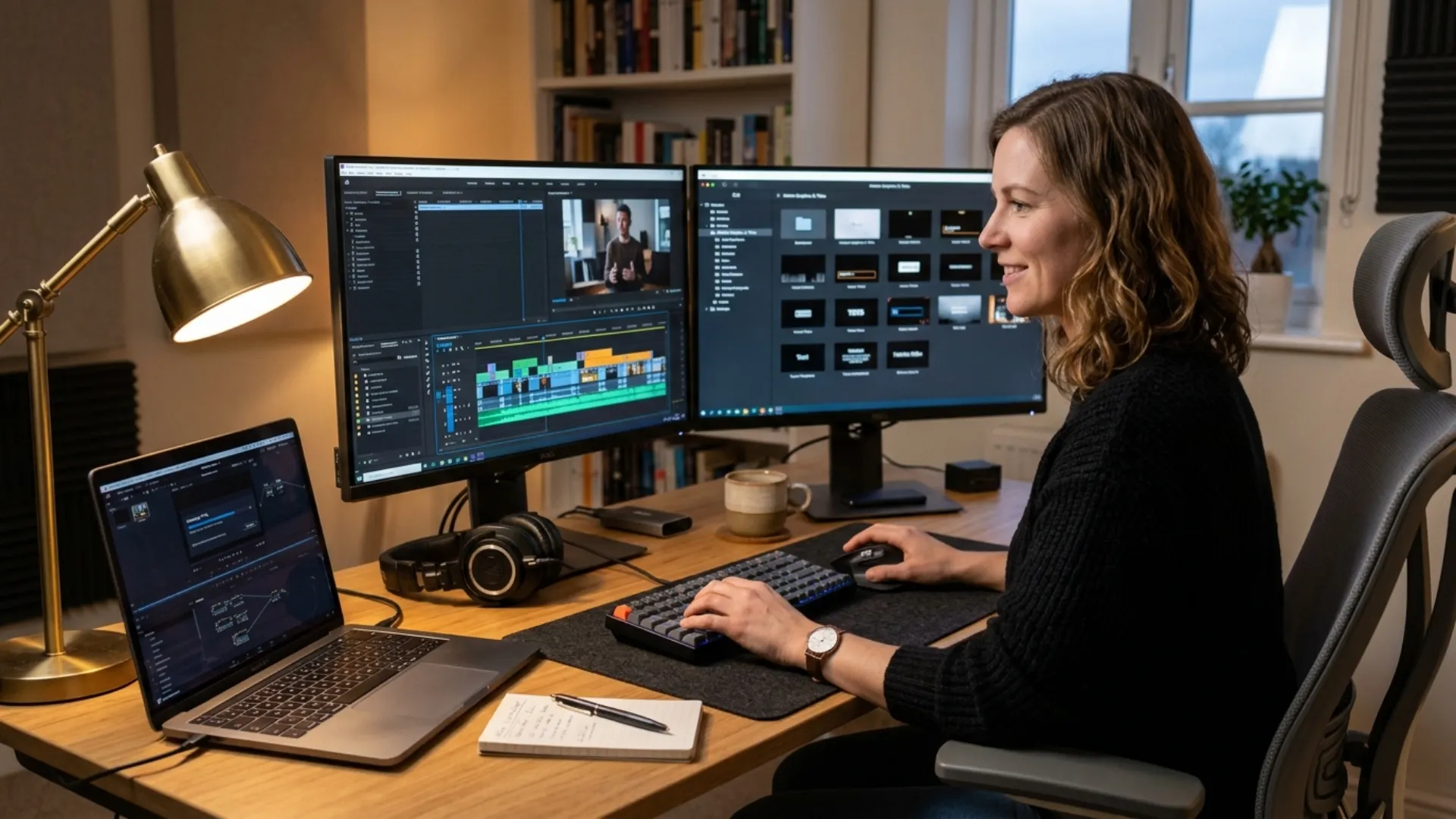
- Why Your Editing Business Stops Growing (and Why More Hours Won't Fix It)
- Start With a Workflow Audit: What Do You Repeat Every Week?
- Build a Template System for Repeat Clients
- Automate the Editing Side
- Automate the Business Side
- Package and Price Your Work So It Scales
- What a Systemized Week Looks Like for a Solo Editor
- When to Hire Help
- Conclusion
- Wrap Up
To scale a freelance video editing business without working more hours, stop rebuilding the same work for every project:
- Turn repeat work into templates: project files, client brand kits, color looks, audio chains, and export presets.
- Automate the predictable technical steps: captions, proxies, batch exports, and first-pass cleanup.
- Systemize the admin: one intake form, one contract, one project board, and invoices that send themselves.
- Price by project or retainer, so getting faster raises your income instead of lowering it.
- Hire help only after the system is written down.
You’ve got a handful of steady clients, a calendar that’s full every week, and a nagging feeling that you’re working harder than last year for about the same money. Every new project means another fresh project file, another lower third rebuilt from memory, another export checked by hand. (Sound familiar?)
That’s the ceiling most solo editors hit sooner or later. One editor on r/editors described it after five years of freelancing: income tied directly to time, no clear way to grow, and a real fear of losing the independence that made freelancing worth it in the first place. You can read the whole thread on scaling a video editing business; the advice in it is all over the place.
Here’s the good news: you don’t have to turn into an agency to grow a freelance video editing business. You need a system that stops you from doing the same setup work twice. Ready-made packs like Bold Vibrant Brand Identity Templates can give that system a head start, and we’ll show exactly where they fit.
In this guide, we’ll cover how to scale with templates and automation on both sides of the job, the editing and the admin, with examples from Premiere Pro, After Effects, DaVinci Resolve, and Photoshop. Whatever you cut in, the ideas carry over.
Why Your Editing Business Stops Growing (and Why More Hours Won’t Fix It)
Most editors underestimate how much of the week goes to this. Look at where the time goes on a typical project:
- Creating folders, bins, and sequences from scratch
- Rebuilding titles, lower thirds, and end cards you’ve made before
- Re-applying the same base grade and audio cleanup
- Exporting three aspect ratios and checking each one
- Answering scattered feedback across email, chat, and voice notes
- Following up on late invoices
Taking on more clients doesn’t solve this on its own. Finding new video editing clients is worth the effort, but if each one brings the same setup and admin, you’ve only added hours. Scaling, for a solo editor, means getting more finished work out of every hour you already have.
Start With a Workflow Audit: What Do You Repeat Every Week?
Build a Template System for Repeat Clients
Project templates and folder structures
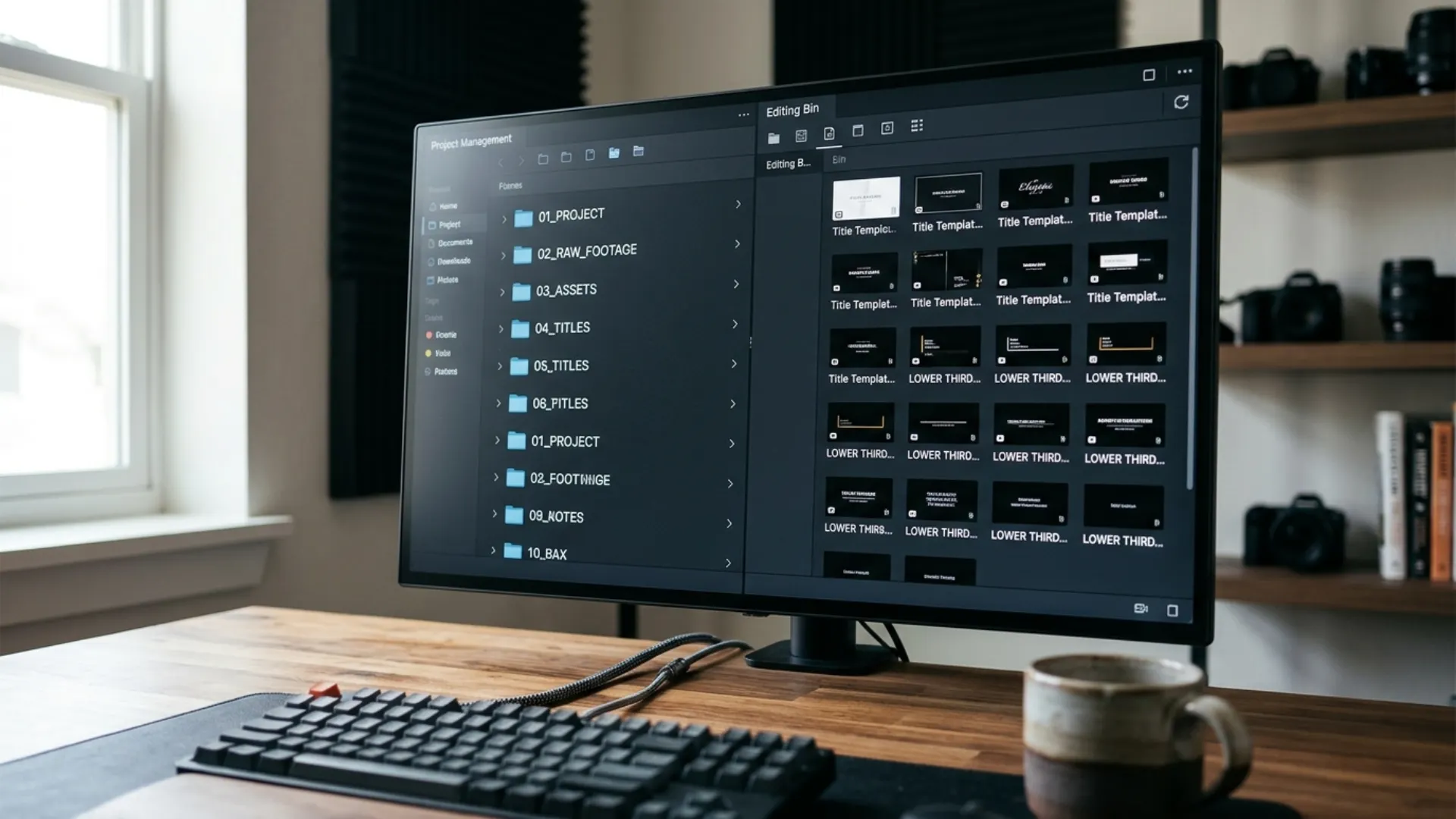
Start with the boring part, because it pays off on every single job. Use one folder tree for every project, with numbered folders for footage, audio, graphics, project files, exports, and client documents. Pair it with a naming pattern like ClientName_Project_v01, and you’ll never hunt for the latest cut again.
Then build a template project in your editor:
- Premiere Pro: keep a template project file with your bin structure and saved sequence presets already in place, and duplicate it for each new job.
- DaVinci Resolve: set up an empty project with your bins and project settings, export it as a .drp file, and import a fresh copy for each job. Power Bins keep shared assets like client logos and music beds available across every project in the database.
- After Effects: keep a master project with precomps for the intro, lower thirds, and end card, so a new video starts with the structure already in place.
Client brand kits: titles, lower thirds, intros, and outros
For every repeat client, build a brand kit once and reuse it on every video. A good kit holds the fonts, colors, logo animation, lower thirds, intro, outro, end card, and a one-page note on style choices (caption style, music mood, pacing).
Each app handles this a little differently:
- Premiere Pro: build graphics in the Essential Graphics panel and save them as Motion Graphics templates (.mogrt), so text and colors change in a couple of clicks.
- After Effects: animate once, expose the text and color controls with Essential Properties, and export a .mogrt. You can then edit the kit inside Premiere Pro without opening After Effects.
- DaVinci Resolve: save Fusion titles as macros, or keep finished Text+ titles in a Power Bin for that client.
- Photoshop: build thumbnail templates with smart objects, so a new thumbnail is a quick image swap and a headline edit.
You also don’t need to start every kit from a blank comp. Bold Vibrant Brand Identity Templates come with editable colors, text, and footage placeholders for After Effects, Premiere Pro, and Photoshop. Restyle it to a client’s brand once, save it in their kit, and the whole series looks consistent from episode one.
Color, audio, and export presets
Presets are the smallest templates, and they add up fastest. Save anything you dial in more than once:
- Color: saved Lumetri looks in Premiere Pro, stills and PowerGrades in the Resolve Gallery, and LUTs for each client’s camera.
- Audio: saved effect chains for voice cleanup and loudness, named by client or microphone setup.
- Export: one export preset per platform and per client delivery spec in Adobe Media Encoder or the Resolve Deliver page.
Name every preset with the client’s name, so the right one is obvious at 11 PM. Defining delivery specs per client and saving them as export presets is also one of the easiest ways to prevent rework on deliveries.
Are templates professional enough for client work?
Yes, when you customize them. Clients pay for a result that looks like their brand, and nobody cares whether the lower third started as a template or a blank comp.
Templates work best for series content, branded videos, and batches of social clips, where consistency is exactly what the client wants. Skip them for one-off creative pieces where the client is paying for something that looks like nothing else. When you do use one, change the fonts and colors to the brand, retime the animation to the rhythm of the edit, and check that the license covers client work.
Automate the Editing Side
Captions and transcript-based editing
Captions are one of the easiest wins. Premiere Pro’s Speech to Text builds a transcript and captions from your footage, and text-based editing lets you cut an interview by deleting lines in the transcript. DaVinci Resolve Studio can create subtitles straight from the audio on your timeline.
Always proofread names, product terms, and slang before delivery. A caption that misspells the client’s brand name costs you more trust than the time it saved.
Ingest, proxies, and batch exports
Set up the technical steps once so they run without you:
- Premiere Pro: use ingest settings to create proxies on import, and send finished sequences to the Adobe Media Encoder queue instead of exporting one by one.
- Adobe Media Encoder: set up watch folders, so any file dropped in a folder is encoded with the preset attached to it.
- DaVinci Resolve: generate proxies or optimized media for heavy footage, then stack multiple jobs in the render queue and let them run overnight.
- After Effects: send comps to the Media Encoder queue, so you can keep working while it renders.
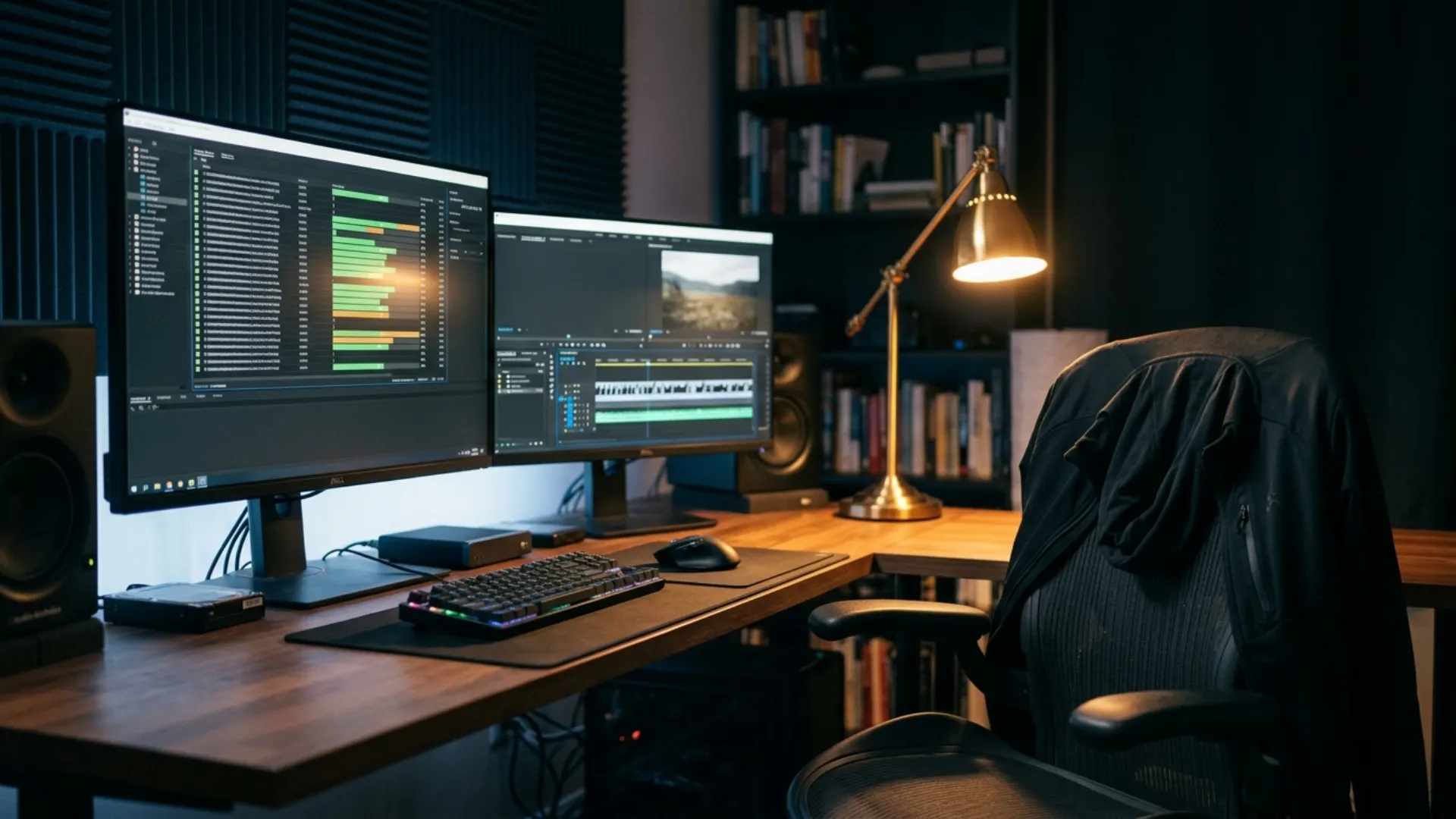
The idea is simple: your machine should be rendering while you’re sleeping, eating, or answering emails, and it shouldn’t be holding up your editing time.
AI-assisted cleanup and rough cuts
Both Adobe and Blackmagic now ship tools that handle a lot of first-pass cleanup. In Premiere Pro, Enhance Speech cleans up dialogue, Auto Reframe adapts a 16:9 edit to vertical, and Scene Edit Detection finds the cuts in a flattened file. In Resolve, Voice Isolation, Scene Cut Detection, and Magic Mask do similar jobs (most of them are Studio features).
Hand off the mechanical parts: noise cleanup, reframing, finding cuts, and removing dead air on a first pass. Keep the parts clients actually hire you for: the story, the pacing, the music, and choosing which take makes the cut.
After Effects expressions and Photoshop actions
A few small scripts go a long way when you make many versions of the same thing. In After Effects, link the colors and text of a template to one control layer with expressions, so changing a brand color happens in one place instead of across twenty layers.
In Photoshop, record an action that resizes and exports a thumbnail for every platform you deliver to. Run it as a batch, and a set of thumbnails becomes a one-click job.
Automate the Business Side
Client onboarding: briefs, intake forms, and contracts
When a new client says yes, send the same three things every time: an intake form, a brief checklist, and a contract. The form collects the basics (contacts, brand assets, footage links, deadlines), and the checklist covers objectives, reference videos, deliverables, and aspect ratios.
Onboarding is one of the most common questions in editor communities, with freelancers asking how to handle contracts, invoicing, and project tracking without reinventing it for every client. Start with a solid video editing contract template, fill in the blanks per client, and save a welcome email that explains how feedback, revisions, and payments work.
Project tracking and client review
Keep every active project on one board with the same stages: Brief, Editing, Review, Revisions, Delivered, Paid. Add a review tool with timecoded comments, so feedback lands on the exact frame instead of in a long email thread.
If you’re still choosing your setup, our guide to project management tools for video editors compares the options and the board structures that work for solo editors.
Feedback and revisions
Most revision spirals come from scattered feedback. Set one rule from the first project: one consolidated round of notes per draft, sent within an agreed window. Put the number of included rounds in your contract, and save reply templates for the situations you face every week (feedback received, out-of-scope request, extra round quote).
We cover the full process, including how to say no to scope creep politely, in our guide to managing client feedback and revisions.
Invoicing and payments
Invoices are the easiest admin task to automate and the one editors most often put off. Take a deposit at signing, set up recurring invoices for retainer clients, and turn on automatic payment reminders in your invoicing tool.
Start from a reusable freelance video editor invoice template, so every invoice has the same line items, payment terms, and late fee wording.
Package and Price Your Work So It Scales
Packages and retainers fix that. When the price is set by the deliverable, every minute your templates save goes straight to your bottom line or your free time. One editor featured on the Side Hustle Podcast built a steady YouTube editing business by moving from per-video pricing to monthly retainers and relying on templates and presets to keep up with the volume.
Here’s how packages might look (the structures are examples; set the prices from your own numbers):
What a Systemized Week Looks Like for a Solo Editor

When to Hire Help
- You’re turning down projects you’d actually like to take
- Prep work (logging, captions, versioning) takes a big part of your week
- Your templates, presets, and checklists are written down well enough that someone else could follow them
Good first hires are an assistant for prep and captions, or a subcontract editor for overflow. Write a short standard operating procedure for each task first, covering folder setup, naming, export presets, and quality checks, so their work matches yours. Agree on pay up front, including how revisions are paid, because revision rounds are where subcontractor deals most often go wrong.
Conclusion
Pick the task that annoyed you most this week and turn it into a template before Friday. If a client brand kit is first on your list, Bold Vibrant Brand Identity Templates give you a restyleable base for After Effects, Premiere Pro, and Photoshop. (Your next client onboarding just got a lot shorter ✨)
Wrap Up
- Growth stalls for solo editors because setup, exports, and admin grow with every client, and the hours don’t.
- A one or two week audit shows what to template, what to automate, what to keep doing by hand, and what to drop.
- Project templates, client brand kits, and color, audio, and export presets make each new project start half-built in Premiere Pro, After Effects, DaVinci Resolve, or Photoshop.
- Automate captions, proxies, batch exports, and first-pass cleanup, and keep the story and pacing decisions for yourself.
- On the business side, reuse one intake form, one contract, one project board, saved feedback replies, and automatic invoices.
- Price by package or retainer, so working faster pays you instead of costing you.
- Hire only once the system is written down, and agree on revision pay up front.
Disclaimer : If you buy something through our links, we may earn an affiliate commission or have a sponsored relationship with the brand, at no cost to you. We recommend only products we genuinely like. Thank you so much.
Blog Label:



Write for us
Publish a Guest Post on Pixflow
Pixflow welcomes guest posts from brands, agencies, and fellow creators who want to contribute genuinely useful content.
Fill the Form ✏