What Are Log Files in Filmmaking & Photography? A Complete Guide to Shooting, Recording, and Editing Log Footage

Log files have become a staple for cinematographers and photographers who want maximum control over their images in post-production. These files are designed to preserve a wide dynamic range, allowing for greater flexibility in color grading and editing. Whether you’re new to log photography or looking to refine your skills, this guide will break down everything you need to know about log footage, from recording to post-processing.
What Are Log Files?
In log photography, cameras record images using a logarithmic tone curve, which compresses highlights and shadows to fit within the camera’s dynamic range. This technique ensures that no details are lost in extreme lighting conditions, making log a preferred format for high-end filmmaking and photography.
If you’re new to log formats and want to explore color grading techniques, you can check out our library of LUT color grading presets that can help you enhance your log footage efficiently.
Log vs Raw: Key Differences
- RAW Footage: This format captures unprocessed sensor data, providing the highest quality but requiring extensive storage and processing power.
- Log Footage: Log files are compressed while retaining a wide dynamic range, making them more manageable while still offering flexibility in color grading.
A key advantage of log over raw is its ability to store more information in smaller file sizes, making it ideal for projects that require both quality and efficiency. If you’re unsure which color space suits your workflow, check out this detailed explanation on Rec. 709, a standard color space considered as default in post-production workflows.
Why Shoot in Log?
- Wider Dynamic Range – Log footage retains more detail in highlights and shadows, making it easier to adjust exposure and contrast in editing.
- Better Color Grading Flexibility – Since log files appear flat and desaturated, they require careful color grading to bring them to life, and just as creators pay attention to visual accuracy, writers often rely on a plagiarism checker to ensure originality when documenting their workflows or publishing educational content.
- Consistency Across Different Cameras – Using log ensures that footage from multiple cameras can be color-matched seamlessly in post-production.
- Reduced Risk of Overexposure – By preserving highlight details, log shooting minimizes the chances of losing important information in bright areas.
If you’re looking to fine-tune your log shooting workflow, this guide on the difference between raw, log, and Rec. 709 camera footage provides essential insights into how log compares to other formats.
Popular Log Formats in Filmmaking
- S-Log (Sony) – Found in Sony cameras, S-Log offers extended dynamic range and is ideal for professional color grading.
- D-Log (DJI) – Designed for aerial and drone footage, D-Log maximizes highlight retention in high-contrast environments.
- C-Log (Canon) – Canon’s log profile enhances post-production flexibility and is well-suited for cinematic footage.
Canon Log 2 vs Canon Log 3: Choosing the Right Profile
Canon offers two main log gamma options, each suited to different workflow priorities:
- Canon Log 2 provides a larger dynamic range and captures more image detail in highlights and shadows, giving you maximum flexibility in post-production. The trade-off is that it requires more time and effort in color correction and grading to bring the flat footage to life.
- Canon Log 3 offers a slightly reduced dynamic range (approximately 14 stops) but produces footage that is easier and faster to grade, making it a practical choice when post-production turnaround is a priority.
Canon cinema cameras like the EOS C500 Mark II also support on-camera custom LUT loading, controlled via dedicated buttons, so you can preview your intended look while shooting in log. Combined with 10-bit 4:2:2 internal recording, this gives filmmakers a powerful, flexible pipeline from capture to final grade.
Each log format video has its strengths, making it important to choose the right one based on your camera system and intended post-processing workflow. Understanding these formats is key to ensuring compatibility and achieving the best results in your footage.
Practical Tips for Shooting in Log
- Expose to the Right (ETTR) – Slightly overexpose your footage without clipping highlights to minimize noise and retain details.
- Use an External Monitor – A monitor with built-in LUT support can help you visualize how the final graded footage will look.
- Adjust White Balance Carefully – Since log files require significant color grading, setting the correct white balance in-camera can save time in post-production.
- Utilize a Color Checker – A color checker ensures accurate color representation, making it easier to correct in post.
For more insight into color correction and grading, explore our library, a useful resource filled with LUT presets that can enhance your log format workflow.
Post Production Workflow for Log Footage
- Apply a LUT (Look-Up Table) – Start by using a conversion LUT to transform log footage into a more natural-looking image. Many professionals use Rec. 709 LUTs as a base.
- Color Correct Before Grading – Adjust white balance, exposure, and contrast before applying creative color grading.
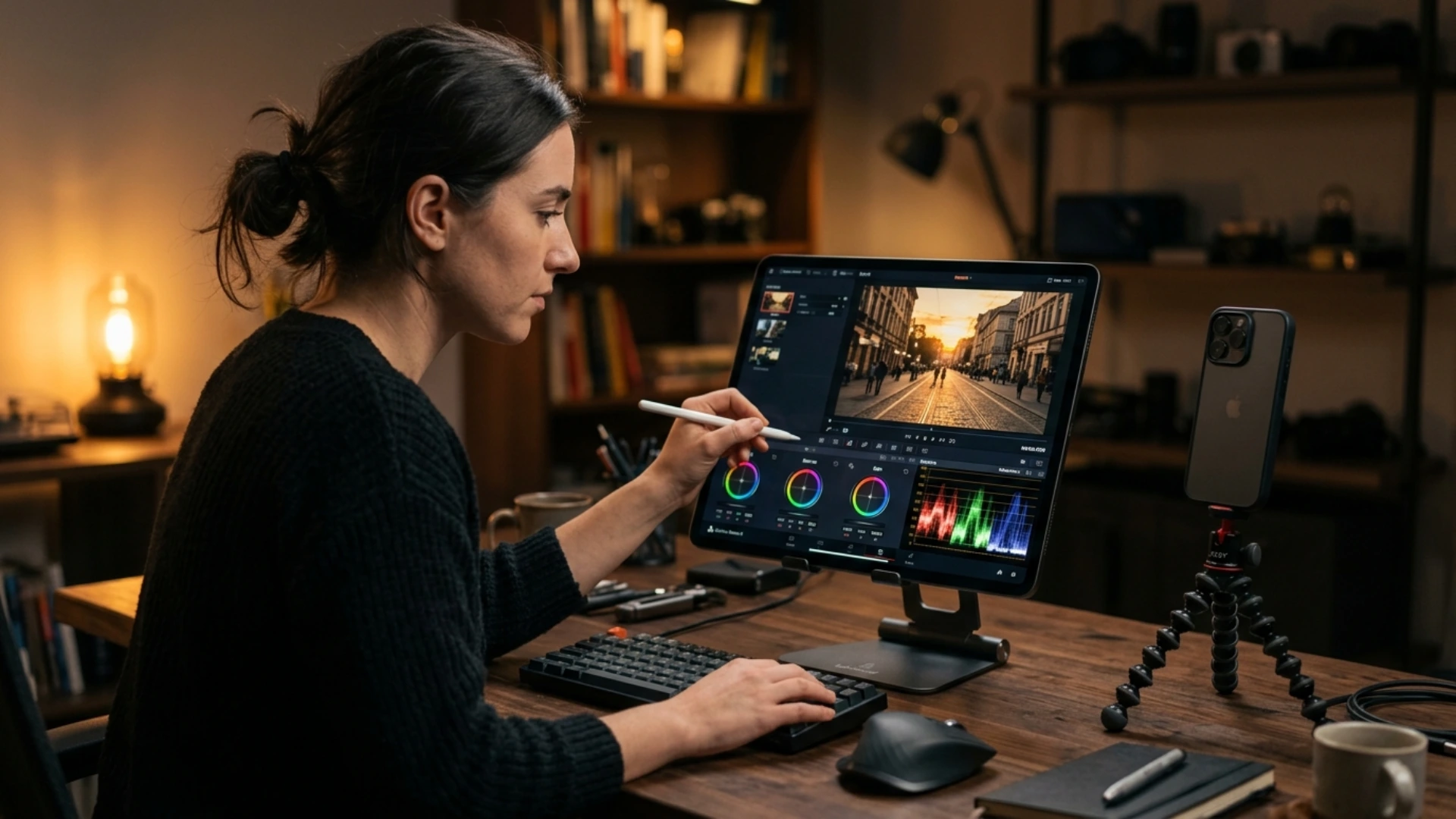
- Use Professional Editing Software – Programs like DaVinci Resolve, Adobe Premiere Pro, and Final Cut Pro offer excellent log color grading tools.
- Fine-Tune Highlights and Shadows – Since log preserves a high dynamic range, carefully adjusting shadows and highlights ensures a balanced look.
S-Log Basic Correction in Premiere Pro (Lumetri Color)
When working with S-Log footage specifically, here’s a slider-by-slider walkthrough for the Basic Correction panel in Lumetri Color:
- Contrast — Increase moderately. S-Log is extremely flat by design, so adding contrast is always the first move
- Highlights — Crank them up to restore brightness and life to the image
- Shadows — Lower to add depth and separation in darker areas
- Whites — Lower to tame overexposure (especially useful for outdoor scenes with direct sunlight)
- Blacks — Leave alone. This is unique to S-Log: adjusting the Blacks slider typically does not help and can introduce unwanted artifacts on Sony log files
- Saturation — Increase to taste based on the composition and mood of your footage
- Exposure — Only touch this when absolutely needed. It’s better to fix exposure issues with the sliders above rather than the global Exposure control
This sequence gives you a corrected, balanced image before moving on to creative grading with Color Wheels, Curves, or LUTs.
Color Wheel Luminance Technique for Cinematic Contrast
After your initial correction and grading passes, use the Color Wheels panel (available in Premiere Pro’s Lumetri Color and DaVinci Resolve) as a finishing move for cinematic contrast:
- Lower midtone luminance — Push the midtone wheel’s luminance slider down slightly to deepen the body of the image and add richness
- Lower shadow luminance — Pull shadow luminance down to create deeper blacks without crushing detail
- Increase highlight luminance — Raise the highlight wheel’s luminance to make bright areas pop and create separation
This three-wheel luminance adjustment creates a natural contrast curve that feels more cinematic than simply pushing the contrast slider. It works especially well on S-Log footage, where the flat starting point gives you room to sculpt the tonal range without clipping.
Pro tip: Make small adjustments — even 5–10 units on each wheel can dramatically change the feel of your grade. Monitor your Lumetri Scopes to ensure highlights stay below 100 and shadows don’t crush to pure black.
Curves Panel: Sculpting Highlights and Shadows for Log Footage
After your Basic Correction and Color Wheels passes, the Curves panel in Lumetri Color gives you precise, point-based control over the tonal range of your S-Log footage:
- Highlights (top of the curve) – Pull the top-right area of the curve up to brighten highlights, or down to tame them. This is useful for fine-tuning bright areas that the Basic Correction sliders could not fully address
- Shadows (bottom of the curve) – Adjust the lower-left area to deepen or lift shadows. Pulling down adds richness; pulling up recovers shadow detail
- Midtone contrast (middle of the curve) – Create an S-curve by lifting the upper-mid and lowering the lower-mid to add contrast selectively, without affecting the extreme highlights or shadows
The advantage of Curves over the contrast slider is precision: you can target specific tonal zones independently rather than applying a blanket contrast adjustment across the entire image.
Pro tip: Use the RGB channels in the Curves panel to address color casts in specific tonal ranges. For example, if shadows have a blue tint from S-Log, switch to the Blue channel and pull down the shadow region slightly to neutralize it.
Creative Polish: Sharpening & Vibrance on S-Log Footage
As a final step before export, apply light creative polish — but handle S-Log footage with care:
- Sharpening — S-Log’s flat profile amplifies sharpening artifacts. Use a gentle amount (e.g., 30–50 in Lumetri’s Sharpen slider) and pair it with a mask or the Detail section in DaVinci Resolve to avoid over-sharpening noise in shadows.
- Vibrance over Saturation — Instead of boosting overall Saturation (which can blow out skin tones), add a small bump of Vibrance (+10 to +20). Vibrance selectively boosts muted colors while protecting already-saturated hues, giving S-Log footage a natural richness without the oversaturated look.
Apply these after your color wheels and grading passes — they are finishing touches, not corrections.
Log Files in Photography
Key Differences Between Log for Video and Photography:
- Video Log – Captures a compressed, low-contrast image that needs color grading.
- Photo Log – Typically refers to RAW log photos, which retain full sensor data for extensive post-processing.
Photographers who shoot in log benefit from increased color depth, more shadow details, and better highlight retention. However, it requires careful exposure settings to avoid excessive noise or banding.
Common Challenges with Log Files
- Flat-Looking Footage – Since log files capture a low-contrast image, beginners often find it difficult to visualize the final look before grading.
- Noise in Shadows – Shooting in log, especially with lower-end cameras, can introduce unwanted noise in darker areas.
- Incorrect Exposure Issues – Log requires precise exposure settings. Underexposure can lead to excessive noise, while overexposure might result in highlight clipping.
- Color Grading Complexity – Compared to standard profiles, grading log footage takes more effort, requiring LUTs and professional editing techniques.
To overcome these challenges, use tools like waveform monitors and camera logging settings to ensure correct exposure while filming. Additionally, utilizing noise reduction in post-production can help refine the final image.
Conclusion
By carefully managing exposure, utilizing LUTs, and refining the log recording workflow, creatives can unlock the full potential of their footage. Don’t be afraid to experiment with different log profiles and grading techniques to find the best approach for your projects.
Disclaimer : If you buy something through our links, we may earn an affiliate commission or have a sponsored relationship with the brand, at no cost to you. We recommend only products we genuinely like. Thank you so much.



Write for us
Publish a Guest Post on Pixflow
Pixflow welcomes guest posts from brands, agencies, and fellow creators who want to contribute genuinely useful content.
Fill the Form ✏