DaVinci Resolve vs Premiere Pro: Which Editor Should You Use in 2026?
Here’s the thing: this isn’t a question with a single correct answer. It’s a question about you – your workflow, your goals, your budget, and what kind of editor you want to become. DaVinci Resolve and Premiere Pro are two of the most capable video editing tools ever built, and in 2026, the gap between them has never been smaller – or more interesting.
In this guide, we’re breaking down every major category head to head: interface, performance, color grading, audio, AI features, pricing, and ecosystem. By the end, you’ll know exactly which editor fits your creative life – no guessing required.
A Quick Look at Both Editors
Adobe Premiere Pro launched back in 1991 as one of the first desktop non-linear editors. It grew up as a pure editing tool and built its identity around a tight integration with the rest of Adobe Creative Cloud – After Effects, Audition, Photoshop, and more. It’s been the industry standard in broadcast, YouTube production, and marketing agencies for decades.
DaVinci Resolve has a different story. It started life as a dedicated color grading suite used in Hollywood post-production, where it earned an almost mythological reputation for its color tools. Blackmagic Design acquired it in 2009, rebuilt it from the ground up, and gradually turned it into a full NLE. Today it includes editing, color, audio (Fairlight), motion graphics (Fusion), and media management – all in a single application.
In 2026, both editors are genuinely excellent. Premiere recently launched a native Color Mode to directly challenge Resolve’s grading dominance, while Resolve has matured its editing workflow to a point where many professionals use it exclusively. Neither is a compromise anymore.
Interface and Learning Curve
Premiere Pro greets you with a layout that feels immediately familiar if you’ve used any video editor before: a media browser on the left, a program monitor in the center, a timeline at the bottom. Everything lives in one workspace. It’s intuitive, well-documented, and Adobe’s official tutorials are genuinely excellent. If you want to be cutting clips within an hour of installing the app, Premiere is the easier starting point.
DaVinci Resolve takes a different approach. It uses a page-based workflow: the Cut page for fast rough edits, the Edit page for traditional NLE work, Fusion for motion graphics and compositing, Color for grading, Fairlight for audio, and Deliver for export. Each page is essentially a specialized tool. The upside is that every workflow has a dedicated, optimized environment. The downside is that first-timers often feel like they opened three different applications at once.
The learning curve for Resolve is steeper – there’s no getting around that. But here’s something the community often gets right: once you understand Resolve’s logic, the workflow can actually feel more streamlined. You’re always guided through the natural post-production process from editing to color to audio to delivery. If you commit to Resolve, our DaVinci Resolve keyboard shortcuts cheat sheet, including a built-in Premiere preset, cuts the relearning curve in half.
For absolute beginners: Premiere has the gentler on-ramp. For anyone willing to invest a few weeks of learning time, Resolve rewards patience generously.
Editing Performance and Stability
DaVinci Resolve, by contrast, has built a reputation for rock-solid stability. It also runs on Windows, macOS, and Linux – a practical advantage for anyone in a Linux-based studio environment, where Premiere simply isn’t an option.
On the rendering and export side, Resolve often has the edge, particularly on systems with powerful GPUs, since its rendering pipeline is highly GPU-accelerated. Premiere has improved its hardware acceleration too, but Resolve tends to feel snappier when processing high-resolution footage, especially RAW formats.
One note worth making: DaVinci Resolve is demanding on hardware. Running it comfortably on lower-spec machines can be a challenge, especially with the full Studio feature set active. Premiere Pro isn’t exactly light either, but it tends to run more tolerably on modest configurations.
Color Grading: Where the Difference Is Most Clear
Resolve’s Color page is one of the most powerful color grading environments ever put into a software application. The node-based workflow – where each color adjustment is a self-contained node you chain together – gives colorists an extraordinary level of control, precision, and non-destructive flexibility. Qualifiers, power windows, curves, color warper, HDR grading tools, advanced noise reduction, motion tracking for masks – it’s a genuinely professional-grade color pipeline that Hollywood feature films and top-tier commercials run through daily.
Adobe’s response in 2026 has been notable. Premiere Pro just launched a new Color Mode – a dedicated, full-screen color grading environment designed to bring a more focused grading experience into the Premiere workflow. It’s a meaningful step forward, and for editors who primarily want good color without switching applications, Lumetri Color combined with Color Mode covers a lot of ground efficiently.
But here’s the honest truth: for serious color work, Resolve is still the standard. The node system has a learning curve, but once you’re inside it, there’s nothing in Premiere that quite matches the depth of control. Many professional editors use Premiere for the cut and then round-trip the project to Resolve purely for color – a workflow that’s been standard in post-production for years.
For casual color correction and basic grading: both tools are capable. For professional, cinematic color work: Resolve is the clear choice.
Audio Post-Production
DaVinci Resolve includes Fairlight, a professional digital audio workstation built directly into the application. Fairlight is serious software – it’s used on feature films and television productions for full audio post-production, mixing, and sound design. Having it inside the same application you’re using to edit and grade means a genuinely seamless all-in-one workflow.
Premiere Pro’s built-in audio tools are solid for basic mixing and cleanup – you can handle dialogue editing, basic noise reduction, and EQ adjustments without leaving the app. But for deeper audio work, the natural next step is Adobe Audition, which connects to Premiere smoothly via Dynamic Link. The catch is that Audition is a separate application, and if you’re not already on a Creative Cloud plan that includes it, there’s an additional cost consideration.
For editors who need deep audio capabilities without juggling multiple apps, Resolve’s Fairlight integration is a genuine advantage. For editors doing lighter audio work, Premiere’s built-in tools plus Audition access is a comfortable and capable setup.
Motion Graphics, VFX, and Templates
Premiere Pro’s answer to motion graphics is a tight integration with After Effects via Adobe Dynamic Link. You can create motion graphics compositions in After Effects and drop them directly into your Premiere timeline, with live updates flowing both ways. It’s a powerful pipeline, and the Motion Graphics Templates (.mogrt) format makes it easy to use pre-built animated elements directly inside Premiere. If you’re already in the Adobe ecosystem, this connection is genuinely seamless.
DaVinci Resolve has Fusion – a node-based compositing and motion graphics environment built into the same app. Fusion is powerful and capable of sophisticated visual effects and animations, but it has its own learning curve, and it works quite differently from After Effects. For editors who want deep compositing inside a single application, Fusion is a compelling tool. For those coming from an After Effects background, the workflow shift takes adjustment.
Here’s where your template library matters a lot. Whether you’re working in DaVinci Resolve or Premiere Pro, having professionally designed templates dramatically speeds up your production. Pixflow’s DaVinci Resolve templates give Resolve users a library of production-ready motion graphics, titles, and transitions that slot directly into their workflow – no motion design degree required. And for Premiere Pro editors, Pixflow’s Premiere Pro templates cover everything from broadcast titles to cinematic transitions, all fully customizable inside your existing timeline. (Your delivery deadline just got a lot more manageable.
AI Features in 2026
Adobe Premiere Pro has leaned hard into generative AI through its Firefly integration. The standout features include Generative Extend (fill missing frames or extend clips with AI-generated content), text-to-video prompts, automatic scene detection, enhanced auto-captioning, and AI-powered background removal. For solo creators and content teams who need to move fast, these tools can genuinely save hours on a project.
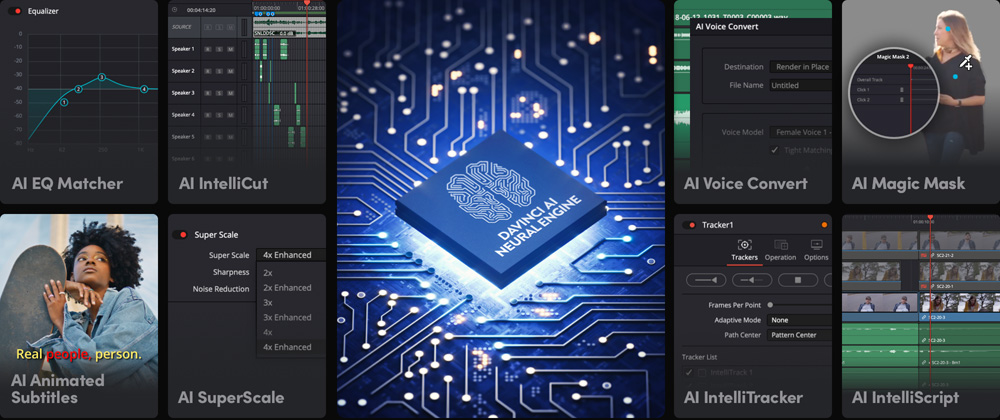
DaVinci Resolve’s AI toolkit sits more on the technical side: Magic Mask uses AI to automatically track and isolate subjects without manual rotoscoping, Speed Warp delivers AI-assisted optical flow for smooth slow-motion, Voice Isolation cleanly separates dialogue from background noise, and DaVinci’s scene cut detection and transcription tools are fast and accurate. These are workflow-accelerating tools focused on what editors actually spend time on.
The philosophical difference is interesting. Adobe is investing in AI that generates content – filling in what wasn’t shot. Blackmagic is investing in AI that improves content – making what you already have look and sound better. Depending on your workflow, either approach can be enormously valuable.
For generative content creation and solo creator workflows: Premiere’s AI features have the edge. For technical quality enhancement and professional post-production: Resolve’s AI tools are highly refined.
Pricing: Subscription vs One-Time Purchase
Adobe Premiere Pro runs on a subscription model. Premiere Pro alone costs approximately $23/month. Access to the full Creative Cloud suite – including After Effects, Photoshop, Audition, and the rest – runs around $60/month. Over five years, Creative Cloud alone can cost $3,600 or more. There are student and team discounts, and for businesses where subscriptions are standard operating costs, the model makes sense. But the ongoing commitment is real.
DaVinci Resolve offers something rare in professional software: a genuinely capable free version. The free edition includes the core editing, color grading, Fairlight audio, and Fusion tools – enough for the vast majority of projects. The Studio edition, which unlocks advanced AI features, collaboration tools, noise reduction, and certain GPU-accelerated effects, is a one-time purchase of $295. After five years, you’ve paid once. Upgrades to new versions of Resolve Studio have historically been free.
The math over any meaningful time horizon strongly favors Resolve on pure cost. That said, the Adobe Creative Cloud suite includes tools beyond video editing – Photoshop, Illustrator, InDesign – that many creators genuinely use and would otherwise pay for separately. The value calculation is personal.
For budget-conscious creators and freelancers: Resolve’s pricing model is a significant advantage. For creators already embedded in the Adobe ecosystem: the Creative Cloud bundle may already be justified by other apps.
Ecosystem and Integrations
Premiere Pro’s greatest ecosystem advantage is Adobe Creative Cloud. The round-trip between Premiere and After Effects is seamless, and the ability to pull Photoshop assets directly into your timeline, color-match with Lightroom presets, or hand off to Audition for audio work without re-encoding anything is genuinely efficient. For teams working across marketing, design, and video, Creative Cloud creates a unified production environment.
Premiere also has Team Projects – a cloud-based collaboration feature that allows multiple editors to work on the same project simultaneously. For agencies and broadcast teams, this is a meaningful workflow feature.
DaVinci Resolve’s ecosystem centers on the Blackmagic Design hardware world: native BRAW (Blackmagic RAW) support for Blackmagic cameras, DaVinci Resolve hardware color panels (the Micro Panel, Mini Panel, and Advanced Panel are industry standards in color suites), and Blackmagic Cloud for collaborative multi-user projects. The hardware integration is exceptional if you’re working with Blackmagic cameras or in a color-suite environment.
Resolve also has strong round-trip support with other NLEs through AAF and XML interchange, so it fits naturally into mixed-tool pipelines.
For Adobe-native teams and agencies: Premiere’s ecosystem integration is hard to beat. For film and broadcast post-production environments: Resolve’s hardware and pipeline integration is the professional standard.
Who Should Use Which Editor?
Choose DaVinci Resolve if:
- You’re serious about color grading and want the industry’s best color tools
- You want a free, professional-grade editor to start with no financial commitment
- You prefer a one-time purchase over an ongoing subscription
- You edit on Linux
- You work on films, documentaries, or high-end commercial productions
- You want a single application that covers editing, color, audio, and VFX without switching apps
- You’re working with Blackmagic cameras or hardware
Choose Premiere Pro if:
- You’re already using Adobe Creative Cloud for Photoshop, After Effects, or Illustrator
- You work in a team environment that uses Team Projects or shared Adobe libraries
- You need the most accessible learning path as a beginner
- Generative AI tools for content creation are a priority in your workflow
- You work in marketing, social media production, or YouTube content where fast turnaround matters more than deep color pipelines
- Your clients, agency, or school uses Premiere as the standard
The honest overlap: If you’re an intermediate or advanced editor, you can do professional work in either application. Many working editors know both and choose based on the project at hand.
Conclusion
Neither. And both.
DaVinci Resolve is the better all-in-one tool for color-focused professionals, budget-conscious creators, and anyone who wants a free entry point into serious video editing. Premiere Pro is the better choice for Adobe ecosystem users, beginners who need a gentler on-ramp, and content creators who want the most advanced generative AI tools available.
The good news is that whichever editor you commit to, you don’t have to build everything from scratch. Whether you’re working in Resolve or Premiere, Pixflow has you covered with professional-grade templates designed for real production workflows. Check out our DaVinci Resolve templates and Premiere Pro templates to hit the ground running on your next project. (Your timeline deserves to look that good.)
Prefer to edit on the go? Our guide to the best mobile video editing apps in 2026 covers the top phone editors so you can edit on your phone when you’re away from your desk. Now stop staring at the download page – and start editing.
Disclaimer : If you buy something through our links, we may earn an affiliate commission or have a sponsored relationship with the brand, at no cost to you. We recommend only products we genuinely like. Thank you so much.



Write for us
Publish a Guest Post on Pixflow
Pixflow welcomes guest posts from brands, agencies, and fellow creators who want to contribute genuinely useful content.
Fill the Form ✏