Project Management for Video Editors: Tools and Templates to Stay Organized
- Why Video Editors Need More Than a To-Do List
- The Features That Actually Matter
- The Best Project Management Tools for Video Editors in 2026
- Which Tool Should You Actually Pick?
- Template Structures That Keep You Organized
- Building a Simple Workflow (Even If You Hate "Systems")
- Common Mistakes (and How to Dodge Them)
- Conclusion
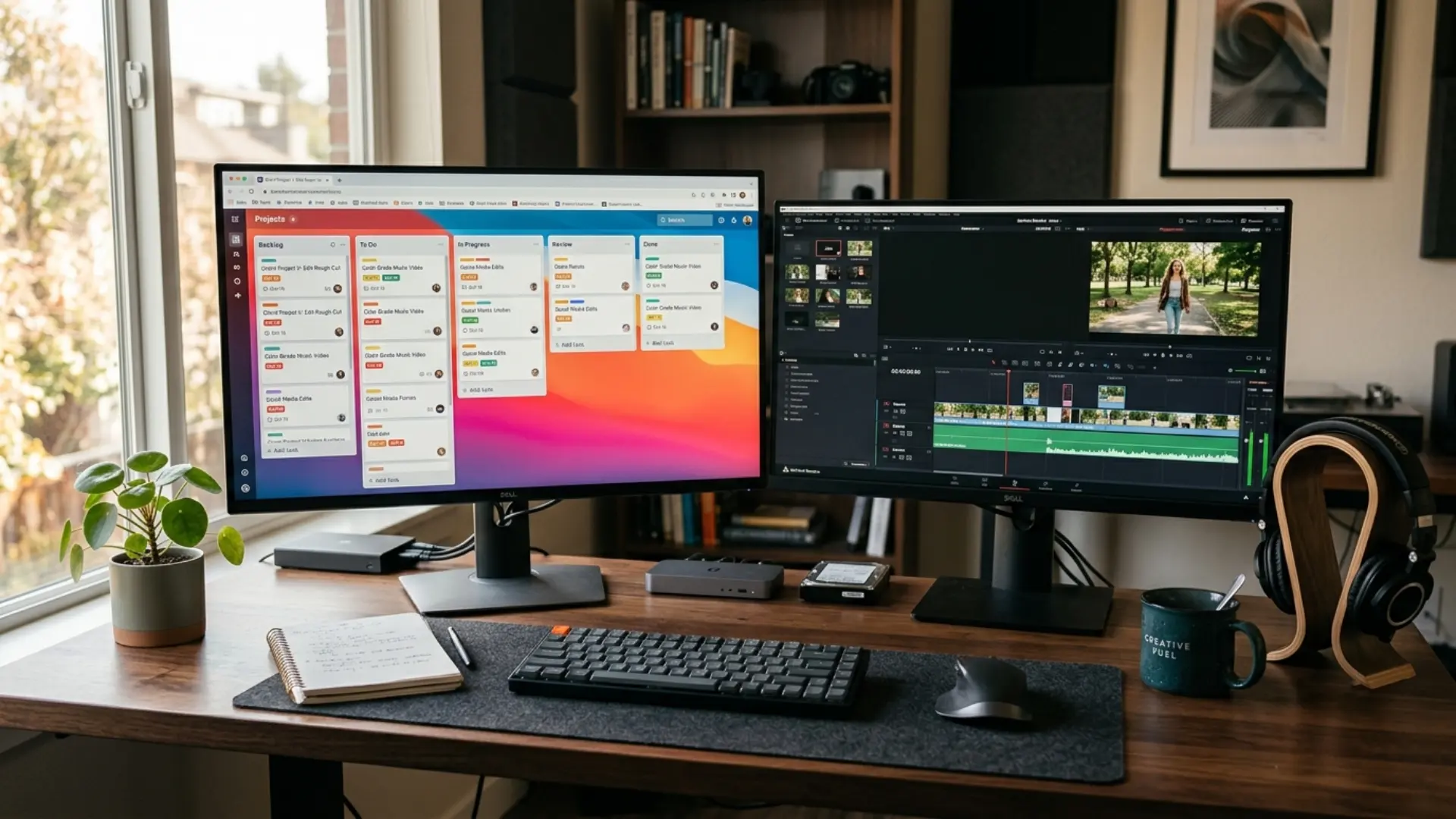
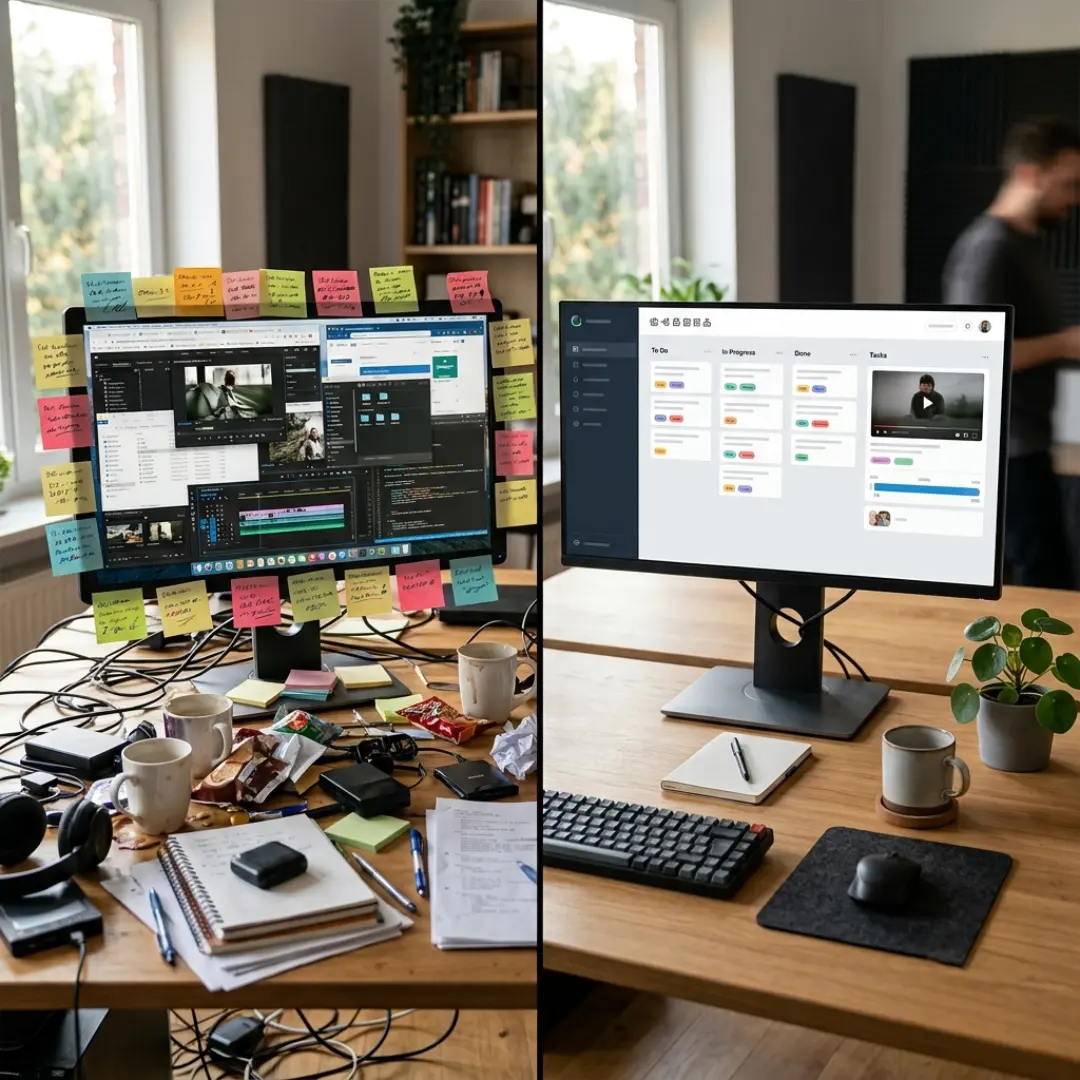
Here is the thing: the editors who look the most “organized” are rarely the ones with the tidiest desktop. They are the ones who set up a system once and let a good project management tool do the remembering for them. When you are juggling multiple clients and deadlines, the right software is the difference between a calm week and a chaotic one.
In this guide, we are comparing the best project management tools for video editors in 2026, from lightweight boards for solo freelancers to full production platforms for small studios. We will break down what each one does best, what it costs, and who it is really for, then walk through the template structures that keep your projects from turning into digital clutter. Let’s dive in.
Why Video Editors Need More Than a To-Do List
- Huge files. Raw footage, ProRes exports, and project caches add up fast. Your system needs to point to your storage, not choke on it.
- Version chaos. “Final_v3_ACTUAL_final.mp4” is a meme for a reason. You need version tracking that keeps the newest cut on top.
- Frame-specific feedback. “Change the thing at around 1:12” is useless. Timestamped, frame-accurate comments save hours.
- Multi-stage pipelines. Pre-production, shooting, editing, color, sound, delivery. Each stage has dependencies, and one slip pushes everything back.
- Clients and collaborators. You need to share progress without handing over the keys to everything.
Across Reddit threads on the subject, the same wish list comes up again and again: manage tasks and deadlines, keep communication in one place, store and organize assets, share limited boards with clients and freelancers, and above all, keep it simple.[1] That tension between “powerful enough” and “not overwhelming” is exactly what we will map out below.
If you are still setting up the business side of things, our guide on how to start a freelance video editing business covers the foundation, and this article picks up where organization becomes your bottleneck.
The Features That Actually Matter
Here is the shortlist to keep in your back pocket:
The Best Project Management Tools for Video Editors in 2026
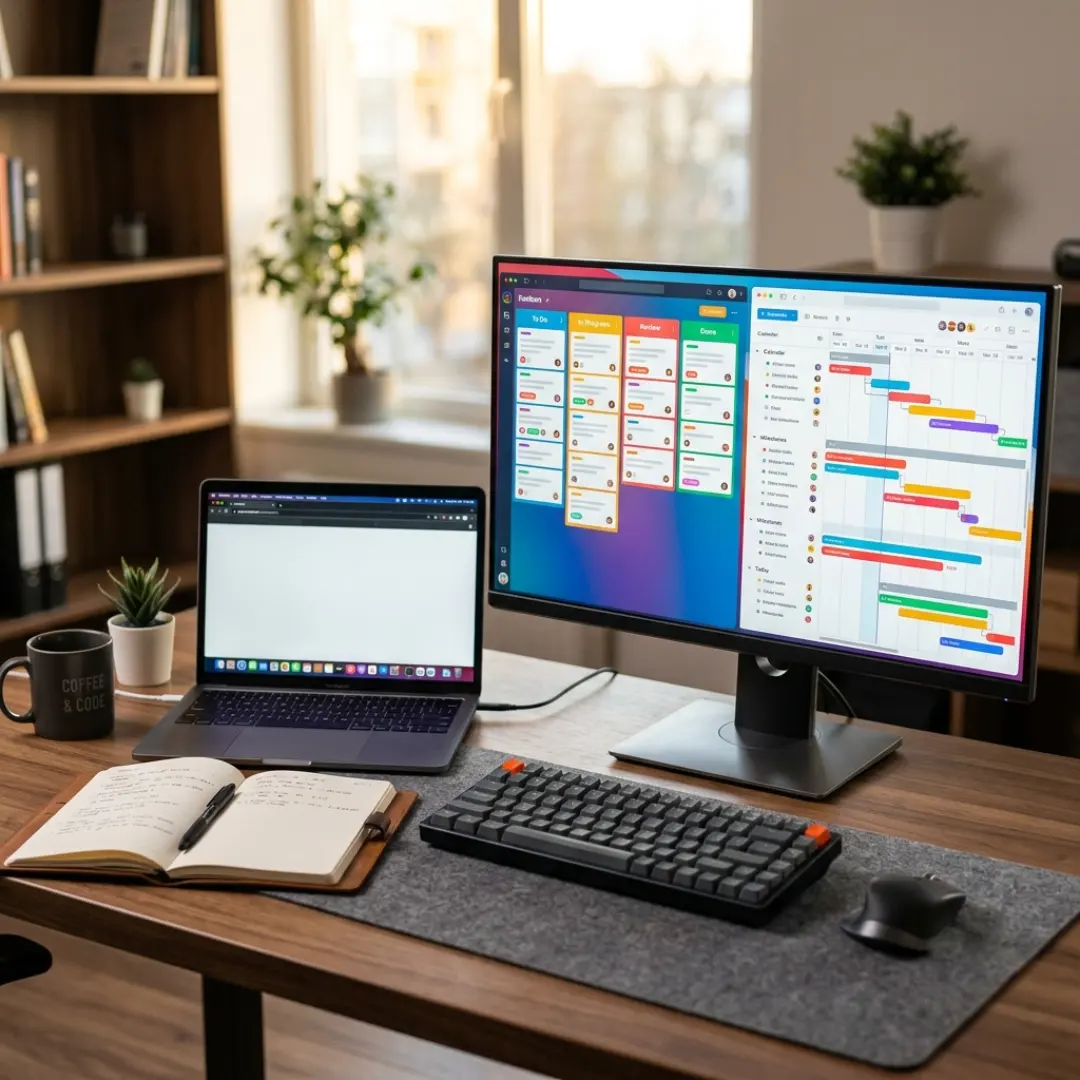
Flexible All-Rounders (Great for Freelancers and Small Teams)
These are the generalists. They will not shoot your call sheets, but they are affordable, fast to learn, and endlessly customizable.
Trello is the simplest way to visualize a pipeline. Its boards, lists, and cards map perfectly onto a “To Do, Editing, Review, Delivered” flow, and there is basically no learning curve.[3] It is ideal for individual creators and small YouTube channels planning a content calendar. The catch: it can feel thin once a team grows or a project gets genuinely complex.
Notion is the all-in-one favorite for editors who want their production notes, task list, and client database living in one place. Its customizable databases and huge library of community templates make it a superb “production hub.”[3] The trade-off is that free plans cap file uploads at 5MB, so you will link out to Google Drive or Dropbox for heavy media, and it is easy to over-engineer your setup.
Asana shines at task-driven coordination and campaign timelines. It is not video-specific, but its Timeline view is excellent for tracking multiple deliverables and launch dates, and you can even embed videos directly in tasks.[3] Great for small teams who live by deadlines.
ClickUp packs in more free features than almost anything else: docs, whiteboards, time tracking, and AI-assisted scripting all in one space.[3] It is the budget-friendly “everything app,” though all that power can feel busy at first.
Monday.com uses a colorful, Lego-like building-block approach. You can assemble a custom video pipeline from pre-made templates in minutes, and it is a favorite of highly visual teams.[3] Cloudwards even rates it the best overall for video production thanks to its versatility.[4] Advanced features like dependencies live on higher tiers, so budget accordingly.
Review & Approval Specialists (Built for Post-Production)
This is where video-specific tools earn their keep. If your biggest pain is client feedback and version chaos, start here.
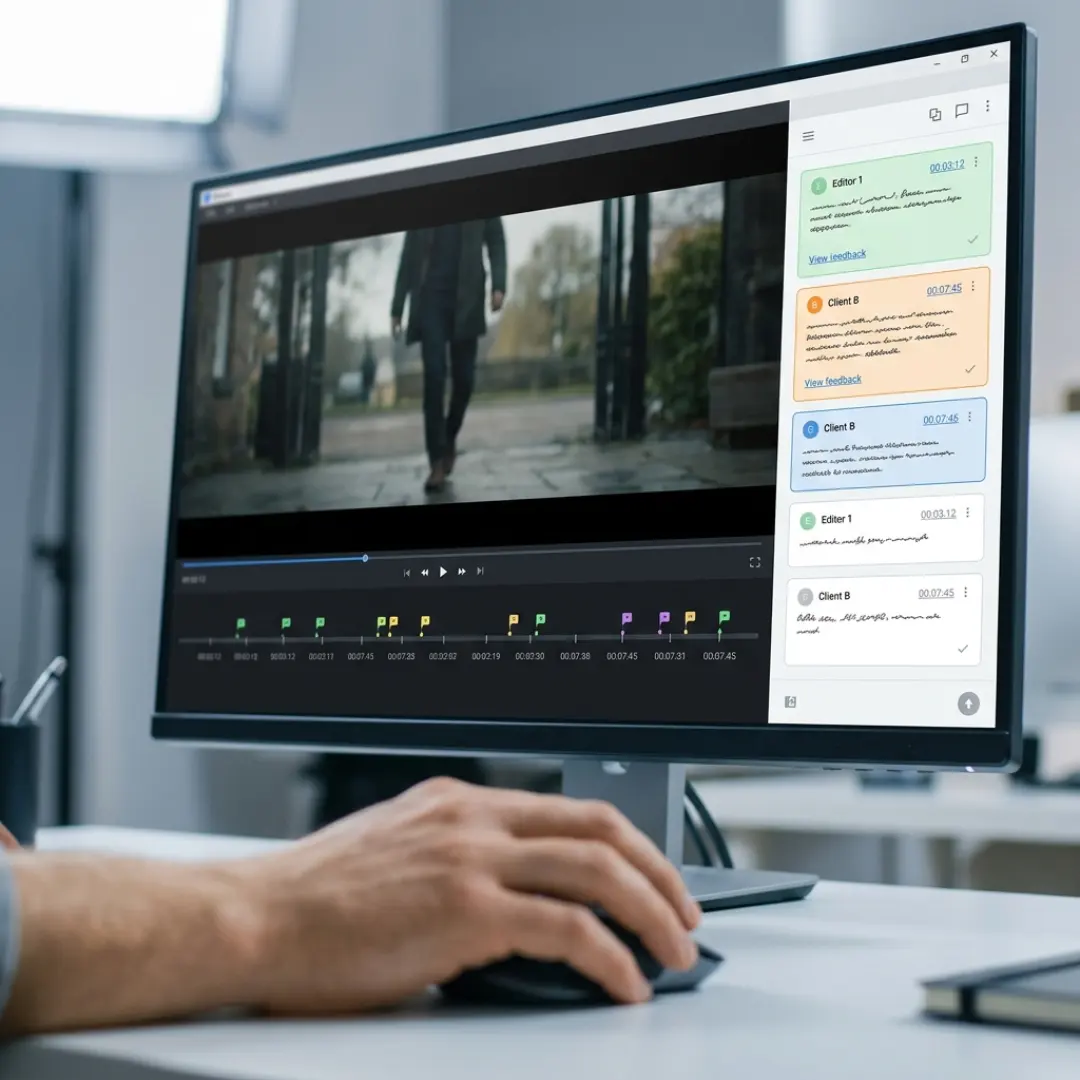
Ziflow is a proof-first platform with the deepest proofing tools for both video and static assets, plus strong audit trails of who approved which version.[3] It even offers safe-zone viewing for different aspect ratios and direct Premiere Pro integration.[3] Best for compliance-heavy agencies and enterprise approvals.
Wrike is a powerful all-in-one work platform that centralizes communication, scheduling, feedback, approvals, and file sharing in one secure space.[5] A standout for editors: it lets you compare different video versions side by side to spot exactly what changed.[3] It is best for cross-functional teams that need serious structure.
Full Production Suites (Built for the Whole Lifecycle)
These cover far more than editing. If you handle pre-production too, or run an actual production company, they may be worth the extra complexity.
StudioBinder is built for “set life.” It nails the documents general tools ignore, like call sheets, shot lists, and script breakdowns, with smart call sheets that even pull in weather and location data.[3] Fantastic for full-cycle film and commercial work, but overkill for a solo editor who never leaves the timeline.
Assemble focuses on the production calendar and shines at visualizing a long production cycle at a glance, with an integrated review player and integrations spanning Premiere Pro, Final Cut Pro, Frame.io, Slack, and more.[2] Great for calendar-centric planning and client transparency.
Celtx owns the script-to-shoot transition, turning screenplays into actionable production documents like call sheets, shot lists, and budgets.[3] Best for writers and directors; a bit much if you just want a task board.
ftrack and Yamdu round out the heavy hitters. ftrack is a powerhouse for complex VFX and animation pipelines juggling hundreds of shots and versions, while Yamdu manages the entire film lifecycle including crew, legal, and financing.[3] Both are studio-grade, so most freelancers can safely skip them.
Quick Comparison Table
Which Tool Should You Actually Pick?
- Solo freelancer, mostly YouTube or social clients: Start with Trello or Notion. They are free to begin, quick to learn, and flexible enough to grow with you.
- Freelancer drowning in client feedback: Add Frame.io. Even the free tier can transform your revision rounds and cut the back-and-forth dramatically.
- Small studio coordinating editors and freelancers: Look at Monday.com, Wrike, or alternatives to ClickUp for shared workspaces, permissions, and reporting.
- Production company handling shoots end to end: StudioBinder, Assemble, or Celtx will manage the parts your NLE never touches.
- Deep in the Adobe ecosystem: Frame.io plus a light task board (Trello or Asana) is a lean, powerful combo.
Honestly, most freelancers thrive with a simple pairing: one flexible board for tasks and one review tool for feedback. Resist the urge to adopt six platforms. The best system is the one you will actually keep using.
Template Structures That Keep You Organized
Here are the core structures worth standardizing, described so you can rebuild them in whatever tool you choose.
1. The Project Folder Structure
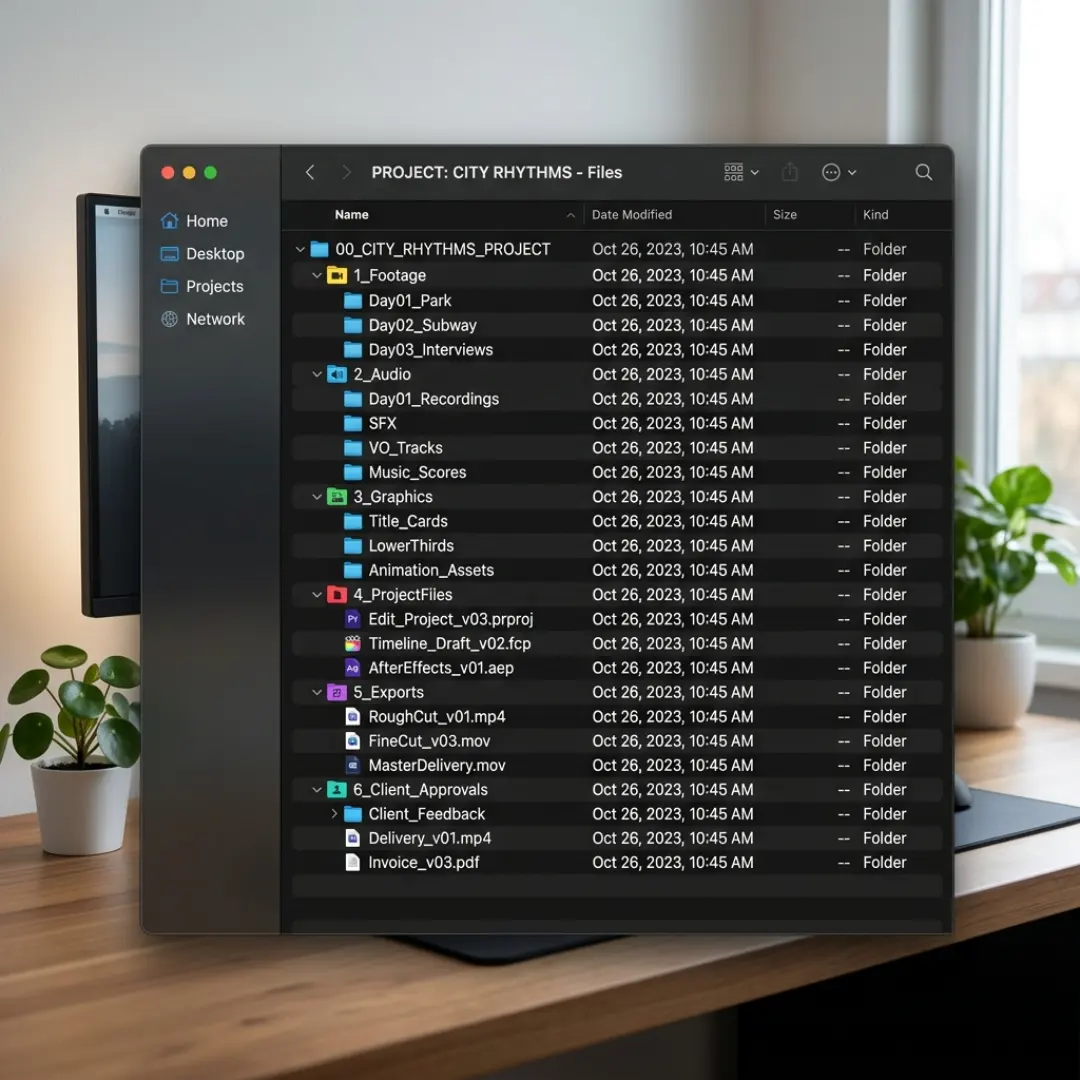
Before a single clip hits your timeline, create a repeatable folder tree you copy and paste for every new project. A reliable starting point:
- 01_Footage (raw video, subfolders by day, camera, or scene)
- 02_Audio (music, VO, SFX)
- 03_Graphics (logos, lower thirds, templates)
- 04_Project_Files (your Premiere, Resolve, or FCP files)
- 05_Exports (drafts and final deliverables, versioned)
- 06_Client (briefs, brand assets, contracts)
Here are the core structures worth standardizing, described so you can rebuild them in whatever tool you choose.
1. The Project Folder Structure
Before a single clip hits your timeline, create a repeatable folder tree you copy and paste for every new project. A reliable starting point:
- 01_Footage (raw video, subfolders by day, camera, or scene)
- 02_Audio (music, VO, SFX)
- 03_Graphics (logos, lower thirds, templates)
- 04_Project_Files (your Premiere, Resolve, or FCP files)
- 05_Exports (drafts and final deliverables, versioned)
- 06_Client (briefs, brand assets, contracts)
3. The Client Review & Feedback Log
Scattered feedback is where revisions go to die. Keep a dedicated space (a Frame.io project, or a simple table) that logs each review round, the timestamped notes, the date, and whether the change is done. It creates a paper trail that protects you when “just one small change” quietly becomes ten.
4. The Naming Convention
A boring detail that saves your sanity. Lock in one pattern and never deviate:
ClientName_ProjectName_v01_YYYYMMDD
Metadata and tagging matter too. On larger jobs, tagging clips early makes finding them trivial when the clock is ticking.[8] Premiere Pro’s metadata tools, for example, let you tag and sort clips so nothing gets lost in a 500-file project.
Want to promote these systems into a real business advantage? Our guide on scaling your freelance video editing business with templates and automation shows how repeatable structures free you up to take on more work.
Building a Simple Workflow (Even If You Hate “Systems”)
- Intake. New project enters your tracker with client, deadline, and deliverables filled in.
- Setup. Copy your folder structure and create the project file. Two minutes now saves an hour later.
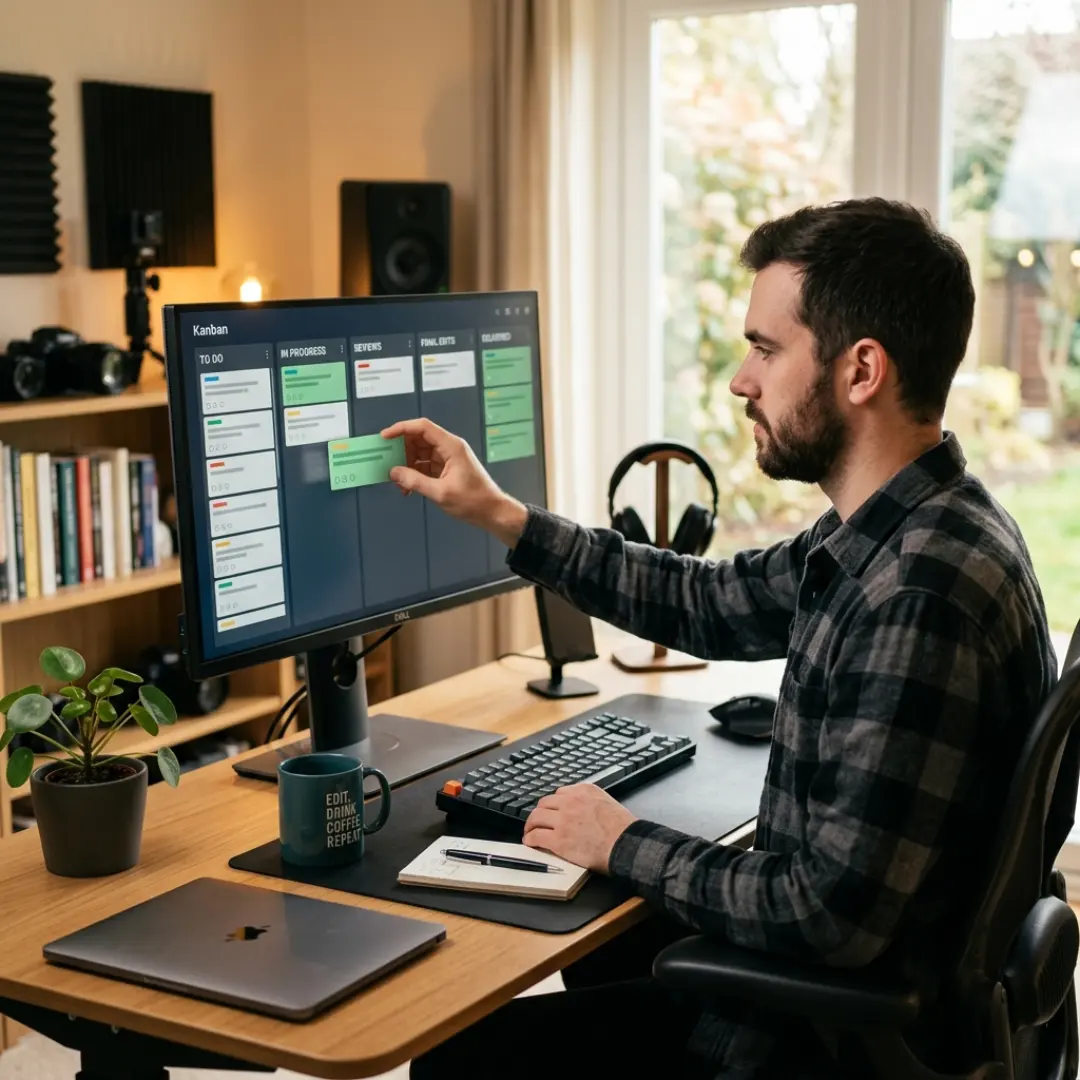
- Edit. Move the card to “Editing.” Keep footage in bins that mirror your folders.
- Review. Export to your review tool, share a client-facing link, and log the feedback.
- Revise. Track each round so scope creep stays visible (and billable).
- Deliver. Move to “Delivered,” export final formats, and archive the project.
- Invoice. Flip payment status and send the bill while the work is fresh.
Once this rhythm is second nature, the business side gets easier too, from setting your video editing rates to finding video editing clients and showing off your work in a portfolio that wins clients.
Common Mistakes (and How to Dodge Them)
- Tool overload. Six apps that do not talk to each other is worse than one you actually use. Consolidate.
- Skipping setup to “save time.” The two minutes you skip at the start cost you an hour mid-project. Always build the folders first.
- Vague feedback loops. If you are still taking notes over text messages, switch to timestamped review comments today.
- No version control. Adopt a naming convention and let your review tool stack versions so the latest cut is unmistakable.
- Ignoring the business layer. Deadlines, invoices, and scope live in your system too, not just your edits.
Conclusion
Start small. Choose one tool from this guide, build your folder structure and project tracker this week, and refine from there. The goal is not a perfect setup, it is a repeatable one you will actually stick with.
Disclaimer : If you buy something through our links, we may earn an affiliate commission or have a sponsored relationship with the brand, at no cost to you. We recommend only products we genuinely like. Thank you so much.
Blog Label:



Write for us
Publish a Guest Post on Pixflow
Pixflow welcomes guest posts from brands, agencies, and fellow creators who want to contribute genuinely useful content.
Fill the Form ✏