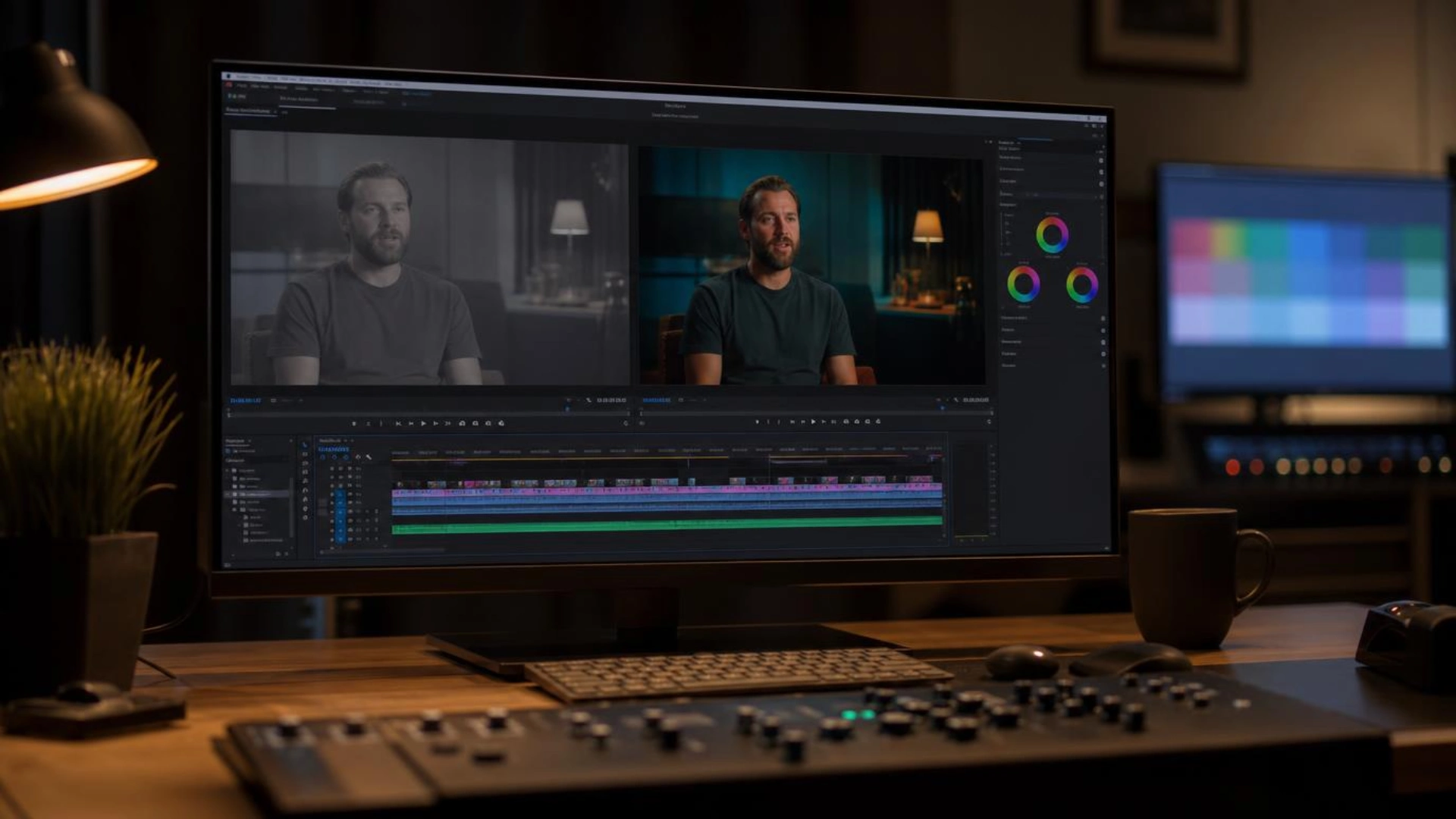
How to Build a Simple Color Grading Workflow from Log to Final
But here is the thing: that flat, desaturated image is not a mistake. It is a feature. Log footage is your camera’s way of handing you the maximum possible information, and your job as a colorist or editor is to shape it into something intentional and beautiful.
In this guide, you will learn a clear, repeatable workflow for taking log footage from its raw, flat state all the way to a polished, final-grade image. The steps apply whether you are working in DaVinci Resolve, Premiere Pro, or Final Cut Pro, and whether you are grading a short film, a commercial, or a YouTube video.
What Is Log Footage and Why Does It Look “Wrong”?
The result is a flat, low-contrast, desaturated image. Your whites look grey, your blacks look milky, and your colors look muted. This is intentional.
Different manufacturers have their own log formats:
- ARRI uses Log C (and the newer LogC3 / LogC4)
- Sony uses S-Log2 and S-Log3
- Canon uses C-Log, C-Log2, and C-Log3
- Blackmagic uses Blackmagic Film and Blackmagic Gen 5
- Panasonic uses V-Log
Each has a slightly different curve shape and color space, but they all serve the same purpose: preserving dynamic range. A camera shooting in Rec.709 (the standard color space for HD video) might capture 8 to 10 stops of dynamic range before highlights clip or shadows crush. The same camera shooting in log can often capture 12 to 14 stops or more.
This extra information is what gives you the flexibility to recover a blown sky, lift crushed shadows, and build a rich creative grade. Log footage is not broken. It is a tool waiting to be shaped.
Setting Up Your Project for Color Grading
Choose a Color Management Approach
There are three main approaches, and each has its strengths:
1. Manual LUT-based approach
You apply a technical LUT (look-up table) to each clip to convert it from log to a standard viewing space, then grade on top of that. This is the most manual method and gives you full control over when and how the conversion happens. It is a good starting point for editors who are new to color management.
2. DaVinci YRGB Color Managed (in DaVinci Resolve)
You tell Resolve the input color space of each clip and the output color space you want to deliver in, and Resolve handles the transform automatically. This is efficient for mixed-camera projects where you have multiple log formats in the same timeline.
3. ACES (Academy Color Encoding System)
A scene-referred, wide-gamut color pipeline used in high-end film and commercial production. ACES normalizes all your camera inputs into a single, camera-agnostic color space. It is powerful but has a steeper learning curve and is generally more appropriate for feature film or high-end commercial work.
For most editors building their first color grading workflow, starting with the manual LUT approach or DaVinci Color Managed is the most practical path.
Set Your Timeline Color Space
In DaVinci Resolve, go to Project Settings and set the timeline color space to match your intended output (usually Rec.709 Gamma 2.4 for standard video). In Premiere Pro, you can use the Lumetri Color panel and apply input LUTs at the clip level. In Final Cut Pro, set the color processing under project settings.
A Note on Monitoring
Color grading on an uncalibrated monitor is like mixing audio on broken speakers. You do not need a broadcast-grade reference monitor to start, but you do need a monitor that displays Rec.709 reasonably accurately. If your monitor is set to a vivid or enhanced display mode, you will likely over-compensate in your grade and your footage will look dull on other screens.
Step 1 – Color Space Transform: Getting Log to a Workable Image
The CST answers two questions:
- Input: What color space and gamma is this footage in? (e.g., Sony S-Log3 / S-Gamut3.Cine)
- Output: What color space and gamma do I want to work in? (e.g., Rec.709 Gamma 2.4)
In DaVinci Resolve, you can do this with a CST node at the beginning of your node tree, or by using the Color Space Transform effect. You can also use a technical LUT provided by the camera manufacturer (ARRI, Sony, Canon, and Blackmagic all provide free technical LUTs on their websites).
Common Mistakes to Avoid
- Applying the wrong log profile: If your footage is S-Log3 and you apply an S-Log2 LUT, the colors and contrast will be wrong. Always check the camera’s metadata or the shooter’s notes.
- Stacking a technical LUT on top of Color Managed settings: If Resolve is already managing the color space, adding a manual LUT on top will double the transform and break your image.
- Skipping the CST entirely and jumping to creative grading: Grading log footage without a transform first means your tools (curves, wheels, scopes) are working in a non-linear space and your corrections will be inaccurate.
Once your CST is in place, your footage should look like a clean, neutral, normal-looking image. Not beautiful yet, but correct. That is exactly where you want to be.
Step 2 – Exposure and Contrast Correction (Primary Correction)
Your Tools
The core controls for primary correction are:
- Lift / Offset: Controls the dark areas (shadows and blacks)
- Gamma / Mid-tones: Controls the middle tonal range
- Gain / Highlights: Controls the bright areas
- Contrast: Applies a global S-curve to expand the tonal range
- Saturation: Controls overall color intensity
Use Your Scopes
Do not trust your eye alone for exposure. Use scopes:
- Waveform: Shows the luminance distribution of the image from left to right. Useful for checking exposure across the frame.
- Parade (RGB): Shows the red, green, and blue channels separately on a waveform. Essential for detecting color casts.
- Histogram: Shows the overall distribution of tonal values from black to white.
- Vectorscope: Displays color information plotted on a circular graph. Skin tones should generally fall on the “skin tone line.”
Your goal in this step is to set the blacks to a proper black level (not crushed, not milky), set the whites to an appropriate level without clipping, and achieve a natural, balanced mid-tone exposure.
Shot Matching
If you are working with a sequence of shots, this is also the stage where you match exposure between clips. A close-up and a wide shot of the same scene should have consistent brightness levels, even if they were shot at different times or with slightly different camera settings.
Step 3 – Color Balance and White Balance (Primary Correction Continued)
Reading the Parade Scope for Color Balance
On the RGB Parade scope, the three channels (red, green, blue) should be roughly balanced in the highlights and in the shadows. If the highlights on your blue channel are significantly higher than red and green, your image has a blue cast in the highlights. If your shadow green channel is lifted, your shadows have a green tint.
Use the Lift (shadow) and Gain (highlight) color wheels to balance the channels.
Correcting White Balance
If a scene was shot under tungsten lighting but the camera was set to daylight white balance (or vice versa), the entire image will have a warm or cool cast. You can correct this by adjusting the Temperature and Tint controls in your primary correction panel.
Skin Tone as a Reference
If your shot contains human subjects, skin tones are one of the most reliable references for color accuracy. On the vectorscope, skin tones should land on or very close to the skin tone line, regardless of ethnicity. Significant deviation from this line usually indicates a color cast.
Trusting Your Eye vs. Trusting Your Scopes
Scopes tell you what is technically accurate. Your eye tells you what reads as natural and pleasing. In primary correction, lean toward the scopes. In the creative grade, lean toward your eye. The goal here is a clean, neutral foundation, not a finished look.
Step 4 – Secondary Corrections (Isolating and Refining)
HSL Qualifiers
An HSL qualifier lets you select a range of hues, saturations, and luminance values. For example, you can select only the blue sky in a shot and make it more saturated or shift its hue slightly toward teal, without affecting the green trees or the skin tones.
In DaVinci Resolve, the qualifier tool lets you sample a color directly from the image and then refine the selection using the Hue, Saturation, and Luminance sliders. A good qualifier selection is tight and clean, affecting only the target area.
Power Windows and Tracking
Power Windows are drawn masks (circles, rectangles, polygons, or freehand curves) that isolate a region of the frame. You can use a window to:
- Darken a bright sky at the top of frame
- Brighten a subject’s face
- Reduce saturation in a distracting background element
For moving shots, tracking locks the window to a specific element as the camera moves. DaVinci Resolve has a powerful built-in tracker that handles most camera moves automatically.
Common Secondary Corrections
- Sky enhancement: Increase saturation and deepen the blue of an overcast or pale sky
- Skin tone refinement: Warm up or clean up skin tones without affecting the background
- Object isolation: Reduce the saturation of a distracting prop or wardrobe item that pulls the eye
- Shadow lift: Selectively lift and warm the shadows in a specific region
Secondary corrections are where a grade starts to feel crafted and intentional. However, resist the temptation to over-qualify. If a secondary correction requires a very complex selection to look natural, it is often a sign to take a step back and reconsider the primary correction first.
Step 5 – Creative Grade (The Look)
Correction vs. Creative Grade
Color correction is about making the image look right. Creative grading is about making the image look the way you want it to feel. These are two separate intentions, and keeping them on separate nodes (or layers) makes it much easier to adjust either one independently later.
Approaches to Building a Look
Custom look from scratch
Using curves, color wheels, and hue-vs-saturation controls, you build a look by hand. This gives you total creative control and results in something unique to your project. Common techniques include pulling the shadows toward a complementary color (e.g., pushing shadows slightly blue-green while keeping highlights warm), reducing overall saturation selectively, and using an S-curve for a filmic contrast rolloff.
Film emulation LUTs
Creative LUTs emulate the look of specific film stocks (Kodak 2383, Fuji 3513, etc.) or established cinematic styles. They are a fast starting point and can be adjusted by reducing their intensity (blending them at 50-70% is common) and correcting on top of them.
Print film emulation
In DaVinci Resolve’s node tree, adding a print film emulation LUT (such as Kodak 2383 in the Output Color Space) after your creative grade can add filmic tone mapping, softening the harsh roll-off of digital sensors and giving the image a more organic feel.
Color Temperature and Emotional Tone
- Cool, desaturated grades read as clinical, tense, or melancholic
- Warm, high-contrast grades read as energetic, passionate, or nostalgic
- Teal-and-orange grades separate skin tones from backgrounds and create a vivid, cinematic depth
- Flat, muted grades with lifted blacks give a soft, documentary, or indie film feel
There is no objectively correct look. The look should serve the story, the mood, and the audience.
Consistency Across a Sequence
Once you have established a look on one hero shot, use Stills (in DaVinci Resolve) or saved color presets to apply a similar starting point to other shots in the same scene. Then tweak each shot individually so that the grade feels cohesive rather than identical.
Step 6 – Output and Delivery
The Output Transform
Just as you applied an input transform at the beginning of your node tree (converting log to a working space), you may need an output transform at the end to convert your graded image into the delivery color space.
- Web delivery (YouTube, Vimeo): Rec.709, Gamma 2.4 or sRGB
- Broadcast: Rec.709 with appropriate legal levels (16-235)
- Cinema (DCP): DCI-P3
- HDR delivery: Rec.2020 with PQ or HLG transfer function
If you used a color-managed project (ACES or DaVinci Color Managed), the output transform is handled automatically. If you worked manually, make sure you are not outputting in log. Log footage sent to a client or uploaded to YouTube will look flat and grey because no display transform has been applied.
Render Settings
- Bit depth: Render at 10-bit or higher if your delivery spec allows. 8-bit can show banding in smooth gradients after a heavy grade.
- Codec: ProRes 422 HQ or DNxHR HQX are excellent for intermediate deliverables. H.264 or H.265 in High Profile is standard for web delivery.
- Color space tags: Make sure your export file is tagged with the correct color space metadata so that playback software renders it correctly.
Common Export Mistakes
- Exporting with the wrong color space tag, causing the video to look too bright or washed out on some players
- Forgetting to bake in the output transform, delivering log footage to a client
- Using 8-bit export on footage with heavy grading, introducing banding in gradients
A Simple Node/Layer Structure to Keep It All Organized
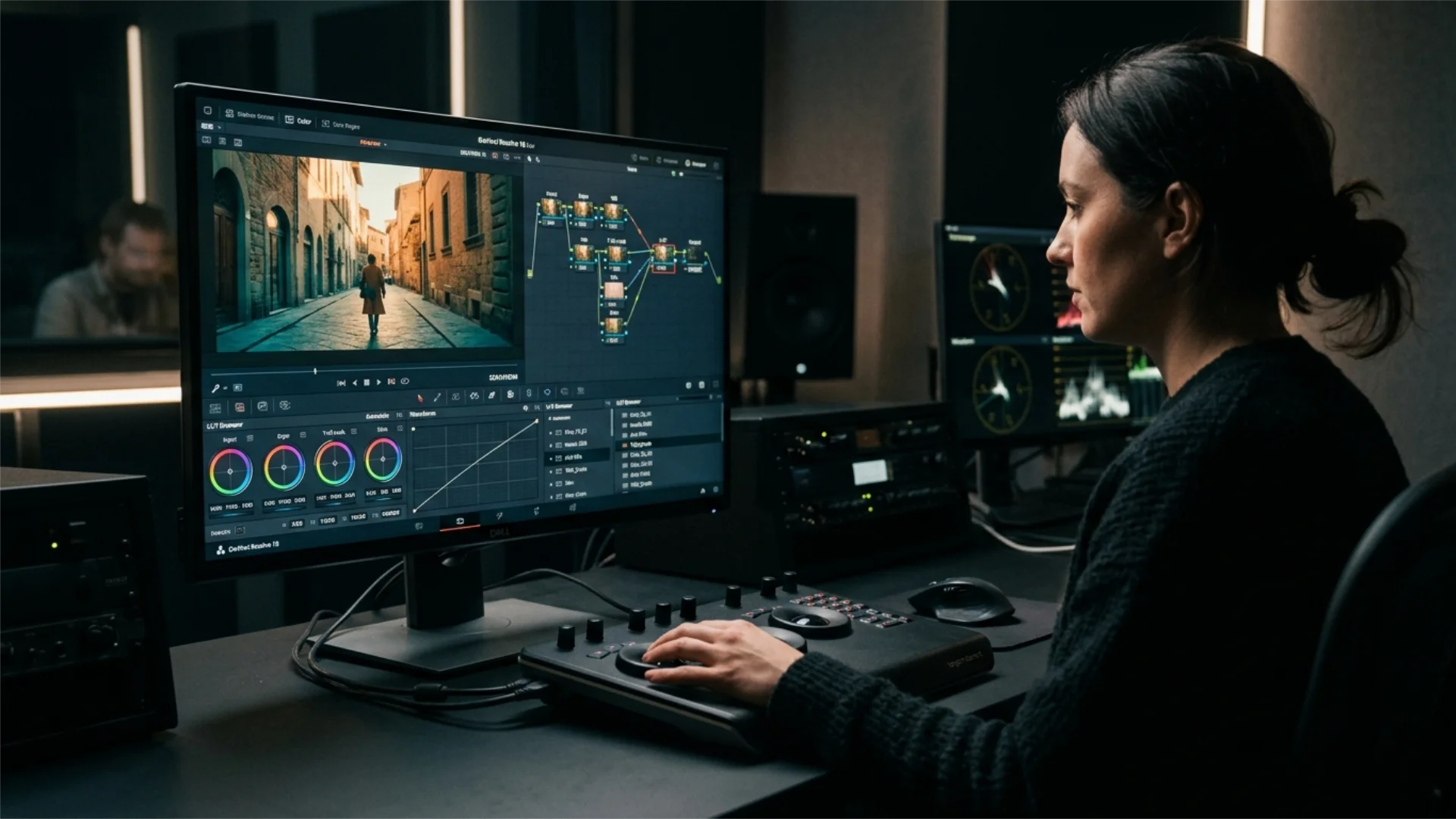
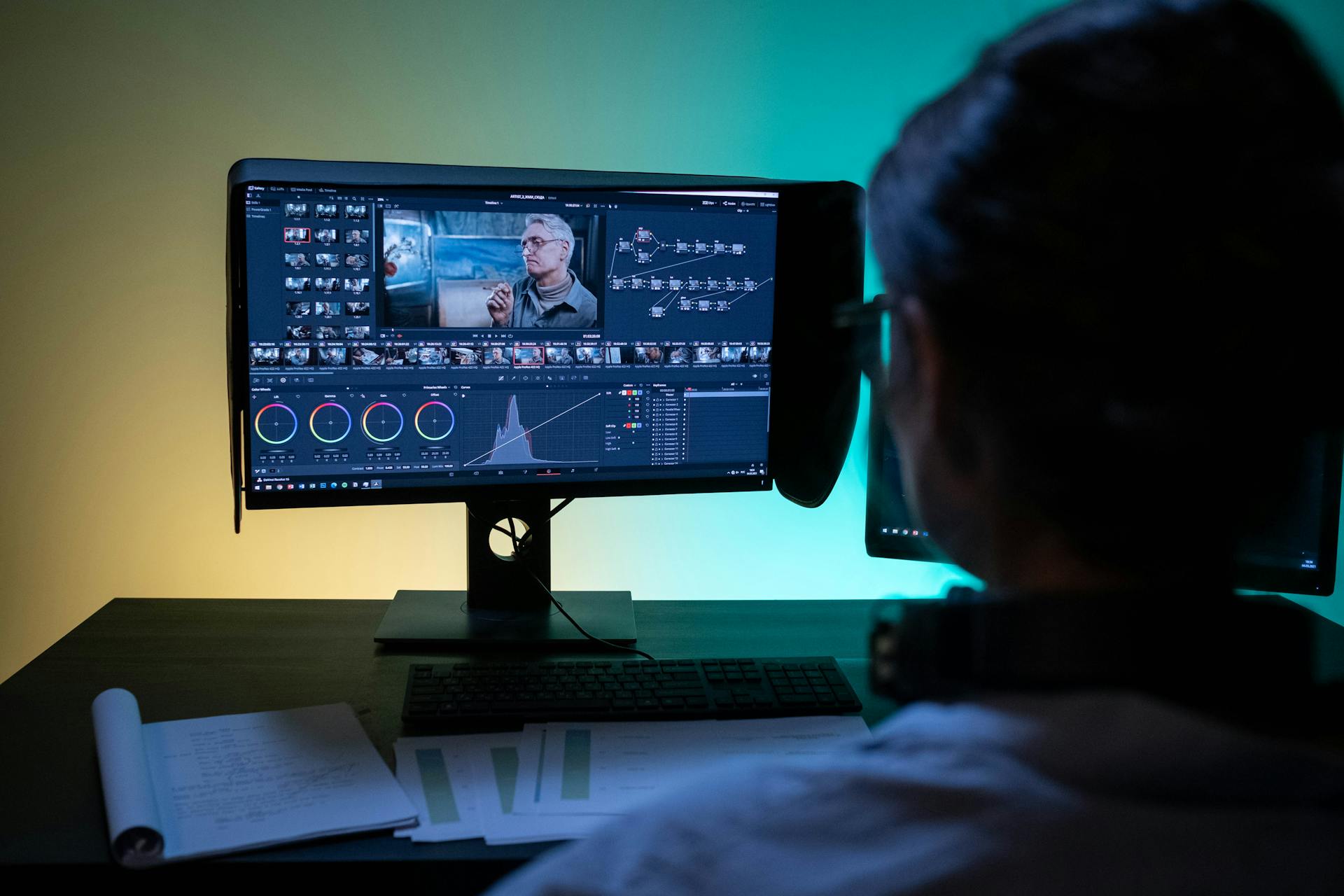
Recommended Node Tree in DaVinci Resolve
Using Groups for Consistency
In DaVinci Resolve, you can place clips in a Grade Group and apply corrections at the Pre-Clip, Clip, or Post-Clip level. The Pre-Clip group is ideal for shared input transforms across all clips from the same camera. The Post-Clip group is ideal for a shared creative look across all clips in a scene. This means you only need to build the look once and every clip in the group inherits it.
In Premiere Pro or After Effects
Layer your adjustment layers in order from bottom to top:
- Input LUT (on each clip or as a bottom adjustment layer per camera type)
- Primary correction (Lumetri or Color Finesse)
- Secondary corrections (masks, HSL)
- Creative look (LUT or custom Lumetri settings)
The same logic applies: one layer, one purpose.
Conclusion
Log footage is a tool. It gives you more information, more latitude, and more creative freedom than standard-gamma footage. The workflow described here is how you unlock all of that potential in a structured, repeatable way.
Start with a single scene. Build your node tree. Follow the steps in order. Adjust each stage before moving to the next. And once you have done it a few times, the process becomes second nature.
Disclaimer : If you buy something through our links, we may earn an affiliate commission or have a sponsored relationship with the brand, at no cost to you. We recommend only products we genuinely like. Thank you so much.
Blog Label:



Write for us
Publish a Guest Post on Pixflow
Pixflow welcomes guest posts from brands, agencies, and fellow creators who want to contribute genuinely useful content.
Fill the Form ✏