Premiere Pro Team Projects: How to Collaborate with Other Editors Remotely
- Why Remote Collaboration in Premiere Pro Matters Now
- The 3 Ways to Collaborate in Premiere Pro
- Method 1: Project Sharing and Shared Projects\
- Method 2: Team Projects
- Method 3: Productions
- Team Projects vs Productions vs Project Sharing: Which to Use
- The Missing Piece: Shared Media Storage
- Real-Time Review and Feedback Tools
- Setting Up a Bulletproof Remote Workflow
- Common Problems and Fixes
- Keeping Your Team Consistent: Shared Template and Title Libraries
- Conclusion
This guide breaks down every realistic way to collaborate with other editors remotely in Premiere Pro, from lightweight project sharing to full Team Projects and Productions, plus the shared storage and review layers that make it all hold together. Whether you are a two-person freelance duo or a studio running a distributed post pipeline, you will find a workflow that fits. And because consistency across a distributed team is half the battle, we will also look at how shared template and title libraries like CineTitles keep everyone’s output on-brand no matter where they edit from.
Why Remote Collaboration in Premiere Pro Matters Now
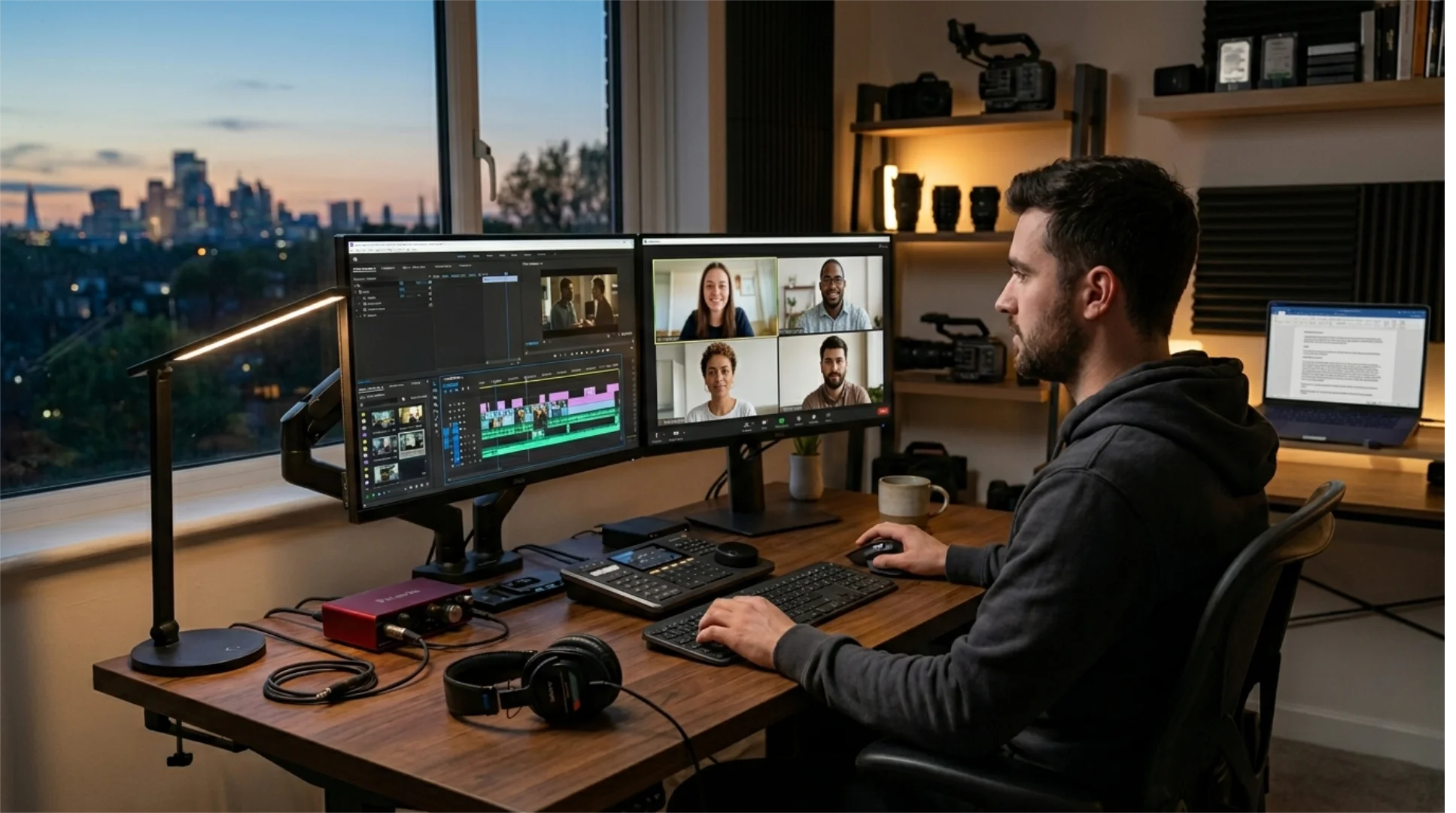
Creative reviews, client approval calls, and technical handoffs between departments are where post production decisions get made. When the team is spread across time zones and calling from home offices or co-working spaces, a noise-cancelling app keeps those conversations clear and focused.
Real collaboration solves three problems at once:
- Speed: multiple editors and assistants can work in parallel instead of waiting in a queue.
- Continuity: if one editor is offline or unavailable, the project keeps moving.
- Specialization: a rough-cut editor, a sound person, and a graphics artist can each own their lane inside the same project.
The catch is that Premiere Pro offers more than one collaboration model, and choosing the wrong one creates exactly the chaos you were trying to avoid. Let us map them out clearly.
The 3 Ways to Collaborate in Premiere Pro

The strengths and limits are easy to summarize:
- Pros: no cloud dependency, fast when storage is local, simple mental model for in-house teams.
- Cons: everyone needs access to the same physical or networked storage, which makes true remote work hard without a VPN or a streaming storage layer on top.
For a fully remote team spread across cities, pure Project Sharing is rarely enough on its own. It shines for editors under one roof or connected to the same high-speed shared storage. If your timelines are getting complex enough that organization matters, lean on structural habits like nested sequences so collaborators can navigate each other’s work without guesswork.
Method 2: Team Projects
A major recent change: Team Projects is now available to all Creative Cloud plan tiers, not just enterprise and teams licenses. That alone makes it the default starting point for most remote duos and small studios.
What Are Team Projects
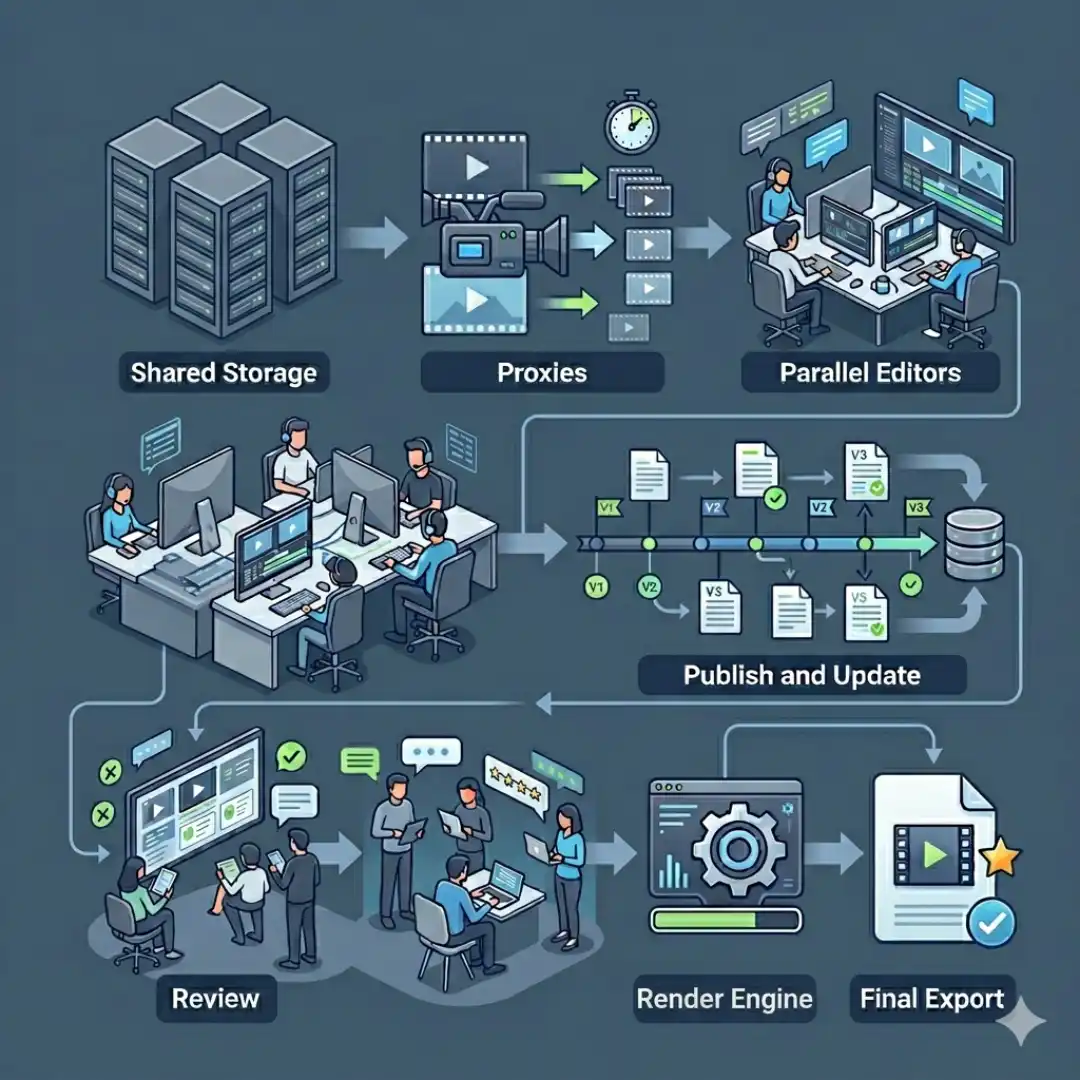
A Team Project is a cloud-hosted project that several editors can open at once. Instead of one .prproj file sitting on a drive, the project structure lives in Adobe’s cloud and syncs to each collaborator. You see who else is in the project, you can work on different sequences in parallel, and changes are shared through a publish-and-update flow rather than overwriting a single file.
It is important to understand what Team Projects hosts and what it does not. Team Projects manages the project, your sequences, edits, and references to media, but it does not host your actual media files. That media question is the single biggest source of confusion for new teams, and we cover it in its own section below.
How to Set Up a Team Project
Getting started is straightforward:
- In Premiere Pro, choose to create a new Team Project, or convert an existing standalone project into a Team Project. Converting keeps your existing sequences and bins intact.
- Name the Team Project and invite collaborators by their Creative Cloud email addresses.
- Each invited editor accepts and opens the Team Project from their own machine.
- Make sure every collaborator can reach the same media, ideally through shared or streaming storage, so links do not come up offline.
Publishing, Updating, Locking, and Conflicts
This is the heart of working in Team Projects, and understanding it prevents most collaboration headaches.
- Publish: when you finish a chunk of work, you Publish your changes so the rest of the team can see them.
- Update: collaborators click Update to pull in the latest published changes from everyone else.
- Locking and presence: Premiere shows who else is in the project and indicates when someone is working on a sequence, which reduces collisions.
- Conflicts: if two editors change the same sequence, Premiere flags a conflict and lets you choose which version to keep or save both as separate versions so nothing is silently lost.
The golden rule is simple: publish often, update before you start, and communicate who owns which sequence. Most no-show edits trace back to a missing Publish or Update click, not a real bug.
Version History and Auto-Save
Team Projects keeps a version history so you can roll back to earlier states of the project, which is a lifesaver when an edit goes sideways. This is separate from Premiere’s local auto-save, which protects your individual machine’s working file. Together they give remote teams a real safety net: auto-save guards the moment-to-moment work, and version history guards the shared project milestones.
Method 3: Productions
Productions is ideal when:
- Your project is huge, think feature length, long-form series, or sprawling brand libraries.
- Your team is on fast shared storage and wants a file-based rather than cloud-hosted model.
- You want to break one massive project into many smaller, linked project files for performance and organization.
Productions and Team Projects solve overlapping problems with different philosophies. If you want a deeper breakdown of when a studio should reach for the Productions panel and how to structure it, that lives in its own dedicated guide on the Premiere Pro Productions panel, and the decision of whether to even split a project is covered in Productions vs a single project.
Team Projects vs Productions vs Project Sharing: Which to Use
Consumer sync tools are where teams get burned. Dropbox, Google Drive, and similar services were built to sync files, not to stream multi-gigabyte video in real time. They download entire files before you can use them, they choke on large media libraries, and they create duplicate-and-conflict messes that corrupt link paths.
The better approach for remote editors is cloud storage that streams media on demand and presents itself as a local-feeling drive. Tools like LucidLink let collaborators mount a shared space that behaves like a local volume, so footage streams in as you scrub instead of forcing a full download first. That is what makes a Team Project genuinely usable across cities.

Real-Time Review and Feedback Tools
- Frame.io: integrates directly into Premiere Pro, so reviewers can leave frame-accurate, timecoded comments that appear right in your panel. Recent Creative Cloud plans include a meaningful amount of Frame.io storage by default, which lowers the barrier to using it.
- Evercast: built for live, high-quality review sessions where stakeholders watch the edit in real time with synced playback and video chat, useful for directors who want to be in the room virtually.
For most remote teams, Frame.io covers asynchronous review and Evercast covers live sessions. Pairing one of them with your editing method closes the loop from cut to approval.

Setting Up a Bulletproof Remote Workflow
- Pick one collaboration method and commit. Do not mix Team Projects and ad hoc file passing in the same job.
- Establish a single source of truth for media on streaming or shared storage, and never let editors keep private local copies.
- Agree on a folder and bin structure before anyone starts cutting, so every collaborator finds assets in the same place.
- Use proxies. Lightweight proxy media keeps playback smooth for everyone regardless of their connection, then you relink to full-resolution media for final export.
- Assign sequence ownership. One editor owns a sequence at a time to avoid conflicts.
- Publish often and update before you start. Treat it like a discipline, not an afterthought.
- Lock your delivery specs and templates up front so the final cut does not need a cosmetic overhaul.
A proxy-first approach is especially powerful for distributed teams, and it pairs naturally with the multicam workflows many collaborative projects rely on. If your project leans on multiple camera angles, the Premiere Pro multicam editing workflow guide is the companion piece to this one, since multicam plus remote collaboration is a common combination.
Common Problems and Fixes
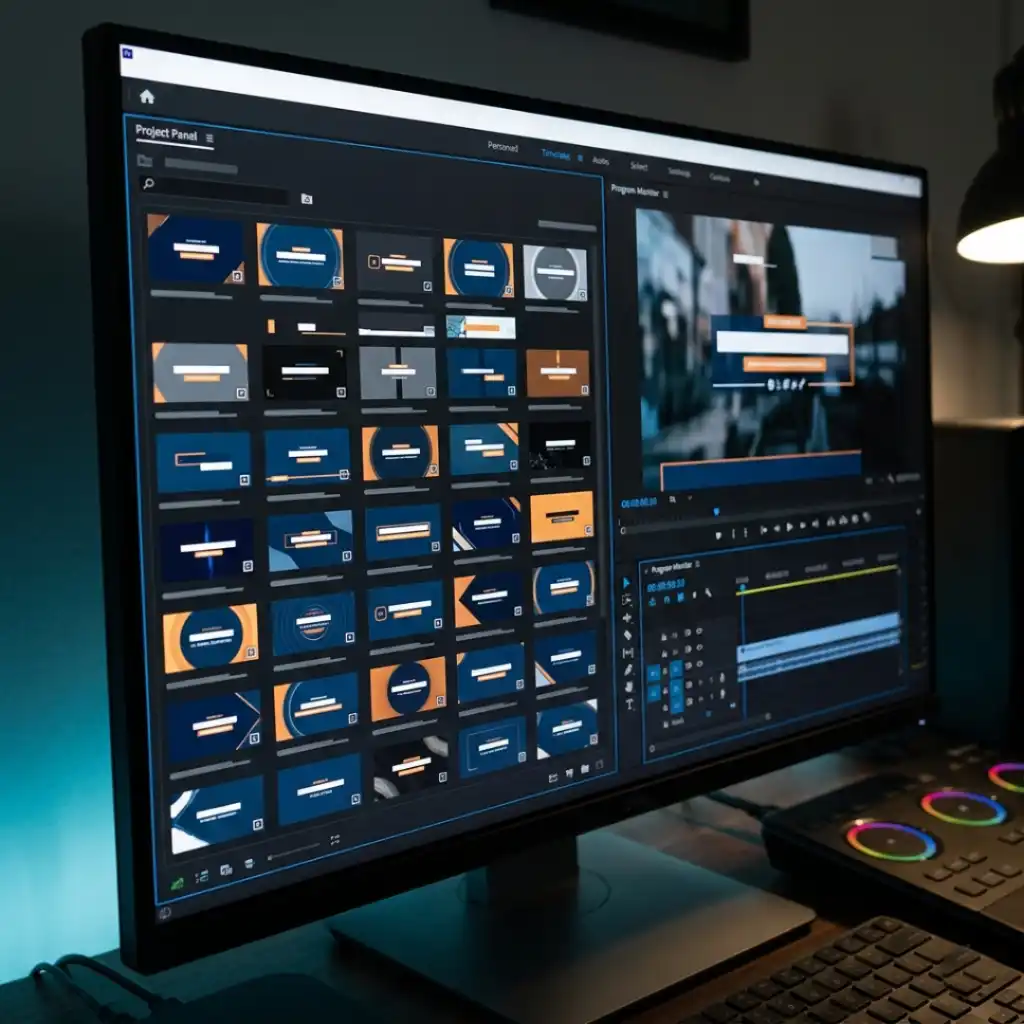
This is where a polished title and graphics pack earns its place in a remote pipeline. CineTitles gives a distributed team a ready-made, professionally designed set of titles that drop straight into Premiere Pro, so every editor starts from the same on-brand foundation instead of rebuilding graphics from scratch. Because it works across After Effects, Premiere Pro, and Photoshop, your motion designer and your editors can share the same visual system. Store the pack on your shared storage alongside your media, and it becomes part of the single source of truth your whole team edits against.
If your team also moves assets between Premiere and After Effects for more advanced graphics, formalize that handoff with Dynamic Link between Premiere Pro and After Effects so motion graphics stay live and editable across applications.
Conclusion
The last mile is consistency. A distributed team only looks like one team when the output is unmistakably on-brand, and a shared graphics foundation like CineTitles is the simplest way to guarantee that every editor, in every city, ships the same polished look. Nail the method, the media, the review, and the visual system, and remote editing stops being a compromise and starts being an advantage.
Disclaimer : If you buy something through our links, we may earn an affiliate commission or have a sponsored relationship with the brand, at no cost to you. We recommend only products we genuinely like. Thank you so much.
Blog Label:



Write for us
Publish a Guest Post on Pixflow
Pixflow welcomes guest posts from brands, agencies, and fellow creators who want to contribute genuinely useful content.
Fill the Form ✏