Best DaVinci Resolve Export Settings for YouTube, Instagram, and TikTok in 2026
- Why Your DaVinci Resolve Export Looks Different on Social Media
- Project and Timeline Setup Before You Export (Do This First)
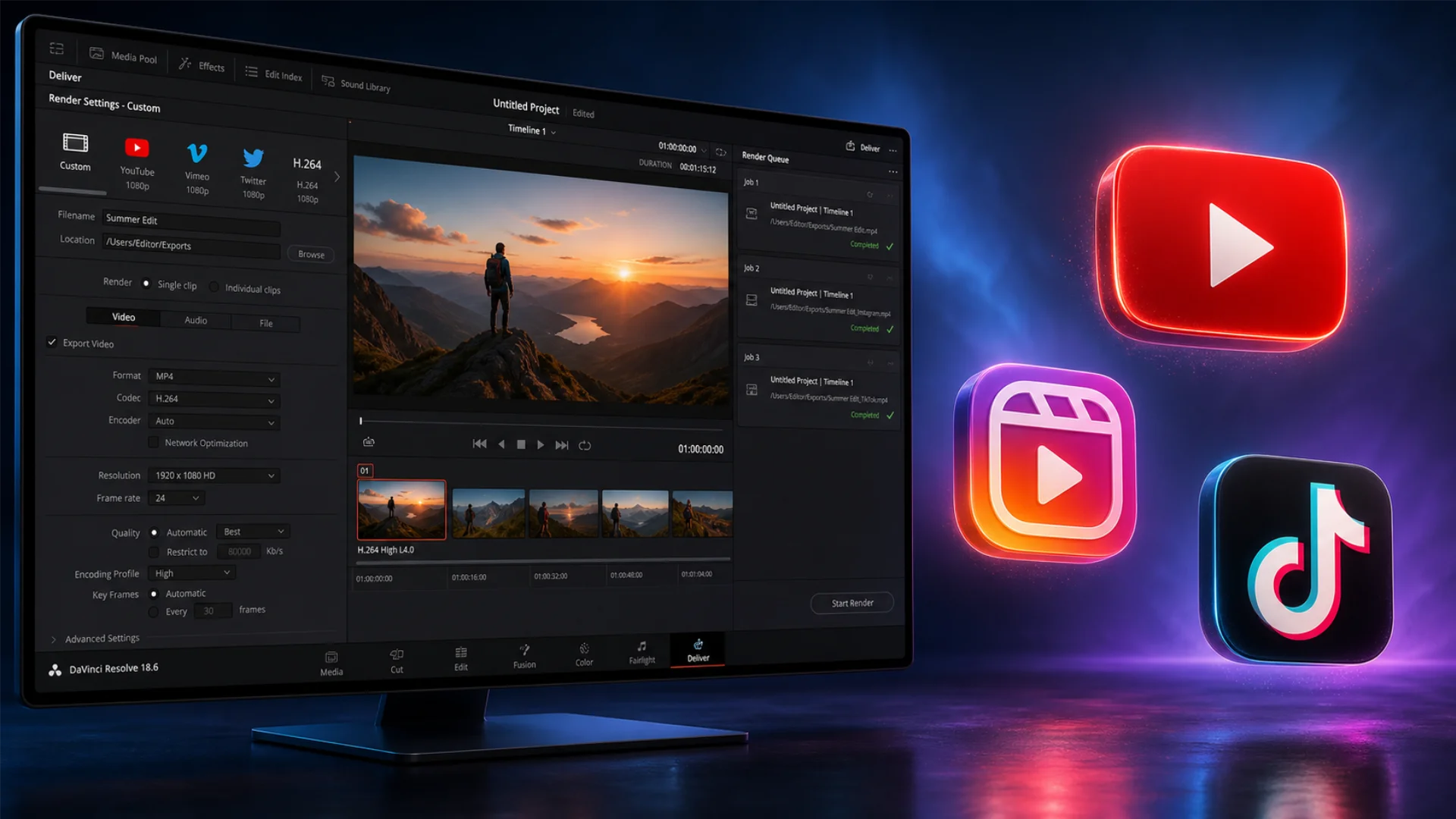
- Best DaVinci Resolve Export Settings for YouTube (16:9, Long-Form)
- Best DaVinci Resolve Export Settings for Instagram Reels (9:16 Vertical)
- Best DaVinci Resolve Export Settings for TikTok
- Comparison Table: All Three Platforms Side by Side
- The 2026 Cheat Sheet (Quick-Reference Card)
- Free vs Studio: Which Export Features Are Locked Behind Studio
- Hardware Acceleration and Encoder Choice (Mac vs PC)
- Color Management: Why Your Export Looks Washed Out (And How to Fix It)
- The Apple-First Workflow (best for creators whose audience is mostly iPhone or Mac)
- PAL vs NTSC: Which Frame Rate Should You Pick
- File Size Best Practices: The 50MB Sweet Spot for Social
- Audio Export Settings That Pass Platform Loudness Checks
- Common Export Problems and How to Fix Them
- Bonus: Save Your Settings as a Custom Preset
- Conclusion
This guide gives you a complete, version-agnostic system for exporting from DaVinci Resolve to YouTube, Instagram Reels, and TikTok in 2026. You’ll get the exact deliver-page values, the color management settings that prevent gamma shift on YouTube, a side-by-side comparison table, and a cheat sheet you can screenshot and reuse forever. If you are new to Resolve, start with our DaVinci Resolve beginners guide to learn the fundamentals, then come back here. Want to make your social edits stand out before you even hit export? Add a cinematic touch with Pixflow’s Dramatic Movie Title Templates for DaVinci Resolve, a pack built natively for Resolve.
Why Your DaVinci Resolve Export Looks Different on Social Media
There are four moving parts that decide how your video looks after upload: the codec (how the video is compressed), the bitrate (how much data is allotted per second), the color space and gamma tag (how brightness and color are interpreted), and platform recompression (every social platform recompresses your file when you upload it).
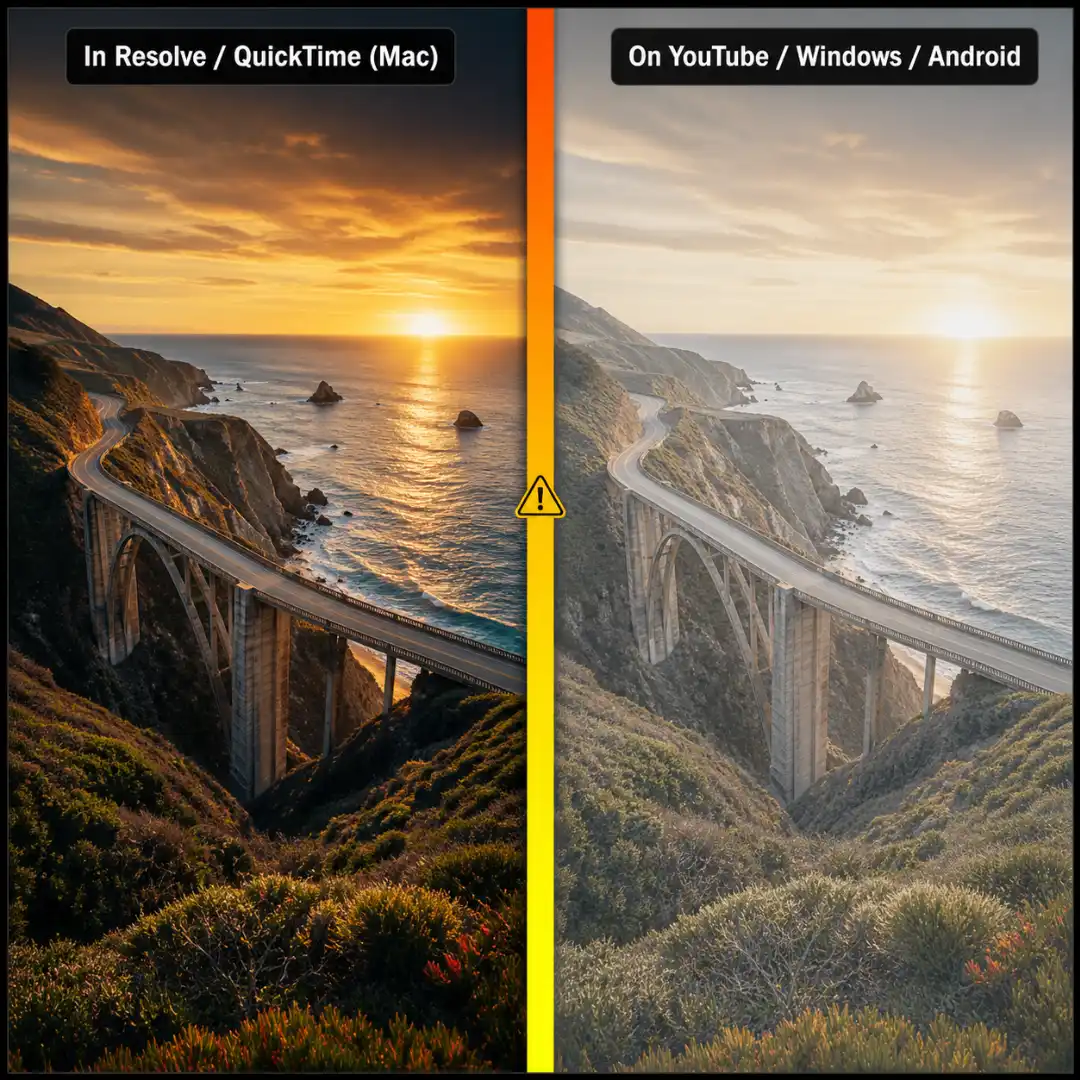
The most common culprit, by a wide margin, is gamma shift. Resolve gives you two flavors of Rec.709: Rec.709 Gamma 2.4 (the broadcast standard) and Rec.709-A (an Apple-friendly variant with a different gamma curve). YouTube assumes every uploaded file is tagged Rec.709-A regardless of what tag you actually applied, which is why exports look perfect in QuickTime on a Mac and washed out in Chrome on Windows. The same file, two different gamma interpretations.
The second culprit is mismatched bitrate per platform. A 4K, 80,000 Kb/s YouTube export is overkill for an Instagram Reel and will trigger heavier compression that makes the video look softer, not sharper. The third is choosing a codec the platform doesn’t favor. The fourth is exporting at the wrong resolution, especially shipping 4K to Instagram or TikTok, which neither natively supports for short-form vertical video.
If you want a deeper look at the codec side of this picture, our breakdown of H.264 vs H.265 vs AV1 and our best video format and codec for social media post cover the codec-by-platform decision in detail.
Project and Timeline Setup Before You Export (Do This First)
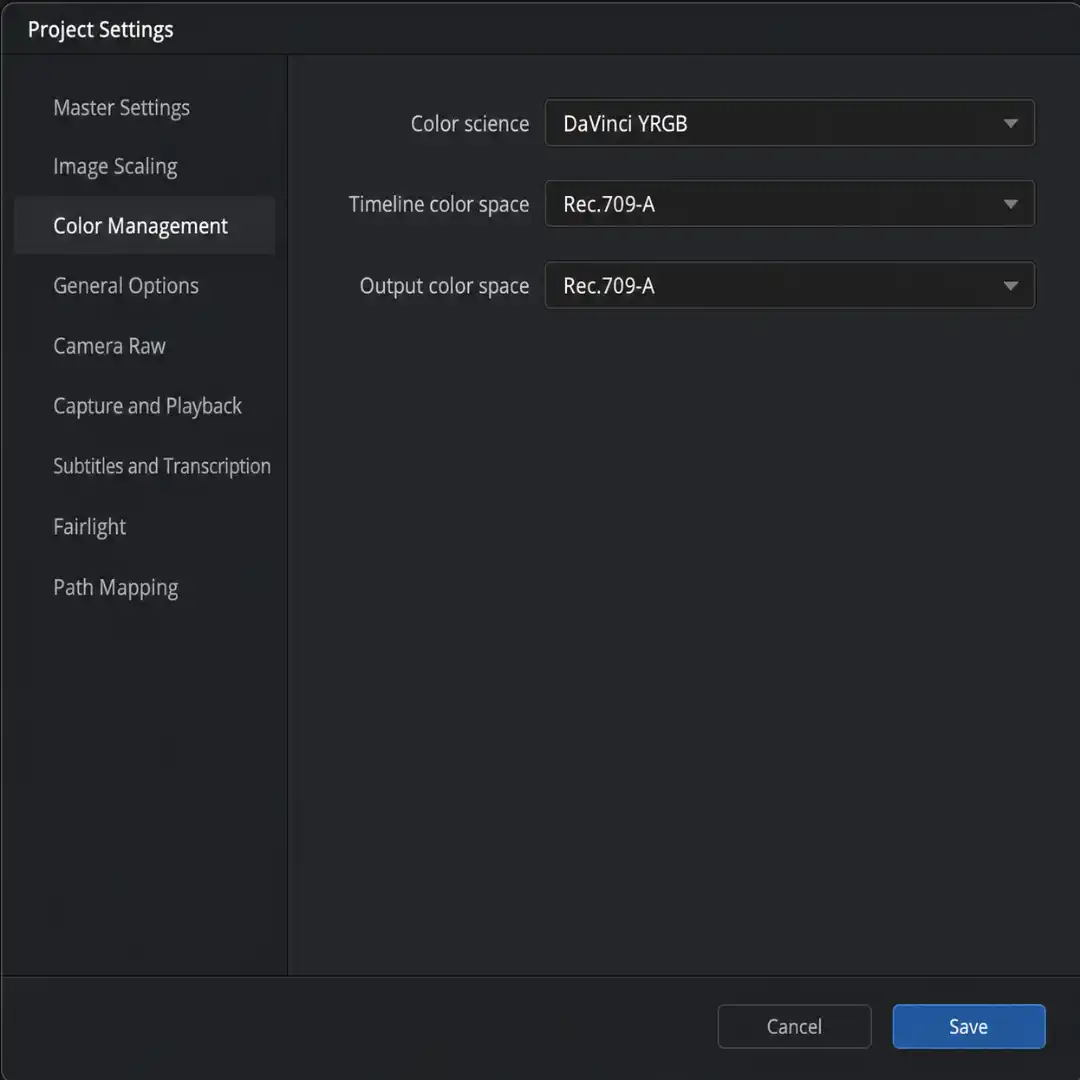
Open DaVinci Resolve > Preferences > General (or DaVinci Resolve > Settings on Resolve 20). On Mac, toggle on “Use Mac display color profiles for viewers.” Then, regardless of operating system, toggle on “Automatically tag Rec.709 Scene clips as Rec.709-A.” This pair of checkboxes is the foundation of color consistency between Resolve, QuickTime, and the web.
Btw, you can jump to Deliver with Shift+8 and queue with Cmd/Ctrl+R; see all the Deliver page keyboard shortcuts for the rest.
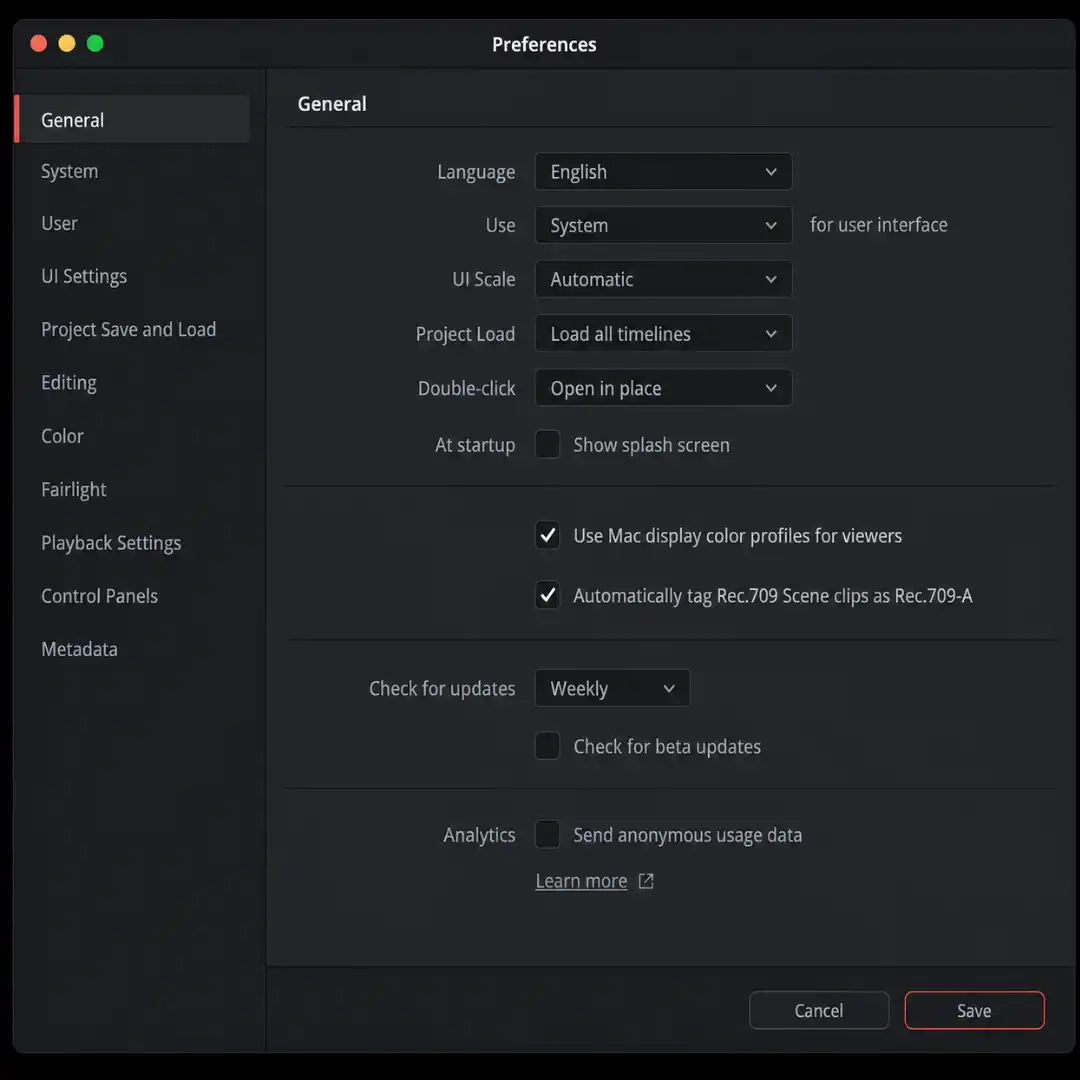
- Color science: DaVinci YRGB
- Timeline color space: Rec.709-A (if your audience is mostly on Apple devices) or Rec.709 Gamma 2.4 (if your audience is mostly on Windows, Android, or smart TVs)
- Output color space: match your timeline
If you are unsure which to pick, Rec.709 Gamma 2.4 is the safer cross-platform choice. Apple-tagged files can look dark and crushed on non-Apple devices, a point well-documented by colorists on Threads and in DaVinci Resolve forum threads on Blackmagic’s official forum.
Match your timeline resolution and frame rate to your footage. If you shot 4K at 23.976 fps, your timeline should be 3840×2160 at 23.976 fps. Mismatching either causes resampling artifacts and motion judder.
A note for Free users: the 10-bit precision toggle in Preferences is Studio-only. The Free version is locked to 8-bit. For social media at 1080p, this is rarely a problem, but if you are working with Log footage and aggressive grades, our 8-bit vs 10-bit video explainer breaks down when the upgrade is worth paying for. To understand how MP4 and MOV containers actually wrap your encoded video, see our codec vs container explainer. And if you grade with LUTs in Resolve, the principles in our LUTs for color grading guide apply cleanly here too.
Best DaVinci Resolve Export Settings for YouTube (16:9, Long-Form)
Format and Codec
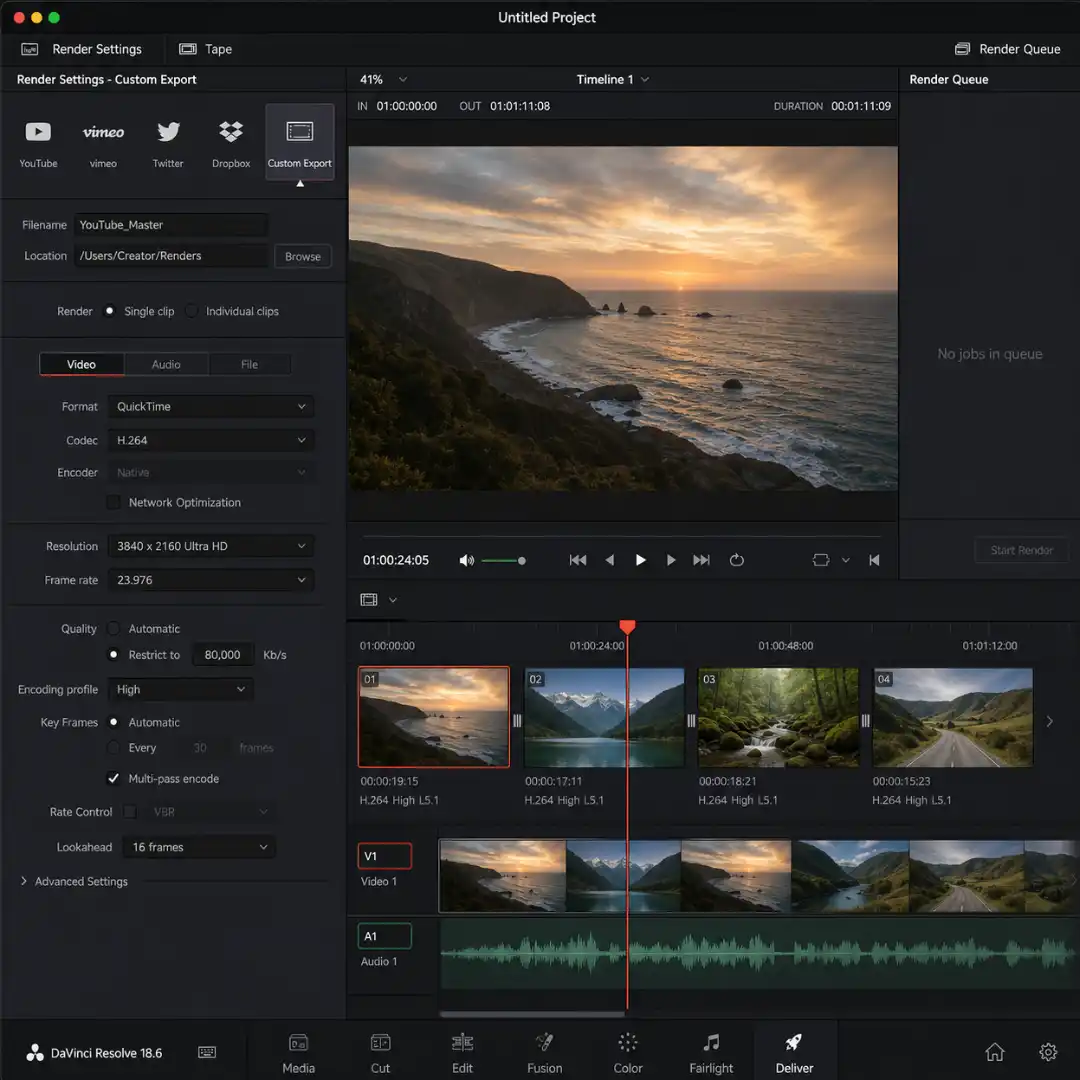
- Format: QuickTime or MP4 (both work; MP4 has wider compatibility, QuickTime preserves metadata more reliably). For a fuller breakdown, our MP4 vs MOV explained guide helps you pick.
- Codec: H.264. YouTube re-encodes everything to VP9 or AV1 on its end, but it accepts H.264 most reliably and quickly.
- Encoder: Auto, or your dedicated GPU (NVIDIA NVENC on Windows, VideoToolbox on Apple Silicon, AMD VCE/AMF on AMD systems).
Resolution and Frame Rate
- Resolution: 3840×2160 (4K UHD), even if your source footage is 1080p. YouTube’s algorithm allocates more bitrate to 4K-tagged uploads, so an upscaled 4K export often looks sharper than a native 1080p one.
- Frame rate: match your timeline (typically 23.976, 24, 25, 29.97, 30, 50, or 60 fps).
Quality and Bitrate
- Quality: Restrict to 80,000 Kb/s for 4K, or 30,000 Kb/s for 1080p. Going higher than 100,000 Kb/s rarely improves the post-compression result and just slows your upload.
- Rate control: Constant Bitrate (CBR) for upload reliability, or Variable Bitrate (VBR) for slightly smaller files. Our VBR vs CBR breakdown covers when each one wins.
- Multi-pass encode: ON. It nearly doubles export time but gives noticeably cleaner results in motion-heavy scenes.
If you want a refresher on how bitrate translates to perceived quality, our what is bitrate in video guide covers it from first principles.
Advanced (Color Space and Gamma Tag)
- Color space tag: Rec.709
- Gamma tag: Rec.709-A (Mac timelines) or Gamma 2.4 (cross-platform)
- Data levels: Video (broadcast safe) or Auto
- Force sizing to highest quality: ON
- Force debayer to highest quality: ON
Audio
- Codec: AAC
- Bit rate: 320 Kb/s
- Sample rate: 48 kHz (YouTube’s broadcast standard)
A Note on Free vs Studio for YouTube
The Free version exports up to UHD 4K at 60 fps in 8-bit, which covers everything 99 percent of YouTube creators need. Studio unlocks 10-bit, beyond-4K resolutions, 120 fps, and the AI Neural Engine. If you are a creator stepping up your title cards and intros for long-form YouTube, Pixflow’s Dramatic Movie Title Templates for DaVinci Resolve drop into either version and instantly raise the production value of any video.
Best DaVinci Resolve Export Settings for Instagram Reels (9:16 Vertical)
Format and Codec
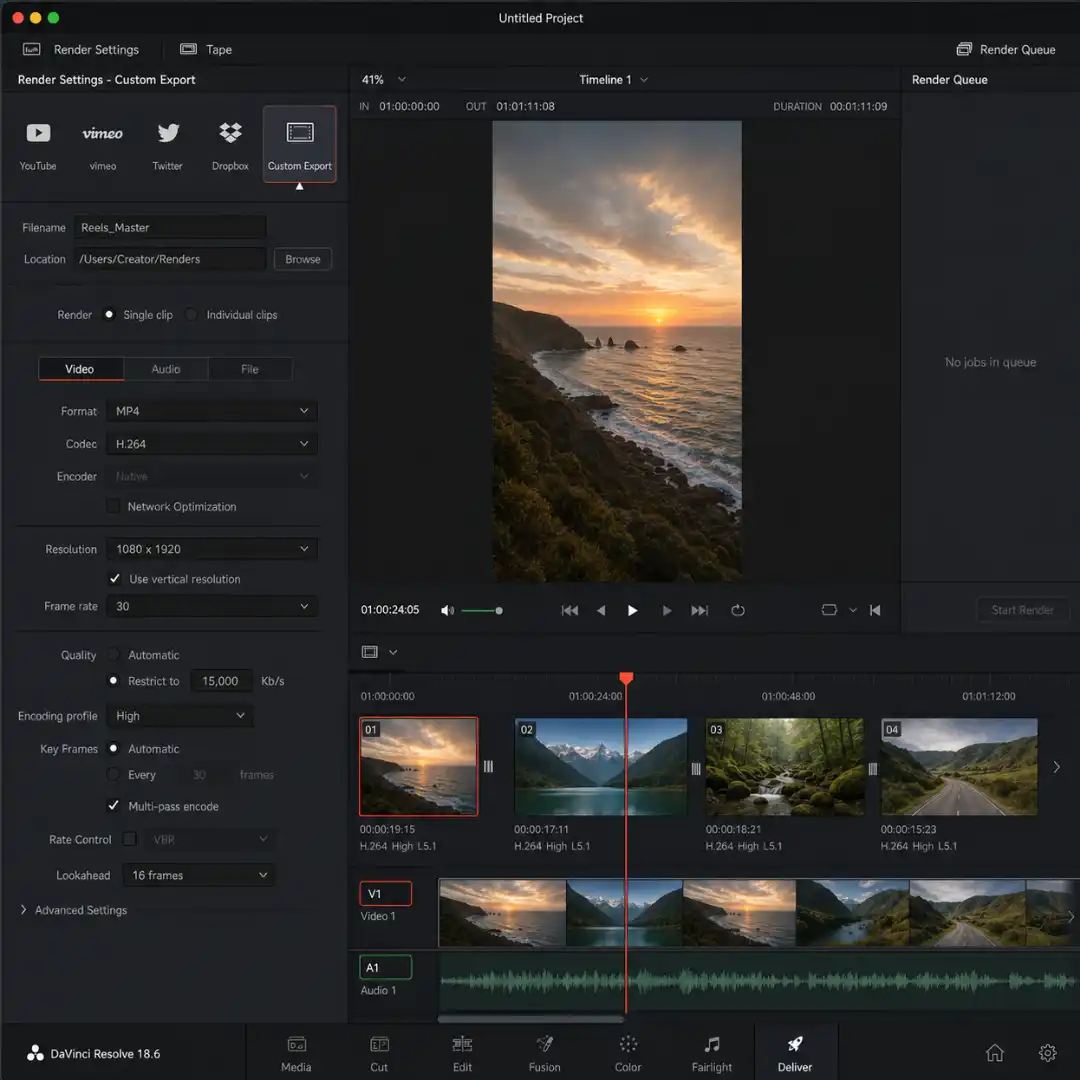
- Format: MP4
- Codec: H.264 (Instagram’s preferred codec)
- Hardware acceleration: ON
- Network optimization: OFF (it actively reduces compression efficiency, working against you)
Resolution and Frame Rate
- Resolution: 1080×1920 (vertical 1080p). Toggle on “Use vertical resolution” in the deliver page.
- Frame rate: 30 fps (NTSC region) or 25 fps (PAL region). Avoid 60 fps for Reels; Instagram strips it back to 30.
Quality and Bitrate
- Restrict to: 12,000 to 15,000 Kb/s.
- The 50MB rule: keep your final file under 50MB. Files above 50MB get hit with significantly heavier compression on Instagram’s side. If your export exceeds 50MB, drop the bitrate by 1,000 Kb/s and re-export until it fits.
- Rate control: Constant Bitrate
- Multi-pass encode: ON
Advanced
- Color space tag: Rec.709
- Gamma tag: Gamma 2.2 (mobile-first viewing) or Rec.709-A (if your audience is mostly iPhone)
- Pixel aspect ratio: Square
- Data levels: Video
Audio
- AAC, 320 Kb/s, 48 kHz, stereo
If you also publish from Premiere Pro or want a side-by-side workflow comparison, our how to export for Instagram in Premiere Pro guide is a useful companion.
Best DaVinci Resolve Export Settings for TikTok
Format and Codec
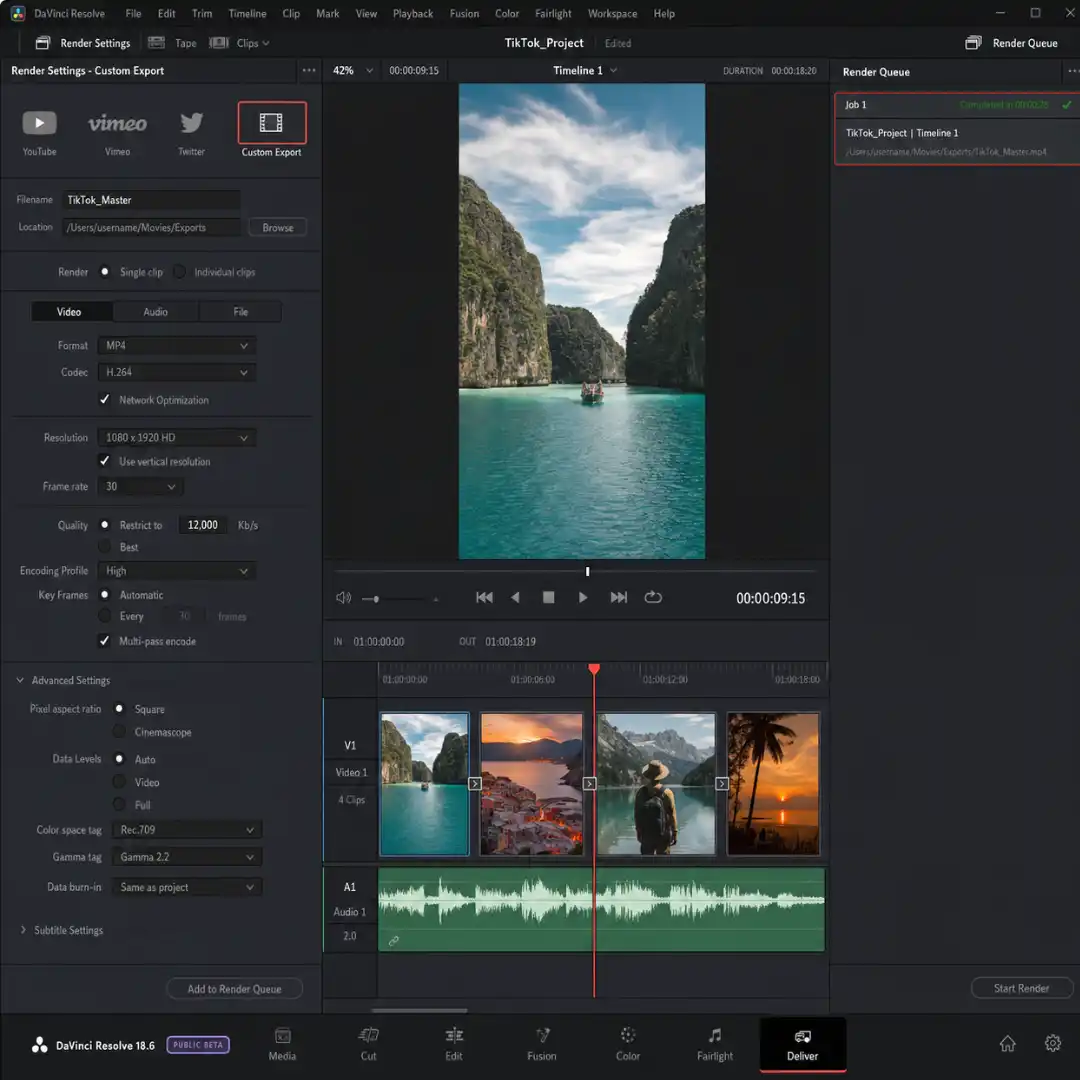
- Format: MP4
- Codec: H.264 (H.265 is supported but loses compatibility for older devices and the TikTok web player)
Resolution and Frame Rate
- Resolution: 1080×1920 vertical
- Frame rate: 30 fps (TikTok’s native rate), or 24 fps for cinematic content
Quality and Bitrate
- Restrict to: 12,000 to 15,000 Kb/s
- Keep the file under 50MB for the cleanest result, the same as Reels. TikTok will accept files up to 287MB, but anything above 70MB tends to get heavier compression.
- Multi-pass encode: ON
Advanced
- Color space tag: Rec.709
- Gamma tag: Gamma 2.2
- Data levels: Video
Audio
- AAC, 320 Kb/s, 48 kHz
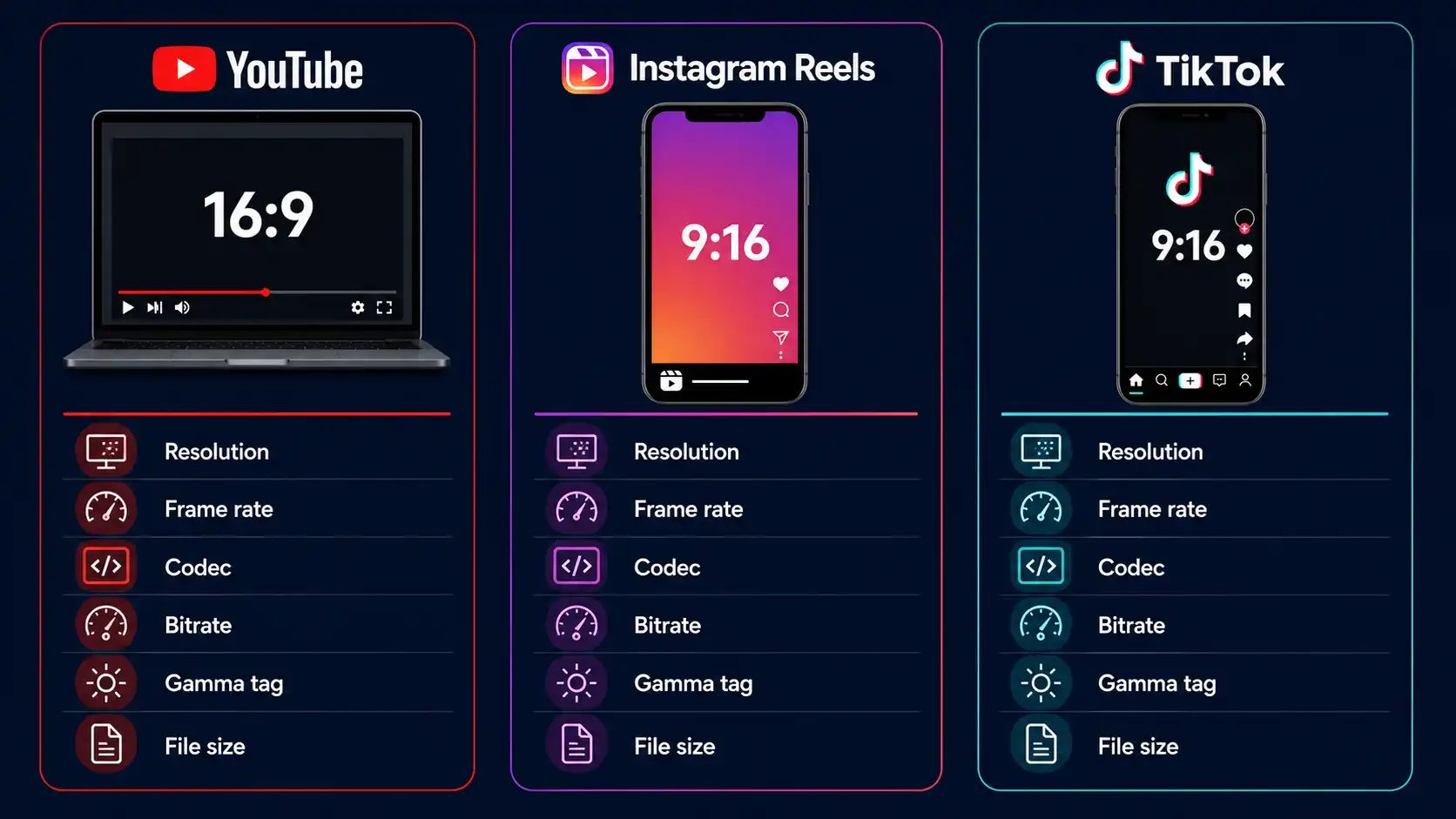
Comparison Table: All Three Platforms Side by Side
The 2026 Cheat Sheet (Quick-Reference Card)
YouTube (16:9 Long-Form)
MP4 or QuickTime, H.264, 3840×2160, match timeline fps, 80,000 Kb/s, CBR, Rec.709 / Rec.709-A or Gamma 2.4, AAC 320 Kb/s 48 kHz, multi-pass ON.
Instagram Reels (9:16 Vertical)
MP4, H.264, 1080×1920, 30 fps, 12 to 15k Kb/s, CBR, Rec.709 / Gamma 2.2, AAC 320 Kb/s 48 kHz, multi-pass ON, file under 50 MB.
TikTok (9:16 Vertical)
MP4, H.264, 1080×1920, 30 fps, 12 to 15k Kb/s, CBR, Rec.709 / Gamma 2.2, AAC 320 Kb/s 48 kHz, multi-pass ON, file under 50 MB.
Screenshot this card, dock it next to your deliver page, and you’re set forever.
Free vs Studio: Which Export Features Are Locked Behind Studio?
Free version
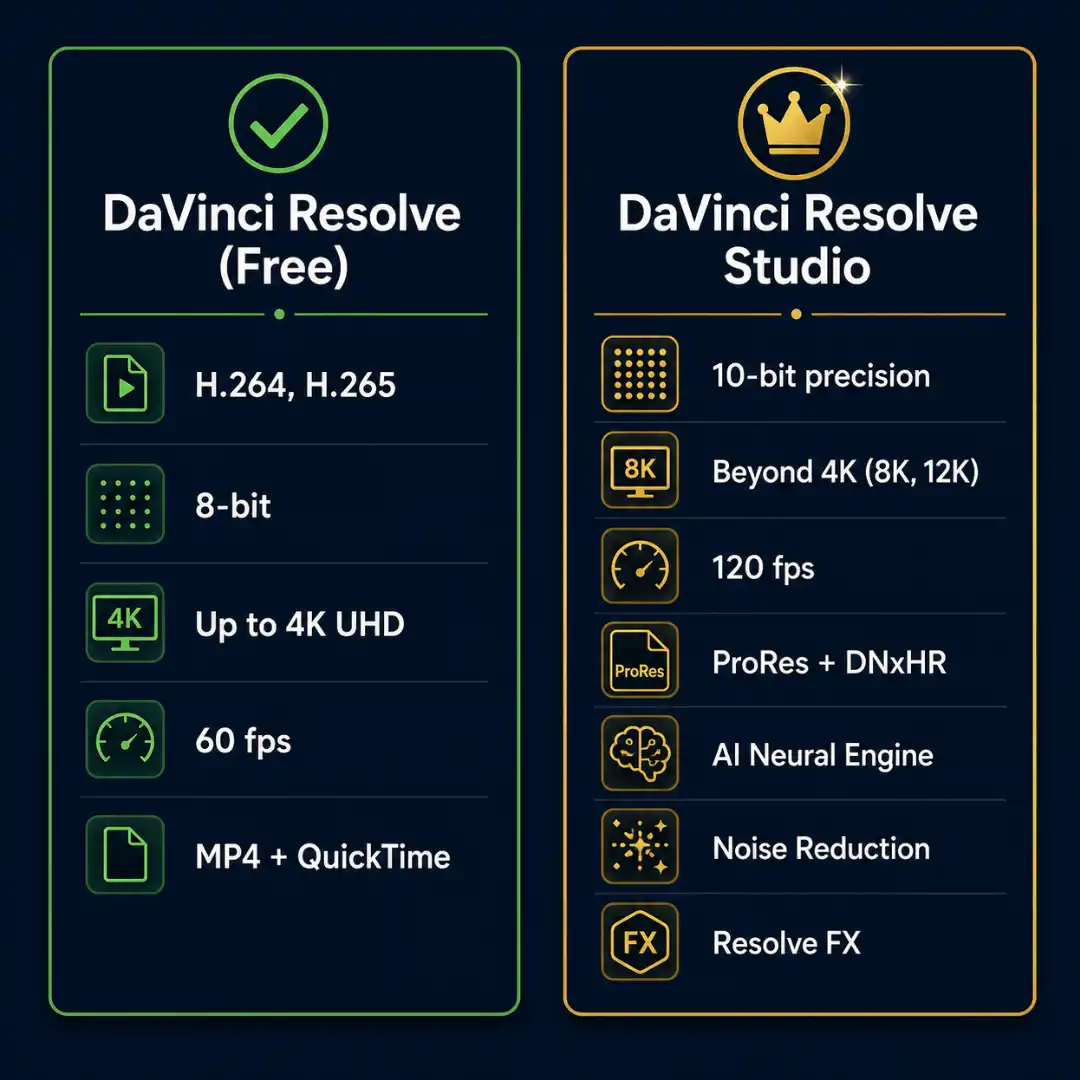
- H.264 and H.265 codecs
- 8-bit precision
- Up to UHD 4K (3840×2160)
- Up to 60 fps
- MP4 and QuickTime containers
- All essential color management tools
Studio version (US$295 one-time)
- 10-bit precision
- Beyond 4K (5K, 6K, 8K, 12K)
- Up to 120 fps
- ProRes (Mac) and DNxHR for broadcast delivery
- AI Neural Engine for upscaling, magic mask, and voice isolation
- Spatial and temporal noise reduction
- Resolve FX (advanced effect plugins)
For social media at 1080p vertical or 4K horizontal at 30 to 60 fps, the Free version is fully sufficient. You don’t need Studio to export beautiful YouTube, Instagram, or TikTok content. According to Blackmagic’s official spec page, the Free version handles virtually all 8-bit video formats up to 60 fps in resolutions as high as Ultra HD.
Hardware Acceleration and Encoder Choice (Mac vs PC)
- For Apple Silicon Macs (M1, M2, M3, M4), choose VideoToolbox. It uses Apple’s dedicated media engine and is the fastest option without sacrificing visible quality.
- For Windows with an NVIDIA GPU (RTX 20-series and newer), choose NVENC for both H.264 and H.265. Don’t be tempted to switch to “Native” software encoding unless you are exporting at extremely low bitrates where every bit counts.
- For Windows with an AMD GPU, choose VCE/AMF. Note: older AMD cards have weaker H.264 hardware encoders. If your export looks soft, run one test export with “Native” software encoding and compare.
- For Linux, “Native” software encoding is your reliable option.
If hardware encoding is unavailable on your machine, Free users are not at a disadvantage; the Free version supports all of the above encoders.
Color Management: Why Your Export Looks Washed Out (And How to Fix It)
Here’s what’s actually happening. You grade in Resolve on your monitor. Resolve uses your Mac’s display profile (or your Windows monitor’s calibration) to interpret colors. When you export with the gamma tag set to Rec.709-A, QuickTime on Mac honors that tag and shows you exactly the same image. When you upload to YouTube, YouTube ignores your tag and assumes Rec.709-A. On a Mac, the colors match. On Windows or Android, they don’t, because those systems interpret the file with a different gamma curve.
The Apple-First Workflow (best for creators whose audience is mostly iPhone or Mac)
- Timeline color space: Rec.709-A
- Output color space: Rec.709-A
- Export gamma tag: Rec.709-A
The Cross-Platform Workflow (best for broadly mixed audiences)
- Timeline color space: Rec.709 Gamma 2.4
- Output color space: Rec.709 Gamma 2.4
- Export gamma tag: Gamma 2.4
For a deeper dive on choosing the right color space per platform, our best color space for YouTube, Instagram, and TikTok exports post pairs perfectly with this guide. Chadwick Shoults’ excellent gamma shift fix walkthrough on Creative Video Tips is also worth bookmarking.
The quick test: export a sample clip, view it in QuickTime, then upload it to YouTube as an unlisted video and view it in Chrome on Windows or Android. If the YouTube version looks darker or more crushed than the QuickTime version, your gamma tag is fighting your audience’s display.
PAL vs NTSC: Which Frame Rate Should You Pick?
- PAL regions (Europe, much of Asia and Africa, Australia) traditionally shoot 25 fps and 50 fps.
- NTSC regions (North America, Japan, parts of South America) traditionally shoot 23.976 fps, 29.97 fps, and 59.94 fps.
The rules to follow:
- Match your shooting frame rate first. If you shot at 24 fps, edit at 24 fps, and export at 24 fps. Resampling causes judder.
- Match your audience’s regional standard second. If you shot at 24 fps and your viewers are mostly in Europe, a 25 fps export is acceptable. If they are mostly in North America, stick with 23.976 fps.
- Instagram and TikTok render best at 30 fps natively, but they accept 24, 25, and 60 fps without visible problems.
- YouTube is frame-rate-agnostic and supports everything from 23.976 fps to 60 fps cleanly.
When in doubt, pick the frame rate that matches your camera, not the platform. The platform will handle the rest.
File Size Best Practices: The 50MB Sweet Spot for Social
Here’s the bitrate ladder we recommend:
- YouTube 4K: 60,000 to 100,000 Kb/s (target file size: 1 GB or less for a 10-minute video)
- YouTube 1080p: 20,000 to 40,000 Kb/s
- Instagram Reels 1080p vertical: 12,000 to 15,000 Kb/s (target: under 50 MB)
- TikTok 1080p vertical: 12,000 to 15,000 Kb/s (target: under 50 MB)
The trial-and-export workflow we use at Pixflow:
- Export at the high end of the recommended range.
- Check the resulting file size.
- If it’s above the social target (50 MB for Reels and TikTok), drop the bitrate by 1,000 Kb/s and re-export.
- Repeat until you are just under the target.
Our video compression guide explains why this approach beats simply maxing out bitrate. The EasyEdit cross-platform export guide is another solid reference for thinking about exports across multiple platforms at once.
Audio Export Settings That Pass Platform Loudness Checks
Universal audio settings (use these for every platform)
- Codec: AAC
- Channels: stereo
- Bit rate: 320 Kb/s (CBR)
- Sample rate: 48 kHz
Loudness targets per platform
- YouTube: -14 LUFS integrated
- Instagram: roughly -16 LUFS (Instagram doesn’t publish official numbers, but its normalization sits near -16)
- TikTok: roughly -16 LUFS
Resolve’s Fairlight page has a built-in Loudness Meter. Open it from View > Show Loudness Meter. Set it to your platform’s target, play your timeline end to end, and adjust the master fader until your integrated LUFS number lands within 1 LU of the target.
If your audio is too loud, the platform will turn it down, often robbing your dialog of clarity. If it’s too quiet, your video will sound smaller than competing content in the feed.
Common Export Problems and How to Fix Them
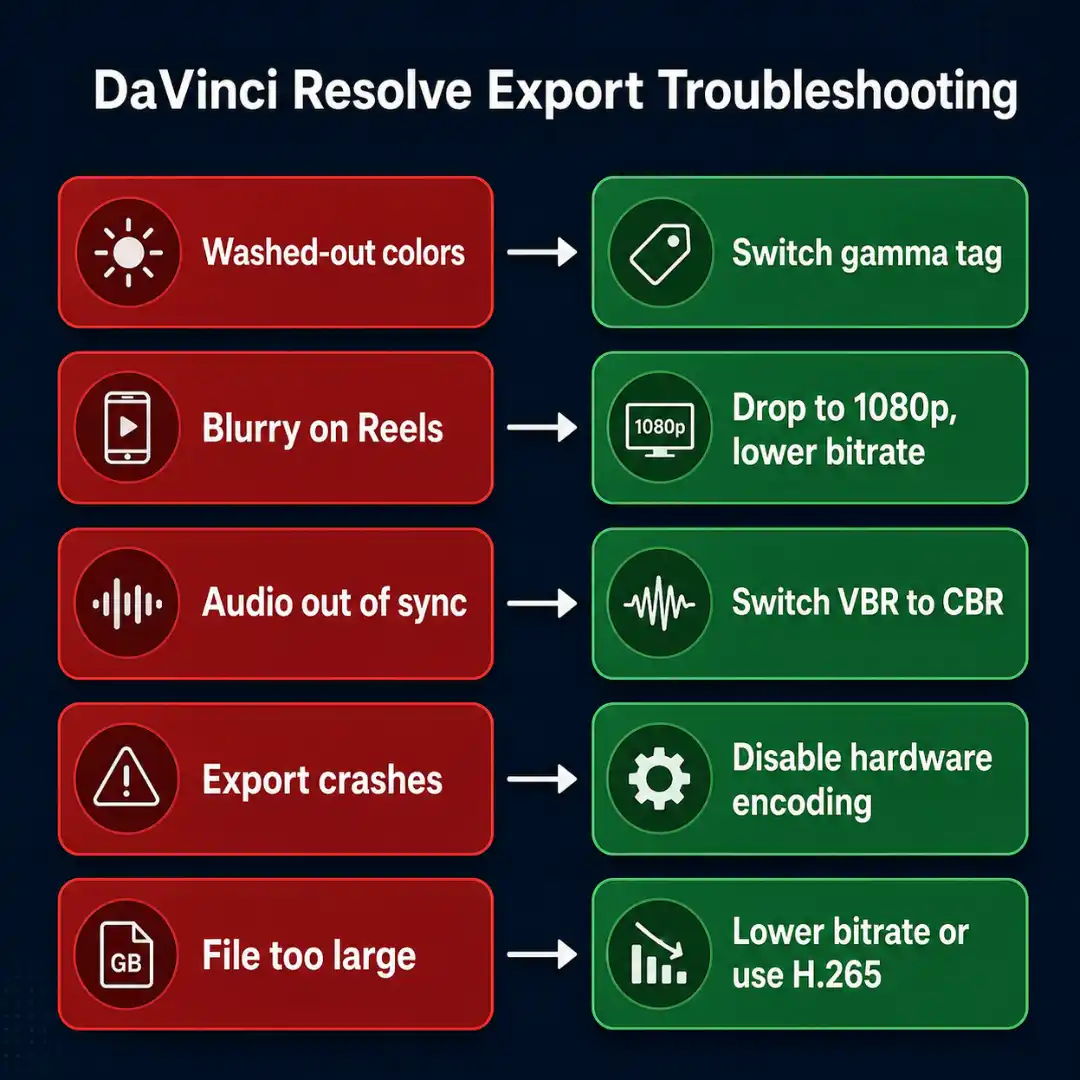
- Washed-out colors after upload. Switch your gamma tag from Rec.709-A to Gamma 2.4 (or vice versa) and re-export. Test on the device your audience uses most.
- Blurry or soft video on Instagram or TikTok. Drop your resolution to 1080×1920, lower your bitrate to stay under 50 MB, and switch your rate control to CBR.
- Audio drifts out of sync. Switch from VBR to CBR. VBR can occasionally cause sync drift on aggressive social recompression.
- Export crashes mid-render. Disable hardware encoding (set Encoder to “Native”), close other GPU-heavy apps, and try again. If it still crashes, render in two halves using in-points and out-points.
- Final file is too large. Drop the bitrate, switch to H.265 if you are exporting only for YouTube, or split the export into shorter segments.
For a comprehensive list of upload and codec issues across editors, our common video export errors guide has the full troubleshooting matrix. The Reddit r/davinciresolve export settings for social media thread and the Blackmagic forum gamma shift discussion are also worth bookmarking when something unusual comes up.
Bonus: Save Your Settings as a Custom Preset
In the deliver page, click the three dots in the top-right corner of the render settings panel. Choose “Save as new preset” and name it descriptively: “YouTube 4K H.264,” “Reels 1080p Vertical,” “TikTok 1080p Vertical.” From the next project on, just pick the preset, set your in-points and out-points, and render.
Three presets, three platforms, zero guessing.
Conclusion
Here’s the entire system in one paragraph: set your project to Rec.709-A on Mac (or Rec.709 Gamma 2.4 cross-platform), tag your exports the same way, restrict YouTube to 80,000 Kb/s at 4K, and keep Instagram and TikTok exports under 50 MB at 1080×1920 with 12,000 to 15,000 Kb/s and an H.264 codec. Save those three configurations as presets, and you’ll never lose another hour to a washed-out upload.
If you are still building your foundations in Resolve, our DaVinci Resolve beginners guide walks you through the full editing workflow from scratch. And to make every social upload feel like a professional production, Pixflow’s Dramatic Movie Title Templates for DaVinci Resolve give you 30 cinematic title designs that drop straight onto your timeline, no plugins required, native to Resolve.
Now go open the deliver page. You’ve got this.
Disclaimer : If you buy something through our links, we may earn an affiliate commission or have a sponsored relationship with the brand, at no cost to you. We recommend only products we genuinely like. Thank you so much.
Blog Label:



Write for us
Publish a Guest Post on Pixflow
Pixflow welcomes guest posts from brands, agencies, and fellow creators who want to contribute genuinely useful content.
Fill the Form ✏