How to Use AI to Remove Background Noise from Video: Best Tools and Workflow
- Quick Answer (TL;DR
- Why Background Noise Ruins Good Videos
- How AI Noise Removal Actually Works
- Best AI Tools to Remove Background Noise from Video
- The Universal AI Noise Removal Workflow
- Fixing Specific Noise Problems with AI
- How to Avoid the Robotic Voice Effect
- Free vs Paid: What You Actually Get
- Prevent Noise Before You Hit Record
- Conclusion
AI noise removal has quietly become one of the most useful post production technologies for creators. Instead of fiddling with EQ curves and noise gates, modern voice isolation models separate human speech from everything else and rebuild a clean voice track with one click. It is a core part of the modern editing stack we covered in our complete guide to AI video tools in 2026, and it pairs naturally with generative tools like Pixflow AI Video when you are producing content fast and cannot always control your recording environment.
In this guide, we rank the best AI tools to remove background noise from video across every tier, from free browser tools to pro plugins, then walk through a universal workflow that works with any editor. We also answer the questions creators actually ask: why cleaned audio sometimes sounds robotic, how to kill wind noise, and what the free plans really give you.
Quick Answer (TL;DR)
- AI noise removal uses voice isolation models to separate speech from background noise, so you can clean audio without re-recording.
- The best free option is Adobe Podcast Enhance Speech: upload audio, download the cleaned file, done. The free plan is audio only, capped at 30 minutes per file and 1 hour per day.
- The best all-in-one option is Descript Studio Sound, which accepts video directly and has an intensity slider to keep your voice natural.
- For extreme noise like wind or a leaf blower, ElevenLabs Voice Isolator delivers remarkable results.
- If you already pay for an editor, check its built-in tool first: Premiere Pro Enhance Speech, DaVinci Resolve Studio Voice Isolation, or CapCut and Clipchamp noise suppression.
- The universal workflow: export the audio from your video, enhance it with AI, re-sync the clean track under the original, then lower the original by about 18 dB instead of muting it to keep natural ambience.
Why Background Noise Ruins Good Videos
The usual suspects show up in almost every creator’s footage:
- Wind hitting an unprotected microphone outdoors
- Traffic, crowds, and street noise in run and gun shoots
- Air conditioner and fan hum in home offices
- Echo and reverb in untreated rooms with hard walls
- Electrical buzz from cheap cables or dimmer switches
The old fixes required real audio engineering: noise prints, spectral editing, expander gates, careful EQ. AI collapsed all of that into a single button, and in most cases the one-click result beats what a beginner could achieve manually in an hour.
How AI Noise Removal Actually Works
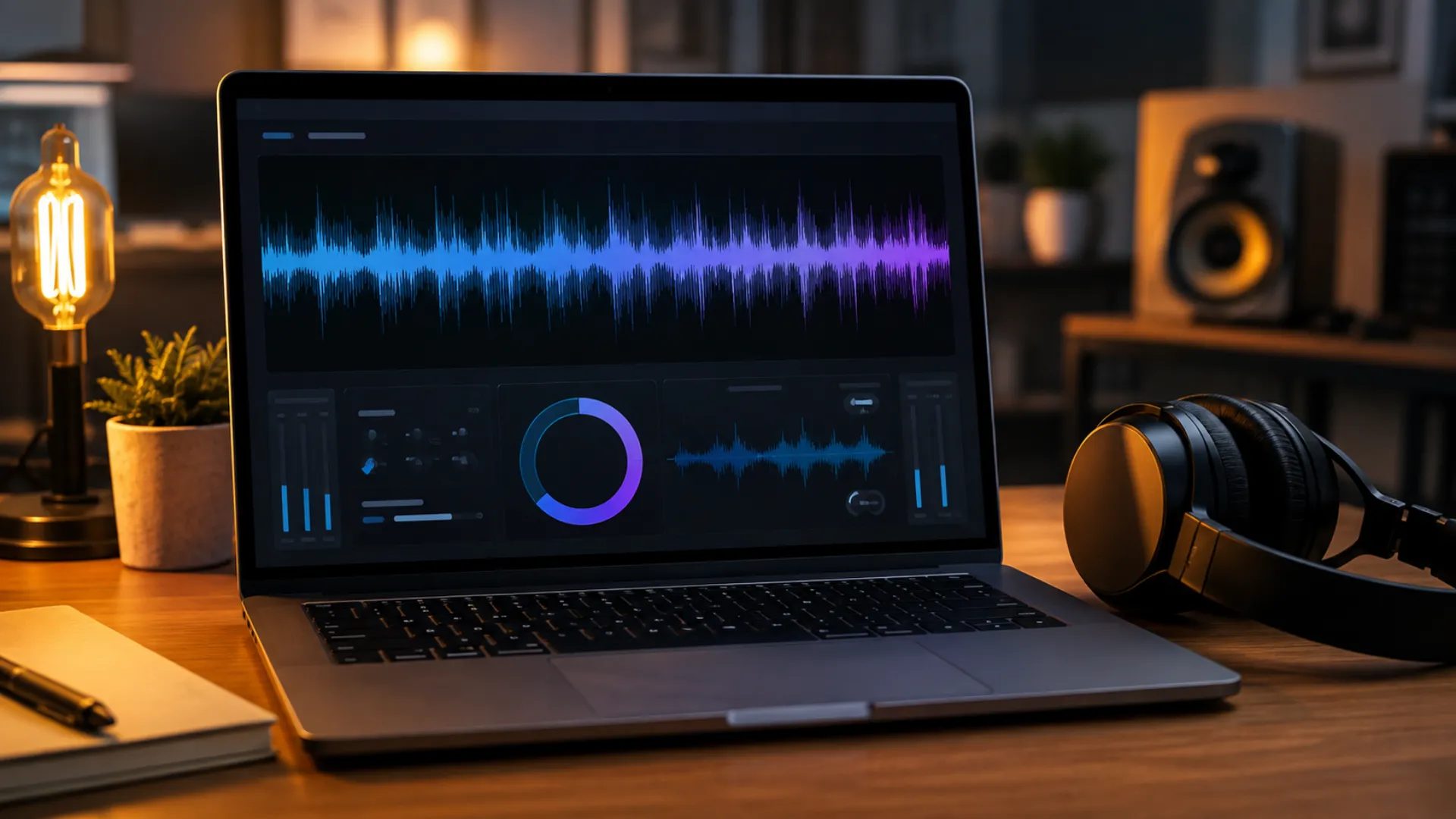
AI voice isolation works differently. Models trained on thousands of hours of speech learn what a human voice looks like as a signal. Instead of subtracting noise, they extract the voice and effectively reconstruct it on a clean background. That is why modern tools can pull usable dialogue out of situations that were unfixable before, like a leaf blower running next to the microphone.
This approach has two practical consequences:
- It is astonishingly effective on continuous background noise: wind, traffic, hum, crowds, even echo.
- Because the voice is partially reconstructed, aggressive settings can sound processed or robotic. Every good tool now ships with an intensity slider for exactly this reason, and we cover how to use it later in this guide.
AI cannot fix everything. Clipped, distorted recordings, multiple people talking over each other, and voices buried so deep that even you cannot hear the words are still beyond rescue. AI noise removal is a powerful safety net, not a substitute for a decent recording.
Best AI Tools to Remove Background Noise from Video
1. Adobe Podcast Enhance Speech: best free option
Adobe Podcast is a web tool, so there is nothing to install, and the current Enhance Speech v2 model is a serious upgrade over v1. You upload a file, wait a few seconds, and download studio-quality speech. In our source tests, a 30 second clip processed in about 40 seconds, and clips recorded next to surf, traffic, and an air conditioner came back sounding close to a treated studio.
The free plan enhances audio files only, up to 30 minutes and 500 MB per file, with a 1 hour daily cap. That is fine, because you can export the audio from any video in seconds and re-sync it afterward. The premium plan, around 9.99 USD per month and included with many Creative Cloud subscriptions, adds direct video upload and up to 4 hours of enhancement per day.
One important setting: Enhance Speech defaults to around 90 percent strength with some background retained. If you want the cleanest result, push speech enhancement to 100 percent and background to 0, then re-add ambience yourself in the edit, which we explain in the workflow section.
2. Descript Studio Sound: best all-in-one
Descript is a full editing platform, and Studio Sound is its one-toggle noise removal and voice enhancement effect. Two things make it stand out. First, it accepts video files directly, no audio extraction needed, and it transcribes everything on import so you can edit by editing text, the same transcription engine that powers modern AI caption and subtitle workflows. Second, Studio Sound has an intensity slider from 0 to 100, so instead of an all-or-nothing cleanup you can dial in 45 percent for a windy beach clip and 80 percent for an echoey room.
The free plan is closer to a trial, with limited Studio Sound usage, so plan on a paid tier if it becomes part of your regular workflow. For podcasters and YouTubers who want recording, editing, noise removal, and publishing in one place, it is the strongest package available.
3. ElevenLabs Voice Isolator: best for extreme noise
ElevenLabs built its reputation on voice AI, and its Voice Isolator applies that expertise to rescue work. In the most brutal test we found, a leaf blower pointed almost directly at the microphone, it returned clean, usable speech. For wind-ruined outdoor footage, this is the tool to try first: export your audio as a WAV file, upload it, click isolate voice, and download the result.
It is audio focused rather than a video editor, so it slots into the export-enhance-resync workflow below. Free credits let you test it, with paid plans for volume use.
4. Built into your editor: Premiere Pro, DaVinci Resolve, CapCut, Clipchamp
Before paying for anything new, check the software you already use.
- Premiere Pro includes Enhance Speech plus the older DeNoise effect in Essential Sound. Enhance Speech inside Premiere uses a lighter model than the Adobe Podcast website, so for badly damaged clips, export the audio and run it through the web version instead. For routine cleanup and mixing, the built-in tools and the wider set of Premiere Pro audio effects cover most needs.
- DaVinci Resolve Studio has Voice Isolation in the Inspector audio panel, with an intensity slider. It runs in real time on the timeline, no export required, and holds up impressively against dedicated tools. It is Studio only, so free Resolve users need one of the web tools.
- CapCut and Clipchamp both offer one-toggle noise suppression aimed at social creators. In Clipchamp you detach the audio from the clip, then enable noise suppression in the audio panel. Results are solid for talking-head content, though less refined than Adobe or Descript. If you are weighing these editors against each other, see our CapCut vs Premiere Pro comparison.
5. Quick browser tools: VEED, Canva, Cleanvoice, LALAL.AI
For one-off fixes with zero learning curve:
- VEED runs Dolby-powered noise removal on uploaded videos entirely in the browser. Fast and simple, with a watermark on the free tier.
- Canva Enhance Voice cleans up speech on videos inside Canva, convenient for marketing teams already designing there. It is a Canva Pro feature.
- Cleanvoice targets podcasters and adds extras like filler word and mouth sound removal on top of noise cleanup.
- LALAL.AI Voice Cleaner comes from the stem separation world, so it is especially good when you need to strip music or complex sound beds away from a voice.
6. Pro plugins: iZotope RX, Waves Clarity Vx, CrumplePop
When a client project demands surgical control, the pro tier is still unmatched. iZotope RX is the broadcast standard, with spectral repair that can visually paint out a dog bark or a phone ring. Waves Clarity Vx brings AI voice isolation into any DAW or NLE as a real-time plugin, useful when you are mixing dialogue against music. CrumplePop offers focused plugins for wind, echo, and hum that run inside Premiere, Final Cut, and DaVinci Resolve. Expect to pay from around 100 USD to several hundred, and expect a learning curve. For most creators, the free and mid-tier tools above cover 95 percent of real situations.
The Universal AI Noise Removal Workflow
- Export or detach the audio track.
- In Premiere Pro: File, Export, disable video, export a WAV.
- In DaVinci Resolve: use a Deliver preset for audio only, or process directly with Voice Isolation and skip to step 4.
- In Clipchamp or CapCut: use detach audio, which saves the track as a separate file.
- On a Mac with no editor open: QuickTime can export any video as audio only.
- Run the audio through your AI tool. Upload the WAV to Adobe Podcast, ElevenLabs, or your tool of choice, and download the enhanced file. For maximum cleanup in Adobe Podcast, set speech to 100 percent and background to 0.
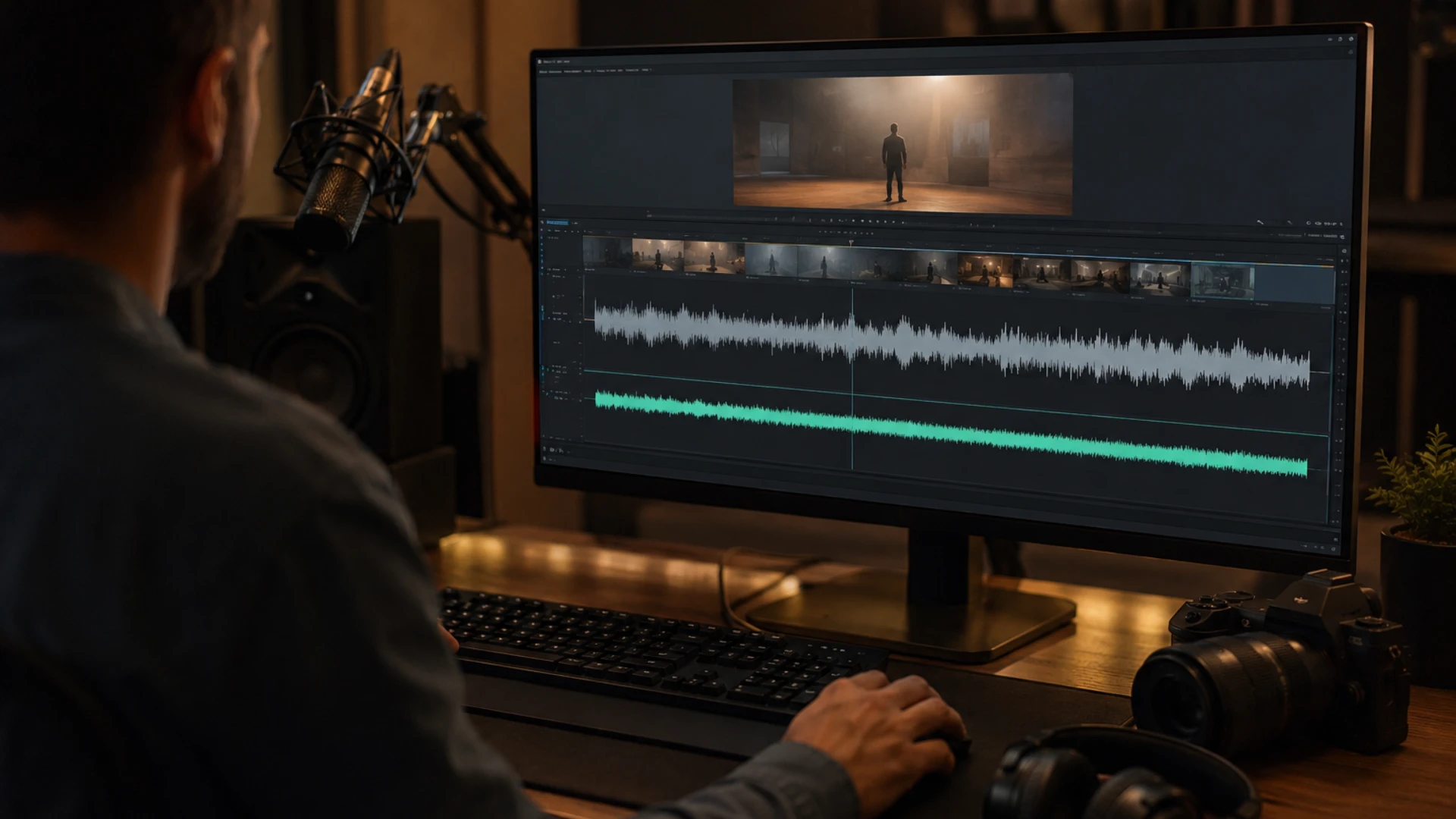
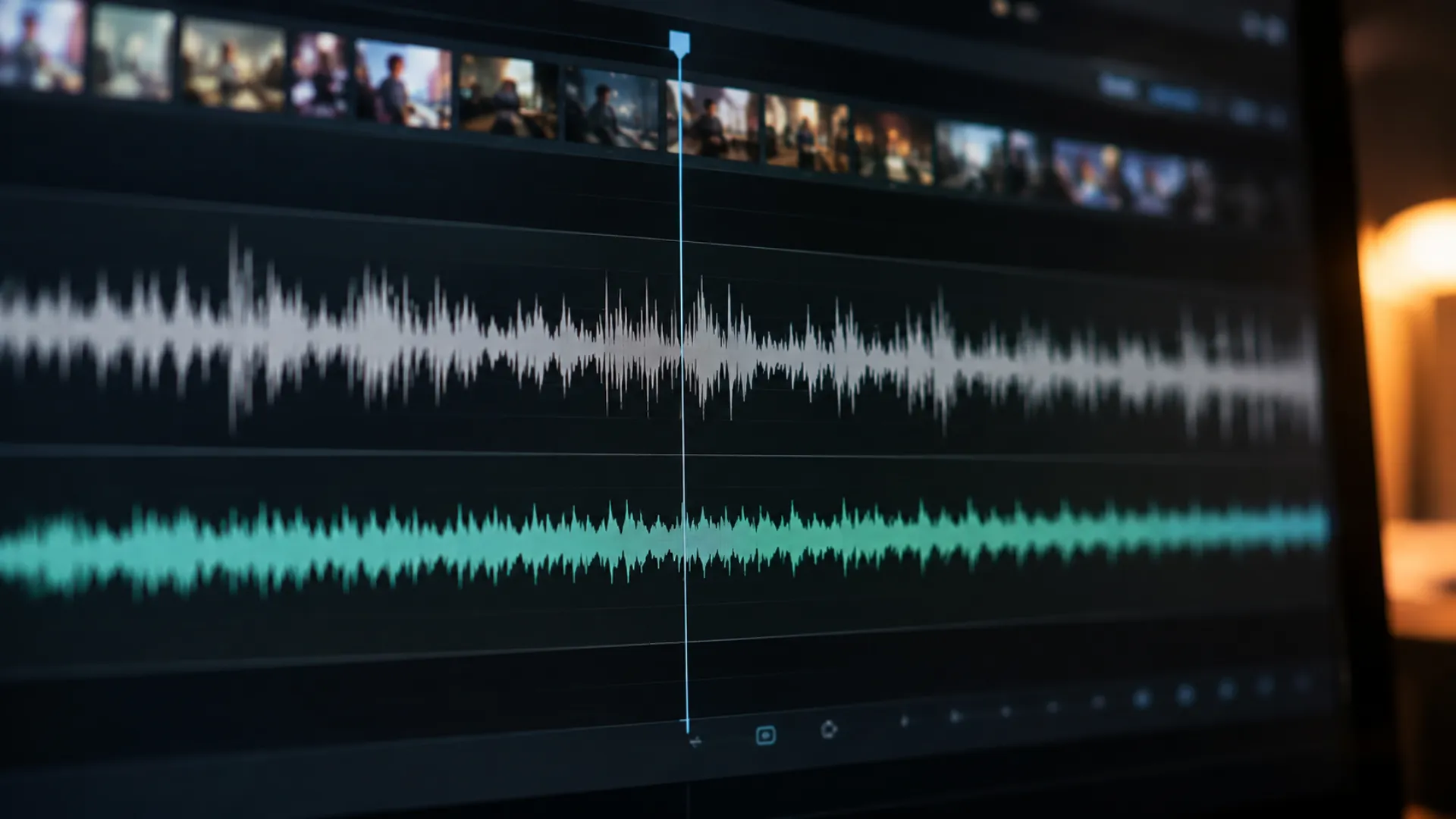
- Re-import and sync. Place the cleaned audio on a track directly under the original clip and line up the waveforms visually. Nudge until the peaks match exactly. Do not delete the original track yet.
- Blend for realism. A completely silent background can feel sterile and fake. Instead of muting the original track, lower it by roughly 18 dB. The clean AI track carries the voice, while a whisper of the original ambience keeps the scene feeling real. If you are adding background music anyway, mute the original entirely, the music will do the same job. And if the scene needs richer atmosphere than the original noise can provide, you can generate custom room tone and ambience with the techniques in our guide to AI sound design.
This loop takes about three minutes once you have done it twice, and it slots neatly into the larger AI video editing workflow for Premiere Pro and Resolve that we recommend for creators producing on a schedule. It also applies to generated content: if you are assembling promos from templates with Pixflow AI Video and layering in your own recorded voiceover, running that voice track through this workflow first keeps the polish consistent from footage to narration.
Fixing Specific Noise Problems with AI
Wind noise
Wind is the number one outdoor killer because it physically overloads the microphone capsule rather than just sitting in the background. Voice isolation models handle it far better than traditional noise reduction ever did. ElevenLabs Voice Isolator and Adobe Podcast both recover speech from moderate to heavy wind. If the gusts caused actual distortion and crackle, recovery has limits, which is why a simple foam or furry windscreen is still worth the ten dollars.
Echo and reverb
Echo is not technically noise, it is your own voice reflecting, so classic noise removers ignore it. Modern AI enhancement handles it well: Adobe Podcast Enhance Speech and Descript Studio Sound both dry out an echoey room convincingly, and DaVinci Resolve Voice Isolation reduces it in the timeline. Rooms with severe reverb may keep a slightly processed quality after cleanup, so dial the intensity back and accept a little room sound.
Constant hum
Air conditioners, fridges, computer fans, and electrical buzz are the easiest targets, since steady-state noise is exactly what these models eat for breakfast. Any tool in this guide will remove hum almost perfectly, and even the free tiers make quick work of it.
Crowds, traffic, and street noise
Busy environments respond well as long as no other voice overlaps yours directly. AI isolates the main speaker and drops the murmur. Watch for one side effect: the result can be too clean for the visuals. If viewers see a busy street but hear a studio, the disconnect feels wrong, which is exactly when the 18 dB blend trick earns its keep.

How to Avoid the Robotic Voice Effect
- Use the intensity slider. In Descript, try 40 to 60 percent for light noise and only push past 80 for harsh environments. In Resolve, start near the middle and increase until the noise disappears, then stop. In Adobe Podcast, the strength percentage does the same job.
- Blend, do not replace. The lowered original track underneath restores micro-texture that the AI stripped out. Even at minus 18 dB, that residue makes the voice sit naturally in the scene.
- Match cleanup to content. A tutorial or corporate video can be squeaky clean. A vlog on a beach should still sound like a beach. Clean the voice, keep the world.
If a clip still sounds artificial at every setting, the recording is probably too damaged, and no slider will save it. Re-record if you can, or lean on the too-clean version and cover it with music.
Free vs Paid: What You Actually Get

Prevent Noise Before You Hit Record
- Get the microphone close. Halving the distance to your mouth roughly doubles your voice against the background.
- Use a windscreen outdoors, always. Foam for light breeze, furry for real wind.
- Turn off what you control: AC, fans, fridges, notifications.
- Pick the softer room. Curtains, carpet, and a closet full of clothes beat glass and tile every time.
- Record 10 seconds of room tone. If you need to patch audio later, matching ambience makes edits invisible.
Do all that, and AI becomes the finishing polish instead of the emergency room.
Conclusion
Clean audio is half of what makes a video feel professional. The other half is strong visuals, and that is exactly where Pixflow AI Video fits: generative AI templates that produce commercial-grade footage and motion design in minutes, so your crisp new voice track finally has visuals that match. Fix the sound, elevate the picture, and publish work that sounds and looks like it came from a studio.
Disclaimer : If you buy something through our links, we may earn an affiliate commission or have a sponsored relationship with the brand, at no cost to you. We recommend only products we genuinely like. Thank you so much.
Blog Label:



Write for us
Publish a Guest Post on Pixflow
Pixflow welcomes guest posts from brands, agencies, and fellow creators who want to contribute genuinely useful content.
Fill the Form ✏