CapCut vs Premiere Pro: Which Video Editor is Right for You in 2026?
- Quick Verdict (TL;DR)
- CapCut vs Premiere Pro at a Glance
- What is CapCut and Who is it For?
- What is Premiere Pro and Who is it For?
- Pricing Breakdown (2026 Numbers)
- Interface and Learning Curve
- Editing Tools and Timeline Control
- Color Grading and Color Science
- Audio Editing and Mixing
- AI Features Compared (the 2026 differentiator)
- Effects, Templates, and Transitions
- Performance, Export, and File Handling
- Collaboration and Team Workflows
- Mobile Editing
- Licensing, Privacy, and Commercial Use (the section most articles skip)
- Use Cases, Who Should Pick What
- Can You Use Both? (Yes, and Here is the Workflow)
- Final Verdict, Decision Matrix
- Conclusion
In 2026, that line is gone. CapCut Desktop now ships with motion tracking, AI generative tools, multi-track timelines, and a Pro tier that costs $19.99 a month. Adobe Premiere Pro 26.0, released January 2026, ships Generative Extend, single-brush AI Object Mask, a redesigned Frame.io V4 panel, and the largest update to Lumetri Color in five years. The two products now overlap at almost every level except one: how much of your craft, your time, and your output value you are willing to put on the line.
The real question in 2026 is not which editor is more professional. It is which editor fits your output, your budget, your licensing risk tolerance, and your delivery deadlines. That answer is genuinely different for a TikTok creator, a full-time YouTuber, a freelance editor, and a brand producer. We are going to walk through every one.
This guide covers the 2026 pricing of both editors, a feature-by-feature comparison table you can scan in 30 seconds, the AI tools that actually matter, the color and audio gap, the licensing fine print most articles skip (including CapCut’s June 2025 Terms of Service update and the commercial-use restrictions on the free tier), and a decision matrix at the end that tells you exactly which editor matches your goals.
If you want a head start on cinematic transitions that work in either editor while you decide, our Brush Stroke Transitions pack drops cleanly into both Premiere Pro and CapCut, so you do not have to commit to a tool just to start using professional assets.
Let us get into it.
Quick Verdict (TL;DR)
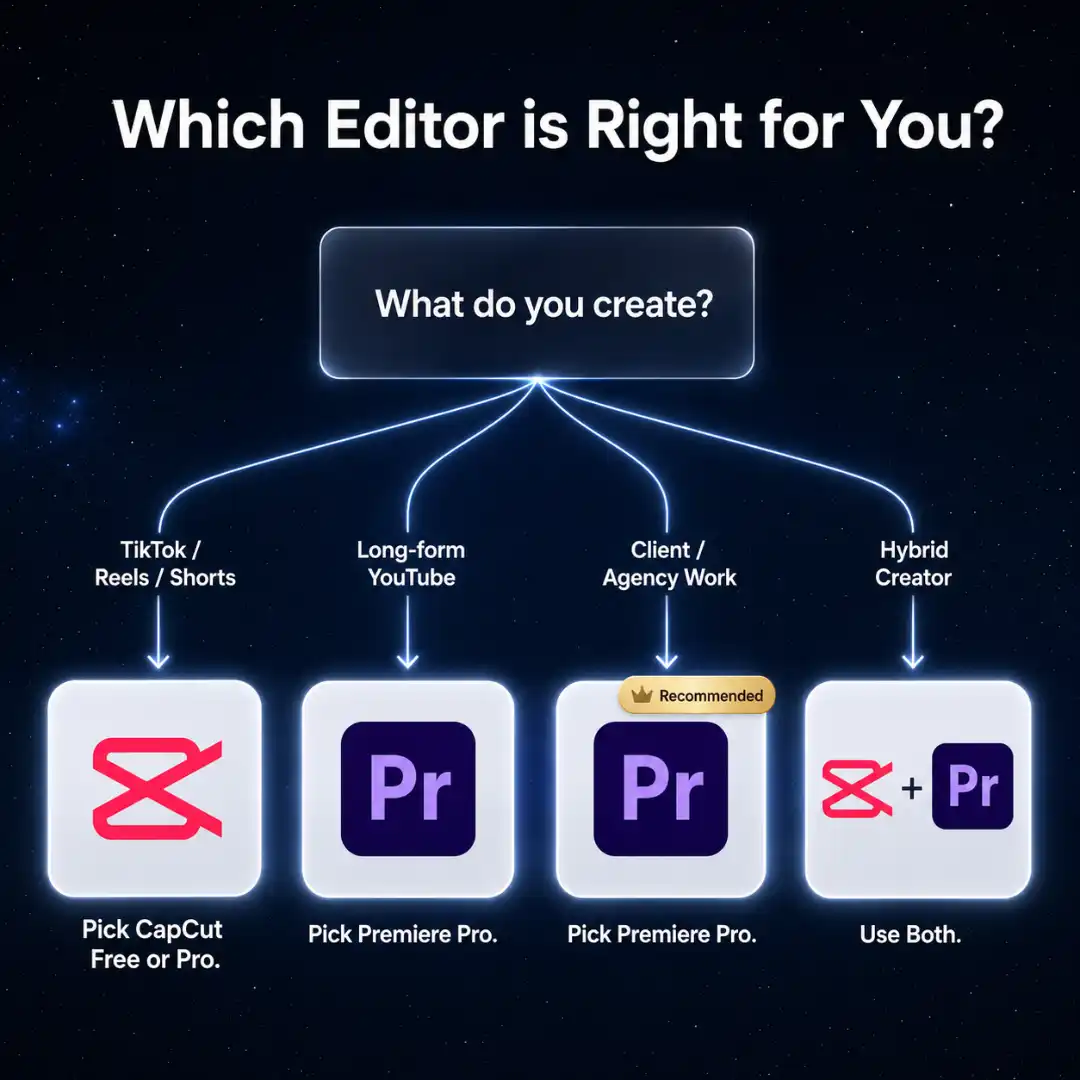
Pick CapCut if you publish mostly to TikTok, Reels, or Shorts; you want to be editing within 30 minutes of opening the app; and your monthly editing time is under 20 hours. CapCut Free is genuinely fine for personal social content, and CapCut Pro at $19.99 a month is a fair price for the AI features.
Pick Premiere Pro if you publish long-form YouTube content, you edit for clients, you handle multicam interviews or events, you need true color grading or audio mixing, or your work touches broadcast, advertising, or any deliverable where licensing matters. Premiere Pro is the safer default the moment your video has commercial value.
Use both if you are a hybrid creator. Cut rough pieces and social trims in CapCut, then master the long-form, color, and audio in Premiere. This is the most realistic 2026 workflow for a creator who wants speed without sacrificing depth.
In one sentence: CapCut wins on speed, accessibility, and short-form output. Premiere Pro wins on control, color, audio, scale, and licensing safety. The smart 2026 creator uses both.
CapCut vs Premiere Pro at a Glance
What is CapCut and Who is it For?
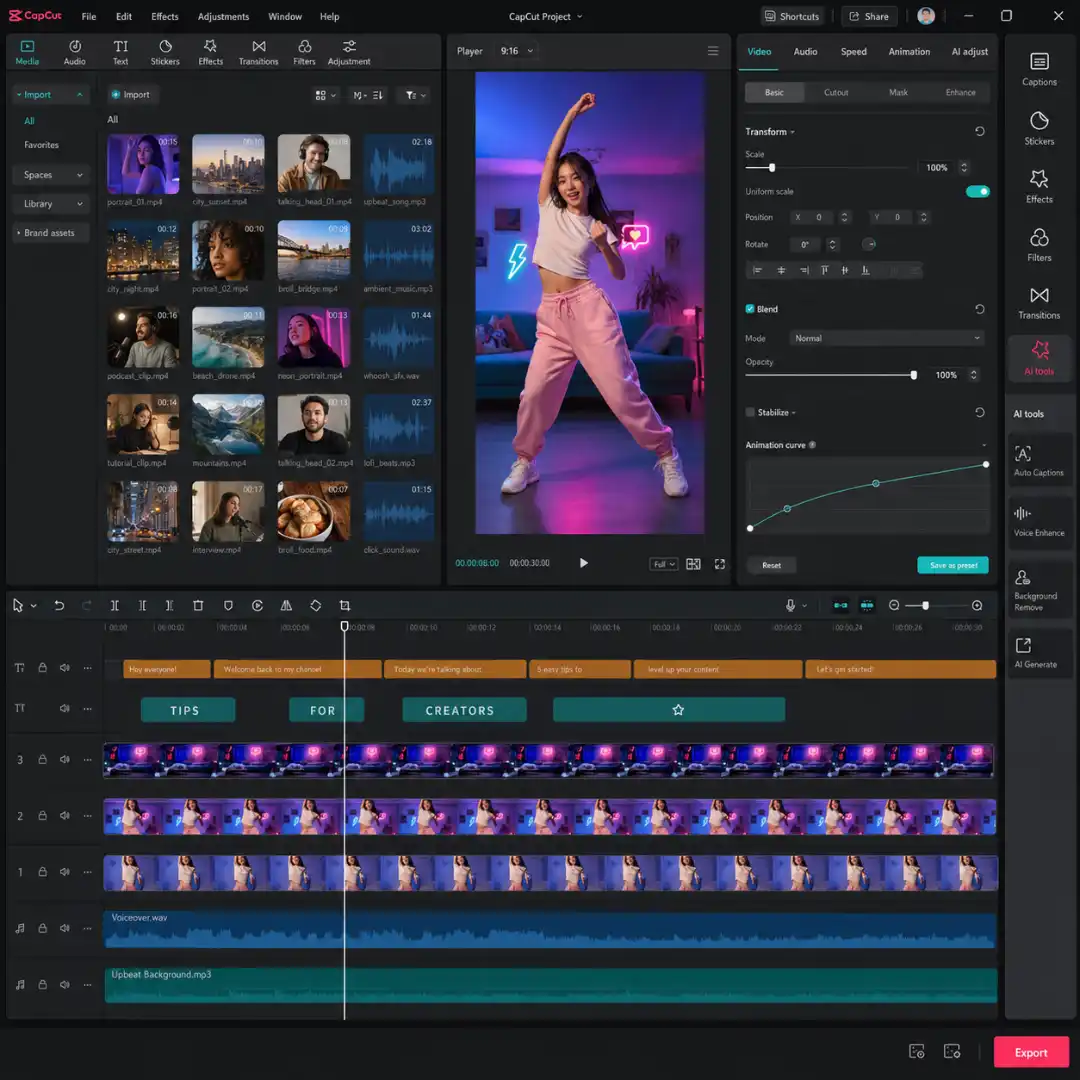
By 2026, CapCut is no longer just a phone app. CapCut Desktop and CapCut Web both run a credible multi-track NLE with motion tracking, AI generation, animation curves, and 4K export on the Pro tier. The mobile app still leads the world in active editor count, with reported numbers above 1 billion installs across iOS and Android.
Who CapCut is for in 2026:
– TikTok and Instagram Reels creators who edit daily and need speed.
– Beginners who want a video out of the door this afternoon, not three weeks from now.
– Casual creators, hobby vloggers, and social-media managers who run dozens of fast iterations a week.
– Mobile-first editors who do most of their cutting on a phone or tablet between shoots.
Where CapCut shines: speed-to-output. The default workflow is so close to what social platforms reward, you can edit, caption, and publish a 60-second vertical without ever opening a separate tool.
What is Premiere Pro and Who is it For?
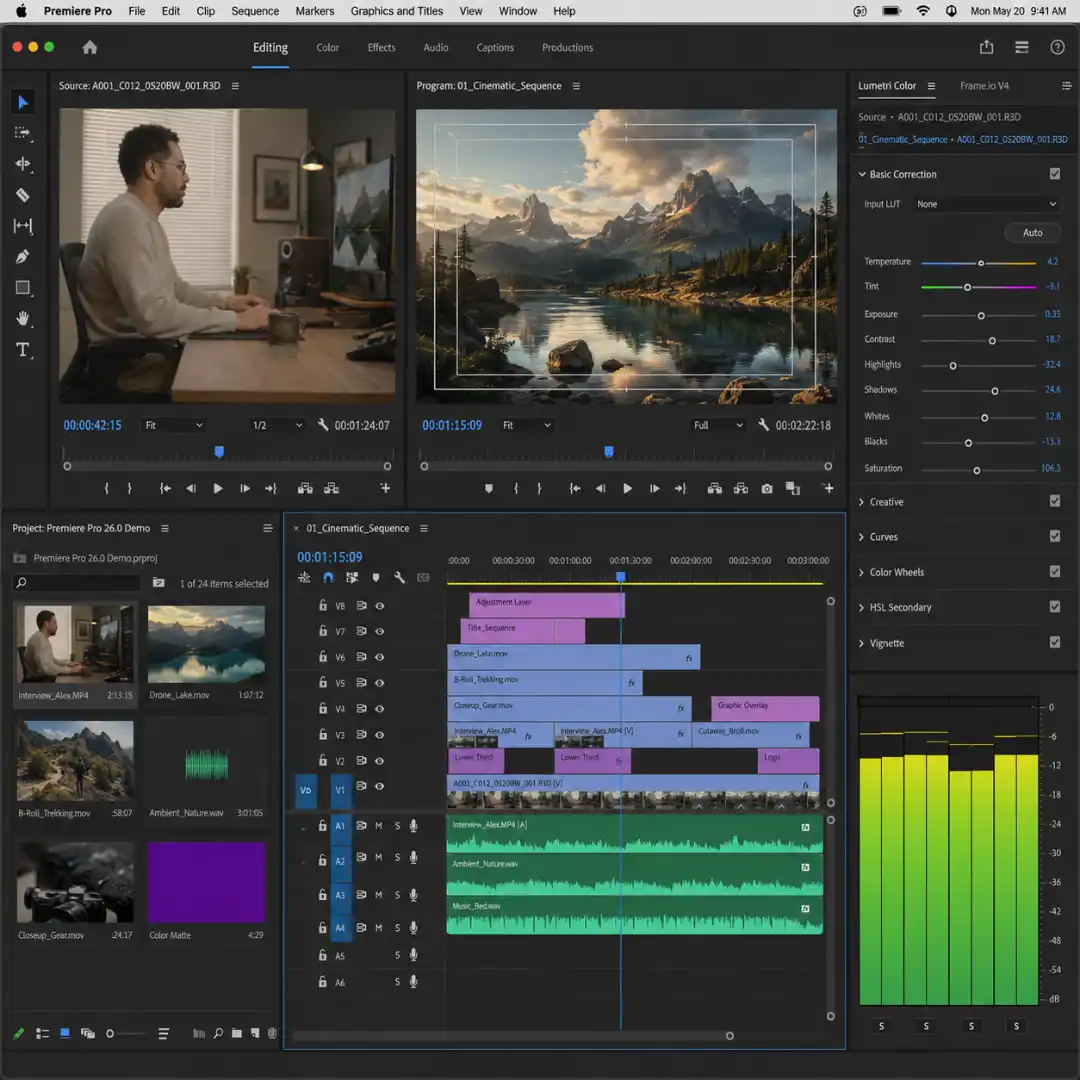
The January 2026 release (version 26.0) is the most significant Premiere update in years. It added Generative Extend (AI clip extensions up to 2 seconds in 4K), AI Object Mask with single-brush tracking, redesigned shape masks with faster motion tracking, a native Frame.io V4 review panel, an Adobe Stock browse-and-license panel, native Windows on ARM support, Nikon N-RAW import, and a rebuilt audio plugin set including new Gate, Compressor, and Distortion effects.
Who Premiere Pro is for in 2026:
- YouTubers shipping 8-minute or longer videos with proper color and audio.
- Freelance video editors taking on client work where contracts, licensing, and revisions matter.
- Agencies and brand teams producing ads, campaigns, and broadcast spots.
- Filmmakers, documentarians, and event editors handling multicam, long-form, or archival projects.
- Anyone whose deliverable involves another set of eyes, a Frame.io review, or a paid invoice.
Where Premiere shines: depth and control. Every decision in the timeline is explicit. Every keyframe, every audio sample, every color value is exposed and adjustable. That depth is the reason Premiere has a steeper learning curve, and it is the reason it survives every shift in the editor market.
Pricing Breakdown (2026 Numbers)
CapCut Pricing in 2026
CapCut runs a tiered subscription model with a meaningful free tier. The 2026 pricing on the global plans is:
- Free: $0 a month. 1080p export, basic AI tools, watermark on certain templates, no cloud storage outside India.
- Standard: $9.99 a month. Watermark removal, faster rendering, ad-free.
- Pro Individual: $19.99 a month or $179.99 a year. 4K export, 100 GB cloud storage, full AI suite, motion tracking, animation curves, Pro music library.
- Pro Teams: $24.99 per user a month. Shared workspaces, team asset library, role-based permissions.
One caveat creators miss on first signup: AI generation features on the Pro plan use a separate AI Credits system. Heavy users of generative video, generative image, or AI voice cloning can run through the included credits inside two or three projects and have to buy additional credit packs. Budget for this if you plan to lean on AI generation.
Regional pricing varies. Mobile app store purchases (iOS and Google Play) carry a markup compared to direct web checkout, sometimes by 20 to 30 percent.
Premiere Pro Pricing in 2026
Premiere Pro is sold through Adobe Creative Cloud subscriptions. Three plans matter for video editors:
- Premiere Pro single app: about $22.99 a month on annual commitment, or about $34.49 a month on a monthly commitment. Adobe runs a 7-day free trial.
- Creative Cloud All Apps: about $59.99 a month. This is the better value if you also use After Effects, Photoshop, Audition, or Lightroom. Most working video editors and motion designers run on this plan.
- Student and teacher plan: about 60 percent off the All Apps price for the first year.
Prices vary by region, and Adobe runs frequent promotions, especially for new annual customers.
True Cost Comparison (with the catch)
At the lowest tier, CapCut Free wins by a mile. At the highest tier, Adobe Creative Cloud All Apps wins by value if you actually use the other apps. The honest framing: cost is irrelevant if licensing or output cannot meet your needs. Pricing is a useful filter at the top of the funnel, but the deciding factor for most working creators is what happens after the export button. We will get to that in the licensing section. If you also want to compare against the third major NLE, our breakdown of DaVinci Resolve vs Premiere Pro: Which Editor Should You Use in 2026? covers Blackmagic’s free pro-grade alternative.
Interface and Learning Curve
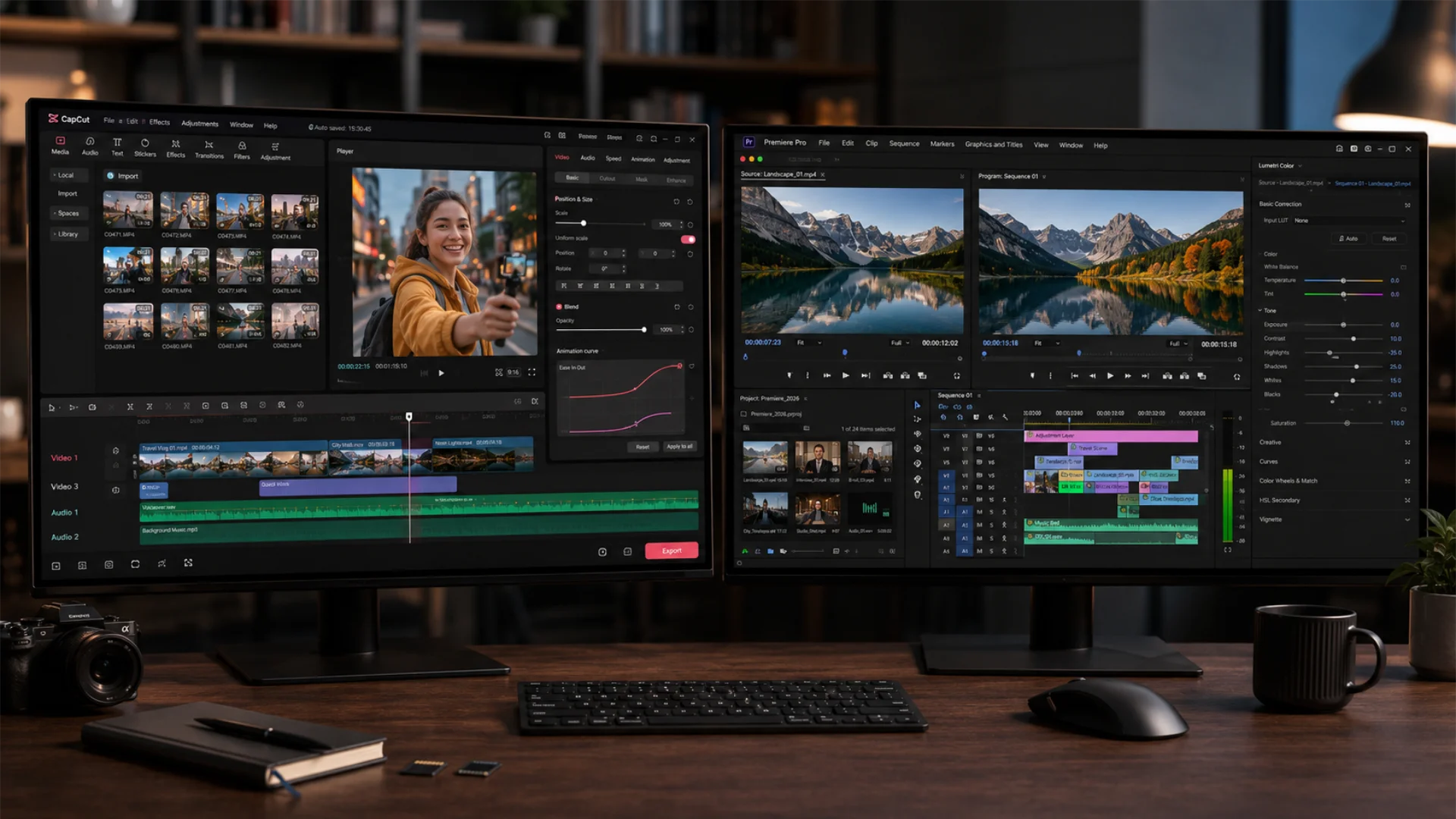
Premiere Pro was built for control. The default workspace shows you Source and Program monitors, a Project bin, a multi-track timeline, an Effects panel, and a Tools palette before you even import a clip. There is a learning cost: 2 to 4 weeks for an editor to feel comfortable and 2 to 3 months to feel fluent. The trade is that every keyframe, every cut, every adjustment is exposed and adjustable. Workspaces (Editing, Color, Effects, Audio, Captions, Productions) reorganize panels for the task at hand, and you can customize and save your own.
Keyboard shortcuts are where the gap widens. Premiere has been keyboard-driven since 2003 and a fluent editor can cut a 5-minute video without touching the mouse. CapCut Desktop now lets you remap shortcuts to mimic Premiere or Resolve, which is a smart compatibility move, but the default CapCut shortcut set is shallower and less comprehensive.
The honest analogy: CapCut feels like driving an automatic in a city you know. Premiere feels like a manual race car on a track you have to learn. The first one gets you there faster on day one. The second one is what you want when the stakes go up.
Editing Tools and Timeline Control
Tracks and layers. CapCut has a practical track cap, around 20 to 30 video and audio tracks before performance drops. Premiere is unlimited (within hardware), and timelines with 50 to 100 tracks are normal on documentaries and corporate edits.
Magnetic versus free-position. CapCut uses a magnetic timeline. Clips snap together and move as a group when you ripple. Premiere uses a free-position timeline. Clips sit exactly where you place them. Magnetic is faster for short-form. Free-position is more controllable for long-form, where small gaps and offsets are part of the craft.
Ripple delete, nesting, multicam, JKL editing, markers, snapping. Premiere ships every one of these natively, and most have ten years of refinement. CapCut has ripple delete and basic nesting (Compound Clip), but no true multicam editing. If you shoot interviews with two or more cameras and sync them on a master timeline, that is a Premiere-only workflow.
Keyframing and animation curves. Premiere has full keyframing on every parameter (position, scale, rotation, opacity, every effect parameter), but the animation curve UI is dated. CapCut’s animation curves are visually more intuitive and easier to shape, though shallower in what you can keyframe. For social-style motion (text bouncing in, image scaling on the beat), CapCut is genuinely faster. For complex compositing, Premiere wins.
Vertical video. Both editors support 9:16 sequences natively. Premiere added much better vertical workflow tooling in 2024 and 2025. If you publish primarily vertical, our guide on the How to Edit YouTube Shorts in Premiere Pro: Fast Workflow for Vertical Video walks through the cleanest setup.
Color Grading and Color Science
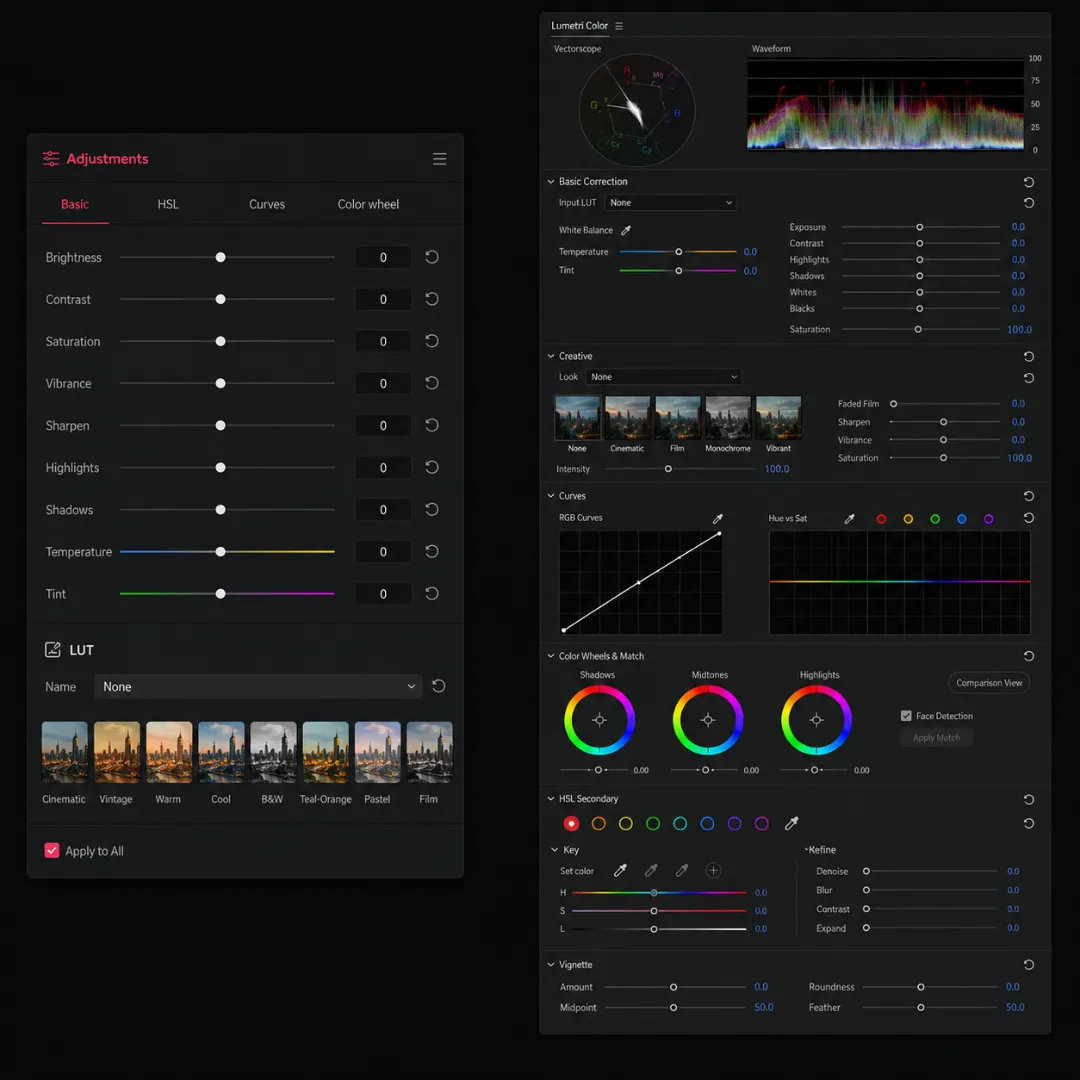
CapCut’s color tooling is intentionally simple. The Adjustments panel offers Brightness, Contrast, Saturation, Vibrance, Highlights, Shadows, Temperature, and Tint sliders, plus a horizontal LUT picker with preset looks. There is a basic curves graph for tone adjustment. It is enough for a creator who shot in a single light condition and wants to nudge a look. It is not enough for a creator matching three cameras or grading a log file.
Premiere Pro’s Lumetri Color panel is a working colorist’s tool. You get Basic Correction (with proper white balance, exposure, and tone controls); Creative (LUT picker, Faded Film, intensity-controlled looks); full Curves (RGB and Hue versus Saturation, Hue versus Hue, Hue versus Luma), Color Wheels and Match (with Shadows, Midtones, Highlights wheels and luma sliders); HSL Secondary (isolate skin, sky, shirt, or anything); and Vignette. The 26.0 release added automatic camera and color profile detection, which means dragging in log footage from a Sony FX3 or a BMPCC 6K Pro now applies the correct input transform automatically.
Scopes are the other quiet difference. Premiere ships a real-time vectorscope, waveform monitor, parade, and histogram inside the Lumetri panel. CapCut shows a histogram. For any color work above the level of “make it warmer,” scopes are not optional, and the absence is the reason most colorists do not work in CapCut at all.
If your project requires color matching across cameras or a final delivery LUT, this section is where Premiere stops being a preference and becomes a requirement.
If you want to push your color work even further, the CineTitles pack pairs cinematic title templates with LUT-friendly color spaces and gives you 29 ready-to-edit title scenes for Premiere Pro and After Effects.
Audio Editing and Mixing
CapCut handles the most common audio needs with one-click presets: Enhance Voice, Reduce Noise, Normalize Loudness, basic EQ, and a serviceable music library on the Pro tier. The result is good enough for most short-form social content, where the audio mix is mostly voice-over plus a music bed.
Premiere Pro hands you a full audio post stack. The Essential Sound panel auto-classifies clips as Dialogue, Music, SFX, or Ambience and applies appropriate processing chains. Beyond that, you get an Advanced EQ, multi-band Compressor, De-noise, De-reverb, Ducking (which automatically lowers the music when dialogue plays), and the new Premiere 26.0 plugin set added a real Gate, Compressor, and Distortion. For any project where dialogue, music, and sound effects have to sit together cleanly, the round-trip into Adobe Audition is the standard pro workflow.
If you want a step-by-step on getting a clean mix in Premiere, our walkthrough on How to Mix Dialogue, Music, and Sound Effects in Premiere Pro covers ducking, compression, and final loudness for YouTube and broadcast standards.
The verdict: CapCut is fine for solo voice plus music. Premiere is meaningfully ahead the moment you have an interview, a podcast, a multi-source mix, or any project where the audio bed has to be more than two layers.
AI Features Compared (the 2026 differentiator)
CapCut AI in 2026
CapCut put AI features front and center. The 2026 feature set includes:
- Auto Captions with multi-language support and styled templates.
- Voice Enhance, one-click broadcast-quality voice processing.
- Background Remove, real-time greenscreen-free subject isolation.
- Motion Tracking with single-click attachment of text or graphics.
- AI Generate, text-to-video and text-to-image generation (consumes AI Credits).
- Smart Cut, automatic detection of pauses and dead air.
- Talking-head Reframe, automatic vertical reframe of horizontal speaker footage.
- One-click Templates, ready-made TikTok formats with AI-fitted swaps.
The strength: every one of these is built in, free or one-click on Pro, and reachable inside the same window you are editing in. A first-day user can produce caption-styled, voice-enhanced, motion-tracked content without learning a single panel.
The weakness: it is a walled garden. AI parameters are usually limited to two or three sliders. Customization is shallow. And CapCut does not publish detailed information about what it stores from the inputs you feed its AI tools.
Premiere Pro AI in 2026
Premiere Pro’s AI feature set in 2026 is more conservative on the surface and considerably deeper underneath:
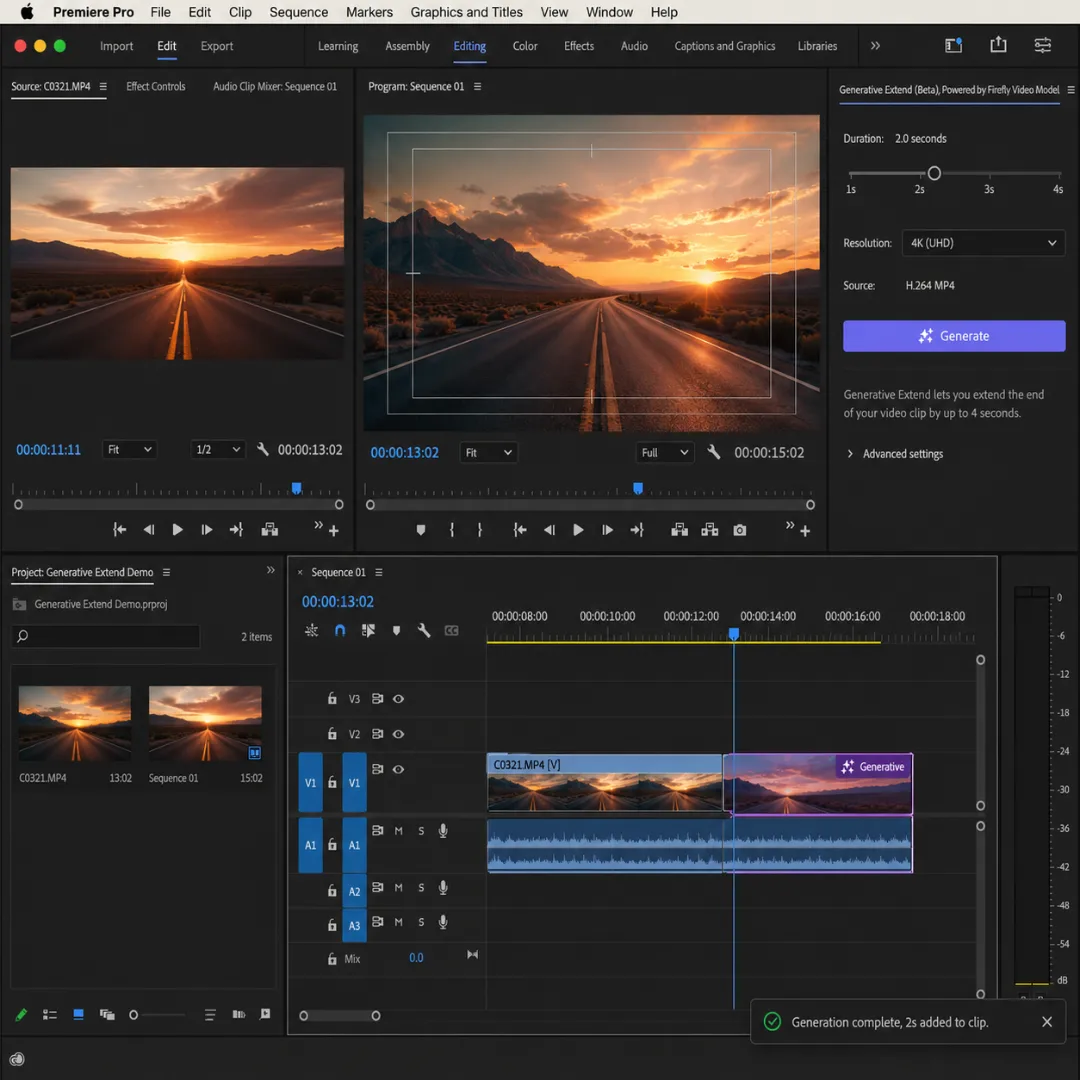
- Generative Extend (Beta, January 2026 GA): extend any clip by up to 2 seconds in 4K. Uses Adobe’s Firefly Video Model, runs on Adobe’s servers, ships to .mp4 (H.264) or .wav.
- AI Object Mask (v26.0): single-brush stroke generates a tracking mask that follows objects through the clip.
- Redesigned Shape Masks: faster motion tracking, cleaner falloff control.
- Auto Reframe: powered by Adobe Sensei, adapts horizontal footage to 9:16, 1:1, or 4:5.
- Scene Edit Detection: automatically inserts cuts where a flat file changes scenes.
- Speech-to-Text and AI Captions: transcribes 13+ languages with editable, styleable captions.
- Remix Tool: beat-aware automatic music retiming, drops a track to any duration.
- Adobe Sensei integration across Premiere, After Effects, Photoshop, and Audition.
The strength: Premiere’s AI integrates with the rest of Adobe. A masked object can round-trip into After Effects. A transcript can drive Captions or push to a graphic in Premiere. The result is depth and control.
The weakness: more clicks to access, AI generations are more conservative, and Generative Extend usage is rate-limited.
AI Verdict
For social-first creators, CapCut wins on speed-to-AI-output. For editors who need control over the AI result and the ability to take it further inside an Adobe workflow, Premiere wins. The split-the-difference move, which is what most professional editors are doing in 2026, is to use CapCut for first-pass captions and rough cuts, then bring the master into Premiere. Our deep-dive on AI Video Editing Workflow: How to Combine AI Tools with Premiere Pro and Resolve walks through that hybrid workflow end to end, and our specific guide on How to Use AI for Automatic Captions and Subtitles in 2026 (Premiere Pro, CapCut, Resolve) compares accuracy, language coverage, and styling.
Effects, Templates, and Transitions
CapCut’s library is huge, trending, and instantly applicable. Open the Effects panel and you have hundreds of categorized presets organized by mood, platform, and current trend. There is no curve to climb. Drag, drop, rendered.
Premiere Pro’s native effects library is smaller. The strength is what you can attach to it. Through MoGRTs (Motion Graphics Templates) made in After Effects, an external marketplace, and direct After Effects round-trip, the effects ceiling on Premiere is effectively unlimited. The same is true of titles, lower thirds, transitions, and overlays.
The honest take: CapCut wins for trend speed and pure volume of plug-and-play looks. Premiere wins for brand consistency, customization, and originality. If you publish content that needs to look like every other piece you publish (a YouTube channel with a consistent visual identity, a brand campaign with a defined system, a film with a designed title sequence), that is Premiere territory.
This is also where good third-party assets become a force multiplier. A pack like CineTitles drops 29 cinematic title templates straight into Premiere and After Effects, and they are designed to match real film color spaces, which means they hold up next to your graded footage. Built-in editors have a ceiling. External assets remove it.
Performance, Export, and File Handling
Codec support is where Premiere pulls ahead. Premiere 26.0 reads ProRes, H.264, H.265 (HEVC), AV1, and Nikon N-RAW natively, exports to all of the above, and ships Adobe Media Encoder (which lets you render an entire export queue in the background without locking up the editor). For a freelance editor delivering five different formats from one master, Adobe Media Encoder alone is worth the license.
CapCut Pro now exports ProRes (HQ and 422), H.264, and H.265 in 4K. Compression on H.264 is widely reported to be more aggressive than Premiere’s at the same bitrate, which means smaller files but visible quality loss on detailed footage. For social platforms that re-encode aggressively anyway, this is mostly invisible. For client delivery to a broadcaster or a Frame.io review, it is a real concern.
Project management is the other gap. Premiere has Project Manager, scratch disks, proxy workflows (proxies up to 8K), and consolidated project archives. CapCut has cloud projects and a much simpler local file structure that can become a problem on a long-running edit.
Collaboration and Team Workflows
Premiere Pro’s collaboration story is built for the way real teams work. Productions lets you split a long-form project into multiple sequences each editor can lock and check out. Team Projects gives a real cloud-versioned editing environment with conflict resolution. The Frame.io V4 panel ships natively in v26.0, which means a producer leaves a timecode-anchored comment in Frame.io and the editor sees it inside Premiere on the same frame.
For a solo creator, these features are overkill. For anyone whose work involves another set of eyes (a client, a producer, a colorist, a brand manager), Premiere is the only realistic option.
Mobile Editing
CapCut Mobile is the best mobile video editor in the world by a meaningful margin. Track count, effect library, AI tools, performance on mid-range Android devices, and the speed from “open app” to “finished export” all favor CapCut. It is the editor a billion creators use precisely because nothing else feels this finished on a phone.
Adobe rebranded Premiere Rush in 2025 and shipped Premiere on iPhone in January 2026. The iPhone app supports clean handoff to a desktop Premiere project, which is the right strategic move (start a cut on a flight, finish on a workstation), but the mobile editor itself is still narrower than CapCut Mobile. For pure mobile work, CapCut wins.
If mobile is your primary editor, our breakdown of the Best Mobile Video Editing Apps in 2026: CapCut, VN, InShot, and LumaFusion Compared compares CapCut against VN, InShot, and LumaFusion side by side.
Licensing, Privacy, and Commercial Use (the section most articles skip)
This section is descriptive and factual. We are flagging things to consider, not telling you to avoid CapCut.
CapCut’s June 2025 Terms of Service Update
In June 2025, CapCut updated its global Terms of Service. The new terms grant CapCut a non-exclusive, royalty-free, transferable, sub-licensable, worldwide license to host, use, modify, run, distribute, and create derivative works of content uploaded to CapCut services. The license is meant to allow CapCut to operate the product (cloud sync, effects rendering on servers, AI generation), and CapCut states the license ends when content is deleted from CapCut’s systems.
ByteDance ownership has separately drawn regulatory scrutiny in the United States and several European markets through 2024 and 2025. Data residency, government-access concerns, and ownership review processes are still ongoing in some jurisdictions. The practical implications vary by region.
CapCut’s Commercial Use Restrictions
This is the part most creators do not know.
CapCut’s free tier comes with a limited commercial license. “Limited” is doing real work in that sentence. The free tier explicitly excludes large-scale advertising campaigns, agency or client work, broadcast distribution, and certain revenue thresholds. CapCut Pro unlocks the broader commercial license needed for those uses.
There is a second, sharper catch on built-in music. Tracks labeled “Commercial use” inside CapCut are licensed for commercial use only on TikTok and CapCut platforms. Using the same track on YouTube or Instagram can still trigger copyright claims from third-party agencies (HAAWK and similar music-rights agencies have flagged Pro tracks routinely). Many creators have found out the hard way that the in-app “Commercial use” label is not a universal license.
If your work involves any of: client deliverables, paid ads, brand campaigns, broadcast, or third-party platforms beyond TikTok and CapCut Web, read the CapCut Commercial Use page in full and budget for licensing music separately.
Premiere Pro Licensing (for contrast)
Adobe Premiere Pro under the standard Creative Cloud license is straightforward. You own your output. You have full commercial rights to the videos you cut. Adobe does not claim a license over your content. Adobe Stock assets and Adobe Fonts are separately licensed (and the licenses are clearly attached to each asset), but the editor itself does not impose any restrictions on what you do with the work.
What This Means for You
- Casual creator publishing to your own social accounts: CapCut Free is fine.
- Freelancer, agency, or anyone delivering to a paying client: Premiere Pro is the safer default. CapCut Pro is workable, but you have to be careful about music licensing and aware of the platform-restricted commercial label on built-in tracks.
- Brands, broadcasters, and any work touching ad spend or distribution rights: Premiere, full stop.
Use Cases, Who Should Pick What
The TikTok and Reels creator. CapCut. Free or Pro depending on whether you want 4K and the AI suite. The speed advantage on social-first content is genuine, and the licensing concerns are manageable on personal accounts.
The full-time YouTuber making 10 to 20 minute videos. Premiere Pro, with CapCut as a quick-cut tool for shorts and B-roll. The depth Premiere gives you on color, audio, and consistency is the reason long-form creators converge on it.
The freelance video editor. Premiere Pro. The licensing safety, the codec range, the multicam support, the Audition round-trip, the Frame.io review workflow, and the project management tools are not optional once you are delivering paid work. CapCut is a useful side tool. It is not a primary editor for client work.
The brand or agency producer. Premiere Pro. Productions, Team Projects, Frame.io V4, and Creative Cloud asset sync are designed for the way agency teams actually work.
The total beginner who is not sure of their direction. Start in CapCut Free. Spend three months making things, learning timing and pacing, and finishing real cuts. When your output value justifies the subscription, or when your work hits a ceiling CapCut cannot break through, switch to Premiere Pro.
Can You Use Both? (Yes, and Here is the Workflow)
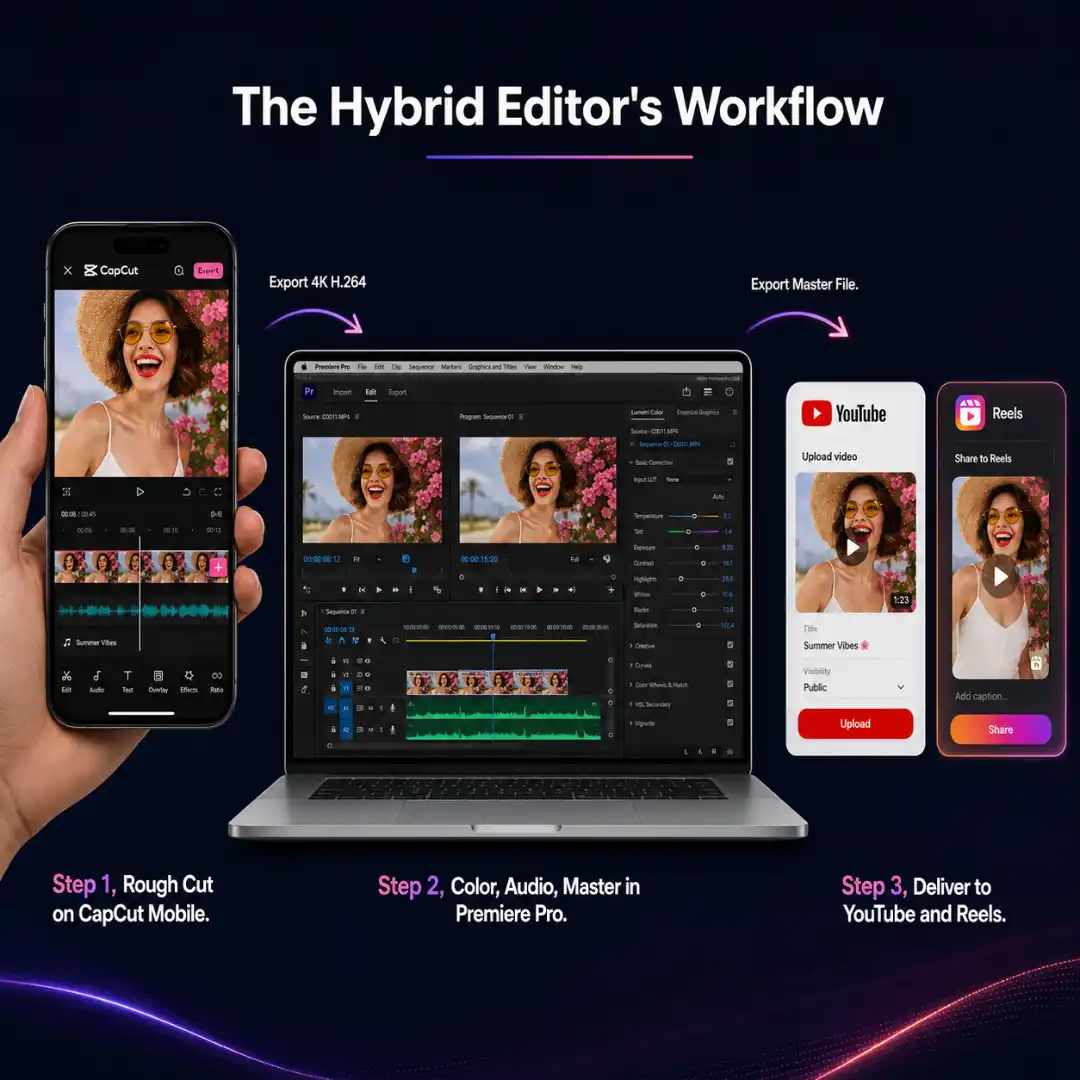
Use Premiere for: master editing, color grading, audio mixing, multicam, long-form, client deliverables, and archival.
The handoff is simple. Export from CapCut at 4K H.264 (or ProRes 422 if you are on Pro and care about quality), import the flattened clip into Premiere, place it on V1, and treat it as a source. From there, Premiere handles color, audio, additional cuts, masking, and the final delivery encode.
This is the workflow most professional creators we know are running in 2026. CapCut for speed, Premiere for finish. The two editors are no longer competitors. They are stages in the same pipeline.
A small bonus of this workflow: assets that are NLE-agnostic (pre-rendered transitions, light leaks, LUTs, and titles) travel with you between editors, which means the pipeline does not impose any asset lock-in.
Final Verdict, Decision Matrix
Conclusion
If your output is short-form social and your timeline pressure is daily, CapCut is the right primary editor and CapCut Pro is a fair upgrade once you cross 20 hours of editing a month. If your output has commercial value, runs longer than 5 minutes, involves another set of eyes, or has to look consistent over many pieces, Premiere Pro is the right primary editor and the licensing safety alone justifies the subscription. If you are somewhere in between, which most working creators are in 2026, you are not picking one editor. You are picking a pipeline that uses both, and you are layering on assets that travel with you between them.
Our Luminous Light Leak Transitions pack is one of those bridge assets. The 80 pre-rendered 4K transitions drop into Premiere Pro, After Effects, and CapCut without any license boundaries between them, which is the kind of asset that makes the hybrid workflow actually work in practice.
Whichever editor you pick, the bigger story in 2026 is that AI has reset the floor for video creation across the entire industry. If you want a wider view of where the AI side of editing is going, our pillar guide on AI Video Tools in 2026: The Complete Creator’s Guide to AI-Powered Editing covers the full landscape of generative tools, AI editors, captioning systems, and post-production AI assistants beyond just CapCut and Premiere.
Pick the workflow first. Pick the asset library second. The editor argument follows from the work, not the other way around.
Disclaimer : If you buy something through our links, we may earn an affiliate commission or have a sponsored relationship with the brand, at no cost to you. We recommend only products we genuinely like. Thank you so much.
Blog Label:



Write for us
Publish a Guest Post on Pixflow
Pixflow welcomes guest posts from brands, agencies, and fellow creators who want to contribute genuinely useful content.
Fill the Form ✏