How to Edit YouTube Shorts in Premiere Pro: Fast Workflow for Vertical Video

- Why Edit YouTube Shorts in Premiere Pro Instead of CapCut or Mobile Apps
- YouTube Shorts Specs You Need Before You Open Premiere Pro
- Step 1: Set Up a Vertical Project and Sequence in Premiere Pro
- Step 2: Import and Organize Footage for a Fast Workflow
- Step 3: Sync Audio and Build Your Rough Cut Fast
- Step 4: Reframe Horizontal Footage to 9:16 Without Losing Your Subject
- Step 5: Color Grade Fast for Mobile Viewing
- Step 6: Add Captions That Boost Retention
- Step 7: Add Transitions, Titles, and Sound Effects for Punchy Pacing
- Step 8: Mix and Master Audio for Tiny Phone Speakers
- Step 9: The Best Export Settings for YouTube Shorts in Premiere Pro (2026)
- Step 10: Upload Your Short to YouTube the Right Way
- Bonus: Fast Workflow Tips From Pro Shorts Editors
- Common Mistakes to Avoid When Editing YouTube Shorts in Premiere Pro
- Conclusion: Build a Repeatable Shorts Pipeline in Premiere Pro
The good news: Premiere Pro in 2026 is finally built for short-form. With the new vertical workspace, smarter Auto Reframe, captions-to-graphics, and Adobe’s official YouTube Shorts templates, you can now build a Shorts pipeline that rivals CapCut for speed while keeping the color, audio, and finishing quality only Premiere can deliver.
In this guide, you will learn the exact fast workflow used by professional editors to take a Short from raw footage to upload in under 30 minutes. We will cover sequence setup, importing and syncing, vertical reframing, color, captions, transitions, audio mixing, the best export settings for 2026, and upload tips that help Shorts actually rank on YouTube. Whether you are a complete beginner or an experienced editor switching to vertical, this is your full A to Z playbook.
This post is part of our YouTube Creator Workflow series for video editors, built to help you grow a channel as a creator without leaving the editor’s chair.
Why Edit YouTube Shorts in Premiere Pro Instead of CapCut or Mobile Apps
- Native vertical workspace. Premiere Pro now ships with a dedicated Vertical workspace that flips the program and source monitors to 9:16 so you stop fighting the UI.
- AI-powered Auto Reframe. Adobe Sensei tracks your subject and reframes horizontal footage to vertical automatically, with keyframes you can edit by hand if needed.
- Captions to animated graphics. Premiere can transcribe your audio, create captions, and then upgrade those captions into fully animated text graphics in a single click.
When you combine these with Premiere’s professional Lumetri color, Essential Sound panel, and precise export controls, you get cinematic quality Shorts that look distinctly better than mobile app exports. If you are torn between platforms, our deep dive on CapCut vs Premiere Pro breaks down exactly when to use each, and if you prefer cutting on your phone, our roundup of the best mobile video editing apps in 2026 compares CapCut, VN, InShot, and LumaFusion.
Bottom line: Premiere Pro gives you speed plus broadcast-grade quality, which is why serious creators and editing freelancers are choosing it for YouTube Shorts in 2026.
YouTube Shorts Specs You Need Before You Open Premiere Pro
Step 1: Set Up a Vertical Project and Sequence in Premiere Pro
1.1 Create the Project
Open Premiere Pro and click New Project. Name it something like YouTube-Shorts-2026 and choose a dedicated project location, ideally a fast SSD folder per Short or per batch.
1.2 Switch to the Vertical Workspace
In the top right, click the workspaces switcher and choose Vertical. This 2026 layout rotates the program and source monitors to 9:16, expands the timeline horizontally for short clips, and gives you a proper preview of how your Short will look on a phone. This single click saves you from manually rebuilding your UI every time.
1.3 Create a 1080 x 1920 Sequence
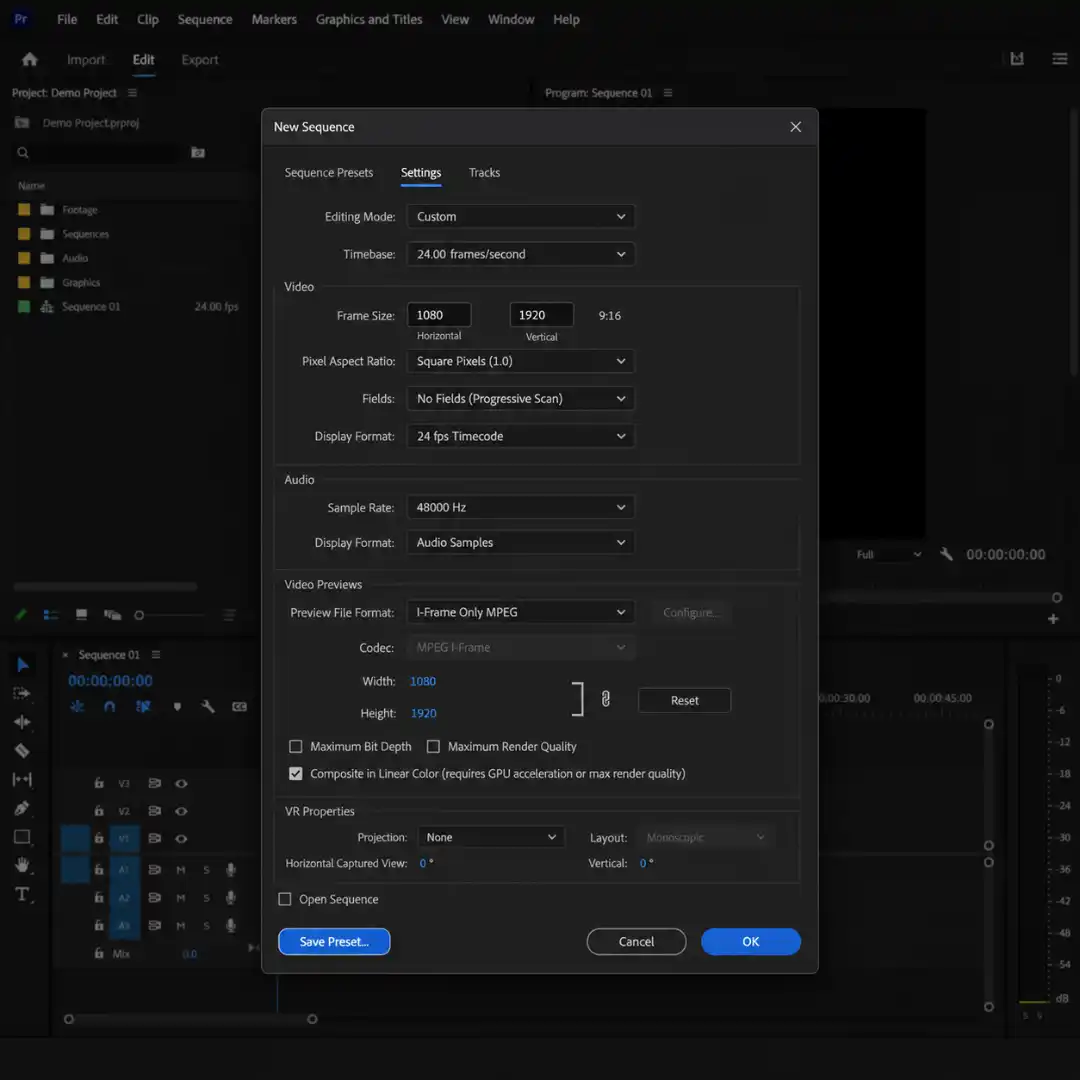
Go to File > New > Sequence. None of the default presets fit Shorts, so click the Settings tab and configure:
- Editing Mode: Custom
- Time base: match your source (23.976, 25, 29.97, or 59.94)
- Frame size: 1080 horizontal x 1920 vertical
- Pixel aspect ratio: Square pixels (1.0)
- Fields: No Fields (Progressive)
Click Save Preset, name it YouTube Shorts 1080x1920, and confirm. From now on, you can create a Shorts sequence in two clicks.
1.4 Turn On Safe Margins
In the Program monitor, click the wrench icon and enable Safe Margins. YouTube’s UI overlays (channel name, captions, like button, share, comments) cover a surprising amount of the top and bottom of the frame on mobile. Keep your subject and key text inside the inner safe area to avoid clipping.
Step 2: Import and Organize Footage for a Fast Workflow
2.1 Import Your Media
Double-click anywhere in the Project panel or press Ctrl+I / Cmd+I to open the import dialog. Select your video clips, external audio recordings, B-roll, music, and any graphics. If you shot in S-Log, V-Log, or any log profile, hold Shift while importing and tick the Ignore color metadata option so Premiere does not auto-correct your log footage.
2.2 Build Simple Bins
In the Project panel, create four bins:
01_A-Roll(main talking footage)02_B-Roll(cutaways, screen recordings)03_Audio(voiceover, music, SFX)04_Graphics(logos, lower thirds, templates)
Drop assets into the right bin. This structure pays off the moment you batch-edit multiple Shorts in a single session.
2.3 Use Templates to Move Even Faster
If your channel has a consistent look, drop in a templated lower third, opener, and end screen instead of building one from scratch every time. The Pixflow YouTube Packs collection includes 45 expertly designed openers, lower thirds, logo reveals, and title scenes that drop straight into your Shorts and lock in a polished, branded look in minutes.
Step 3: Sync Audio and Build Your Rough Cut Fast
3.1 Synchronize Camera and External Audio
Drag your A-roll clip to V1 and your external audio to A1. Marquee-select both, right click, and choose Synchronize. In the dialog box, pick Audio and click OK. Premiere analyzes both waveforms and snaps them into perfect sync.
Once synced, select the camera audio you no longer need, press Ctrl+L / Cmd+L to unlink, delete the bad audio, then select the video and external audio together and link them with Ctrl+L / Cmd+L again. You now have one tidy synced clip.
3.2 Trim With Q, W, and the Razor
These three shortcuts are the heart of a fast Shorts workflow:
- Q: Trims from the start of the clip to your playhead. Use it to cut dead air at the front.
- W: Trims from the playhead to the end of the clip. Use it to cap the tail.
- Ctrl+K / Cmd+K: Adds a blade cut at the playhead.
- Shift + Razor click: Cuts every track at the playhead.
Use Spacebar to play, J/K/L to scrub, and Backspace with Ripple Delete enabled to keep everything tight.
For a deeper dive on systematizing your entire editing process, see our guide on a YouTube editing workflow that saves you hours every week.
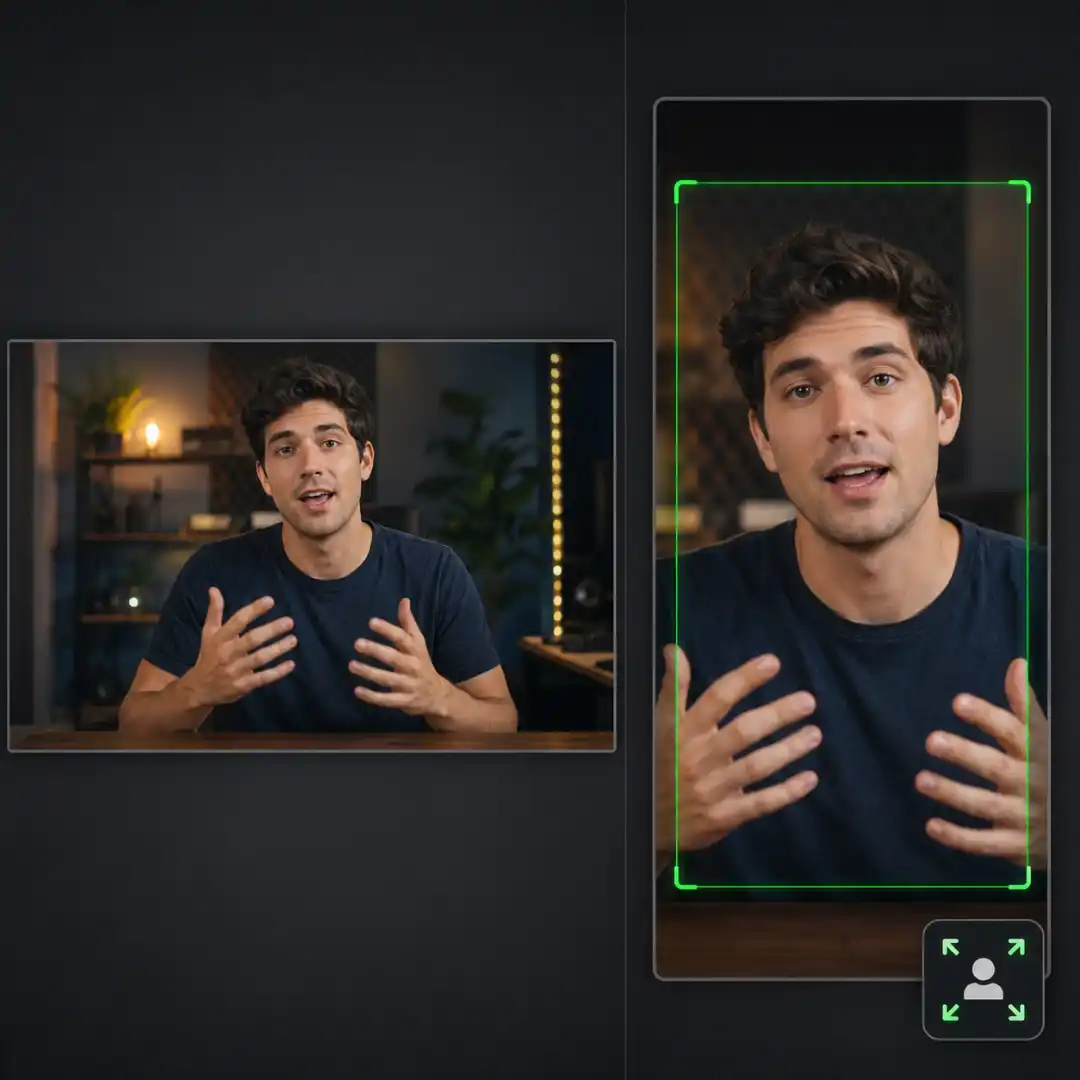
Step 4: Reframe Horizontal Footage to 9:16 Without Losing Your Subject
4.1 The Fast Way: Auto Reframe
In the Effects panel, search for Auto Reframe. Drag it onto your clip in the timeline. In the Effect Controls panel, set:
- Motion Tracking: Faster Motion for action, Slower Motion for talking heads, Default for most Shorts.
- Target Aspect Ratio: Vertical 9:16.
Adobe Sensei tracks your subject and adds keyframes automatically. Play through the clip and check that your face or main action stays inside the frame. About 80% of the time, you will not need to touch a thing.
4.2 The Manual Way: Scale and Position Keyframes
If Auto Reframe drifts off your subject, delete the effect and use manual keyframes. With the clip selected, go to Effect Controls > Motion:
- For 4K footage, set Scale around 145 to 170 to fill a 1080 x 1920 frame.
- Click the stopwatch next to Position at the start of the clip.
- Move the playhead, then adjust position so your subject stays centered. Premiere adds a keyframe.
- Repeat at key moments where the subject moves significantly.
Always check that important details (eyes, hands, on-screen text) sit inside the safe margin.
Step 5: Color Grade Fast for Mobile Viewing
5.1 Apply a Base LUT (If You Shot Log)
Open the Lumetry Color panel. Select your clip, then in the Basic Correction tab use Input LUT to load a matching LUT for your camera (for example, Sony S-Log 3 to Rec.709). This instantly normalizes your footage.
5.2 Use Auto Color as a Starting Point
Click the Auto button under Basic Correction. Premiere analyzes the frame and applies a smart correction in one click. From there, fine-tune Exposure, Contrast, Highlights, Shadows, Whites, and Blacks.
5.3 Push for Mobile
For Shorts specifically:
- Add 5 to 10 points of Contrast.
- Boost Saturation by 5 to 15 points (or use Vibrance for skin tones).
- Lift Shadows slightly so subjects do not crush on AMOLED phone screens.
- Add a subtle Sharpening of 20 to 30 in the Creative tab.
If you nail one look that fits your channel, save it as a Lumetri preset and apply it to every Short in two clicks.
Step 6: Add Captions That Boost Retention
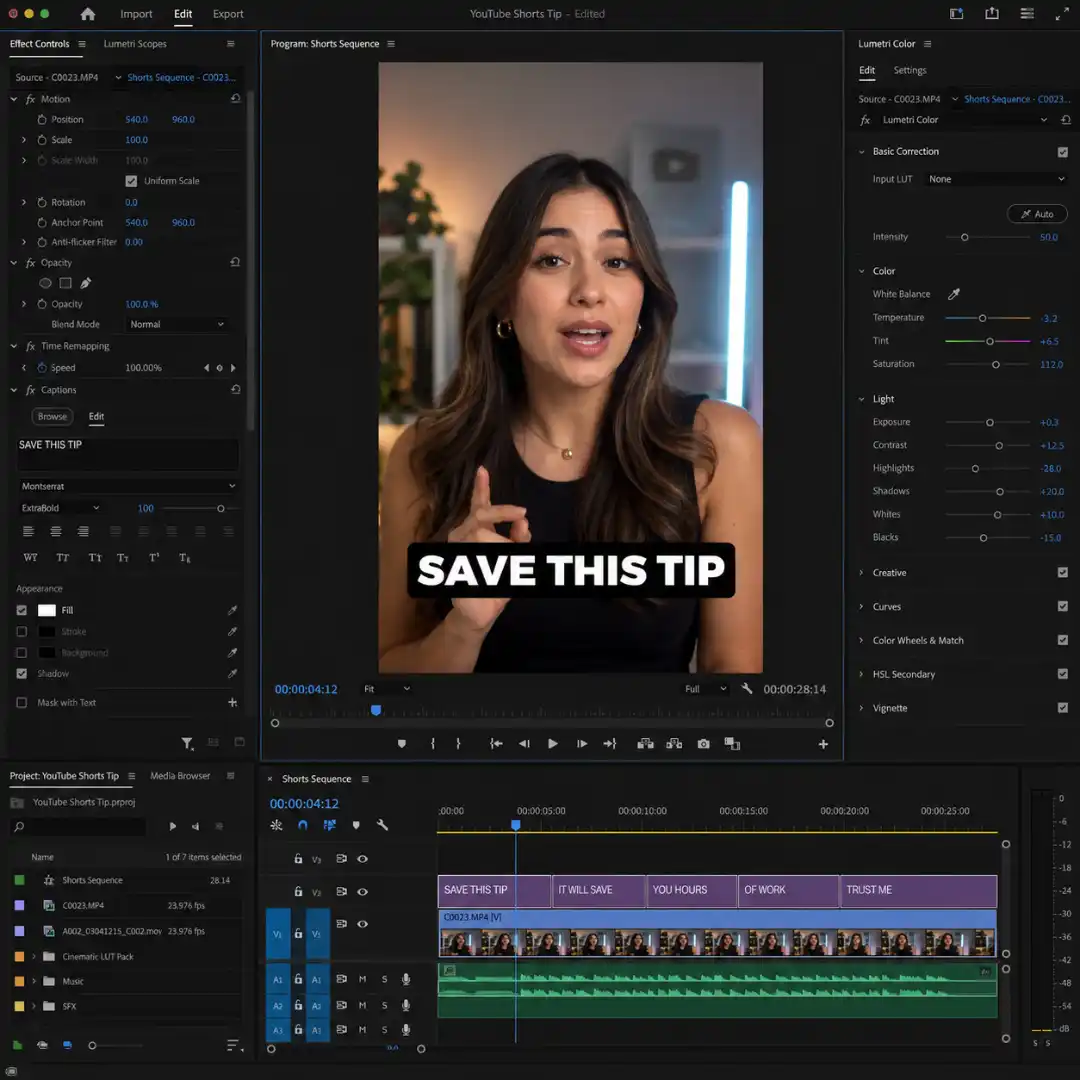
6.1 Auto Transcribe Your Audio
Go to Window > Text to open the Text panel. Under the Transcript tab, click Create transcription, choose your language, select the audio track containing your voice, and click Transcribe. In about a minute, Premiere returns a fully timed transcript.
6.2 Generate Captions
Click the CC icon in the Text panel, choose a caption style preset (Subtitle Default is a clean starting point), and click Create captions. Premiere drops a captions track above your video.
Double-click any caption to edit text or timing. Trim long captions to 4 to 5 words per line so they fit comfortably in the vertical frame and stay readable on a phone.
6.3 Upgrade Captions to Animated Graphics (New in 2026)
This is the feature that turns Premiere into a serious Shorts editor. Marquee-select every caption block on the captions track, then go to Graphics and Titles > Upgrade Caption to Graphic. Each caption is converted into an editable text graphic on the video track, with full control over font, color, stroke, shadow, background, and animation.
In Effect Controls, animate Vector Motion > Position or Scale at the start of the first caption to create a pop-in. Use Edit > Copy, then marquee-select the rest of the captions and Edit > Paste Attributes to clone the animation across the entire track in one move.
Captions are the secret weapon for keeping viewers past the first three seconds. For more on this, see our deep dive on YouTube retention editing techniques.
Step 7: Add Transitions, Titles, and Sound Effects for Punchy Pacing
7.1 Use Transitions With Restraint
For Shorts, fewer is more. Three to five transitions in a 60 second video is usually plenty. Use them to:
- Signal a topic change (whip pan, zoom blur)
- Punch a punchline (impact, flash)
- Smooth a hard cut that feels jarring
The Bold Transitions Pack gives you 10 vibrant, Y2K-inspired transitions designed for social and YouTube Shorts. They drop straight into Premiere Pro with no plugins, and they match the high-energy aesthetic that performs best in vertical feeds.
7.2 Layer Sound Effects for Each Cut
A whoosh on a transition, a tap on a text pop-in, and a soft impact on the final hook can do more for retention than any visual effect. Add a folder of go-to SFX to your project and use Alt + drag / Option + drag to duplicate them quickly across the timeline.
7.3 Build a Strong Hook Title in the First Second
The first 1 to 2 seconds decide whether a viewer keeps watching or swipes. Pop a hook title on screen immediately: “3 Shorts mistakes”, “Stop editing like this”, “Save this for later”. Use a bold sans-serif font, large size, animated entrance, and place it in the upper third where YouTube’s UI does not cover it.
For longer-form openers and cinematic title sequences across your channel, our guide to cinematic YouTube intros in Premiere Pro walks through the full process.
Step 8: Mix and Master Audio for Tiny Phone Speakers
8.1 Clean and Enhance Voice
With your voice clip selected, open Window > Essential Sound. Tag the clip as Dialogue, then enable:
- Loudness > Auto-Match (targets broadcast loudness)
- Repair > Reduce Noise (start at 4 to 6 out of 10)
- Repair > Reduce Rumble
- Clarity > Enhance Speech (set to Mix for natural voice presence)
8.2 Duck the Music Under Voice
In the same Essential Sound panel, tag your music track as Music and enable Ducking. Set the sensitivity so the music sits about 6 to 10 dB below the voice when you speak and rises back during silence.
8.3 Master to a Consistent Loudness
YouTube normalizes audio around minus 14 LUFS. Use the Loudness Radar in Premiere or the Essential Sound auto-match feature to land your final mix in that ballpark. This avoids viewers reaching for the volume button mid-scroll.
Step 9: The Best Export Settings for YouTube Shorts in Premiere Pro (2026)
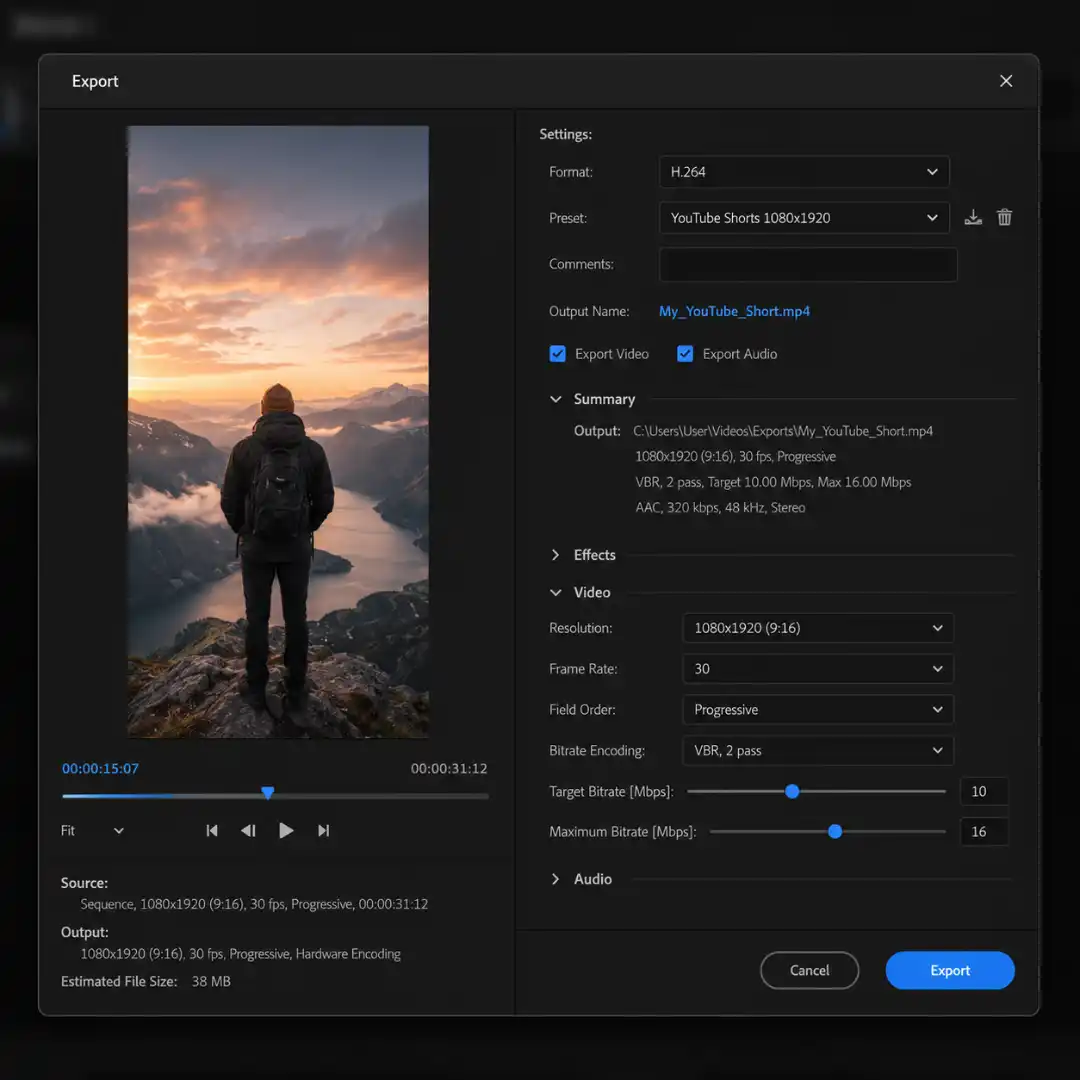
9.1 Open the Export Mode
Click Export at the top left of Premiere Pro (or press Ctrl+M / Cmd+M). Set:
- File Name: descriptive, with your primary keyword if relevant.
- Location: a dedicated Shorts export folder.
- Format: H.264.
- Preset: Match Source Adaptive High Bitrate as a starting point.
9.2 Confirm Video Settings
Under Video, verify:
- Frame Size: 1080 x 1920
- Frame Rate: matches your source
- Field Order: Progressive
- Aspect: Square pixels (1.0)
- Render at Maximum Depth: on
- Use Maximum Render Quality: on
- Profile: High
- Level: 4.2
9.3 Set the Bitrate (the most important step)
- Bitrate Encoding: VBR, 2 pass (best quality for the size)
- Target Bitrate: 10 Mbps for 1080p30, 12 Mbps for 1080p60, 15 Mbps for HDR or fast-motion content
- Maximum Bitrate: 16 to 20 Mbps
If you are uploading from a slow connection or in a hurry, 1 pass at the higher end of the range is acceptable.
9.4 Audio Settings
- Audio Codec: AAC
- Sample Rate: 48 kHz
- Channels: Stereo
- Bitrate: 320 to 512 kbps
9.5 Save the Preset
Click the three-dot menu next to the preset name and Save Preset as YouTube Shorts 1080x1920 H.264 VBR2. Next time, the entire export takes two clicks.
Click Export, or Send to Media Encoder if you want to keep editing in the background.
Step 10: Upload Your Short to YouTube the Right Way
10.1 Upload From Mobile or Desktop
For Shorts under 60 seconds, mobile upload is fine and often gives a slight discovery boost. For longer Shorts (up to 3 minutes) or higher quality control, upload from desktop at studio.youtube.com.
10.2 Title, Description, and Hashtags
- Title: Lead with curiosity or a benefit, keep it under 60 characters, include your primary keyword naturally.
- Description: Add the hashtag #Shorts plus 2 to 3 niche hashtags. Include a one-line description with secondary keywords.
- Tags: Add 5 to 8 tags that match your topic and channel niche.
10.3 Pick a Strong Cover Frame
In YouTube Studio, set a custom thumbnail frame that shows a clear face, big expression, or bold text. This appears on your channel’s Shorts shelf and on the YouTube app. The same psychology applies to long-form covers, so see our full guide to YouTube thumbnail design tips for higher CTR for the design principles behind high-click frames.
For the full SEO playbook around metadata, thumbnails, and ranking, see YouTube SEO for Video Editors: How to Rank Your Videos in 2026.
Bonus: Fast Workflow Tips From Pro Shorts Editors
- Build a Shorts project template. Save a Premiere project file with the vertical workspace, bin structure, export preset, and a few placeholder graphics. Duplicate it for every new Short.
- Use proxies for 4K footage. Right click your clips, choose Proxy > Create Proxies at 1/4 resolution, and Premiere will swap them in for snappier scrubbing.
- Memorize 10 shortcuts. Spacebar, J/K/L, Q, W, Ctrl+K, V, C, Shift + Razor, Ctrl+S. That is 80% of a Shorts edit.
- Batch the same step across multiple Shorts. Sync all clips for the day in one block, color-grade all clips together, caption all clips together. Context-switching kills speed.
- Lock in one signature transition pack and one font. Consistency reads as branding and saves dozens of decisions per Short.
Common Mistakes to Avoid When Editing YouTube Shorts in Premiere Pro
- Wrong sequence size. A 16:9 sequence with letterboxed vertical content looks amateur and gets de-prioritized in the Shorts feed.
- Ignoring safe zones. Subjects or text covered by YouTube’s UI elements get clipped on mobile.
- Over-using transitions. A whoosh on every cut feels dated and chaotic.
- Low export bitrate. YouTube re-compresses, so a low-bitrate source becomes blocky after upload.
- No captions. Sound-off viewers swipe away within 1 to 2 seconds.
- Forgetting the hook. The first second decides whether the algorithm pushes your Short further.
- Skipping audio cleanup. Phone speakers exaggerate background noise and harsh sibilance.
Conclusion: Build a Repeatable Shorts Pipeline in Premiere Pro
Start by saving your sequence preset, your export preset, and one Premiere project template. Add a small library of go-to titles, transitions, and sound effects. Then run every Short through the same 10-step pipeline you just learned. You will cut edit time in half within two weeks.
If you want to level up the visual finish of every Short you publish, drop in the Pixflow Artistic Smooth Transitions MOGRT pack: 14 ready-to-use transitions designed for Premiere Pro that give your Shorts a clean, professional polish without slowing the workflow.
Ready for the bigger picture? Pair this workflow with our pillar guide on how to start and grow a YouTube channel as a video editor and turn your editing skills into a full creator career.
Disclaimer : If you buy something through our links, we may earn an affiliate commission or have a sponsored relationship with the brand, at no cost to you. We recommend only products we genuinely like. Thank you so much.
Blog Label:



Write for us
Publish a Guest Post on Pixflow
Pixflow welcomes guest posts from brands, agencies, and fellow creators who want to contribute genuinely useful content.
Fill the Form ✏