AI Video Editing Workflow in 2026: How to Combine AI Tools with Premiere Pro and DaVinci Resolve
- Quick Answer (TL;DR)
- What does an AI video editing workflow actually look like in 2026?
- Which AI tools actually work with Premiere Pro and DaVinci Resolve?
- How to build an AI workflow in Premiere Pro 26.5 (step by step)
- How to build an AI workflow in DaVinci Resolve 21.1 (step by step)
- How do you bring AI-generated clips into Premiere or Resolve without breaking your project?
- Which AI features are free in Premiere Pro 26.5 and DaVinci Resolve 21.1, and which cost extra?
- Premiere Pro or DaVinci Resolve: which is better for AI editing?
- What should you never hand off to AI?
- Conclusion
- Wrap Up
Quick Answer (TL;DR)
- A good AI video editing workflow in Premiere Pro or Resolve hands the repetitive work to AI (logging, transcripts, first assemblies, dialogue cleanup, masking, captions) and keeps story, pacing, and the final look with you.
- In Premiere Pro 26.5, the core tools are Media Intelligence search, the AI Assistant (beta), Text-Based Editing and Paper Edit, Enhance Speech, Generative Extend, and the new Generative Media Tool.
- In DaVinci Resolve 21.1, the core tools are IntelliSearch, IntelliScript, the Fairlight AI audio tools, Magic Mask, AI Animated Subtitles, and a native MCP server for Claude and ChatGPT. Almost all of them need the $295 Studio license.
- Outside tools plug in four ways: built-in features, timeline plugins, round-trip apps (XML, AAF, EDL, .prproj, .drp), and AI agents.
- Bring AI-generated shots in as ProRes with clean, versioned file names and a matching frame rate. Loose MP4s with random names are what break projects.
You’ve got a 40-minute interview, a three-camera shoot, and a client who wants a 90-second cut by Friday. Your browser has six AI tabs open. You generate a shot in one, download it, rename it, import it, and then notice it’s 24 fps in a 25 fps timeline. (Sound familiar?)
That download-and-re-import loop is the complaint editors raise most when they talk about AI tools that work with Premiere and DaVinci. The good news is that in 2026 most of the useful AI now sits inside the two editors, and the outside tools worth paying for have learned to talk to your timeline.
This guide is the AI video editing workflow for Premiere Pro and Resolve we’d hand a fellow editor. It covers the six stages where AI actually saves time, a separate walkthrough for each app, the right way to bring AI clips in, and what each feature costs. If you want the wider map of tool categories first, our complete guide to AI video tools covers it. And because AI still can’t choose a look for you, we’ll show where a film emulation pass with Film Emulation Pro fits at the end of the chain.
What does an AI video editing workflow actually look like in 2026?
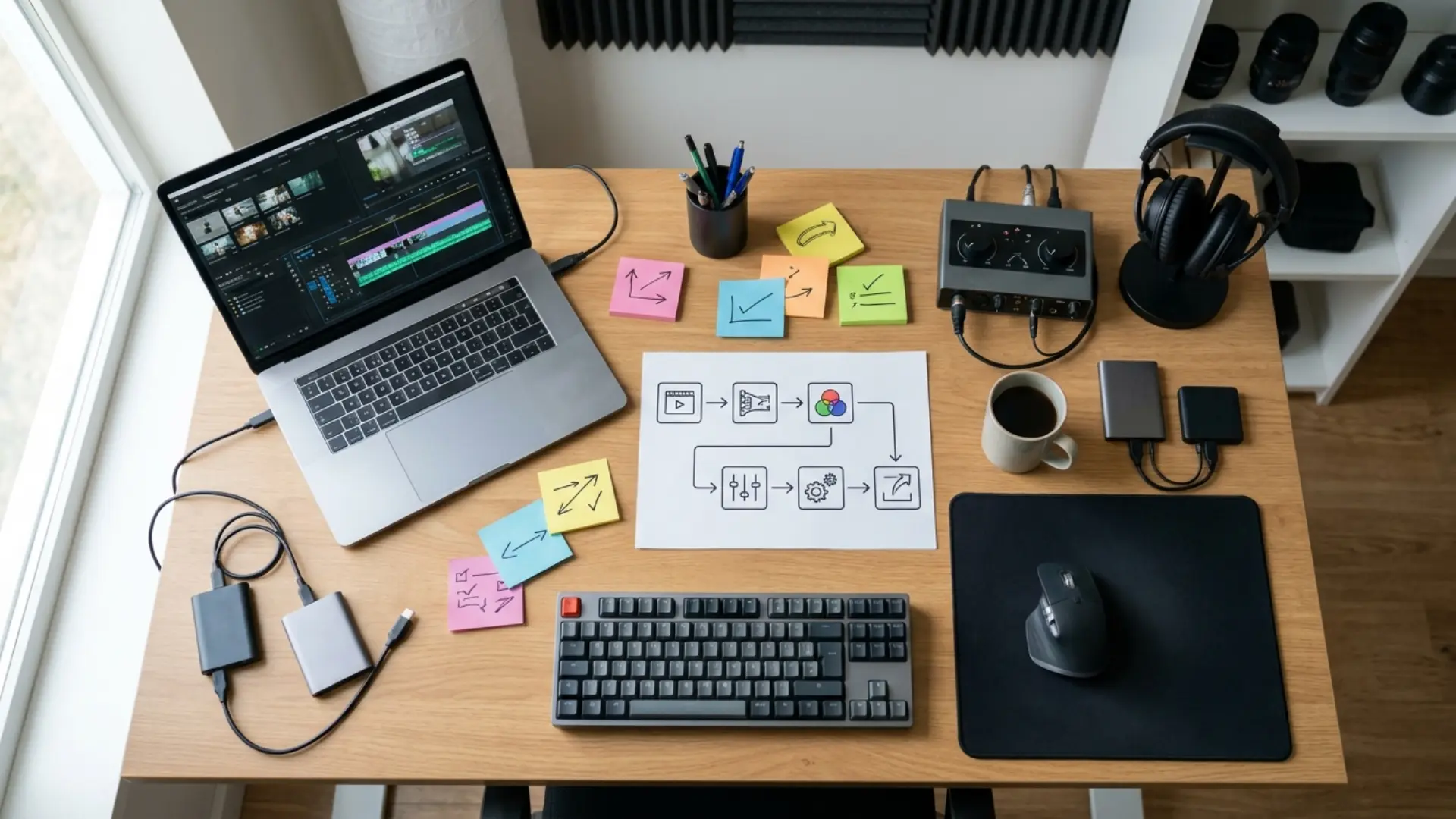
Here’s how the six stages map across both editors:
That’s the mindset for everything below. AI drafts, you decide.
Which AI tools actually work with Premiere Pro and DaVinci Resolve?
- Built-in features. Adobe Firefly powers Generative Extend and the Generative Media Tool inside Premiere. Resolve runs its own DaVinci Neural Engine. Zero round trips.
- Timeline plugins and panels. Tools like AutoCut and FireCut run inside the editor and cut silences or build captions on the sequence you already have open.
- Round-trip apps. Tools like Eddie AI and Descript do the work in their own app and send back a timeline file (XML, AAF, EDL, .prproj, or .drp) that relinks to your original media.
- AI agents. Premiere’s AI Assistant (beta) and Resolve Studio’s MCP server let a chat assistant carry out multi-step tasks in your project.
Here are the tools worth knowing, and how each one gets into your timeline:
If you’re still choosing a generator for the shots themselves, our comparison of the best AI video generators breaks down Runway, Veo, Kling, and the rest by use case.
How to build an AI workflow in Premiere Pro 26.5 (step by step)
Step 1: Organize and search footage with Media Intelligence and AI Assistant (beta)
Start by letting Premiere understand your media. Media Intelligence powers the Search panel, so you can type “wide shot of the city at night” or “close-up of hands on a keyboard” and pull matching clips from hours of footage.
Then hand the housekeeping to the AI Assistant (beta). Adobe lists what it can do today: organize footage into bins, name and color-label clips, process transcripts, detect slates, add markers, and assemble a stringout or first cut. Versioning and cut-downs aren’t available yet.
A tip that saves a headache later: give the assistant your naming convention in the first prompt (“name clips by scene, then camera, then take”) instead of fixing names afterward. It also shows which tools and models it used, so skim that log before you trust the bins.
Step 2: Build the rough cut with Text-Based Editing and Paper Edit
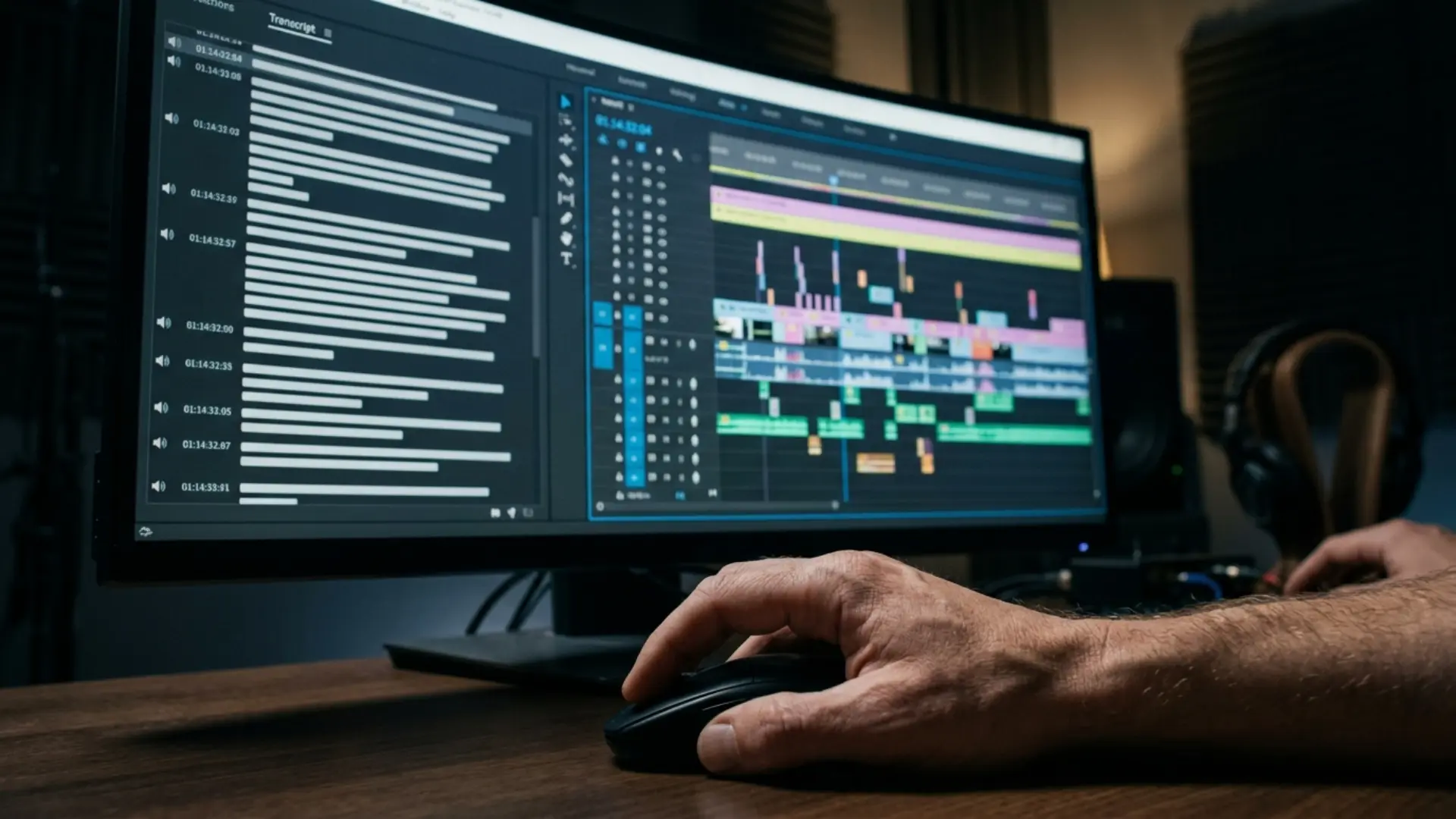
Transcribe your interviews, then cut by deleting text. Text-Based Editing can detect and delete pauses, and it can remove every line from one speaker in a single pass, which is handy for stripping out the interviewer’s questions.
New in 26.5, Paper Edit builds a sequence from a transcript-driven paper edit, and Adobe suggests trying it on transcript-heavy jobs first. For a talking-head video or a podcast, you can get from raw transcript to a watchable assembly without touching the razor tool.
If you prefer cutting in another app, Descript and Eddie AI both send timelines back to Premiere, and AutoCut or FireCut will trim silences right on your sequence. Whatever you use, watch the result back at full speed. AI picks lines by their words, not by performance, so a cleaner take with a weaker delivery often wins the vote.
Step 3: Clean up dialogue with Enhance Speech, Enhance Audio, and Auto Ducking
Premiere already tags clips as dialogue, music, sound effects, or ambience. Run Enhance Speech on dialogue first, and dial it back if voices start sounding thin.
The newer audio tools are in public beta, and they’re worth turning on for a test project. According to Adobe’s September 2026 announcement, Enhance Audio gives you separate control over dialogue, music, ambience, and effects inside a single clip. Separate Crosstalk splits two overlapping speakers onto their own tracks, and Dynamic Auto Ducking balances music under dialogue without keyframes.
For damaged recordings, a standalone tool like ElevenLabs Voice Isolator can go further than the built-in model. Our guide on how to remove background noise with AI walks through the export, clean, and resync loop.
Step 4: Fill gaps with Generative Extend and the Generative Media Tool
Generative Extend fixes the shot that’s 12 frames too short. Drag the edge of a video or audio clip past its last frame and Firefly generates the extra footage or room tone. In 26.5 it accepts sources from 360p to 4K UHD, any aspect ratio, and interlaced or non-square-pixel footage. It isn’t available in Russia, Belarus, or China.
The bigger change is the Generative Media Tool. You pick where the result should land, describe what you need, and Premiere generates an editable clip in the timeline. You can choose Adobe Firefly or partner models including Google Veo, Kling, Runway, and Luma, and use frames from your edit as visual references so the new shot matches its neighbors.
The same tool generates sound effects from a text prompt, and you can even use your voice to guide timing and intensity. Generate Soundscape (beta) analyzes up to 15 seconds of picture and builds layered ambience timed to the edit. For more on prompting and layering, see our guide to AI sound effects.
One habit we’d adopt from day one: color-label every generated clip in the timeline. When a client asks what’s synthetic, you’ll have the answer in two seconds.
Step 5: Mask, grade, and finish
Object Mask is the rotoscoping shortcut: hover over your subject, click, and Premiere masks and tracks it. Use it for a background blur, a selective grade on a face, or text that sits behind a person.
For color, let Auto Color balance the shot, then shape the look yourself in the new Color Mode. AI gives you a clean, neutral starting point. The creative grade is still your call.
Transitions are where many AI-assisted edits start to look generic. A pack like Artistic Smooth Transitions gives you 14 MOGRT transitions you customize by swapping in your own footage, which keeps the polish consistent across a long project.
Step 6: Captions, translation, and export
Speech to Text transcribes in more than 18 languages, separates speakers, and turns the transcript into captions. Premiere can translate those captions too, so one review pass in the source language feeds every version.
Before export, run Auto Reframe for vertical cutdowns, then check every reframed shot by eye. Our full walkthrough of AI captions and subtitles covers styling and reading speed.
For opening titles and end cards, CineTitles gives you 29 cinematic title templates for Premiere Pro, After Effects, and Photoshop, so the type matches the production value of the rest of the cut.
How to build an AI workflow in DaVinci Resolve 21.1 (step by step)
New to the app? Our DaVinci Resolve beginner’s guide covers the pages and basics first. Also check your memory: Blackmagic’s Studio readme asks for at least 16 GB for the advanced AI tools and 32 GB for background rendering and analysis.
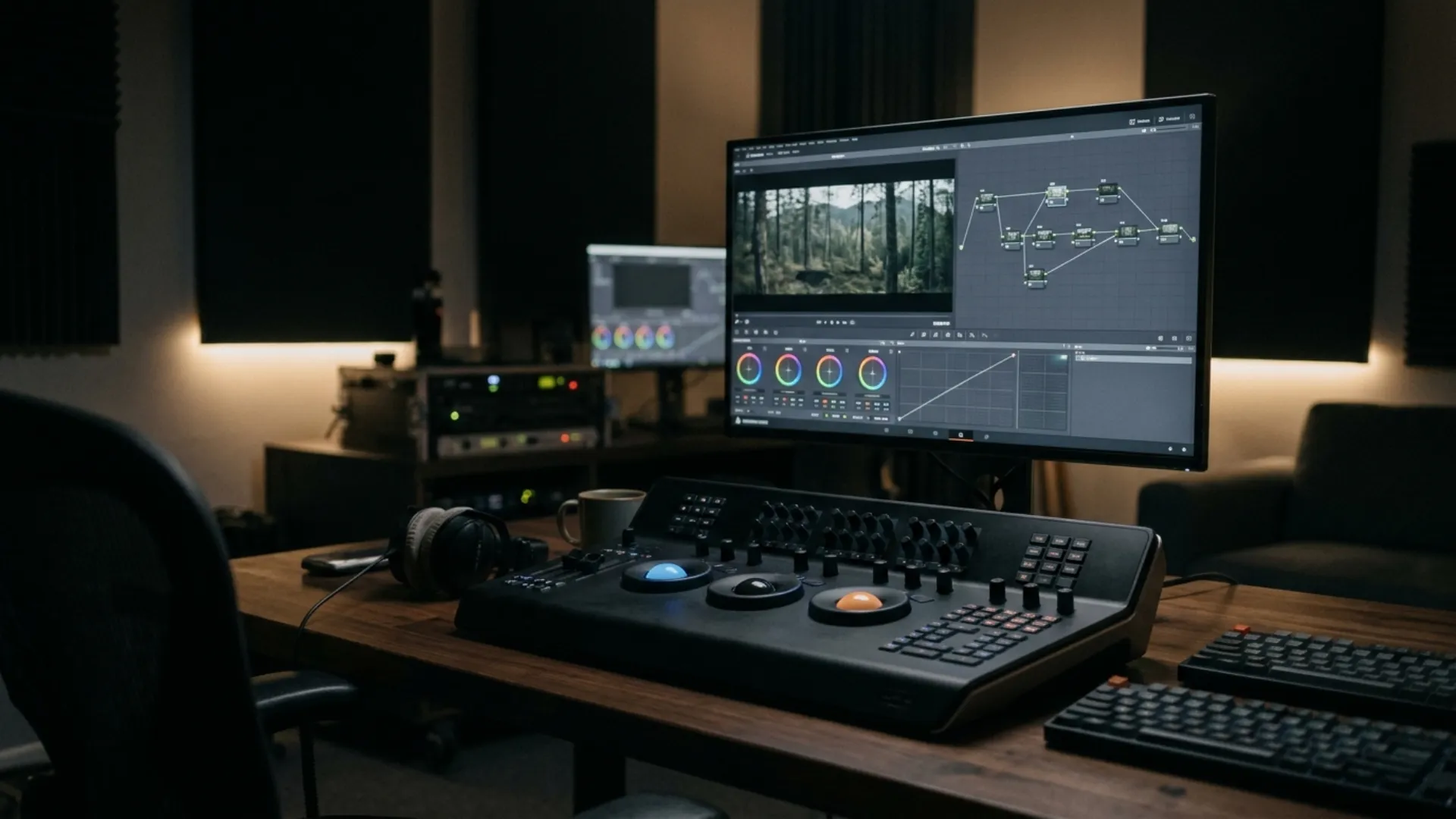
Step 1: Find shots fast with IntelliSearch, face recognition, and Slate ID
IntelliSearch is Resolve 21’s answer to manual logging. Download the Faster or Better model through the Extras Download Manager, let Resolve analyze the Media Pool, and then search for people, objects, faces, transcript text, and metadata across your bins.
Name the faces once in Manage Faces and every later search gets smarter. On scripted shoots, Slate Finder and Slate ID read the slates for you. Note that IntelliSearch finds nothing until a model is installed and the analysis has finished, so start it before lunch rather than right before a review call.
Step 2: Turn a script into a timeline with IntelliScript and Multicam SmartSwitch
IntelliScript, added in Resolve 20, uses the transcription engine to match your footage to an original script and build a timeline from it. For corporate pieces and documentary interviews with a written outline, it gets you a first assembly very quickly.
On multicam jobs, SmartSwitch cuts between angles based on who’s talking, and Resolve 21.1 added shortcuts for up to 25 angles. Treat both as editable suggestions, the way this Resolve 20 AI workflow guide frames them. The machine knows who’s speaking. It doesn’t know when the reaction shot is the better story.
Step 3: Fix audio in Fairlight with Voice Isolation, Audio Assistant, and IntelliCut
Voice Isolation sits in the Inspector with an intensity slider and runs in real time on the timeline. Start low and raise it until the noise is gone, then stop.
AI Audio Assistant organizes your tracks and builds a baseline mix, and the IntelliCut tools in Fairlight handle repetitive dialogue trimming. Resolve 21 also adds a Speech Generator (Timeline > AI Tools > Speech Generator) for temp narration from typed text, and Resolve 20’s Voice Convert swaps one speaking voice for another. Get written consent before converting or cloning anyone’s voice, even for a temp track.
Step 4: Grade faster with Magic Mask, Auto Color, and color matching
Run Auto Color for a neutral base, use color matching to bring mixed cameras onto the same line, and use Magic Mask to isolate a person or object with a single stroke. That covers the technical pass. Then build the real grade in nodes, the way you always have. Our roundup of AI color grading tools compares Resolve’s built-in AI with plugins like Colourlab.ai.
The creative look is where AI still falls short, because it balances shots but can’t decide what a project should feel like. Once the AI pass is done, a film stock emulation from Film Emulation Pro adds LUTs, grain, and frames built from real Kodak, Fujifilm, and Ilford scans. For warmth in transitions or montage sections, Real Light Leaks, shot on an ALEXA Mini, drop onto a track above your footage.
Step 5: Add AI animated subtitles and titles
AI Animated Subtitles (Studio) adds a set of Fusion title templates called Animated that work with your subtitle track. Generate subtitles from audio, fix names and jargon, then apply the animation. Free users can import an SRT made elsewhere and style it manually.
For opening and closing titles, Dramatic Movie Title Templates for DaVinci Resolve gives you 30 cinematic templates built for Resolve, so there’s no Premiere round trip just for type.
Step 6: Let Claude or ChatGPT run repetitive jobs through the MCP server
This is the headline of Resolve Studio 21.1. A native MCP server connects Resolve to Claude, Claude Code, and ChatGPT Codex through File > Setup AI Assistants. Blackmagic’s own example asks Claude to cut a long Media Pool clip into a three-minute highlight edit, remove any edit shorter than one second, and render an H.265 file for review.
Beyond that, the assistant can manage keyboard and render presets, pull Media Pool transcriptions with speaker and timing data, switch multicam angles from a transcript, add markers at scene changes, normalize audio across a timeline, and start renders. Python scripting also moved to Studio in 21.1, so the free version can’t do any of this.
Editors in the r/davinciresolve thread on MCP editing report surprisingly good results, including one user who says Claude Code now cuts their videos end to end. Our advice is less dramatic: duplicate the timeline before every agent session, ask for a review render rather than a final, and keep agent jobs to the boring stuff (renaming, markers, loudness, render queues) until you trust it.
How do you bring AI-generated clips into Premiere or Resolve without breaking your project?
- Render masters in ProRes. Use ProRes for anything you’ll grade or finish, and keep MP4 for review links.
- Name shots before you generate. A pattern like PROJECT_SC012_SH004_v03.mov tells you exactly where a clip belongs. Increase the version number on every regeneration and never overwrite.
- Match frame rate and timebase. A mismatch is the most common cause of drifting sync in AI-sourced cuts.
- Ask for handles. Generated clips are usually cut tight, so request extra frames at the head and tail when the tool allows it.
- Conform with an EDL or XML. For three shots, drag them in. For thirty, let the EDL rebuild the sequence.
- Keep audio separate. Bring dialogue, effects, and music in as their own stems so they stay editable.
- Use one project folder for generated media. Point every AI tool’s downloads there so relinking never turns into a hunt.

Which AI features are free in Premiere Pro 26.5 and DaVinci Resolve 21.1, and which cost extra?
Premiere Pro or DaVinci Resolve: which is better for AI editing?
What should you never hand off to AI?
- Story and pacing. Let AI build the stringout, then make every structural decision yourself.
- Performance choices. Transcript tools rank takes by words. You judge delivery, timing, and the look in someone’s eyes.
- The final grade. AI balances shots, and the creative look stays with you.
- Rights and consent. Adobe says you’re responsible for deciding whether a partner model suits your project, and voice conversion or cloning needs the speaker’s permission.
- Disclosure. Tell clients which shots are generated. Those color labels from Premiere Step 4 earn their keep here.
- Unreviewed agent actions. Duplicate the timeline before an AI Assistant or MCP session, and review before you deliver.
On privacy, Adobe’s Generative Media Tool FAQ states that your media is never used to train Adobe or partner models. For third-party tools, read their terms before uploading client footage.
Conclusion
When the AI pass is done and the grade needs a personality, try a film stock look from Film Emulation Pro on your next timeline. (Your AI-balanced footage deserves better than flat Rec.709)
Wrap Up
- An AI video editing workflow has six stages (organize, rough cut, audio, gap filling, color, and delivery), and AI should draft the first pass of each while you make the decisions.
- In Premiere Pro 26.5, the sequence is Media Intelligence and the AI Assistant, then Text-Based Editing and Paper Edit, Enhance Speech, Generative Extend and the Generative Media Tool, Object Mask, and Speech to Text captions.
- In DaVinci Resolve 21.1, the sequence is IntelliSearch, IntelliScript and SmartSwitch, Fairlight’s AI audio tools, Magic Mask with Auto Color, AI Animated Subtitles, and the MCP server for agent jobs. Almost all of it needs Studio.
- Outside AI tools connect as built-in features, plugins, round-trip apps, or agents. Resolve users should test XML exports before committing to a tool.
- AI clips behave when they arrive as ProRes with versioned names, a matching frame rate, handles, separate audio, and an EDL for bigger jobs.
- Premiere’s AI costs credits on the generative side. Resolve’s AI costs one $295 license.
- Keep story, performance choices, the final look, consent, and client disclosure in human hands.
Disclaimer : If you buy something through our links, we may earn an affiliate commission or have a sponsored relationship with the brand, at no cost to you. We recommend only products we genuinely like. Thank you so much.
Blog Label:

Write for us
Publish a Guest Post on Pixflow
Pixflow welcomes guest posts from brands, agencies, and fellow creators who want to contribute genuinely useful content.
Fill the Form ✏