How to Generate AI B-Roll for Your Videos: Tools, Prompts, and Workflow
- What is AI B-roll (and why it still wins edits)
- The two types of AI B-roll tools (the mental model that saves you hours)
- The best AI B-roll generators in 2026
- How to write AI B-roll prompts that actually work
- Step-by-step: how to add AI B-roll to your video
- How to make AI B-roll not look like AI
- AI B-roll vs stock footage vs templates
- Common mistakes to avoid
- Final thoughts
This guide is a practical, no-fluff walkthrough of how to generate AI B-roll that actually looks good. We will cover what AI B-roll is, the two very different kinds of tools you can use, the best AI B-roll generators available right now, how to write prompts that get usable results on the first or second try, and a full editing workflow to drop those clips into your video. If you want the wider lay of the land first, our complete guide to AI video tools in 2026 is the pillar that this article sits under. And because generated footage is only half the job, we will also show where finishing assets like CineTitles turn raw AI clips into something that looks genuinely cinematic.
Let’s get into it.
What is AI B-roll (and why it still wins edits)
The catch has always been that good B-roll is expensive. It takes time, budget, travel, and sometimes the shot simply cannot be captured (you cannot exactly fly a drone over Tokyo because your podcast mentioned it). That is the gap AI fills. Instead of predicting words like a text model, an AI video generator predicts pixels: you type a description, and it builds the clip frame by frame. It is autocomplete for your timeline.
None of this replaces the craft of editing. If you want to sharpen the traditional side too, our breakdown of cinematic B-roll techniques in Premiere Pro pairs perfectly with the AI approach below. AI gets you the raw shot fast; your eye still decides where it goes and how long it holds.
The two types of AI B-roll tools (the mental model that saves you hours)
The best AI B-roll generators in 2026
Generative tools (create new footage)
These create original clips from a prompt. They give you the most creative freedom and the most cinematic results when you prompt them well.
- Runway (Gen-4): a favorite for editors thanks to fine motion control and consistency. If it is your first time, our step-by-step Runway ML tutorial walks through the whole interface.
- Google Veo 3: excellent realism and physics, strong for cinematic landscape and product shots.
- OpenAI Sora 2: great for longer, coherent scenes and complex camera moves.
- Kling: reliable for quick 5-second cutaways and supports text-to-video, image-to-video, and multi-element clips.
- Adobe Firefly: a standout because it offers an enhanced-prompt feature and lets you pick from multiple AI models (its own plus partner models) in one place, all inside the Adobe ecosystem. See Adobe’s own overview.
- Pika and Luma Dream Machine: fast, fun, great for stylized motion and quick iterations.
- HeyGen: handy when you want to generate B-roll and pick between several models (clean, Seedance, Veo, Hailuo) from one screen.
- Leonardo + MidJourney: image-first workflows. Generate a series of still frames, then animate them, ideal when you want precise art direction before motion.
For turning full scripts into footage rather than single shots, the text-to-video AI workflow is a natural next read.
Auto-add-to-timeline tools

- CapCut: its script-to-video and smart generation features can take an entire script and auto-fill B-roll across the whole thing, then flag spots where you should swap in your own footage.
- Captions: strong automated B-roll plus on-brand captions; see their practical B-roll guide.
- Descript: generative B-roll built right into a text-based editor, so you edit video like a doc.
- Riverside: a newer generate-videos feature that creates B-roll from a prompt and inserts it at your cursor, with clean downloads you can move into any editor.
- Kapwing: a popular browser-based AI B-roll generator for quick social edits.
- OpusClip, VEED, invideo, and Vmaker: all offer automated B-roll and repurposing features worth testing for short-form.
Many of these double as caption tools too. If subtitles are part of your pipeline, our guide to AI automatic captions and subtitles covers the same apps from that angle.
Master comparison at a glance:
How to write AI B-roll prompts that actually work
A strong prompt usually includes six parts:
- Subject: what or who is in the shot (a woman, a coffee cup, a city street).
- Action: what is happening (steam rising, walking, rain falling).
- Setting: where it is (a cozy living room, a modern office, a mountain town).
- Lighting and mood: the emotional tone (warmly lit, moody, golden hour).
- Camera: the move and framing (slow dolly in, aerial, macro close-up).
- Style: the finish (cinematic, 35mm film, shallow depth of field).
The keyword-swap trick. The fastest way to control the vibe is to change just a few words. The exact same prompt becomes a different mood when you swap the location and lighting words. For example, “a person working at a desk in a cozy, warmly lit living room” reads as lifestyle content, while “a person working at a desk in a modern office, professional atmosphere” reads as corporate. Same shot, two completely different uses.
A few more rules that save re-renders:
- Set your aspect ratio up front: landscape (16:9) for YouTube, vertical (9:16) for Shorts and TikTok. Rendering in the wrong ratio is the number one source of rework.
- Keep clips short. Five seconds is the sweet spot for B-roll; you rarely need more, and shorter clips render faster and look more consistent.
- Generate multiple outputs and iterate. You will not nail it first try, so request two to four variations and pick the best.
- Use prompt-assist features. Firefly’s enhanced prompt expands your idea into a richer cinematic description automatically, and a custom GPT can write detailed prompts for tools like Veo.
Copy-paste prompt templates:
Step-by-step: how to add AI B-roll to your video
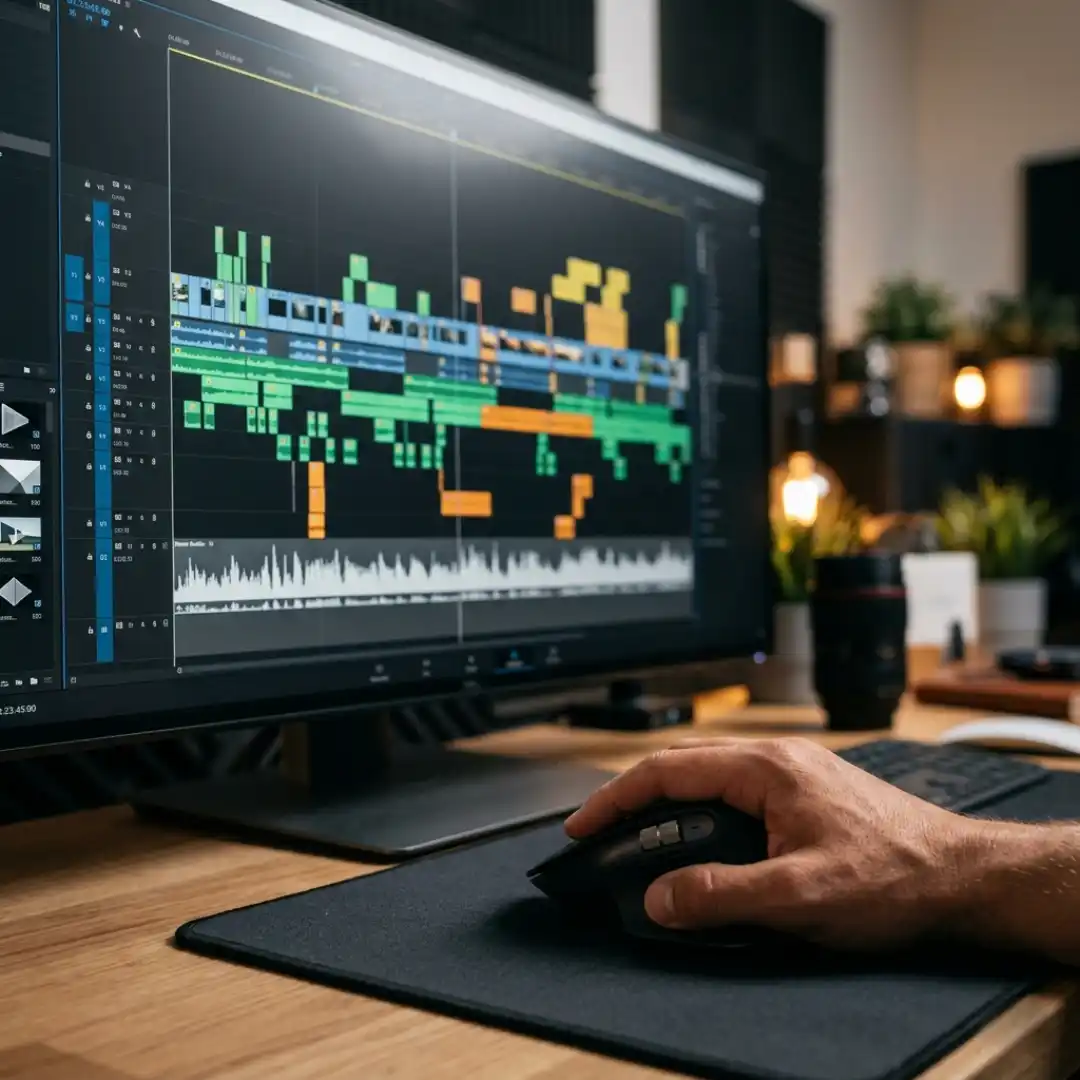
- Map where B-roll is needed. Read through your script or transcript and mark every spot where the viewer should be looking at something other than your face. These are your cutaway points.
- Pick the right tool for each shot. Specific or impossible shot? Use a generative tool. Filling a whole talking-head video fast? Use an auto-add tool.
- Generate short clips. Aim for five seconds, request multiple variations, and iterate on the prompt until the shot feels right.
- Download clean. Make sure you export without a watermark; most tools remove it on a paid plan, so check before you build your edit around a clip.
- Import into your editor. Drop the clips into Premiere Pro, DaVinci Resolve, or CapCut and lay them over your A-roll at the cutaway points you marked.
- Trim to the beat. Cut the clips to match your pacing. B-roll should support the story, not interrupt it. If a shot does not earn its place, drop it.
- Export per platform. Render in the correct aspect ratio and settings for where it is going.
How to make AI B-roll not look like AI
- Color match. Grade your AI clips so they match your A-roll. Mismatched color is the fastest giveaway that a shot was dropped in. Our guide to AI color grading tools makes this quick.
- Add transitions. Smooth, intentional transitions sell the cut. A clean overlay or transition pack hides the seams between generated and filmed footage, like the ones in our best overlay templates roundup.
- Add titles and lower-thirds. Cinematic titles instantly make B-roll feel directed rather than generated. This is exactly where a pack like CineTitles earns its keep: drop a cinematic title or lower-third onto your AI sequence and it reads as a deliberate, branded film moment instead of a raw render.
- Match grain and motion. A subtle film grain and a touch of motion blur help AI clips blend with real footage.
- Upscale if needed. If a generated clip comes out soft, our AI upscaling guide shows how to push it to a crisp 4K.
AI B-roll vs stock footage vs templates
Common mistakes to avoid
- Trusting the first render. Iterate. AI rarely nails it on attempt one (this is normal, not a failure).
- Ignoring AI tells. Watch for warped hands, odd physics, and morphing edges, then re-prompt or trim around them. Editors on r/VideoEditors flag these constantly.
- Overusing it. Too much AI B-roll feels gimmicky. Use it where it serves the story.
- Skipping the grade. Ungraded AI clips stick out. Always color match.
- Wrong aspect ratio. Decide vertical or landscape before you generate, not after.
Final thoughts
So go fill those timeline gaps. Generate the shot you could never afford to film, then dress it up with cinematic titles from CineTitles so your AI B-roll looks every bit as intentional as the footage you shot yourself. Your future self, staring at a gap on the timeline at 2 a.m., will thank you.
Disclaimer : If you buy something through our links, we may earn an affiliate commission or have a sponsored relationship with the brand, at no cost to you. We recommend only products we genuinely like. Thank you so much.
Blog Label:


Write for us
Publish a Guest Post on Pixflow
Pixflow welcomes guest posts from brands, agencies, and fellow creators who want to contribute genuinely useful content.
Fill the Form ✏