Best Free 4K Video Editing Apps in 2026 for Phone and Tablet
- Quick answer: free 4K export in 2026, summed up
- Can you really export 4K video for free on a phone or tablet?
- Which free apps export true 4K, and what is the catch on each one
- Free 4K export limits compared at a glance
- Which free apps do not reach 4K, and why they still show a 4K button
- Why is my 4K export coming out at 1080p?
- Does a free 4K export always come with a watermark?
- What device do you need to export 4K for free?
- How to check your free 4K export is actually 4K
- Is a free 4K export always the right choice?
- How we checked these free 4K export limits
- Conclusion
If you want interface quality, feature depth, and per app verdicts, that is a different job, and it lives in our full mobile editing app comparison. For the wider shooting and finishing workflow, start with the complete mobile filmmaking guide. Nothing below is ranked by overall quality. The only comparisons here are export ceilings, frame rate caps, watermarks, and free tier limits.
Quick answer: free 4K export in 2026, summed up
- Five apps genuinely export true 4K (3840 x 2160) without payment: VN, CapCut, Adobe Premiere on mobile, DaVinci Resolve for iPad, and InShot.
- Only one of those five applies a watermark by default: InShot, and it can be removed per project by watching an ad.
- CapCut does not add a mandatory watermark to standard free exports. Watermarks appear when a project uses paid Pro features, templates with built-in branding, or the automatic ending outro.
- Adobe Premiere on mobile is free with unlimited watermark free 4K exports, and it arrived on Android in September 2026, requiring Android 13 or later and at least 5GB of RAM (TechRepublic).
- The most common reason 4K is missing or downgraded is your device, not the app. Many mid range Android phones expose only 1080p or 2K, and selecting 60fps can remove the 4K option entirely (CapCut Help).
- Apps that look free but do not reach 4K on a phone: Filmora mobile (free tier caps at 720p with a permanent watermark), Canva free (MP4 caps at 1920 x 1080), KineMaster and PowerDirector (4K reachable but branded), and LumaFusion (no free tier at all).
- Always verify: export 10 seconds, open the file details, and confirm 3840 x 2160 plus the frame rate before you render a long project.
Can you really export 4K video for free on a phone or tablet?
The catch is that free 4K comes with four independent gates, and an app can pass three and fail the fourth:
- Resolution: true 4K is 3840 x 2160 for UHD, or 4096 x 2160 for DCI. Anything labelled 2K, 2.7K, or 1440p is not 4K.
- Frame rate at 4K: some editors allow 4K at 30fps free but hide 4K once you choose 60fps, either by subscription tier or by hardware limits.
- Watermark: a corner logo, an auto generated outro, or template branding all change the deliverable even when the resolution is correct.
- Codec and bitrate: a 4K file at a low bitrate can look worse than a well encoded 1080p file. H.265 (HEVC) keeps 4K file sizes sane, but older devices struggle to decode it.
One more point that trips up a lot of people: a 4K timeline does not create 4K detail. If your clips were filmed at 1080p, the app will still happily export 3840 x 2160, and every pixel of extra resolution is interpolated. Resolution is a container, sharpness comes from the source.
Which free apps export true 4K, and what is the catch on each one
Adobe Premiere on mobile: free 4K exports, no watermark, now on Android
Export ceiling: 3840 x 2160. Frame rate at 4K: 30fps or 60fps depending on the preset and device. Watermark: none. Free tier limits: unlimited exports.
Adobe states plainly that the mobile app is free and standalone, with all core editing functions and an unlimited number of 4K exports carrying no watermarks on the free version (Adobe). That makes it the least conditional free 4K option in this list. The Android release landed in September 2026 after nearly a year of iPhone exclusivity, and it needs Android 13 or later with a minimum of 5GB of RAM (TechRepublic).
The catch sits outside resolution. You need an Adobe account, some AI and stock features consume paid credits, and the app can default to a social oriented 1080p preset even when your timeline is 4K, so check the export panel every time rather than trusting the last used setting.
CapCut: free 4K when your device allows it, and the watermark rules explained
Export ceiling: 3840 x 2160 where the device supports it. Frame rate at 4K: up to 60fps on capable hardware. Watermark: not mandatory on standard free exports. Free tier limits: no export count cap.
CapCut is the app people ask about most, and the honest answer has two halves. On resolution, CapCut’s own documentation is explicit that the 4K option only appears when your hardware supports it: iPhone 8 and newer generally expose 4K when the source footage is 4K, while on Android only high end models such as recent Galaxy S, Pixel Pro, and OnePlus flagships show it, and many mid range phones top out at 1080p or 2K. Frame rate interacts with that ceiling, so choosing 60fps can remove 4K on weaker devices (CapCut Help).
On watermarks, CapCut does not stamp standard free exports. Branding shows up in three situations: your project uses paid Pro features, you built the edit from a template that carries its own branding, or the automatic ending outro is left enabled. Turn the ending outro off in export settings and avoid Pro marked assets, and a free CapCut 4K export is clean. If you are weighing the upgrade anyway, we break the numbers down in our look at whether CapCut Pro is worth the price, and the newest export and AI changes are tracked in what changed in CapCut this year.
DaVinci Resolve for iPad: free, with a 4K UHD export ceiling
Export ceiling: 3840 x 2160 (4K UHD). Frame rate at 4K: project dependent, commonly up to 60fps. Watermark: none. Free tier limits: export ceiling is UHD, so no DCI 4K or above.
Resolve for iPad is free to download and is the only app in this group built around a professional colour and delivery pipeline rather than social exports. Its free resolution ceiling is 4K UHD at 3840 x 2160, which covers nearly every real deliverable, and it is a hard ceiling rather than a nudge toward a subscription. If you need above UHD, that is what Studio is for.
The practical catch is hardware and habit. Resolve for iPad expects an M series iPad or an A12Z iPad Pro, it is the least forgiving of the five on a small screen, and its Deliver page assumes you know what a codec and a data rate are. It is also the app where the extra effort pays off most if colour is your priority, which is the same ground we cover in our mobile colour grading guide for iPhone and iPad.
InShot: free 4K at up to 60fps, but the clean file costs you an ad
Export ceiling: 3840 x 2160. Frame rate at 4K: up to 60fps. Watermark: yes on the free tier. Free tier limits: no export count cap, ads during editing.
InShot is the clearest example of resolution not being the paywall. The 4K and 60fps options are available without a subscription, and the restriction is branding: free exports carry the InShot logo and end card unless you remove it per project by watching an ad. That workaround does work, but it is manual on every export, and users regularly report longer or unskippable ad units. Premium filters, effects, and fonts stay behind the crown icon, which affects what you can put in frame rather than the resolution you can export.
For the toolset, single track limits, and a full verdict on whether it still earns a place in a 2026 workflow, see our hands on InShot review.
VN: free 4K at 60fps with no watermark at all
Export ceiling: 3840 x 2160. Frame rate at 4K: up to 60fps. Watermark: none. Free tier limits: none tied to export.
VN is the cleanest free 4K story of the five. Its App Store listing states export up to 4K resolution at 60fps with no watermark and no in app purchase required for export, plus Dolby Vision HDR support on iPhone 12 and newer (App Store). The same ceiling applies on Android, with the usual proviso that the top resolution offered is whatever your device encoder exposes, so mid range handsets may still stop at 1080p or 2K.
There is no export count cap and no free tier length cap, so your practical limits are storage and encode time. Multi layer 4K/60 projects simply take longer on older silicon, which is a patience cost rather than a quality one.
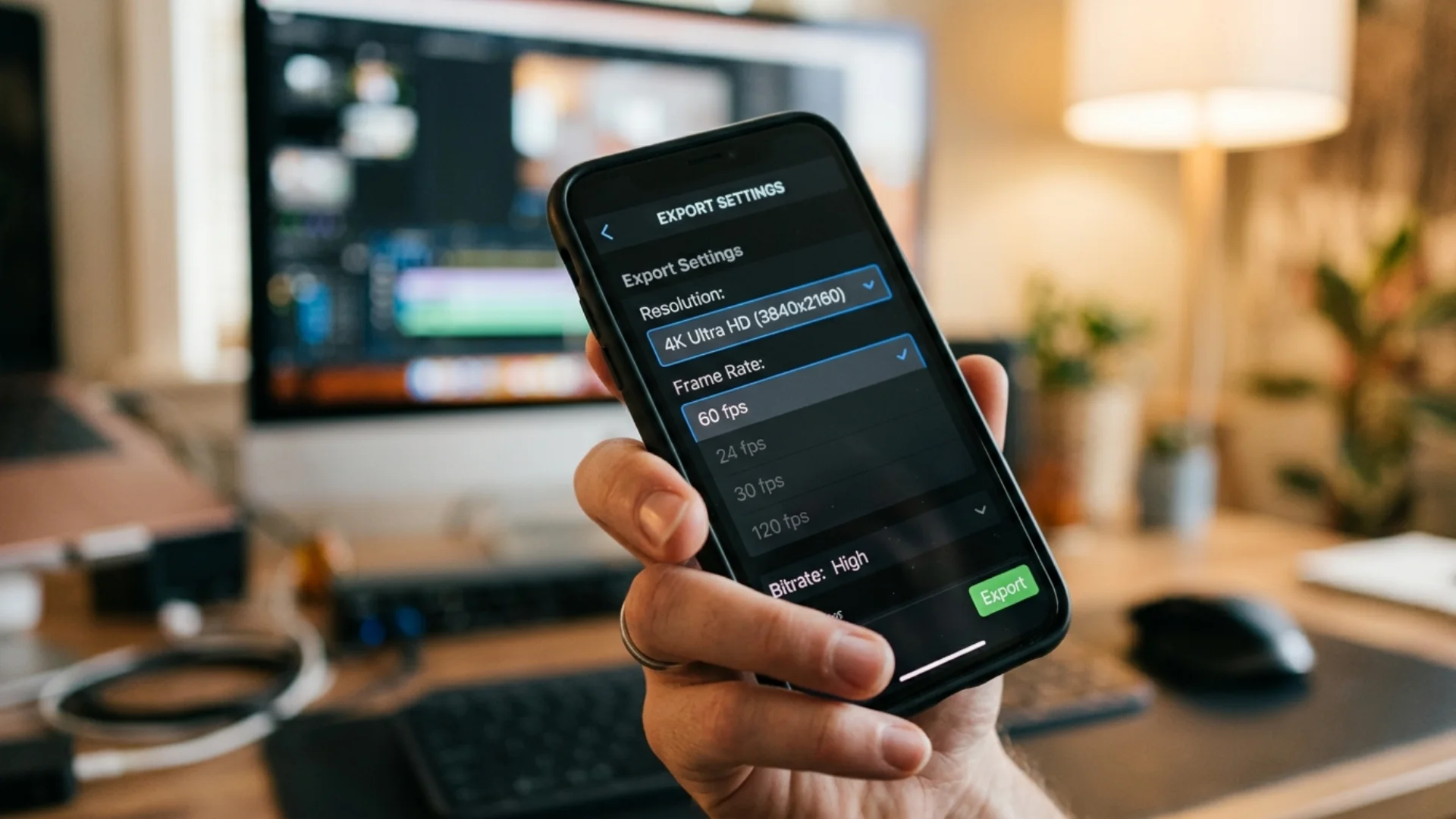
Free 4K export limits compared at a glance
Which free apps do not reach 4K, and why they still show a 4K button
- A hard free tier cap. Filmora’s mobile free version applies a permanent watermark and limits mobile resolution to 720p, with Pro plans removing both (Wondershare). No setting changes that.
- A plan gate on the file, not the timeline. Canva free accounts can download MP4 up to 1920 x 1080, while 3840 x 2160 requires Pro, Teams, Nonprofits, or Education (Canva Help). Worse for filmmakers, Canva downscales uploaded 4K footage to 1080p, so even a Pro 4K export is built from a 1080p master (Canva Help).
- Resolution free, clean file paid. KineMaster reaches 4K without payment but requires Premium to remove the watermark, and PowerDirector offers a permanently free Essential tier with up to 4K output while restricting select export options and branding free exports (CyberLink).
- No free tier to evaluate. LumaFusion exports 4K comfortably on iPad, iPhone, Android, and Chromebook, but it is a one time purchase at roughly 29.99 USD with paid add ons, so it cannot be a free 4K option at all.
The pattern worth remembering: when an app shows a 4K option you cannot use, the blocker is either your plan, your device, or a downscaled source. All three are diagnosable in under a minute.
Why is my 4K export coming out at 1080p?
- Your device does not expose 4K in that app. Hardware encoder support is why the same app offers 4K on a flagship and 1080p on a budget phone. CapCut documents this explicitly, and it is normal behaviour rather than a bug (CapCut Help).
- Your frame rate removed the option. Selecting 60fps can push a device past its encoder limit and silently drop the 4K choice. Set 30fps and check whether 4K reappears.
- The project settings, not the export settings, are wrong. Mobile editors inherit the resolution of the first clip you drop in. A 1080p opener can lock the whole timeline, so fix the project resolution before you touch the export panel.
- The preset reverted. Many apps remember a social preset and reapply it to new projects. Confirm the resolution on every export rather than assuming it carried over.
- Your source footage is not 4K. Exporting 1080p clips at 3840 x 2160 produces a large, soft file. Check the camera app, not the editor.
- Storage ran out mid render. A failed or truncated export sometimes falls back to a lower resolution rather than erroring cleanly. Free several gigabytes and retry.
Android adds its own quality variables on top of the above, from codec handling to per manufacturer encoder behaviour, which is why we gave that platform its own breakdown in how to edit and export Android video without losing quality.
Does a free 4K export always come with a watermark?
- A persistent corner logo. This is the classic watermark, applied to every export until you pay. InShot, KineMaster, PowerDirector, and Filmora mobile all work this way on their free tiers.
- An automatic ending outro. A short branded tail card appended after your final frame. It is often a toggle rather than a paywall, and CapCut’s is a setting you can switch off.
- Template and asset branding. If you built the edit from a template or used a Pro marked effect, the branding travels with that asset even when the app itself does not watermark exports.
So the accurate version of “video editor no watermark 4K” in 2026 looks like this: VN, Adobe Premiere on mobile, and DaVinci Resolve for iPad export clean 4K by default. CapCut exports clean 4K when you avoid Pro assets, branded templates, and the ending outro. InShot needs an ad view per project.
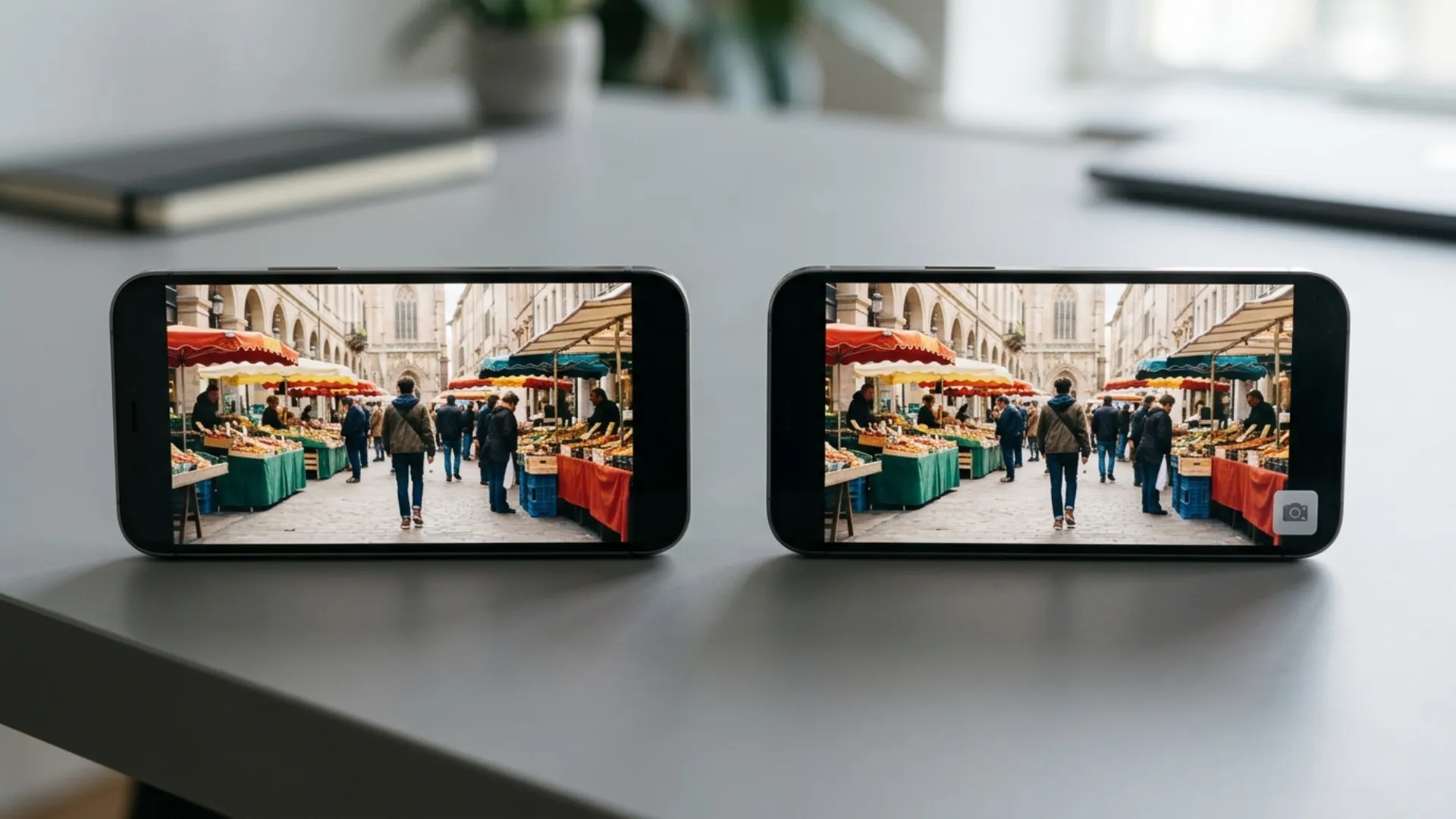
What device do you need to export 4K for free?
- Encoder support. 4K export depends on your device’s hardware video encoder. On iPhone, 4K export is broadly available from iPhone 8 onward when the source is 4K. On Android, it is effectively a flagship and upper mid range feature, which is why the option is missing on many perfectly good phones.
- RAM and OS floor. Adobe Premiere on mobile sets a concrete bar on Android: version 13 or later and at least 5GB of RAM. Resolve for iPad expects an M series chip or an A12Z iPad Pro. Treat published minimums as minimums, not targets.
- Storage headroom. Budget roughly 350 to 500 MB per minute of 4K H.264 at a healthy bitrate, and remember the app needs scratch space on top of the finished file. Several gigabytes free is the safe baseline for anything over a couple of minutes.
- Thermals. Long 4K renders throttle, and a throttled export takes longer and can produce a worse encode. Take the case off, avoid rendering while fast charging, and split very long timelines into segments.
- Source discipline. Film in 4K if you plan to deliver in 4K, and give the encoder clean, well exposed footage. If the goal is a filmic look rather than raw pixel count, the settings in how to make iPhone videos look cinematic will change the result far more than the export resolution will.
If you want to lift production value without asking a phone to render heavy effects at 4K, pre-rendered elements are the cheapest win available, because the work is already done in the file. Pixflow’s pre-rendered visual elements are plain MP4 assets that import into any mobile editor and behave identically on a free tier and a paid one.
How to check your free 4K export is actually 4K
- On iPhone or iPad, open the clip in Photos and swipe up on the info panel. You are looking for 3840 x 2160 or larger.
- On Android, open the file in Files or Gallery, then Details, and read both resolution and bitrate. A 4K file under roughly 20 Mbps has been compressed hard.
- Confirm the frame rate in the same panel. A 4K/60 request that returns 30fps means the app or the encoder downgraded it.
- Watch the first and last second full screen. Free tier branding usually sits at the tail as an outro rather than in the corner.
- Zoom to 100 percent on a still frame. Correct dimensions with soft edges means the source was upscaled, not shot in 4K.
- Run a 10 second test export before committing a long project. This catches every silent fallback above at almost no cost.
Is a free 4K export always the right choice?
- For vertical social delivery, a clean 1080p export at a high bitrate usually looks better on a phone screen than a thermally throttled 4K one, and it uploads in a fraction of the time. Platform re-encoding flattens much of the difference. Framing matters more than pixel count here, which is the point of our guide to shooting and editing 9:16 video properly.
- For YouTube, client work, or anything that may be reframed or cropped later, 4K is worth the render time. The extra pixels give you room to punch in without losing detail.
- For long timelines on older hardware, export in segments and join them afterwards rather than asking a phone to sustain one very long 4K render.
- Bitrate beats resolution when the two compete. If an app offers 4K only at a low bitrate, a high bitrate 1080p export is often the better looking file.
How we checked these free 4K export limits
- Resolution ceilings, frame rate options, and watermark policies were taken from each vendor’s own documentation and store listings: CapCut Help for device dependent 4K availability, the VN App Store listing for its 4K/60 and no watermark claims, Adobe’s product page for free unlimited watermark free 4K exports, CyberLink for the PowerDirector free tier, Wondershare for Filmora’s mobile free limits, and Canva Help for its 1080p free download cap and 4K downscaling behaviour.
- The Android availability and minimum specification for Adobe Premiere on mobile were confirmed against the September 2026 launch coverage.
- Device requirements are reported as the vendor states them. Where a vendor gives a general condition rather than a model list, such as “only high end Android models,” we have said so instead of inventing a device list.
- Vendor marketing pages and third party posts disagreed on watermark behaviour for more than one app. Where that happened, we prioritised official help documentation and current app store listings, and we describe the specific conditions that trigger branding rather than giving a yes or no answer.
- Free tiers change without notice, often by region and app version. Anything in this article can be verified in 60 seconds with the 10 second test export described above, and that is the check we recommend over trusting any published table, including ours.
Last reviewed: September 2026.
Conclusion
The habit that saves the most time is not choosing the right app, it is verifying the file. Export 10 seconds, read the dimensions and frame rate, then build your project around a setting you have already proven. When you want the wider picture on toolsets, interfaces, and per app verdicts, that is all in the complete mobile editor roundup.
Disclaimer : If you buy something through our links, we may earn an affiliate commission or have a sponsored relationship with the brand, at no cost to you. We recommend only products we genuinely like. Thank you so much.
Blog Label:



Write for us
Publish a Guest Post on Pixflow
Pixflow welcomes guest posts from brands, agencies, and fellow creators who want to contribute genuinely useful content.
Fill the Form ✏