Mobile Color Grading: How to Grade Video on iPhone and iPad Like a Pro
- Can You Really Color Grade on an iPhone or iPad?
- Shoot for the Grade First: Log, HDR, or SDR?
- Best Color Grading Apps for iPhone and iPad
- How to Color Grade on iPhone, Step by Step
- How to Grade on iPad Like a Pro
- How to Use LUTs on iPhone and iPad
- How to Add Film Texture on Mobile: Grain, Light Leaks, and Frames
- Common Mobile Color Grading Mistakes (and How to Fix Them)
- How to Export Your Grade Without Losing Color
- Conclusion
- Wrap Up
Yes, you can color grade properly on an iPhone or iPad. The workflow that holds up on mobile looks like this:
- Shoot for the grade: Apple Log if you plan to grade, HDR or SDR if you need speed.
- Convert Log to Rec.709 before anything creative.
- Fix exposure and white balance, then shape contrast and protect skin tones.
- Add your look with a LUT at reduced strength, then match every clip.
- Export in the color space you graded for (SDR for most social platforms).
DaVinci Resolve for iPad and LumaFusion give you the most control. The free Blackmagic Camera app, VN and LogGrade cover quick grades on iPhone. Final Cut Pro for iPad handles Log automatically but doesn’t accept custom LUTs.
Phone footage has a reputation. It’s a little too sharp, a little too saturated, and it tends to look like it came off a phone. Most of that comes from what happens after you hit record, because a recent iPhone can capture Apple Log, 10-bit HDR and ProRes, and the apps on iPhone and iPad now ship with real grading tools.
This guide covers mobile color grading on iPhone and iPad the way we’d actually do it on a job: how to shoot so the footage grades well, which apps are worth your time, a step-by-step grade you can follow on your phone, a more serious iPad workflow, how to use LUTs, and how to export without the colors falling apart once they hit Instagram or YouTube. If you want a head start on looks, CL-iPhone LUTs were made for this exact footage, both ProRes and regular iPhone video. And if you’re still putting the rest of your kit together, our complete mobile filmmaking guide covers gear, shooting and editing.
Can You Really Color Grade on an iPhone or iPad?
Where mobile grading still falls short is the viewing side. A phone screen is small, its brightness moves with the room, and features like True Tone shift the white point while you work. You also don’t have a calibrated reference monitor, so you lean on scopes more than you would at a desk. For social content, YouTube videos and plenty of client work, a phone or tablet is enough (as long as you respect those limits).
So which device should you grade on? Here’s how they compare.
Shoot for the Grade First: Log, HDR, or SDR?
Before you shoot, check the iPhone color settings that change your footage. In Settings > Camera, look at Formats (where ProRes and Log live on Pro models) and Record Video (resolution, frame rate and the HDR Video toggle). We go through every one of those in our guide to the best iPhone camera settings for cinematic video.
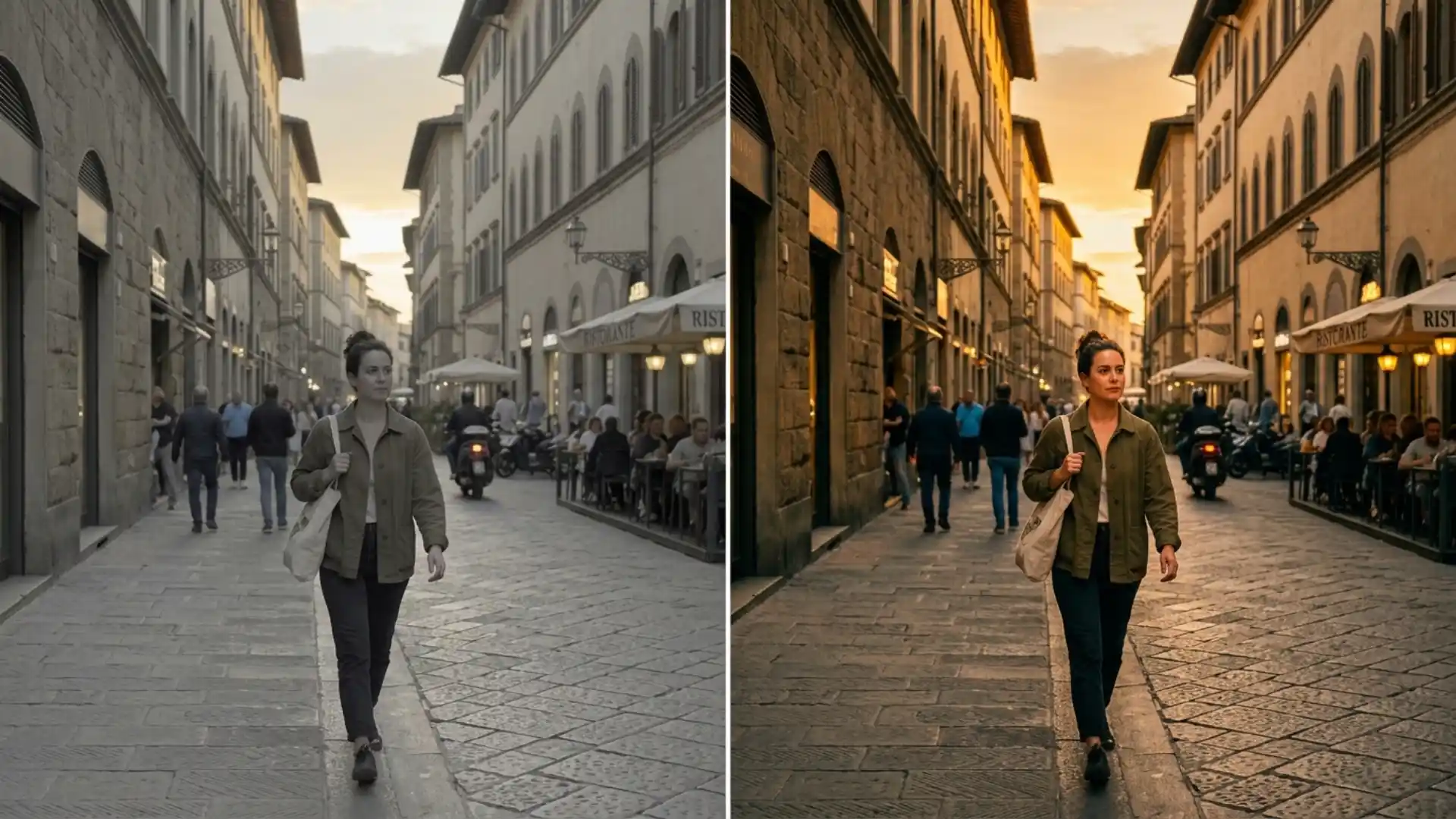
What Gamma Does iPhone Use?
It depends on what you shoot. Apple says iPhone HDR video is recorded in Dolby Vision, and it edits as Rec.2020 HLG (Hybrid Log-Gamma). Turn HDR off and you get SDR with a standard Rec.709-style gamma that every screen understands. Apple Log uses Apple’s own log curve with Rec.2020 primaries, and Apple Log 2 keeps that curve while moving to Apple Gamut.
Why does this matter? Your editing app has to know which of these it’s getting. When it guesses wrong, the image comes out washed out or crunchy, and no amount of slider work fixes a bad conversion.
Grading Apple Log Footage
Log footage looks flat and gray on purpose, because it’s holding highlight and shadow detail for you to place in the grade. The order never changes: convert Log to Rec.709 with a conversion LUT or your app’s color management, fix exposure and white balance, then add your creative look.
Final Cut Pro for iPad does the conversion for you with built-in camera LUTs. In LumaFusion, VN and DaVinci Resolve for iPad you apply it yourself. For a full walkthrough with settings, follow our step-by-step guide to editing iPhone Log files.
Best Color Grading Apps for iPhone and iPad
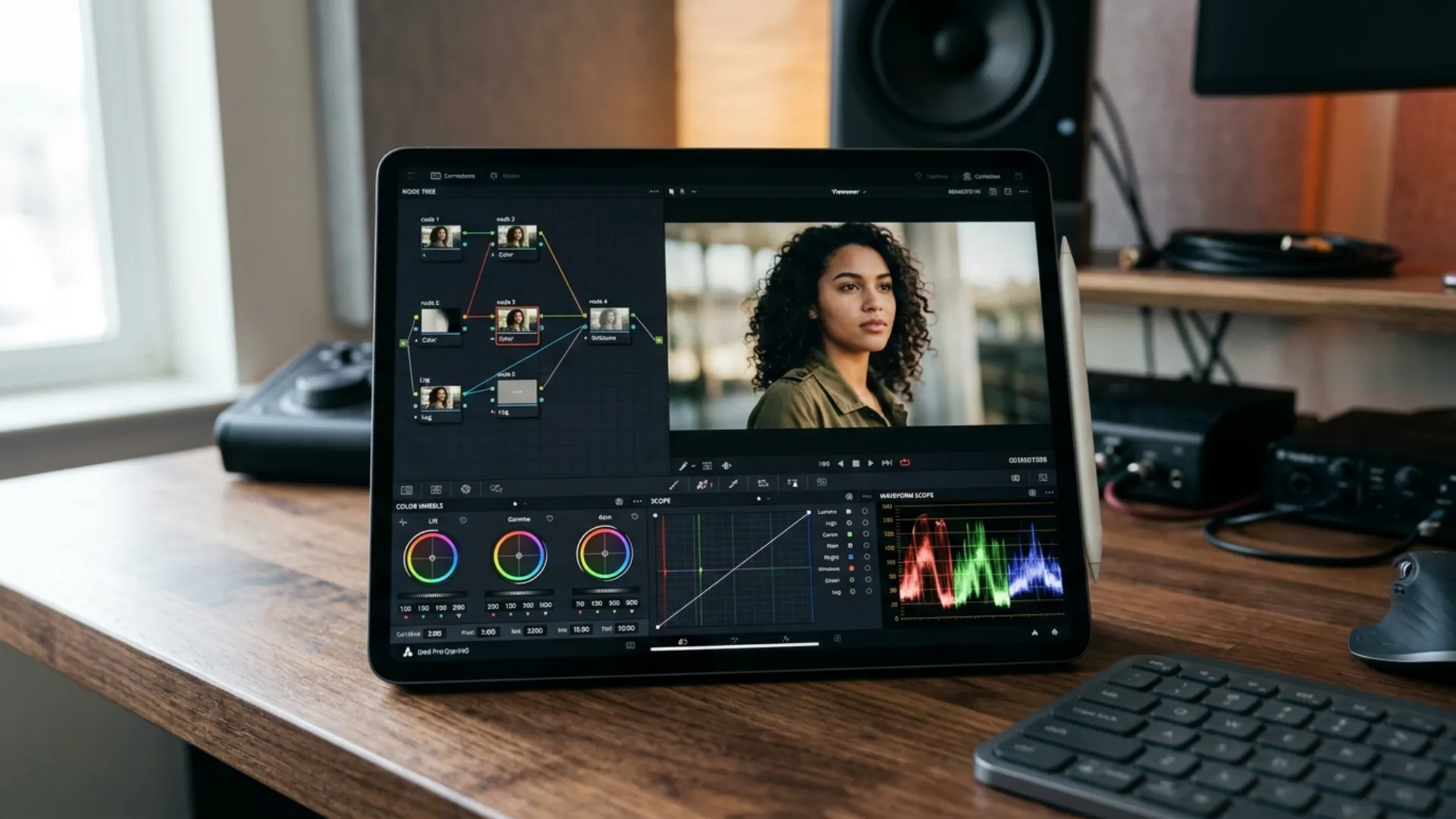
DaVinci Resolve for iPad
If you want desktop-level grading on a tablet, this is it. Resolve for iPad combines editing and color in one app, and its Color page includes primary and secondary tools, Power Windows, qualifiers, 3D trackers and HDR grading tools. It also works with Blackmagic Cloud, so you can hand a project to a desktop Resolve system.
The learning curve is real if you’ve never used nodes. Once it clicks, though, it’s the closest thing to a colorist’s suite you can carry in a backpack.
LumaFusion
LumaFusion is the app we’d point most iPhone editors to first. Its App Store listing covers six video and audio tracks, 4K ProRes and HDR editing, color correction, waveform, vectorscope and histogram scopes, and import of multiple .cube or .3dl LUTs. It runs on both iPhone and iPad and is a one-time purchase, with optional Creator Pass add-ons.
Having real scopes on a phone changes how you grade. You stop guessing whether the sky is clipping and just look at the waveform.
Final Cut Pro for iPad
Final Cut Pro for iPad is the easiest way into Final Cut color grading on a tablet, with one big catch. Apple’s guide confirms automatic log processing that uses built-in camera LUTs to convert Log footage to wide-gamut HDR, and you can switch Log Processing manually in the inspector. The catch is that custom LUTs aren’t supported, so you can’t load your own .cube files.
For grading itself, you get a color adjustments effect for manual correction, a machine-learning tool that fixes light and color automatically, color effects, and color grading presets with names like Green Muted Wash and Cool Shadows with Warm Highs. It’s a good fit if you already edit in Final Cut on a Mac and want the same feel on iPad.
Blackmagic Camera App
The Blackmagic Camera app is free and does something no editor can: it lets you see the grade while you shoot. You can load a preview LUT on your Log footage so you’re framing and exposing for the final look. On the iPhone 17 Pro models, you pick Apple Log 2 in the Color Space setting.
The setting to watch is Record LUT to Clip. Freewell’s setup guide recommends turning it off so you keep the clean Log file for grading later, and we agree. Baking in a look on set takes your options away in post.
VN and CapCut
VN and CapCut are where a lot of creators start color grading on iPhone, and both handle a quick grade well. VN is free with no watermark and lets you import your own LUTs through Filters > My Filter > Import, which makes it the best free editor for LUT work on a phone.
CapCut gives you filters and adjustment sliders, but custom LUTs can’t be imported in the mobile app (LUT import is a desktop feature). Some color tools, like Auto Adjust, Color Match and the color correction slider, sit behind the paid plan. Our rundown of the latest CapCut updates covers what’s free and what isn’t right now.
Dedicated Grading Apps: LogGrade, VideoGrade and More
Sometimes you don’t need an editor at all, just a color grading app for one clip. LogGrade is free on iPhone and iPad, reads Apple Log and Log 2, handles Display P3 SDR, HLG and PQ footage, imports .cube LUTs and Lightroom .xmp presets, and adds an HSL mixer plus grain and halation before exporting Rec.709.
VideoGrade, VideoLUT and Darkroom sit in the same space: open a clip, adjust it, apply a look, export. They’re handy for a single Reel or a client preview, less so for a 40-clip edit.
Can You Color Grade in iMovie or the Photos App?
A little. The Photos app lets you use its Adjust tools (Exposure, Brilliance, Highlights, Shadows, Contrast, Saturation, Warmth and more) on video, plus filters. Apple notes that on iPhone 16 models and later, Photographic Styles take the place of filters there.
Color grading in iMovie is more limited: you get a set of filters and not much manual control. A simple trick is to adjust the clip in Photos first, then cut it in iMovie. It won’t handle Log properly, but for HDR or SDR clips it’s fine.
On a zero budget? Shoot with the Blackmagic Camera app, grade in VN or LogGrade, and you’ve got a complete free workflow. For more no-cost options, see our list of free 4K video editing apps for phone and tablet.
How to Color Grade on iPhone, Step by Step
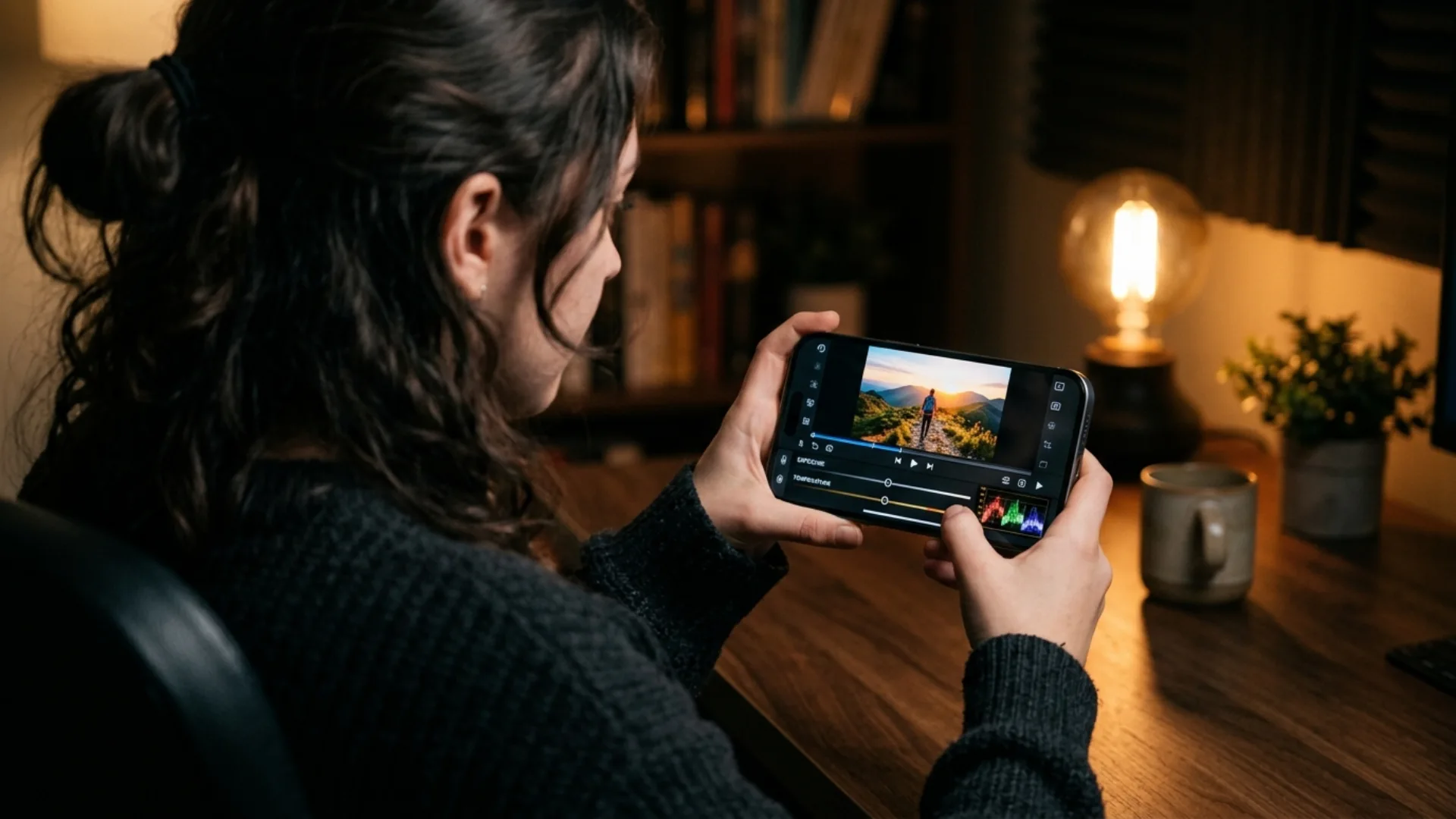
Step 1: Set Up Your Screen
Turn off True Tone and Night Shift in Settings > Display & Brightness, and turn off Auto-Brightness in Settings > Accessibility > Display & Text Size. Then set brightness to the same level every time you grade. If your screen changes between sessions, your grades will too.
Step 2: Convert Log to Rec.709
If you shot Log, apply the conversion LUT for your Log version first, before you touch anything else. Shot HDR? Decide now whether you’re delivering HDR or SDR and set the project to match. Grading HDR clips in an SDR project without converting is how you end up with washed-out exports.
Step 3: Fix Exposure and White Balance
Open the waveform if your app has one. Bring the brightest important highlights close to the top without clipping, and keep shadows from crushing into solid black unless that’s the look. For white balance, find something that should be neutral (a white wall, gray pavement, a white shirt) and adjust temperature and tint until it reads neutral.
Step 4: Shape Contrast and Saturation
Add a gentle S-curve or nudge contrast, then raise saturation in small steps. Phone screens already look bright and punchy, so footage that looks just right on your iPhone often looks overcooked on a laptop. Go a little lighter than feels natural.
Step 5: Protect Skin Tones
Faces are the first thing viewers notice. In LumaFusion’s vectorscope, skin should sit near the skin tone line regardless of skin color, and in apps with an HSL mixer (like LogGrade) you can pull orange and red saturation back if faces turn sunburned. Check skin again after every big change.
Step 6: Add Your Look With a LUT, Then Dial It Back
Now apply a creative LUT on top of your corrected clip. Most apps let you lower its strength, and a LUT at partial strength usually looks more natural than one at 100%. If the look fights your correction, go back to step 3 rather than piling on more adjustments.
Step 7: Match Every Clip in the Edit
Grade your best-looking shot first, copy its grade, and paste it onto the rest of the scene. Then adjust exposure and white balance per clip, since every shot was lit a little differently. Scrub through the whole timeline at the end, because a single mismatched clip stands out more than a slightly off look.
How to Grade on iPad Like a Pro
In DaVinci Resolve for iPad, a simple three-node setup handles most projects:
- Node 1, correction: Log conversion (or color management), exposure and white balance.
- Node 2, look: your creative LUT or manual grade, at reduced strength.
- Node 3, secondary: a qualifier on skin or a tracked Power Window on a face to lift it slightly.
Keeping these apart means you can change the look without breaking the correction, and you can copy just the look node across clips.
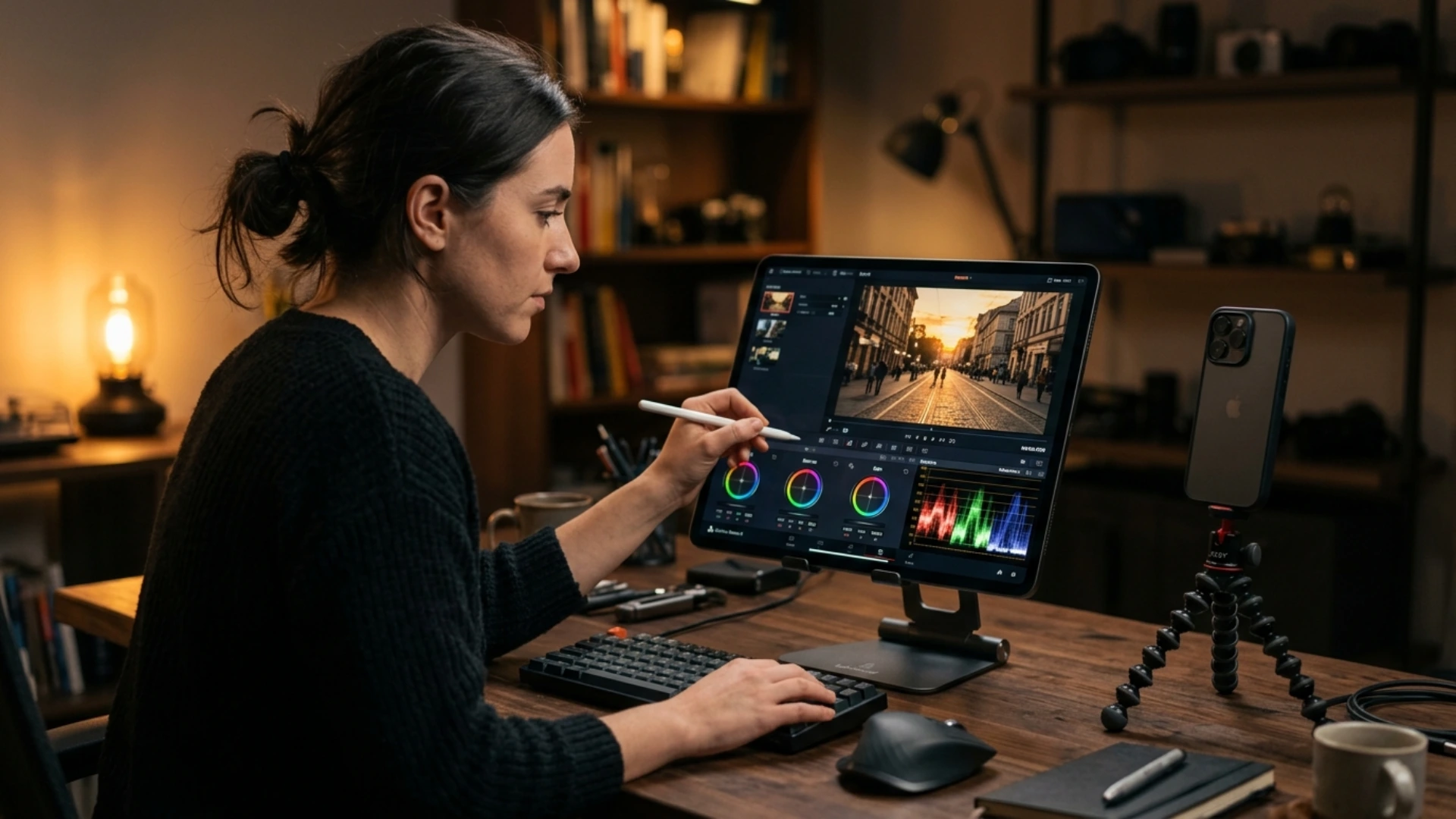
Scopes do the heavy lifting on iPad. Use the waveform or parade to balance highlights and shadows across shots, and the vectorscope to keep skin consistent. The Apple Pencil is great for precise moves on color wheels and curves, and a keyboard with shortcuts speeds up playback and node work. If you connect an external display, test how your app uses it before a client session.
Already living in Final Cut? Final Cut Pro for iPad works best when you let automatic log processing handle the conversion, correct with the color adjustments effect, then try a color grading preset as a starting point. Since it can’t load custom LUTs, either build your look by hand or finish the grade in LumaFusion or Resolve. Check that your project’s color space matches where the video will end up.
How to Use LUTs on iPhone and iPad
There are two kinds of LUT, and mixing them up causes most LUT problems. A technical LUT converts footage from one color space to another, like Apple Log to Rec.709. A creative LUT applies a look (warm film, teal and orange, muted pastel). If you want the full background, here’s what a LUT actually does to your image.
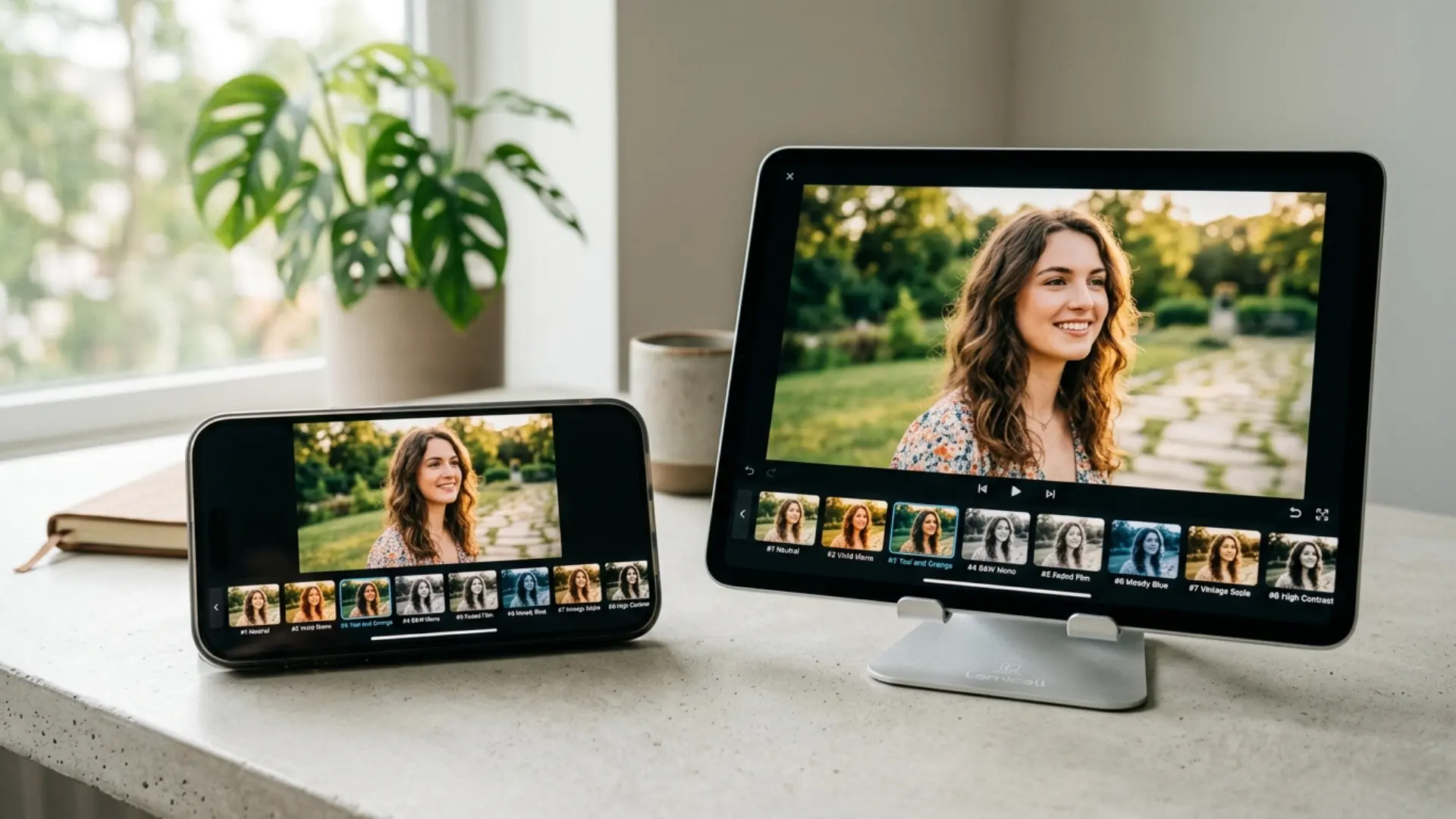
- LumaFusion: import .cube or .3dl files and apply them in the color tools. You can use more than one.
- DaVinci Resolve for iPad: add your LUTs and apply them on the Color page, ideally on their own node.
- VN: go to Filters > My Filter > Import.
- Blackmagic Camera: load a LUT for monitoring while you shoot, and keep Record LUT to Clip off.
- LogGrade: import .cube LUTs or Lightroom .xmp presets.
And where they don’t: Final Cut Pro for iPad doesn’t support custom LUTs, and CapCut mobile can’t import them. In those apps, use the built-in presets and manual tools instead.
If you’d rather not build looks from scratch, CL-iPhone LUTs is a pack of 25 3D .cube LUTs made for both ProRes and normal iPhone video. Its supported list includes LumaFusion, DaVinci Resolve, Video LUT and 3DLUT Mobile, it works up to 4K, and it comes with a tutorial PDF, which helps the first time you import a LUT on a phone. For bigger, film-style looks, try Hollywood LUTs the same way: after conversion, at reduced strength.
How to Add Film Texture on Mobile: Grain, Light Leaks, and Frames
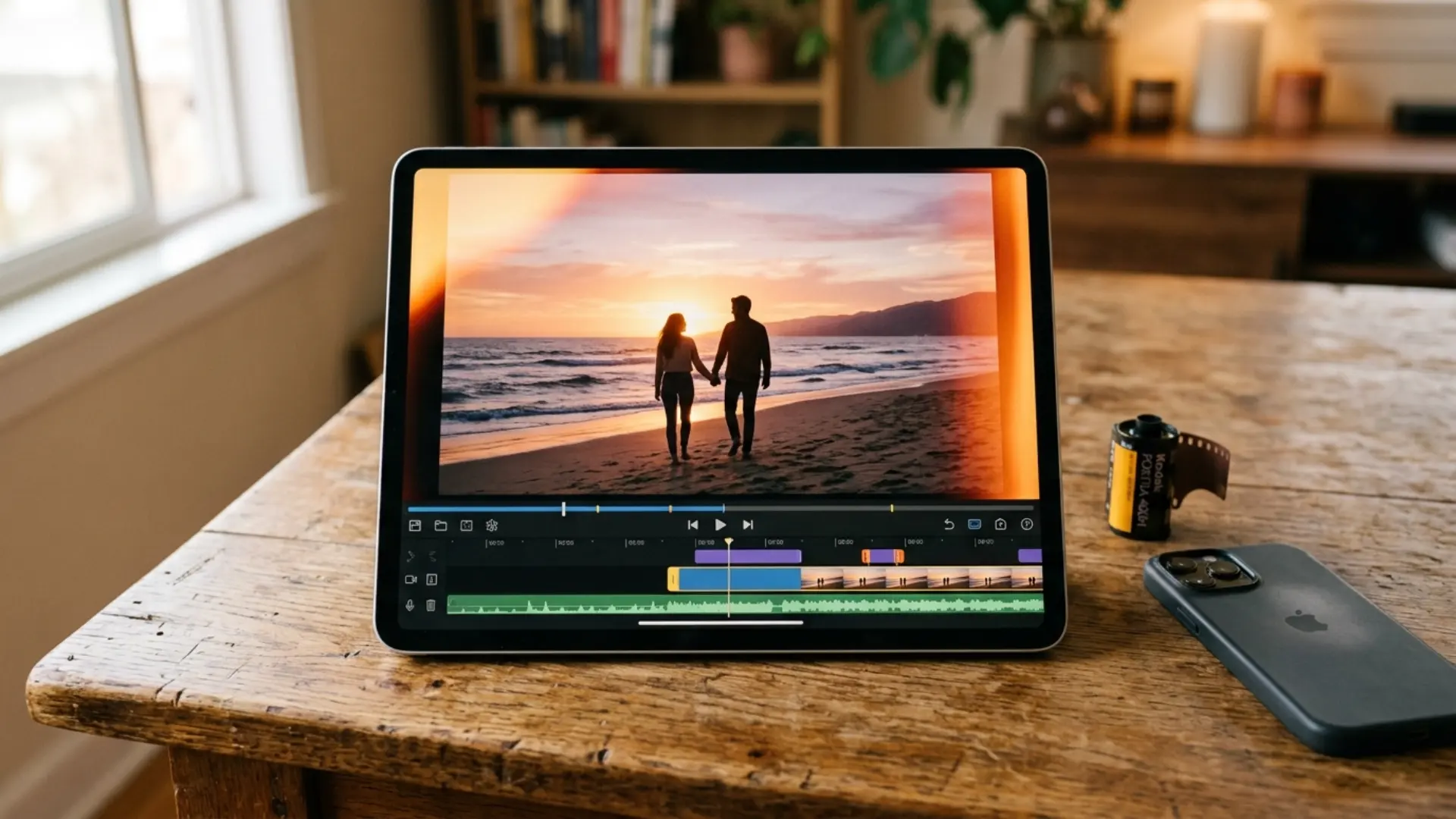
Film Emulation Pro bundles LUTs, letterboxes, grains and frames based on real Kodak, Fujifilm and Ilford film scans. Use the LUTs like any creative LUT in LumaFusion, VN or Resolve for iPad, and put the grain on a layer above your footage in apps that support layers and blend modes.
For warm flashes between shots or over an intro, Cinematic Light Leaks gives you 40 real light leaks shot on an ARRI Alexa Mini. Drop a pre-rendered leak on the track above your clip and set the blend mode to Screen or Add so only the light shows through. Keep them short, a second or two, so they read as a moment.
Common Mobile Color Grading Mistakes (and How to Fix Them)
How to Export Your Grade Without Losing Color
Washed-out exports almost always come from a color space mismatch. Typical causes are an HDR clip in an SDR project, a Log clip that never got converted, or an HDR file landing on a platform or player that shows it as SDR. The fix is to convert HDR to SDR inside your editor (desktop Final Cut has an HDR Tools effect with an HLG to Rec.709 SDR mode) or to set the project to SDR from the start. Apple’s HDR guide notes that you can edit iPhone HDR video in iMovie, Clips and Final Cut, and that HDR delivery uses an HLG master or 10-bit HEVC.
Conclusion
Pick one clip from your camera roll today and run it through the steps above. If you want looks built for iPhone footage to start from, grab CL-iPhone LUTs and see how far one good LUT takes a corrected clip.
Wrap Up
- Your shooting format decides your grading room. Apple Log gives the most, HDR gives fast results, SDR is the safest for quick social posts.
- iPhone HDR is HLG, SDR is Rec.709-style, and Apple Log and Log 2 need the matching conversion LUT.
- Always convert Log to Rec.709 before adding a creative look, and skip the conversion LUT if your app (like Final Cut Pro for iPad) already does it.
- DaVinci Resolve for iPad is the most complete grading app on Apple mobile devices, LumaFusion is the best all-rounder, and VN, LogGrade and Blackmagic Camera make a free workflow.
- Final Cut Pro for iPad and CapCut mobile can’t load custom LUTs.
- Turn off True Tone, Night Shift and Auto-Brightness before grading, and read scopes instead of trusting your screen.
- Apply LUTs at reduced strength, then match every clip by copying the grade and fixing exposure and white balance per shot.
- Export SDR Rec.709 for most social platforms, and use 10-bit HEVC HDR only when you graded in HDR.
Disclaimer : If you buy something through our links, we may earn an affiliate commission or have a sponsored relationship with the brand, at no cost to you. We recommend only products we genuinely like. Thank you so much.
Blog Label:



Write for us
Publish a Guest Post on Pixflow
Pixflow welcomes guest posts from brands, agencies, and fellow creators who want to contribute genuinely useful content.
Fill the Form ✏