Illustrator Keyboard Shortcuts Cheat Sheet (Printable, 2026)
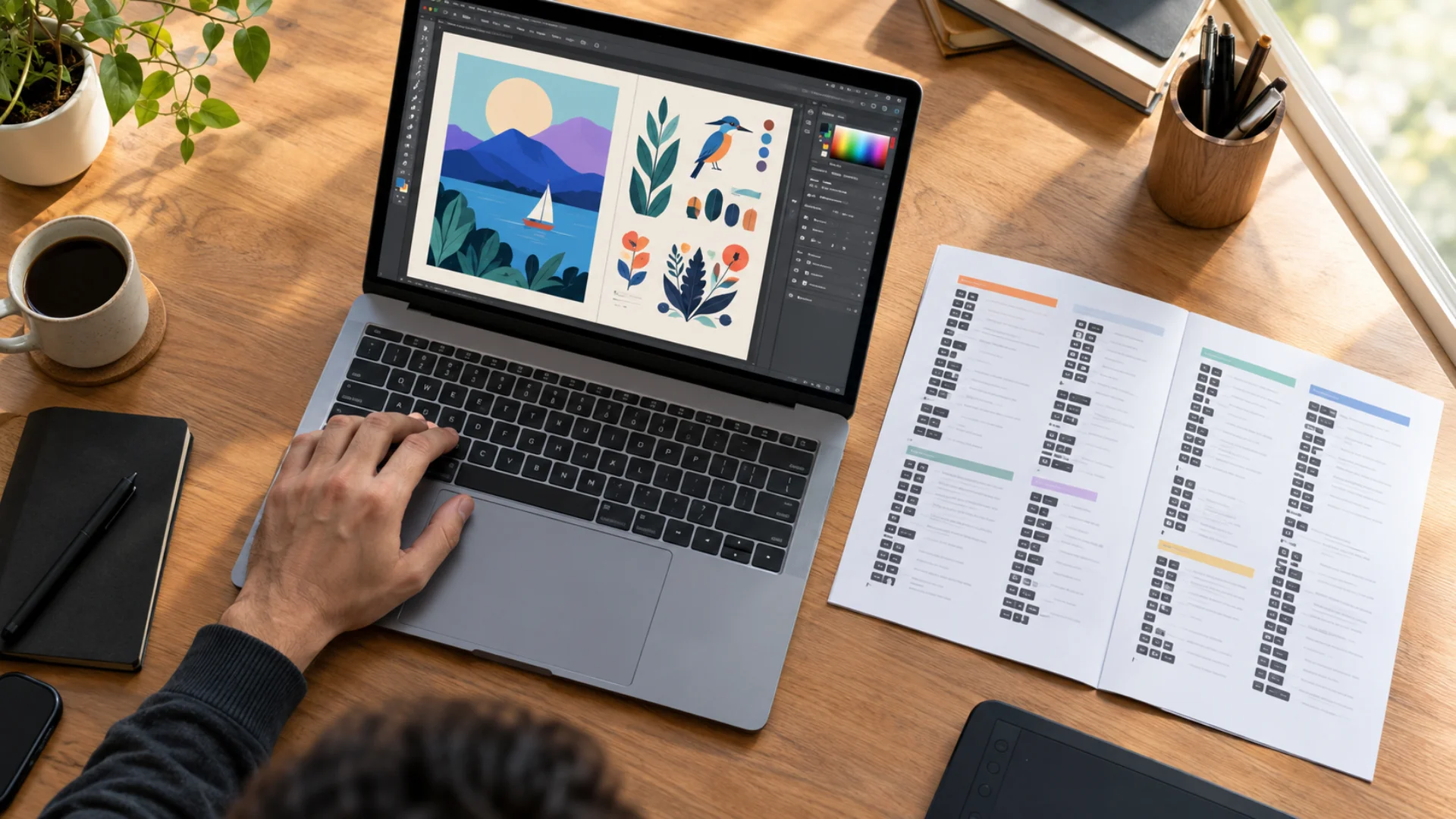
- Download the free printable Illustrator shortcuts cheat sheet
- What are the most useful Illustrator shortcuts to learn first?
- Are Illustrator shortcuts the same on Mac and Windows?
- How do you undo and redo in Illustrator?
- How do you zoom in and out in Illustrator?
- How do you copy, paste and duplicate in Illustrator?
- How do you select, group, arrange, lock and hide objects?
- How do you rotate, flip and resize in Illustrator?
- How do you insert and crop images in Illustrator?
- Type shortcuts
- Color, fill and stroke shortcuts
- View, guides, grid and artboard shortcuts
- Panel and function key shortcuts
- File and export shortcuts
- How do you customize keyboard shortcuts in Illustrator?
- Why are my Illustrator shortcuts not working?
- How do you memorize Illustrator shortcuts faster?
- Shortcut cheat sheets for your other Adobe and video apps
- How we built and checked this cheat sheet
- Conclusion
Here’s the thing about Illustrator: almost every command is buried two or three menus deep. Shortcuts are how you stop clicking and start designing. Learn twenty of them and your workday changes (seriously, the time you save on Ctrl+F alone adds up fast).
This guide is built around the questions people actually type into Google, like “how do you undo in Illustrator” and “how to crop in Illustrator”, and each answer comes with the exact keys for Mac and Windows. If your Illustrator work ends up moving, like logos, lower thirds or social graphics, our Motion Graphics Templates Bundle gives you five motion graphics template packs to drop that artwork into. And if you’re new to the app itself, start with our complete Adobe Illustrator guide for beginners and beyond, then come back here.
Download the free printable Illustrator shortcuts cheat sheet
Page 1 covers the everyday essentials: tools, editing and duplicating, selecting and arranging, and view and navigation. Page 2 covers type, paths, color, panels, files and export, plus our recommended custom set and a quick “shortcut not working?” checklist.
All shortcuts on the sheets are Illustrator 2026 (version 30) defaults, apart from the clearly labeled Pixflow custom set.
What are the most useful Illustrator shortcuts to learn first?
Are Illustrator shortcuts the same on Mac and Windows?
- Ctrl on Windows becomes Cmd on Mac
- Alt on Windows becomes Option on Mac
- Shift stays Shift
So Ctrl+G on Windows is Cmd+G on Mac. There are a couple of exceptions. On a Mac, the “hold to zoom” shortcut is Spacebar+Cmd (press Spacebar first) because Cmd+Spacebar opens Spotlight. Mac function keys also control brightness and volume by default, so you’ll need to hold Fn for shortcuts like F7 (Layers) or turn on “Use F1, F2, etc. keys as standard function keys” in System Settings.
Coming over from Figma or Photoshop? Some muscle memory transfers (V, Spacebar, Ctrl+Z) and some really doesn’t. Our breakdown of Illustrator vs Photoshop vs Figma explains where each app fits.
How do you undo and redo in Illustrator?
How do you go back multiple steps in Illustrator?
Either keep pressing Ctrl+Z / Cmd+Z, or open Window > History and click any earlier state to jump straight back to it. Illustrator keeps 100 history states by default. You can raise that in Preferences > Performance > History States (more states use more memory, so don’t go wild on an older laptop).
Why won’t Illustrator undo?
The usual culprits:
- You saved, closed and reopened the file. Adobe’s documentation notes that undo history doesn’t survive a save and reopen. File > Revert (F12) takes you back to the last saved version instead.
- You’re inside a text box. Ctrl+Z still works, but it undoes text edits first. Press Esc to leave the text, then undo.
- The action wasn’t an edit. Zooming, scrolling and switching panels aren’t recorded, so there’s nothing to undo.
- A dialog or panel field has focus. Click an empty part of the canvas and try again.
How do you zoom in and out in Illustrator?
How do you zoom out in Illustrator on Windows?
Ctrl+- (Ctrl and the minus key). If you’re on a laptop without a number pad, use the minus key next to zero on the main row. To see everything at once, press Ctrl+0 for the current artboard or Alt+Ctrl+0 for all artboards.
My artwork disappeared or is sideways. How do I get it back?
Press Ctrl+0 / Cmd+0 to fit the artboard back in view. If the whole canvas looks tilted, you’ve probably used the Rotate View tool (Shift+H). Reset it with Shift+Ctrl+1 (Windows) or Shift+Cmd+1 (Mac), or go to View > Reset Rotate View.
How do you copy, paste and duplicate in Illustrator?
How do you duplicate in Illustrator?
The fastest way is to hold Alt (Windows) or Option (Mac) and drag the object. Add Shift while dragging to keep it perfectly in line. Want a row of evenly spaced copies? Alt-drag once, then press Ctrl+D / Cmd+D a few times. Illustrator repeats the same move each time.
What does Ctrl+D do in Illustrator, and why did it stop working?
Ctrl+D (Cmd+D on Mac) is Transform Again. It isn’t “duplicate” like in some other apps. It repeats your last transformation, whether that was a move, rotate, scale or Alt-drag copy. That’s why it’s brilliant for step-and-repeat patterns.
It “stops working” when the last thing you did wasn’t a transform. Selected a different tool, edited a color or typed something? Illustrator has nothing to repeat. Do the transform once more, then Ctrl+D picks up again. If it still does nothing, check that a custom shortcut set hasn’t reassigned it (more on that below).
How do you cut and paste in Illustrator without moving the object?
Use Ctrl+X to cut, then Shift+Ctrl+V (Paste in Place) to paste it in exactly the same position, even on a different artboard or layer. On a Mac, that’s Cmd+X then Shift+Cmd+V.
How do you select, group, arrange, lock and hide objects?
How do you duplicate in Illustrator?
The fastest way is to hold Alt (Windows) or Option (Mac) and drag the object. Add Shift while dragging to keep it perfectly in line. Want a row of evenly spaced copies? Alt-drag once, then press Ctrl+D / Cmd+D a few times. Illustrator repeats the same move each time.
What does Ctrl+D do in Illustrator, and why did it stop working?
Ctrl+D (Cmd+D on Mac) is Transform Again. It isn’t “duplicate” like in some other apps. It repeats your last transformation, whether that was a move, rotate, scale or Alt-drag copy. That’s why it’s brilliant for step-and-repeat patterns.
It “stops working” when the last thing you did wasn’t a transform. Selected a different tool, edited a color or typed something? Illustrator has nothing to repeat. Do the transform once more, then Ctrl+D picks up again. If it still does nothing, check that a custom shortcut set hasn’t reassigned it (more on that below).
How do you cut and paste in Illustrator without moving the object?
Use Ctrl+X to cut, then Shift+Ctrl+V (Paste in Place) to paste it in exactly the same position, even on a different artboard or layer. On a Mac, that’s Cmd+X then Shift+Cmd+V.
How do you rotate, flip and resize in Illustrator?
How do you rotate an object in Illustrator?
Select it and press R, then drag on the canvas. Hold Shift to snap to 45° steps. For an exact angle, double-click the Rotate tool icon (or press Enter while the tool is active) to open the Rotate dialog. Alt-click (Option-click on Mac) with the Rotate tool to set a custom pivot point.
How do you flip an image or object in Illustrator?
Press O for the Reflect tool and Shift-drag, or double-click the Reflect tool to choose Horizontal or Vertical in the dialog. You can also use the Flip buttons in the Properties panel, or Object > Transform > Reflect.
How do you resize an image in Illustrator?
Drag a corner of the bounding box while holding Shift to keep proportions. For exact sizes, open the Transform panel (Shift+F8), make sure the link icon between W and H is on, and type a new width. Resizing several objects at once from their own centers? Use Transform Each (Alt+Shift+Ctrl+D / Option+Shift+Cmd+D).
How do you insert and crop images in Illustrator?
How do you insert an image in Illustrator?
Use File > Place, shortcut Shift+Ctrl+P (Windows) or Shift+Cmd+P (Mac). Pick your image, then click once to place it at full size or drag to set the size. You can also drag a file straight from your desktop onto the artboard.
By default, placed images are linked. If you’re sending the .ai file to someone else, click Embed in the Properties panel so the image travels with it. Want to turn that photo or sketch into editable vector shapes? Follow our guide on how to vectorize an image in Illustrator.
How do you crop in Illustrator?
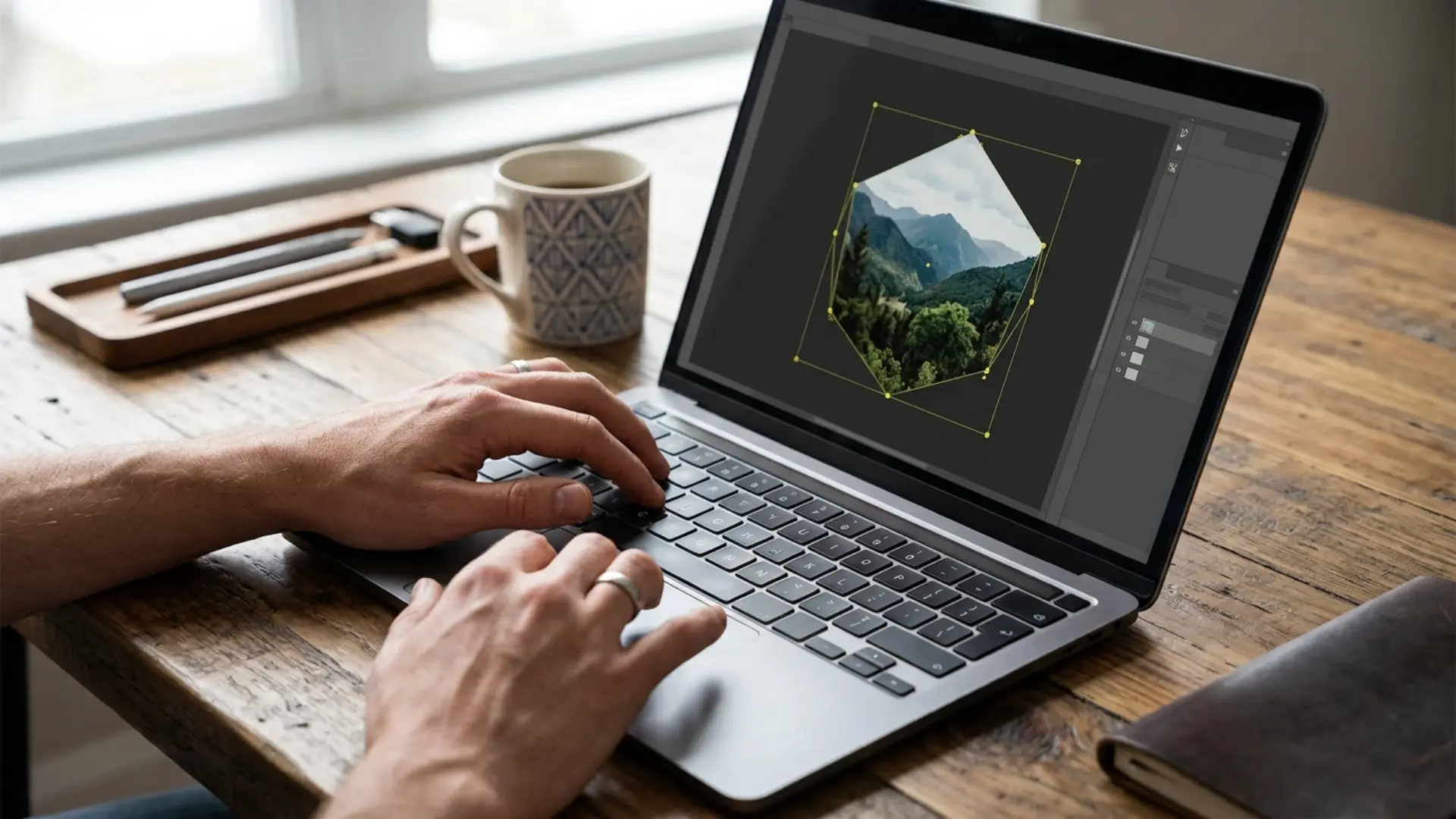
There are two ways, and neither has a default shortcut, so here’s the quickest path for each:
- Crop Image (destructive, for raster images): select the image, then choose Object > Crop Image or click Crop Image in the Properties panel. Drag the handles and press Enter. This permanently trims the pixels.
- Clipping mask (non-destructive, works on anything): draw a shape over the area you want to keep, select the shape and the image, then press Ctrl+7 / Cmd+7. Release it later with Alt+Ctrl+7 / Option+Cmd+7.
We crop often enough that our recommended custom set (below) puts Crop Image on Shift+F11.
What’s the clipping mask shortcut in Illustrator?
Ctrl+7 on Windows and Cmd+7 on Mac. The topmost selected object becomes the mask. To release it, press Alt+Ctrl+7 or Option+Cmd+7. Need to adjust the image inside the mask? Double-click to enter Isolation Mode, or use the Direct Selection tool (A).
Drawing and path shortcuts
For smooth color and shape transitions, press W for the Blend tool or Alt+Ctrl+B / Option+Cmd+B to blend two selected objects instantly. Spacing options live in Object > Blend > Blend Options (here’s our full Blend tool guide). And if you’re painting rather than plotting, the deep dive into Illustrator brushes shows how [ and ] change brush size on the fly.
Type shortcuts
How do you edit text in Illustrator?
Double-click the text with the Selection tool (V), or press T and click into it. Make your changes, then press Esc to get back to your tools. If double-clicking does nothing, the text has probably been converted to outlines (Shift+Ctrl+O), which turns letters into shapes that can’t be edited as type anymore. That’s why we always keep a hidden, live copy of the text on a locked layer before outlining.
How do you curve text in Illustrator?
You have three good options:
- Type on a path: draw a curve or circle, then click on it with the Type on a Path tool (hold the mouse on the Type tool to find it).
- Warp effect: select the text, go to Effect > Warp > Arc. It stays editable.
- Envelope: press Alt+Shift+Ctrl+W (Windows) or Option+Shift+Cmd+W (Mac) for Object > Envelope Distort > Make with Warp.
For more creative type ideas, check our advanced Illustrator text effects and typography tricks.
How do you create a heavier or white outline around text?
Open the Appearance panel (Shift+F6), click Add New Stroke, set the color (white, for a white outline) and weight, then drag the stroke below the Characters line so it sits behind the letters. Your text stays editable the whole time.
If you need the outline baked in (common for logos and stickers), outline the text first with Shift+Ctrl+O / Shift+Cmd+O, then use Object > Path > Offset Path to grow a thicker shape around it. That’s exactly the type of work covered in our step-by-step logo design guide.
Color, fill and stroke shortcuts
< and > keys are the comma and period keys, no Shift needed. Want realistic, painterly color blends? Press U for the Mesh tool and read our introduction to the Gradient Mesh tool.
How do you change the background color in Illustrator?
Illustrator artboards don’t have a background color setting, so you make one:
- Press M for the Rectangle tool and draw a rectangle that covers the artboard (snapping to the artboard edges with Smart Guides, Ctrl+U, helps).
- Pick your fill color and set the stroke to none (/).
- Send it behind everything with Shift+Ctrl+[ (Windows) or Shift+Cmd+[ (Mac).
- Lock it with Ctrl+2 / Cmd+2 so you don’t drag it by accident.
There’s also File > Document Setup > Simulate Colored Paper, but that only changes what you see on screen. It won’t export or print.
View, guides, grid and artboard shortcuts
How do you make a grid in Illustrator?
Press Ctrl+’ / Cmd+’ to show the document grid and Shift+Ctrl+’ / Shift+Cmd+’ to snap to it. Change the spacing in Preferences > Guides & Grid. Need an actual layout grid of shapes? Draw a rectangle and use Object > Path > Split Into Grid.
Why does my artwork look like thin outlines?
You’ve switched to Outline mode with Ctrl+Y / Cmd+Y. Press it again to return to Preview. If colors look slightly off or effects render oddly, you may have toggled GPU preview with Ctrl+E / Cmd+E. Press it again too.
Panel and function key shortcuts
How do you flatten a layer in Illustrator?
There’s no default shortcut. To merge all layers into one, open the Layers panel (F7), click the panel menu and choose Flatten Artwork. To flatten effects and strokes into plain shapes, select the object and use Object > Expand Appearance. To flatten into pixels, use Object > Rasterize. Our custom set below gives Expand Appearance its own key because we use it constantly.
File and export shortcuts
If you design graphics in Illustrator and finish them as video, the Illustrator to After Effects workflow shows how to prep layers so they import cleanly. Short on time? Our Motion Graphics Templates Bundle lets you drop exported logos and artwork into ready-made animations instead of keyframing from scratch.
How do you customize keyboard shortcuts in Illustrator?
- Choose Tools or Menu Commands from the dropdown.
- Find the command (the search box helps) and click in its Shortcut column.
- Press the key combination you want. If it’s already taken, Illustrator shows a warning so you can decide whether to reassign it.
- Click Save and give your set a name. Illustrator won’t let you overwrite “Illustrator Defaults”, which is a good thing.
Adobe recommends using a modifier (Ctrl, Alt, Shift) for menu command shortcuts, because single letters are reserved for tools.
Pixflow’s recommended custom shortcut set
These are the commands we reach for constantly that don’t have a default shortcut. They’re all on keys that are free (or barely used) in the default set.
Mac users: F11 is Show Desktop in macOS by default, so if Shift+F11 misbehaves, check System Settings > Keyboard > Keyboard Shortcuts > Mission Control.
Want to go further than shortcuts? Scripts and plugins can automate whole sequences. See our roundup of Illustrator plugins and scripts.
How do you back up or move your custom shortcuts?
Illustrator saves custom sets as .kys files. Copy that file to back it up or move it to a new computer:
- macOS:
~/Library/Preferences/Adobe Illustrator [version] Settings/[language]/ - Windows:
C:\Users\[username]\AppData\Roaming\Adobe\Adobe Illustrator [version] Settings\[language]\x64\
On a Mac, the Library folder is hidden. In Finder, choose Go > Go to Folder and paste the path. Copy your .kys file into the same folder on the new machine, restart Illustrator and pick your set from the dropdown.
Can you print or export a list of all Illustrator shortcuts?
Yes. In the Keyboard Shortcuts dialog, click Export Text to save a .txt file of every shortcut in your current set, including your custom ones. Or just print our cheat sheet at the top of this page (it’s a lot prettier).
How do you reset Illustrator shortcuts to default?
In the Keyboard Shortcuts dialog, choose Illustrator Defaults from the Set dropdown and click OK. Your custom set isn’t deleted, so you can switch back anytime.
Why are my Illustrator shortcuts not working?
- You’re editing text. If a text cursor is blinking, pressing V types a “v”. Press Esc first, then use your shortcut.
- A panel field has focus. After typing a value into the Transform or Stroke panel, the cursor stays there. Click an empty spot on the canvas.
- The wrong shortcut set is active. Open Edit > Keyboard Shortcuts and check the Set dropdown.
- Nothing is selected (or the wrong thing is). Ctrl+G, Ctrl+7 and Ctrl+J need a selection, and Ctrl+D needs a previous transform.
- Your keyboard layout isn’t English (US). Shortcuts that use [ ] ; ‘ and = often break on other layouts or when a non-English input language is active. Switch the input language and try again.
- The operating system grabs the keys first. On Mac, check Spotlight (Cmd+Spacebar), Mission Control (Ctrl+arrows) and the Fn setting for F-keys. On Windows, apps like screen recorders, chat apps and graphics drivers can claim global hotkeys.
- Caps Lock is on. Your cursors turn into precise crosshairs, which looks like a broken tool but isn’t.
- Your preferences are corrupt, often after an update. Quit Illustrator, then hold Alt+Ctrl+Shift (Windows) or Option+Cmd+Shift (Mac) while launching it and confirm deleting the settings file. You can also use Preferences > General > Reset Preferences. Back up your .kys file first so you don’t lose your custom set.
How do you memorize Illustrator shortcuts faster?
- Learn in batches of five. Master the first table above this week, then add the next group.
- Hover over tools. Illustrator shows each tool’s shortcut in its tooltip, and menus show the shortcut next to every command.
- Use the mnemonics. P is Pen, T is Type, R is Rotate, S is Scale, M is “rectangle” (think marquee), L is “ellipse” (think loop).
- Ban one menu a day. Pick a menu, like Object, and force yourself to use the shortcut for anything in it.
- Keep the cheat sheet in sight. That’s literally why we made it printable.
Shortcut cheat sheets for your other Adobe and video apps
How we built and checked this cheat sheet
The recommended custom set reflects how our own design team works day to day. Shortcuts can change between Illustrator versions, so we’ll keep this page and both PDFs updated as new releases ship.
Last reviewed: October 1, 2026 (Illustrator 2026, version 30.x)
Conclusion
When your vector artwork is ready to move, the Motion Graphics Templates Bundle gives you five packs of motion graphics templates to bring logos, titles and illustrations to life without starting from a blank timeline.
Disclaimer : If you buy something through our links, we may earn an affiliate commission or have a sponsored relationship with the brand, at no cost to you. We recommend only products we genuinely like. Thank you so much.
Blog Label:



Write for us
Publish a Guest Post on Pixflow
Pixflow welcomes guest posts from brands, agencies, and fellow creators who want to contribute genuinely useful content.
Fill the Form ✏