Aspect Ratios Explained: When to Use 16:9, 4:3, 2.39:1, and 9:16 in Your Videos
- What Is an Aspect Ratio?
- Aspect Ratio vs Resolution (They Are Not the Same)
- The Most Common Video Aspect Ratios at a Glance
- 16:9, The Widescreen Standard
- 4:3, The Classic and Retro Look
- 2.39:1 and 2.35:1, The Cinematic Widescreen
- 9:16, Vertical Video for Mobile
- 1:1, The Square Format
- Other Ratios Worth Knowing
- How Aspect Ratio Shapes Storytelling
- How to Choose the Right Aspect Ratio
- Aspect Ratios for Social Media Platforms
- How to Change Aspect Ratio in Your Editor
- Common Aspect Ratio Mistakes to Avoid
This guide breaks down every aspect ratio that matters in 2026: what it means, when to use it, and how to set it correctly in your editor. We will cover the cinematic ratios filmmakers obsess over and the vertical and square formats that rule social media, so you can pick the right frame before you ever hit record. To follow along visually, a set like Pixflow’s Letterbox Film Frame Templates, which includes 136 overlays across 17 aspect ratios, lets you preview how any shot reads in different frames.
What Is an Aspect Ratio?
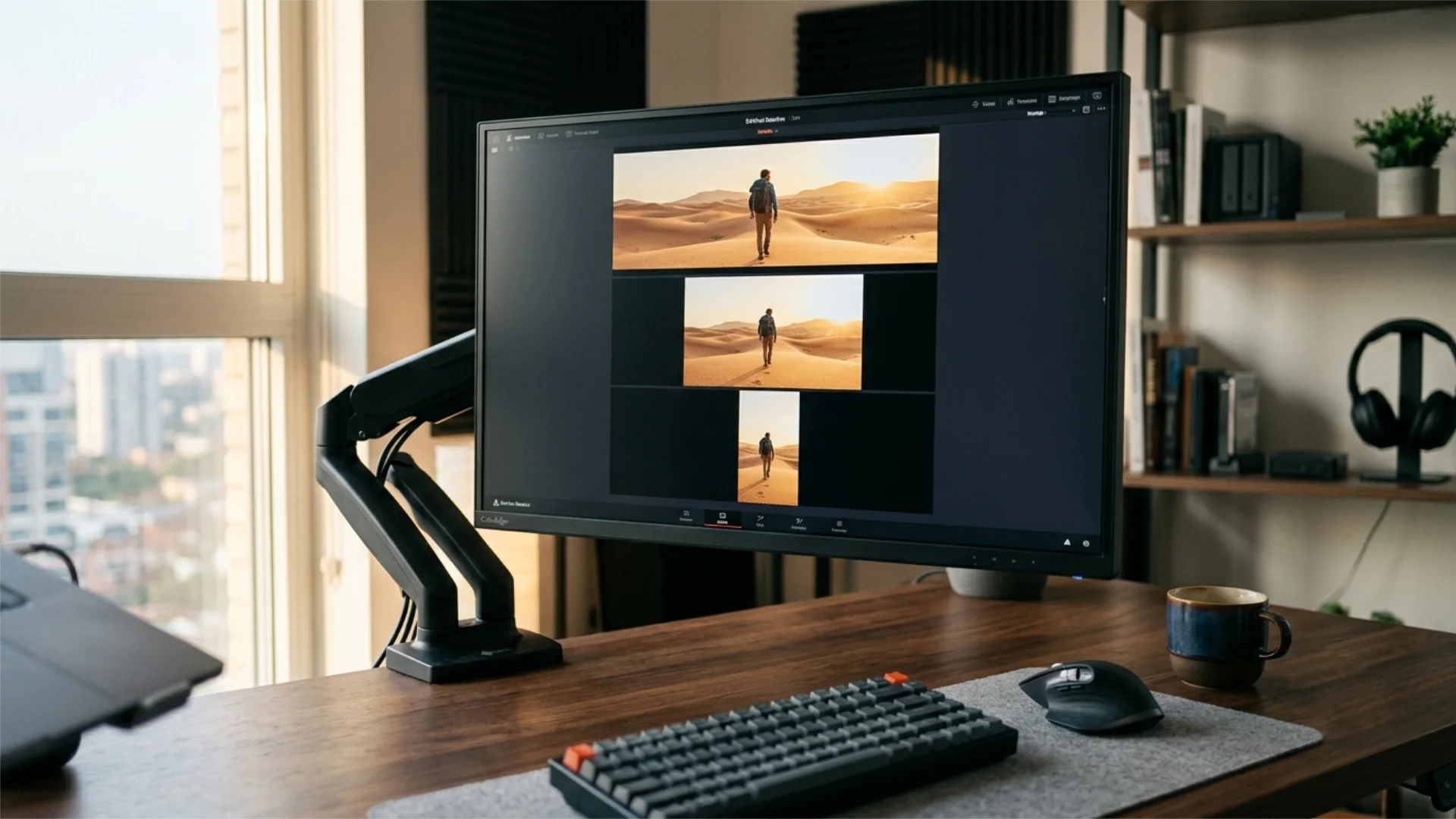
The math is simpler than it looks. Take a resolution like 1920×1080 and divide both numbers by their greatest common divisor (120) and you get 16:9. Flip the same pixels to 1080×1920 and you get 9:16, the vertical format. You do not need to do this by hand, but it helps to understand that aspect ratio is just resolution reduced to its simplest proportion.

Aspect Ratio vs Resolution (They Are Not the Same)
Why does this matter? Because you can keep the same aspect ratio while changing resolution for quality, and you can keep the same resolution while changing the aspect ratio for composition. Mixing the two up is what leads to stretched faces and surprise black bars. If you want to go deeper on the pixel side of this equation, our guide to resolution, bitrate, and quality covers how these settings interact on export.
The Most Common Video Aspect Ratios at a Glance
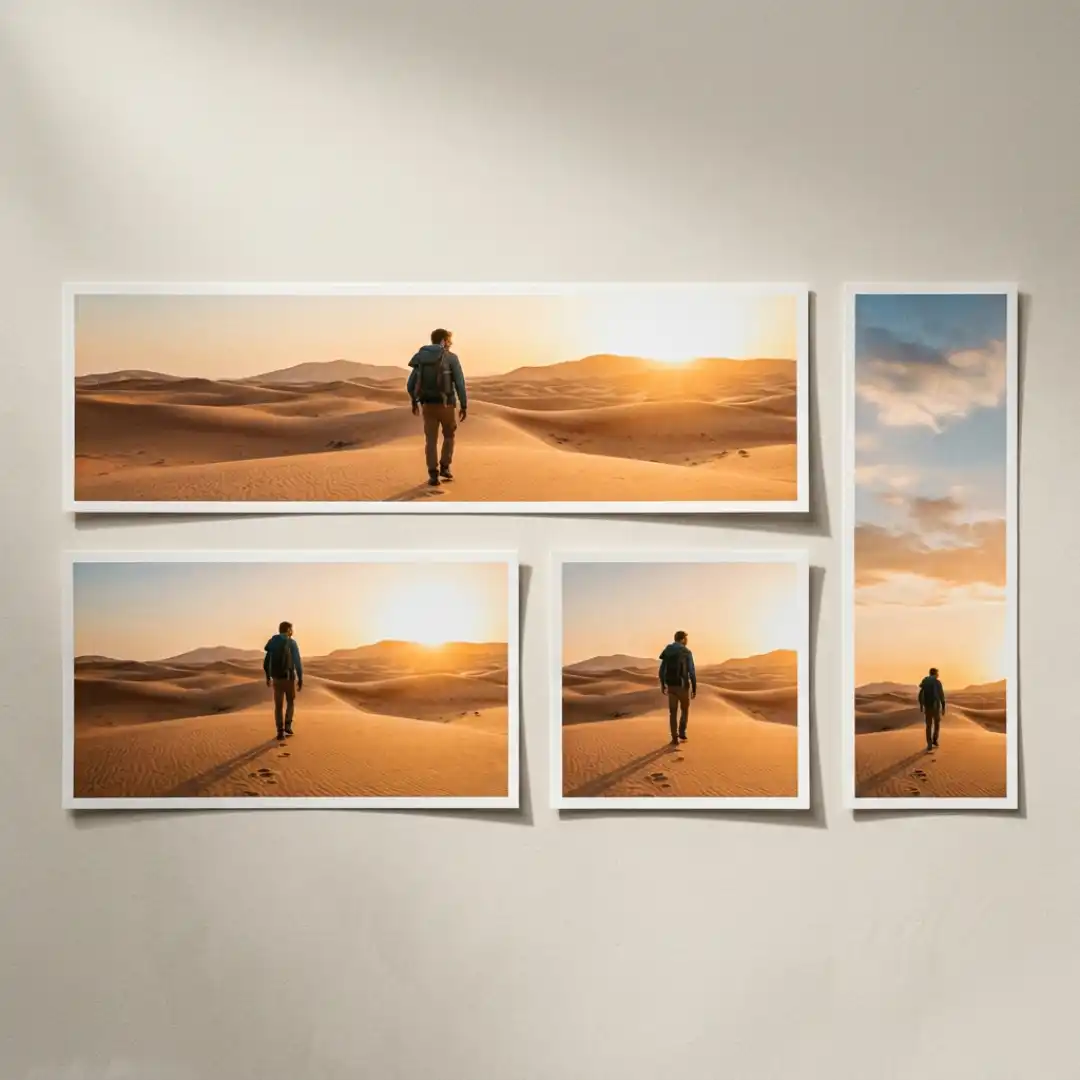
16:9, The Widescreen Standard
Use 16:9 for YouTube videos, tutorials, interviews, corporate content, and anything destined for a horizontal screen. The only real downside is that it can feel a little neutral or plain next to a wide cinematic frame. When you are repurposing 16:9 footage into vertical clips later, plan ahead, our walkthrough on how to edit YouTube Shorts in Premiere Pro shows how to reframe horizontal footage without butchering the composition.
4:3, The Classic and Retro Look
The trade-off is pillarboxing: on a widescreen display, 4:3 leaves vertical black bars on the left and right. Use it when the retro mood actively serves your story, not by accident.
2.39:1 and 2.35:1, The Cinematic Widescreen
Here is the key rule: get there with a true 2.39:1 sequence, not by slapping a black-bar PNG on a 16:9 export. A genuine widescreen frame changes how you compose the shot, while a fake overlay just crops your existing image and often hides important action. The clean way to do it is to set a real cinematic frame guide, and Pixflow’s Letterbox Film Frame Templates give you accurate, broadcast-clean bars in every major ratio so your widescreen looks intentional. Pair the look with crisp typography from CineTitles and even a simple talking-head piece starts to feel like a trailer.
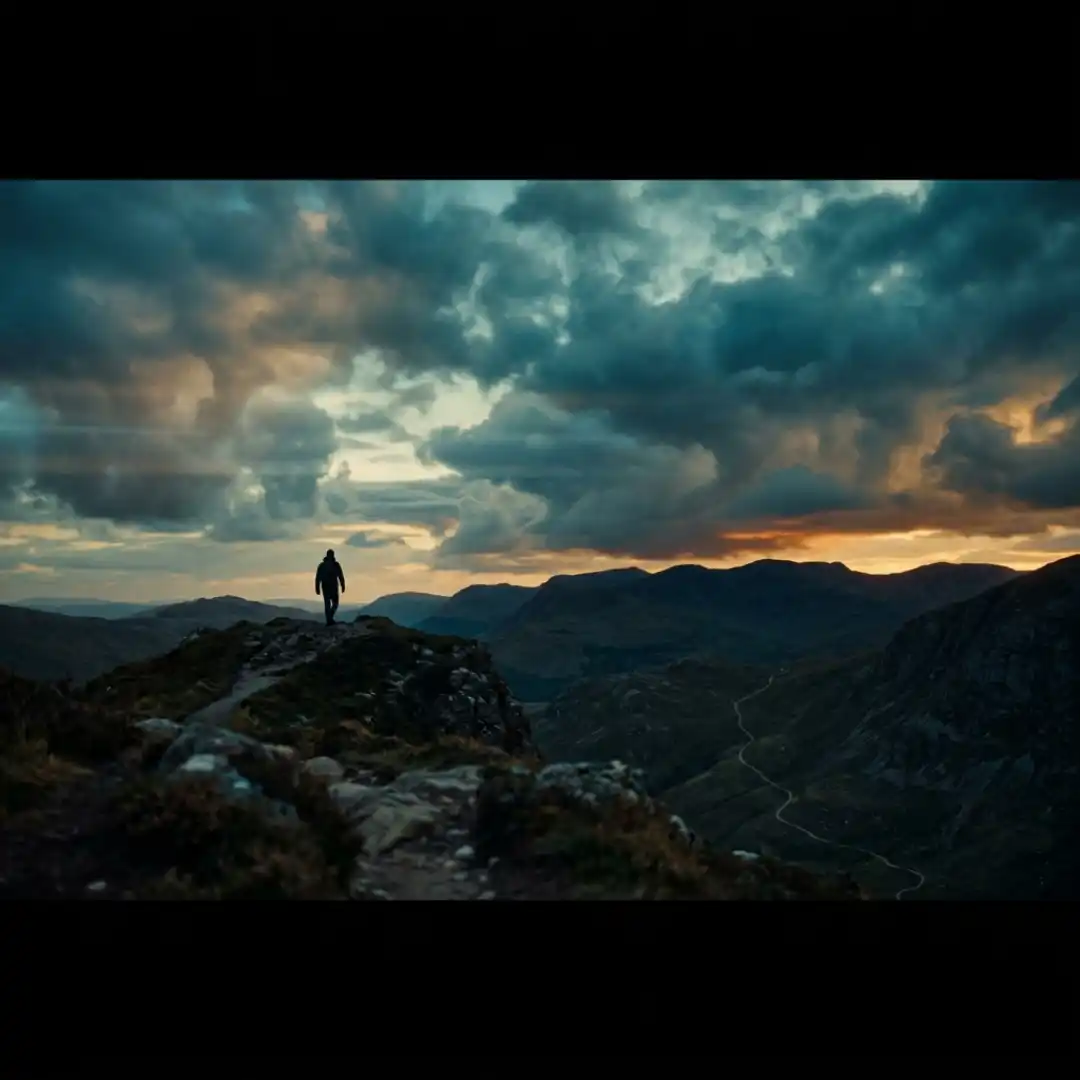
9:16, Vertical Video for Mobile
Shooting vertical changes how you compose. Keep your subject centered and high enough that platform captions and interface buttons along the bottom do not cover the action. Leave safe space at the top and bottom for usernames, captions, and the like and share icons. If you want to treat vertical as a real craft rather than an afterthought, our guide to shoot and edit vertical 9:16 video goes deep on framing for the format.
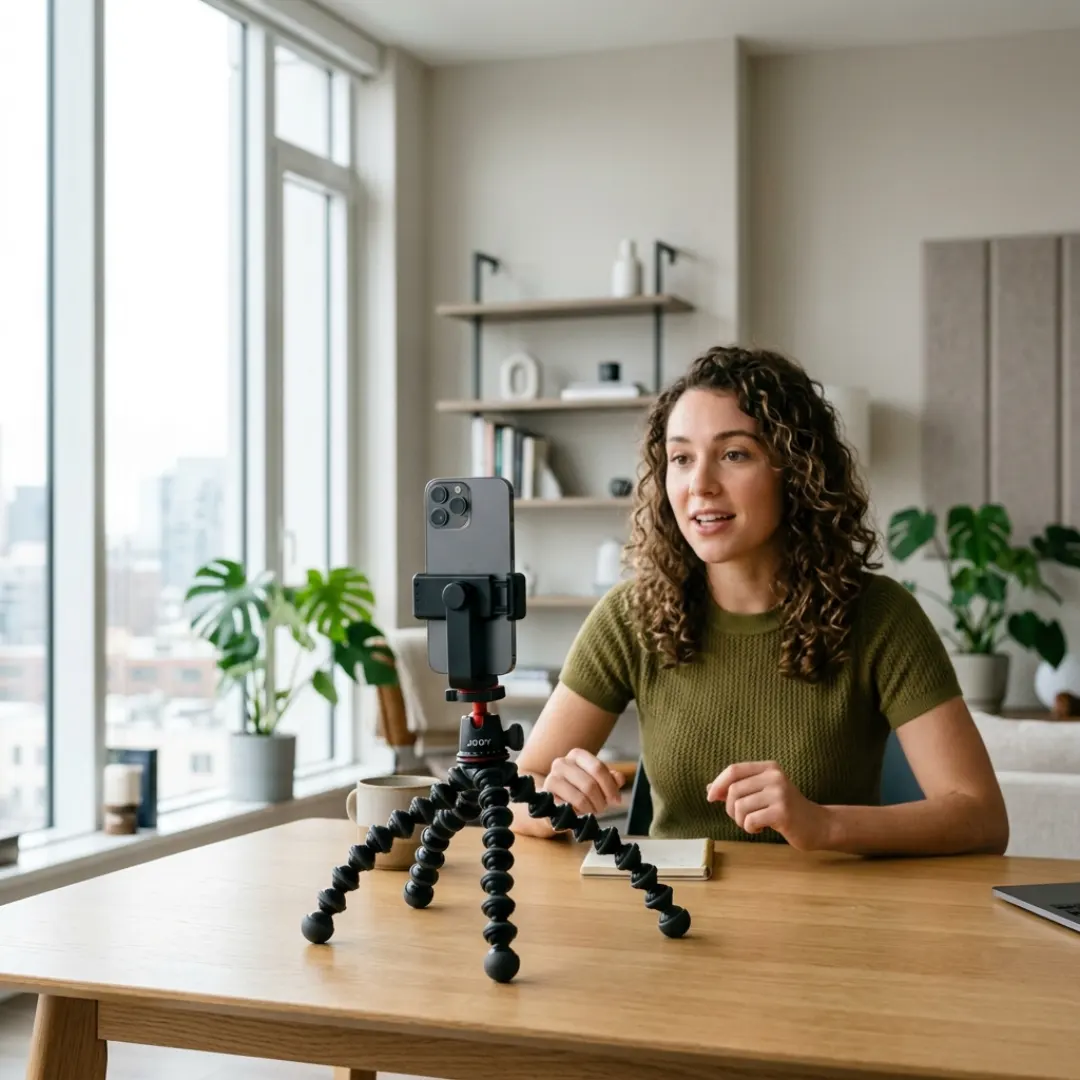
1:1, The Square Format
The trade-off is real estate. On a phone held upright, a 4:5 post simply takes up more screen and stops the scroll more effectively, so many creators now prefer 4:5 for feed posts and reserve 1:1 for cross-platform consistency or carousel sets.
Other Ratios Worth Knowing
- 1.85:1: A common theatrical standard for feature films, slightly wider than 16:9, with gentle letterboxing.
- 21:9 (2.33:1): The ultrawide monitor and gaming ratio, also used for cinematic web pieces.
- 2:1 (Univisium): Popularized by Netflix originals as a compromise between 16:9 and 2.39:1.
- IMAX 1.43:1 and 1.90:1: Tall, immersive large-format frames reserved for premium theatrical experiences.
- 70mm 2.20:1: A classic large-format film ratio still used for prestige releases.
- 4:5: The vertical-leaning ratio that now dominates Instagram and Facebook feed posts.
How Aspect Ratio Shapes Storytelling
The best filmmakers treat the frame as a variable. Christopher Nolan famously shifts between IMAX and standard ratios mid-film to make certain sequences feel larger than life, a technique you can see dissected in our breakdown of Nolan’s use of IMAX. Sam Mendes used the wide frame to sustain tension across the continuous shots in 1917. Some directors even change ratio to mark different timelines or emotional states. If you want to connect aspect ratio to the broader craft, it sits alongside lensing, lighting, and movement in our cinematography techniques guide, and pairs naturally with composition and framing.
How to Choose the Right Aspect Ratio
- Where will it be watched first? Platform decides the baseline. Desktop and TV lean 16:9, social feeds lean 9:16 or 4:5.
- What feeling do you want? Wide for cinematic scope, vertical for intimacy and immediacy, square for flexibility.
- How will you deliver it? Decide whether you need one master export or several platform-native versions.
Aspect Ratios for Social Media Platforms

How to Change Aspect Ratio in Your Editor
Premiere Pro
Create a new sequence and set the frame size to match your target ratio, for example 1080×1920 for a 9:16 vertical edit. Drop your footage in, then use the Motion controls (Position and Scale) or the Auto Reframe effect to recompose each clip. Auto Reframe is a fast starting point for converting horizontal footage to vertical, but always check it shot by shot. If you also edit short clips, our comparison of CapCut vs Premiere Pro helps you decide which tool fits each job.
DaVinci Resolve
Set the timeline resolution in Project Settings, or right-click a timeline and choose Timelines, then change the resolution to your target ratio. Use the Transform controls or the Resolve reframing tools to reposition. Resolve also lets you add output blanking if you want true letterbox bars baked into a delivery. When you are ready to deliver, match it to the best export settings in DaVinci Resolve.
CapCut and Mobile
On mobile, this is the fastest workflow of all. In CapCut, tap Ratio and pick a preset like 9:16, 1:1, or 16:9, and the canvas updates instantly. Pinch to scale and drag to reposition each clip inside the new frame, then export. It is ideal for quick social cuts where speed matters more than fine control.
Common Aspect Ratio Mistakes to Avoid
- Stretching or squeezing footage to fit, which distorts faces and makes motion look unnatural.
- Cropping so aggressively that essential action or text leaves the frame.
- Faking a cinematic look with a letterbox overlay on a 16:9 export instead of composing in a true wide sequence.
- Ignoring platform safe zones, so captions and interface buttons cover your subject.
- Exporting one master for every platform and letting the apps auto-crop it badly.
Pro Tips: Shoot and Frame for Multiple Aspect Ratios
- Turn on frame guides in your camera so you can see the crops you will need later.
- Compose with a protect-and-deliver mindset: keep the key action centered enough to survive a 9:16 or 1:1 crop.
- Shoot a touch wider than your hero frame to leave reframing room in post.
- Preview your crops before you wrap, not after. Overlays like Pixflow’s Letterbox Film Frame Templates make it easy to check how a single shot reads across multiple ratios before you commit.
Conclusion
Disclaimer : If you buy something through our links, we may earn an affiliate commission or have a sponsored relationship with the brand, at no cost to you. We recommend only products we genuinely like. Thank you so much.
Blog Label:



Write for us
Publish a Guest Post on Pixflow
Pixflow welcomes guest posts from brands, agencies, and fellow creators who want to contribute genuinely useful content.
Fill the Form ✏