Dialogue Editing Techniques: How to Clean Up and Polish Spoken Audio in Post
- Quick Answer
- Introduction
- What Is Dialogue Editing, and How Is It Different From Mixing?
- What Order Should You Edit Dialogue In?
- How Do You Make Dialogue Edits Sound Seamless?
- How Do You Use Room Tone to Smooth Dialogue Edits?
- How Do You Match Levels and Tone Between Speakers and Takes?
- How Do You Remove Noise, Hum, Clicks, and Mouth Noise?
- Which Polish Processing Do You Actually Need?
- When Should You Replace Dialogue With ADR?
- How Do You Edit Dialogue in Premiere Pro, DaVinci Resolve, Audition, and Pro Tools?
- What Mistakes Ruin Dialogue Edits?
- Conclusion
- Wrap Up
Quick Answer
Introduction
This guide walks through the dialogue editing techniques we’d use to clean up and polish spoken audio in post production, in the order that saves the most time. It sits inside the bigger picture of sound design for film, but it stays on the dialogue track: seamless cuts, room tone, level matching, cleanup, light polish, and a clean handoff.
Whether you’re cutting a documentary interview, a short film, or a YouTube video where you’re also naming speakers on screen with a pack like Animated YouTube Lowerthirds, the workflow is the same. We’ll finish with a tool-by-tool look at Premiere Pro, DaVinci Resolve, Audition, Pro Tools, and iZotope RX, so you can follow along in whatever you already use.
What Is Dialogue Editing, and How Is It Different From Mixing?
A quick test: if you’re choosing between takes or hiding a cut, you’re editing. If you’re deciding how loud the voice sits over the score, you’re mixing. Small teams blur the line all the time, which is fine as long as you know which hat you’re wearing.
What Order Should You Edit Dialogue In?
- Duplicate and organize. Keep a backup of the unedited dialogue before you clean anything (iZotope recommends duplicating your audio first; Pro Tools playlists do this natively). Name takes clearly, for example S03_T02_LAV for scene 3, take 2, lav mic.
- Sync and comp. Sync to picture, then pick the best performance for each line. If a line has noise or a weak delivery, look at alternate takes before you reach for processing.
- Smooth the edits. Cut in pauses, add short crossfades, and handle breaths.
- Fill room tone. Cover gaps so the background never drops out.
- Match levels. Use clip gain first, then automation to smooth what’s left.
- Clean problems. Remove noise, hum, clicks, and pops in small sections.
- Polish. Add gentle EQ, compression, and de-essing only where the track needs them.
- Annotate and export. Split dialogue, music, and effects onto separate tracks so you can export stems, and leave notes for whoever mixes.
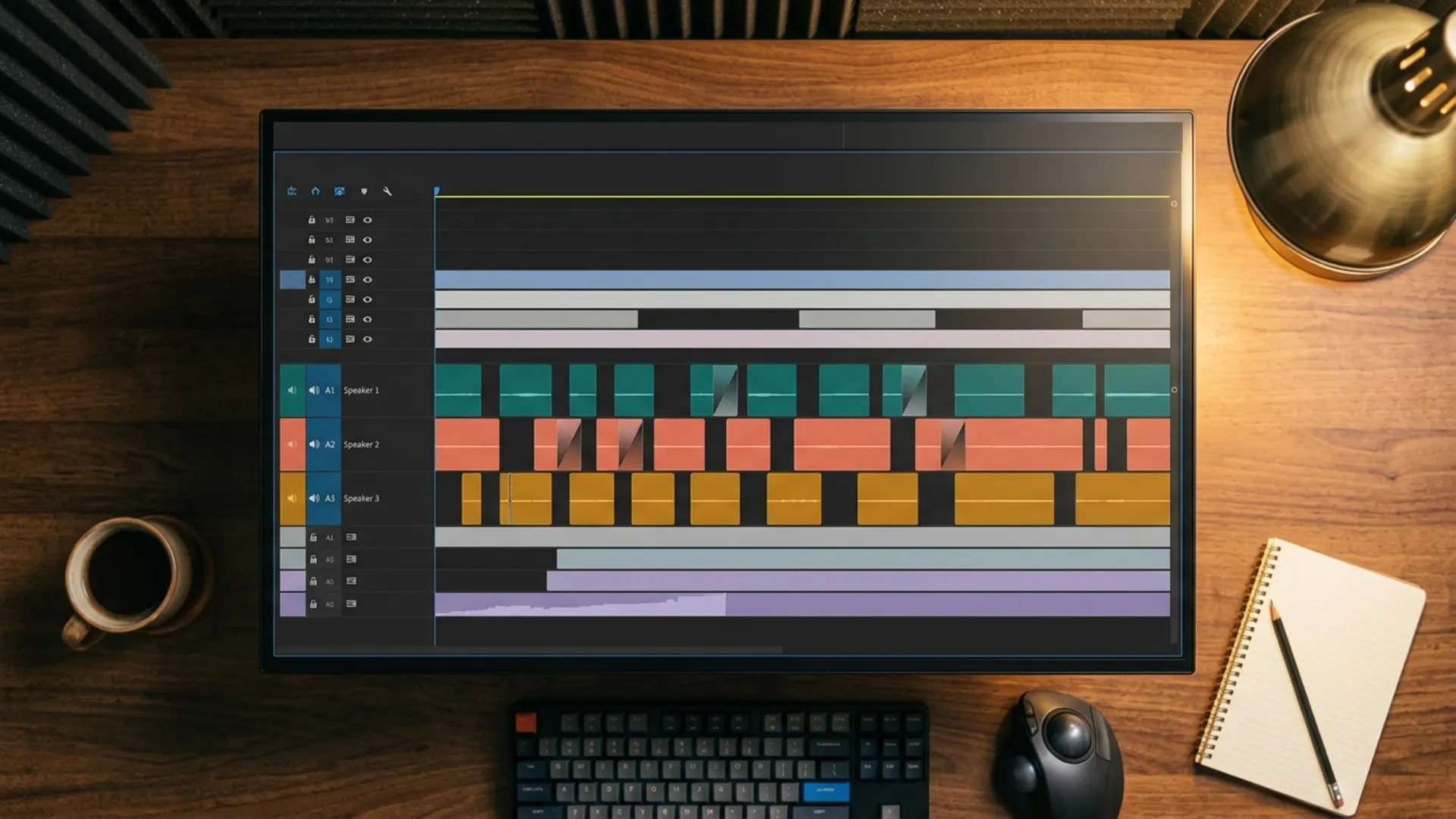
How Do You Make Dialogue Edits Sound Seamless?
If an edit still sounds rough, try a different fade shape. Production Expert suggests experimenting with fade shapes and cutting noise out of pauses manually, and Krotos points to short linear or constant-power crossfades as the usual starting point.
Breaths need a lighter touch than most people expect. Production Expert’s advice is to edit them sparingly and reduce their volume instead of deleting every one, because dialogue isn’t voiceover and a track with no breaths sounds fake. Krotos agrees: use a short fade or clip gain to tame a breath, don’t cut it out.
When a line has a bad word or a noisy stretch, an alternate take can save you. Cut in at a spot where the sync difference isn’t obvious, and check the result with picture. If you’re tightening filler words, text-based editing in Premiere Pro or Resolve speeds up the rough cut, but you still need to listen to every join afterward.
How Do You Use Room Tone to Smooth Dialogue Edits?
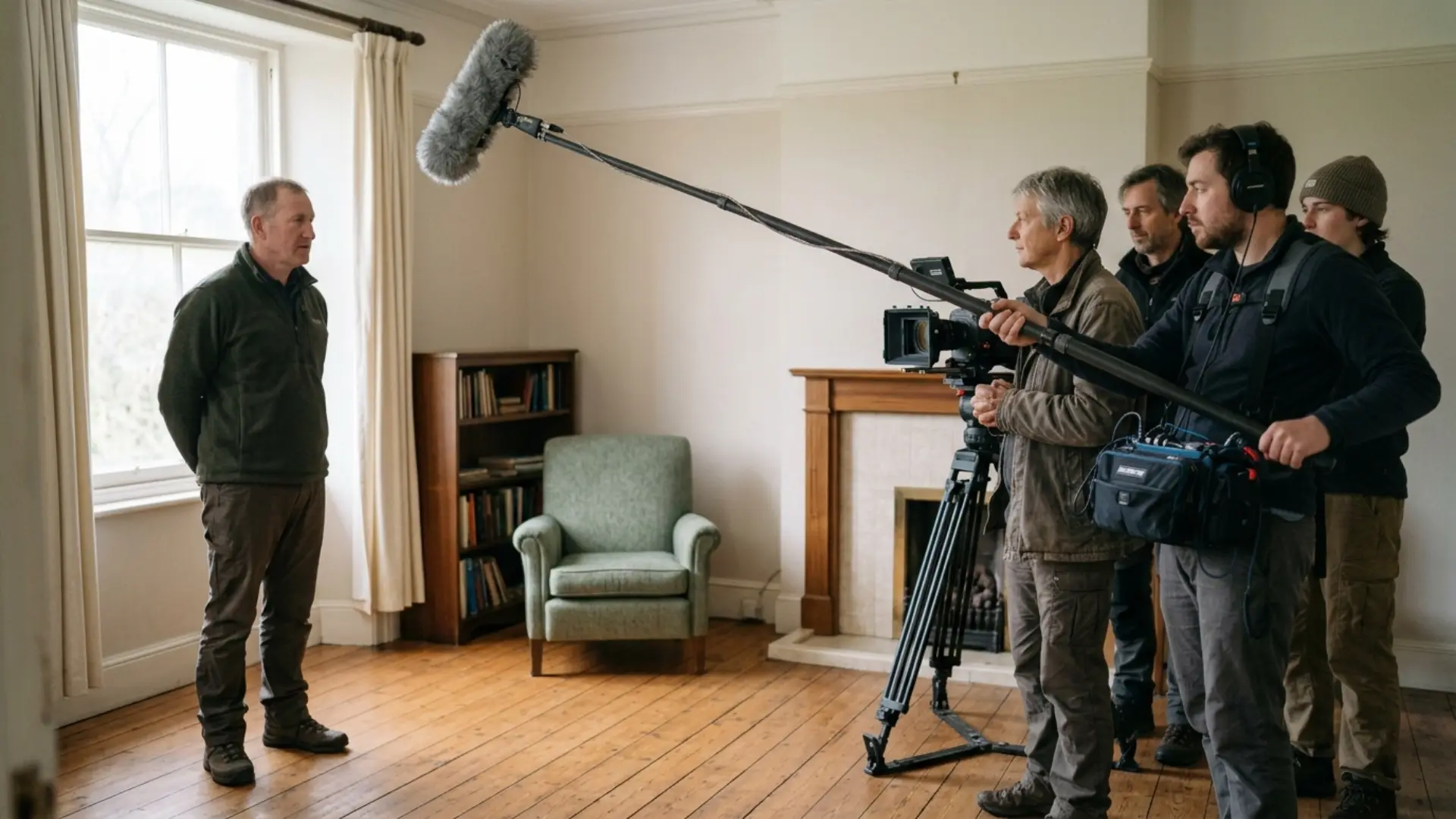
Production Expert recommends recording at least a couple of minutes of room tone on set, since it also underpins ADR later. If nobody recorded any, find a quiet stretch between lines in the same take, loop it with crossfades, and tuck it under the gaps. Krotos describes copying a room tone loop under quiet sections for exactly this reason.
Watch out for double room tone. If your dialogue already carries its own background and you lay a continuous room tone track underneath, you can end up with a thicker, noisier bed under speech than in the pauses. Editors on r/AudioPost and FilmSound.org both bring this up, along with the goal of a smooth edit with no extreme shift in room tone or volume.
One more point: don’t strip the ambience out completely. iZotope warns that removing all of it can take viewers out of the scene. If you need to build a bed from scratch, our guide to layering ambience covers how to do it.
How Do You Match Levels and Tone Between Speakers and Takes?
Clip gain does the heavy lifting because it changes the level before any processing sees it. Krotos recommends clip gain for level jumps, followed by smoothing automation. Premiere Pro’s Essential Sound panel has an Auto-Match option, and Fairlight has a Dialogue Leveler in the Studio version, but check what they do to your quiet passages before you trust them.
The classic problem is a two-person interview where one lav is hotter than the other. Raise the quieter speaker with clip gain until both voices feel like the same conversation, then listen to the cuts between them. iZotope points out that dialogue is the frame of reference for loudness, so everything else gets judged against it.
When you’re cutting an interview, you’re probably labeling each speaker on screen too. Matching the audio per speaker and adding clean name cards with something like Animated YouTube Lowerthirds gives viewers a clear cue about who’s talking, both by ear and by eye.
If a voice still sounds different after the levels match, a gentle EQ match is the next move. Production Expert mentions tools like FabFilter Pro-Q 4 for matching the tone of one recording to another, and the same idea works for matching two mics in a scene.
How Do You Remove Noise, Hum, Clicks, and Mouth Noise?
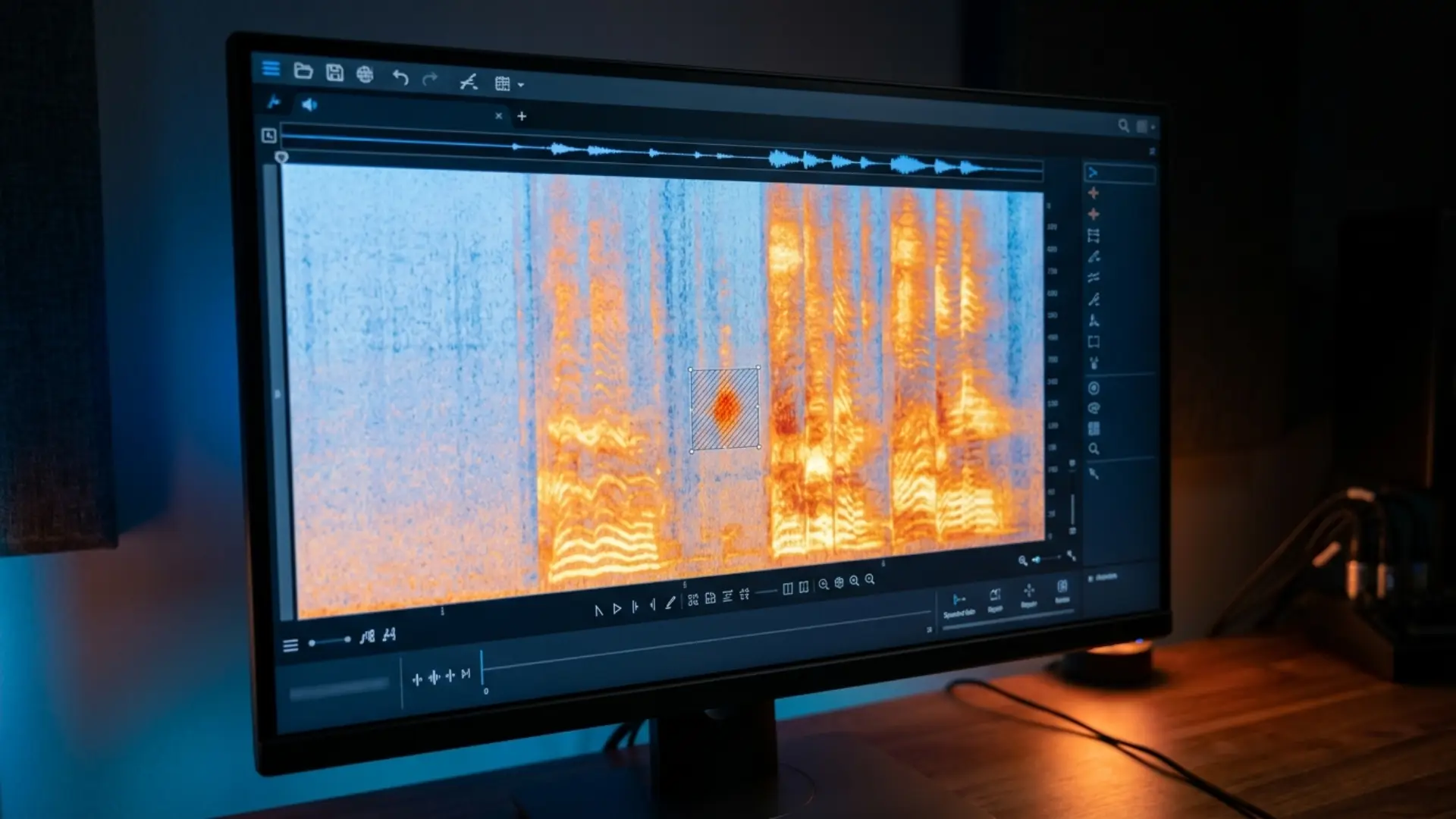
Start with the easy wins. Clicks and pops can often be fixed with a short fade or a spectral repair. Hum responds to a dedicated de-hum tool. For steady background noise, Premiere Pro’s Essential Sound panel offers Reduce Noise, Reduce Rumble, DeHum, and Reduce Reverb, and our guide to how to remove background noise in Premiere Pro walks through those settings.
For harder problems, spectral editors help. Production Expert lists iZotope RX, Acon Acoustica, and SpectraLayers, and Pro Tools can run spectral tools through ARA. Machine learning tools like Accentize dxRevive Pro and Hush Pro go after noise and reverb together. If you want a closer look at that category, we compared AI noise removal options in a separate post.
Over-cleaning is the common trap. iZotope’s take is that some sounds, like a dog bark, should be removed completely, while the ambient bed should stay so the scene still feels real. Production Expert has a whole article on avoiding over-cleaning with Hush Pro, and the lesson applies to any tool.
Krotos offers a short trust checklist for automated fixes:
- A/B the processed audio against the original.
- Check that sync hasn’t shifted.
- Listen on more than one set of speakers.
- Flag the clips you changed so the mixer knows.
Which Polish Processing Do You Actually Need?
If you want a deeper walkthrough of how those tools fit into a full mix, our upcoming guide on levels, EQ, and compression covers the basics.
When Should You Replace Dialogue With ADR?
If you do need it, the new line has to sound like it belongs in the scene. Production Expert advises recording ADR in an acoustic environment similar to the original, then matching it in post. Its list includes room tone and reverb matching (iZotope Ambience Match, Accentize Chameleon), EQ matching (FabFilter Pro-Q 4), and time alignment (Auto-Align Post 2). iZotope also offers Dialogue Match for the same job.
A few warning signs that point toward ADR: constant background noise that survives every pass, a line clipped beyond repair, or a performance that just doesn’t work. Our full guide to ADR in film covers how a session runs from start to finish.
How Do You Edit Dialogue in Premiere Pro, DaVinci Resolve, Audition, and Pro Tools?
What Mistakes Ruin Dialogue Edits?
- Over-processing: heavy noise reduction makes voices thin and watery. Back it off until the voice sounds natural again.
- Removing all the room tone: the scene goes dead, and every edit pops out.
- Double room tone: layering a continuous bed under dialogue that already has one makes the background louder under speech.
- Ignoring phase: Krotos includes a phase and mono check in its QA steps.
- Editing on laptop speakers: listen on headphones and at least one other set of speakers.
- Skipping notes: document your comp decisions so the next person doesn’t have to guess.
Before you send the dialogue stem on, run this handoff checklist based on Krotos’ criteria:
- Levels are consistent across the scene.
- No clicks or pops remain.
- Breaths are controlled but still natural.
- Room tone is matched and the gaps are filled.
- Comp decisions are documented.
- Stems are exported per scene or character, with a reference mix, matching sample rate, bit depth, and timecode, plus a notes document.
If you’re mixing the project yourself, our walkthrough on mixing dialogue, music, and sound effects in Premiere Pro picks up right where this checklist ends.
Conclusion
And once the audio sounds right, give the picture the same care. If you’re building interviews or talking-head videos, a pack like Animated YouTube Lowerthirds gives every speaker a clean on-screen introduction. Got a scene that’s fighting you? Run it through these steps and see how far it gets.
Wrap Up
- Dialogue editing makes the track continuous and clean, and mixing handles balance afterward.
- Work in passes: organize, assemble, smooth, match, clean, polish, hand off.
- Cut in silence, use short crossfades, and reduce breaths instead of deleting them.
- Fill gaps with room tone, but watch for double room tone under speech.
- Use clip gain for level jumps before any EQ or compression.
- Run noise reduction on short sections and A/B against the original.
- Reach for ADR only after alternate takes and repairs fall short.
- Hand off clean stems with notes, matched room tone, and no leftover clicks.
Disclaimer : If you buy something through our links, we may earn an affiliate commission or have a sponsored relationship with the brand, at no cost to you. We recommend only products we genuinely like. Thank you so much.
Blog Label:



Write for us
Publish a Guest Post on Pixflow
Pixflow welcomes guest posts from brands, agencies, and fellow creators who want to contribute genuinely useful content.
Fill the Form ✏