DaVinci Resolve Multicam Editing: How to Sync and Edit Multi-Camera Footage
- What Is Multicam Editing in DaVinci Resolve?
- What Changed for Multicam in DaVinci Resolve 21 (Quick Version)
- Prep Your Footage Before You Sync
- How to Create a Multicam Clip in DaVinci Resolve 21
- How to Edit Multicam Footage on the Edit Page
- Multicam Editing on the Cut Page with the Sync Bin
- AI Multicam SmartSwitch (Studio Only)
- Multicam Workflows for Podcasts, Music Videos and Events
- How to Fix DaVinci Resolve Multicam Sync Problems
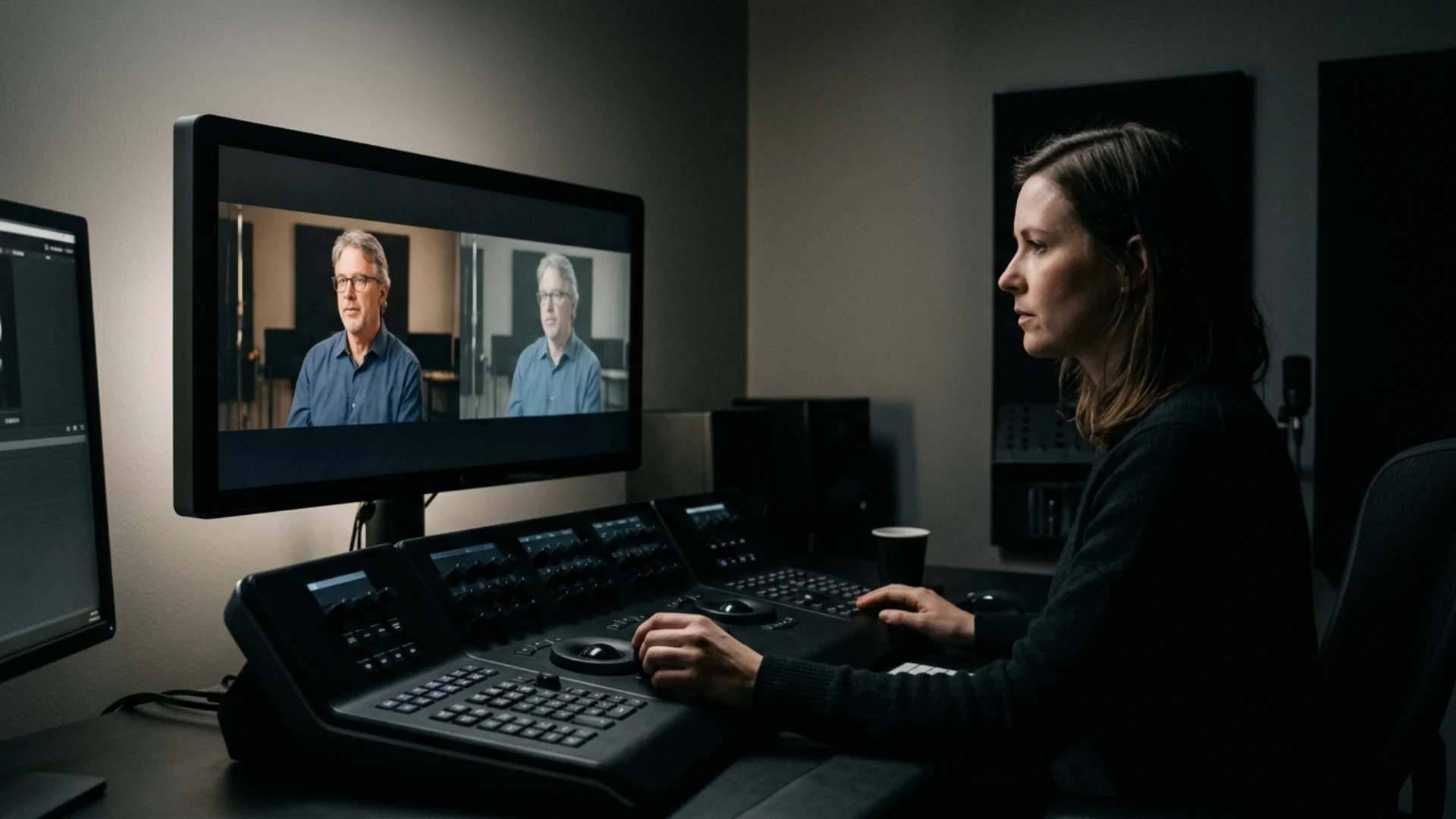
- Color Grading and Finishing a Multicam Edit
- DaVinci Resolve vs Premiere Pro vs Final Cut Multicam
- Conclusion
- Wrap Up
Three cameras, one hour-long interview, and a separate audio recorder. If your first instinct is to stack everything on the timeline and slide clips around until the claps line up, I get it (we’ve all lost an afternoon that way).
There’s a much faster route. DaVinci Resolve multicam editing lets you sync every angle once, then cut the whole conversation live, like a director calling shots in a control room. In this guide I’ll walk through the full workflow in Resolve 21.1, from prepping footage and building the multicam clip to cutting on the Edit page or the Cut page, plus Studio’s SmartSwitch and the fixes for sync problems that show up on real shoots.
If you’re still finding your way around the app, our guide to DaVinci Resolve for beginners is a good warm-up. And once the cut is locked, finishing touches go a long way: Dramatic Movie Title Templates For DaVinci Resolve give a show or concert film a cinematic opener, and Luminous Light Leak Transitions add warmth to the moments between songs or chapters.
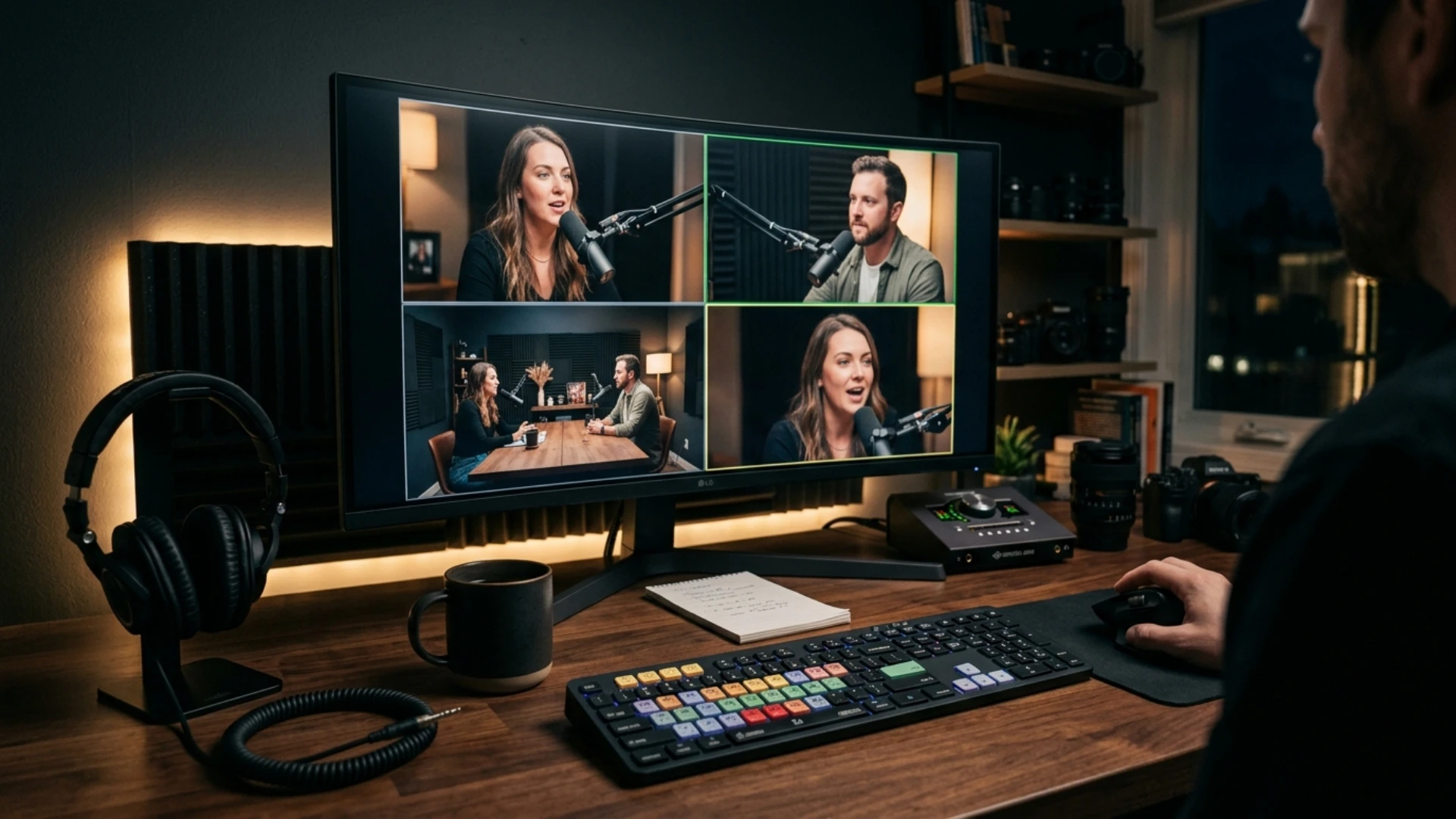
What Is Multicam Editing in DaVinci Resolve?
The process has three parts:
- Create the multicam clip from your angles and sync them.
- Edit that multicam clip into a timeline.
- Turn on the Multicam viewer and switch angles as it plays.
So when is it worth the setup? Any time two or more cameras recorded the same event: a podcast, an interview, a live set, a wedding ceremony. For a two-camera, 30-second spot, stacking clips on V1 and V2 can be quicker. Once you have three angles or a recording longer than a few minutes, I’d build a multicam clip every time (your scroll wheel will thank you).
You can cut multicam on two pages. The Edit page gives you the classic multicam viewer, a grid of angles with precise trimming. The Cut page uses the Sync Bin, which is built for speed and pairs nicely with the Speed Editor keyboard.
Creating, syncing and switching multicam clips all work in the free version of Resolve. The only Studio feature in this whole workflow is the AI Multicam SmartSwitch, which gets its own section below.
What Changed for Multicam in DaVinci Resolve 21 (Quick Version)
Here’s every multicam change I found in Blackmagic’s DaVinci Resolve 21 New Features Guide and the DaVinci Resolve 21.1 release notes:
My take: if you’re mid-project on Resolve 20, you won’t need to relearn anything. If you cut multi-mic podcasts or long events, the All Angles audio option and the 21.1 gap splitting justify the update on their own.
Prep Your Footage Before You Sync
On set:
- Clap or slate at the start of every take, in view of all cameras. Sound sync gets a sharp spike to lock onto, and you get a visual backup.
- Jam-sync timecode if your cameras and recorder support it. Timecode is the fastest sync method when it’s set up right.
- Record scratch audio on every camera, even when a dedicated recorder handles the real sound. Sound sync needs audio on each angle to compare.
In the edit:
- Match frame rates across cameras. Mixed frame rates are a classic cause of angles drifting apart.
- Watch out for phone footage. Phones often record variable frame rate, so convert those clips to a constant frame rate before you sync.
- Keep one bin per shoot (or per shoot day). You can then right-click the bin and build the multicam from everything in it.
- Set Camera # or Angle metadata in the Metadata panel. With Detect clips from same camera turned on, Resolve uses it to put every Camera B clip on the same angle.
- Make proxies before you judge playback. Four streams of long-GOP 4K can choke a laptop, and our guide to the proxy workflow in DaVinci Resolve covers the settings.
How to Create a Multicam Clip in DaVinci Resolve 21
Step by step:
- Import all your angles and any external audio into one bin.
- Select the clips (or right-click the bin).
- Choose Create New Multicam Clip Using Selected Clips.
- Name the multicam and check the start timecode and frame rate.
- Choose your Angle Sync, Angle Name and Multicam Audio options (more on those below).
- Click Create. If you turned on Move source clips to “Original Clips” bin, your source clips move into that bin and the multicam clip stays in the current one.
- Right-click the new multicam and choose Open in Timeline to check sync before you cut a single frame.
Here’s what each option in the dialog does, based on the multicam chapter (chapter 49) of the DaVinci Resolve 21.1 Reference Manual:
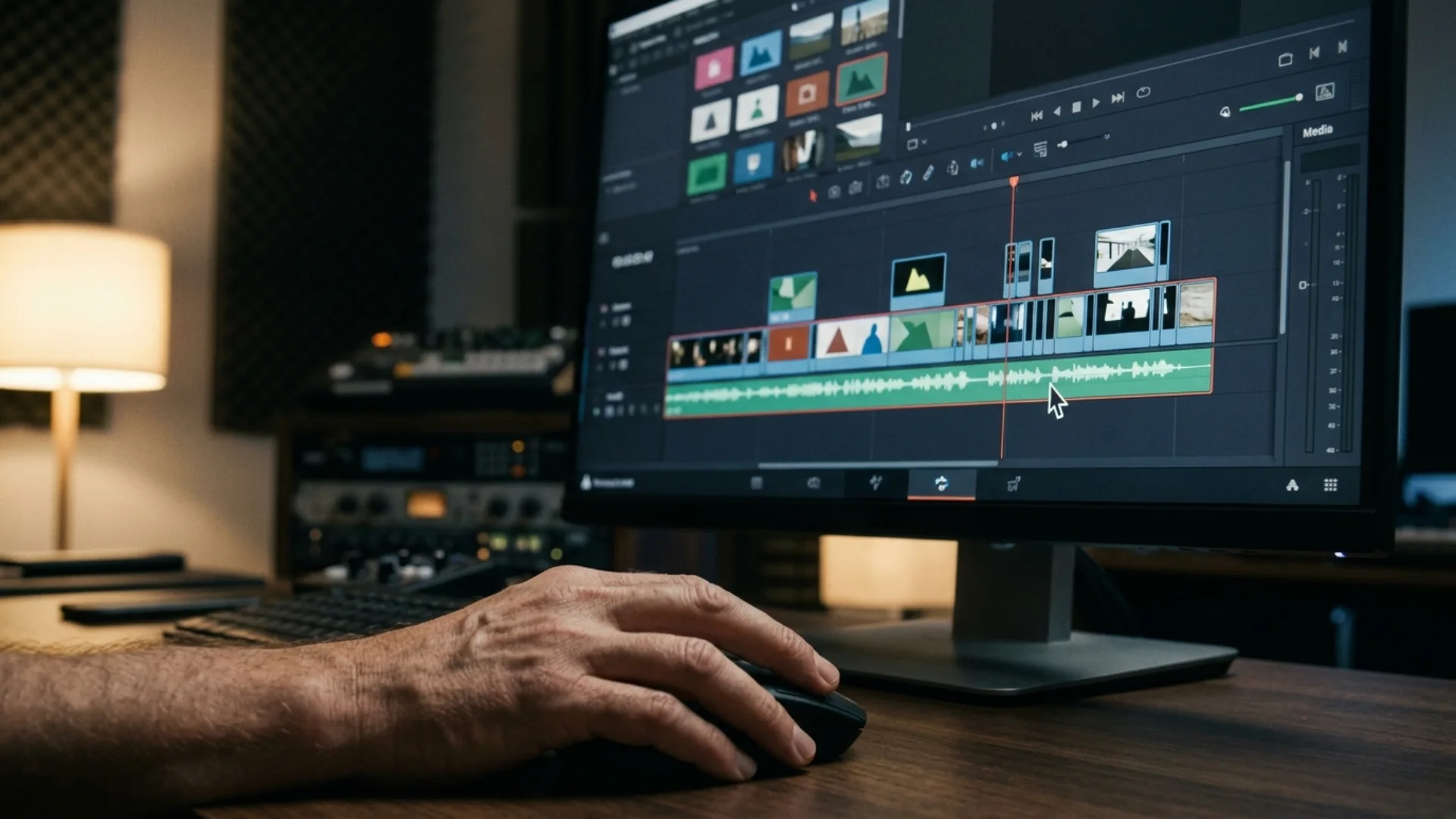
Timecode, Sound, In/Out Points or Markers: Which Sync Method to Use
Use timecode when every device shared synced timecode, sound when each camera recorded usable audio, and in points, out points or markers when you have a visual cue like a clap or flash but no shared timecode or clean audio.
Choosing the Right Multicam Audio Option
Pick your Multicam Audio option based on where your best audio lives. If one recorder or one camera holds the clean sound, use Reference Audio/Angle 1. If you need every mic on its own track, use All Angles.
- Source Audio Channels (the default): the multicam carries the angles’ source audio channels. Fine when audio comes from the cameras themselves, risky when only one camera had a decent mic.
- Reference Audio/Angle 1 (added in Resolve 20): uses the first audio-only angle as the multicam’s audio, or angle 1 if there isn’t an audio-only angle. This is the easy answer for a podcast or interview with a separate recorder.
- Adaptive Tracks: an option built around Resolve’s adaptive audio tracks. If your sources mix different channel layouts, check chapter 49 of the Reference Manual for how it maps them before you commit.
- All Angles (new in 21): brings in every audio track from every angle. Great for multi-mic podcasts and live music, where you’ll mix everything later anyway.
How to Edit Multicam Footage on the Edit Page
- Drag the multicam clip into a new timeline.
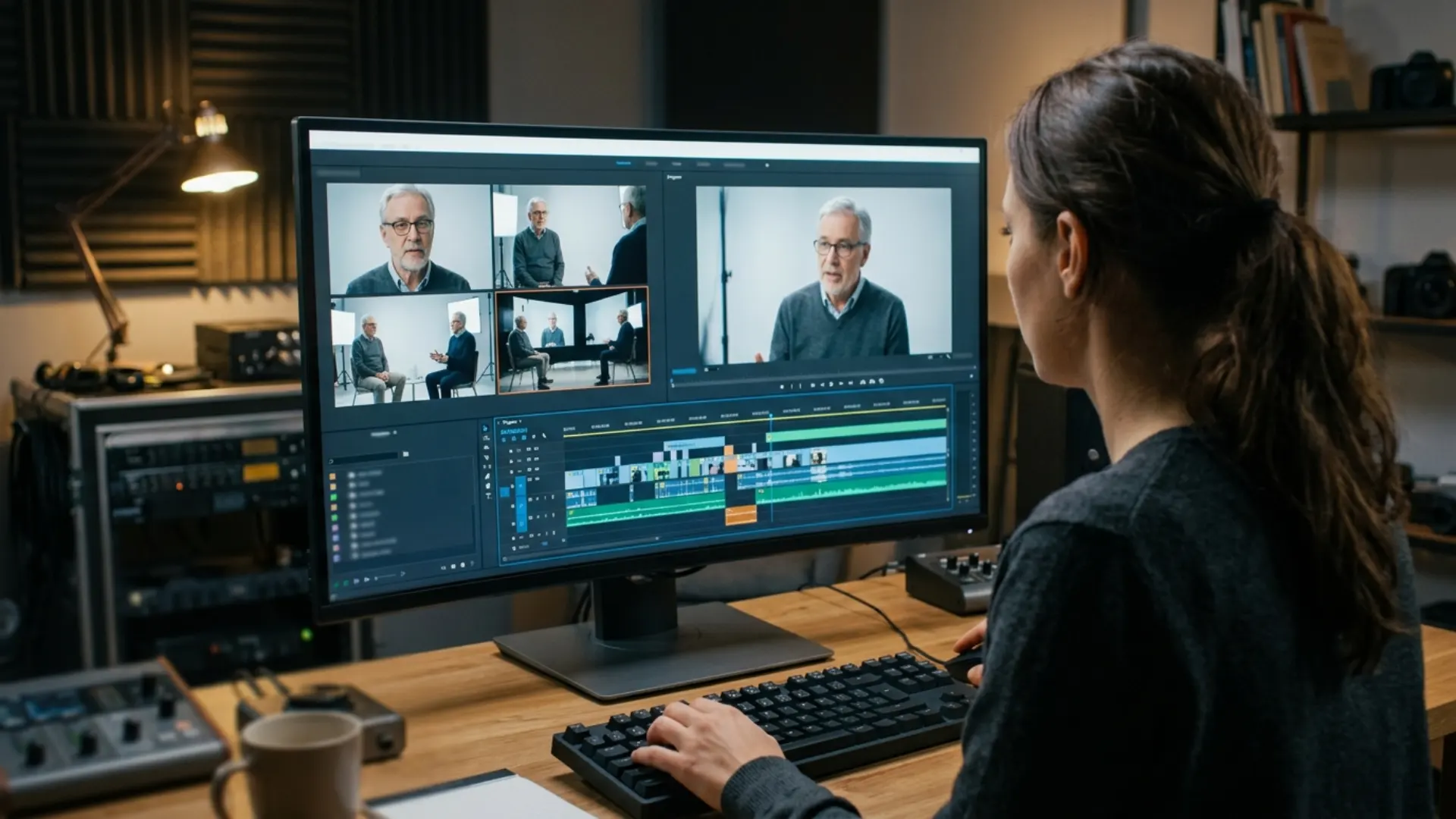
- Switch the timeline viewer to Multicam mode (in Resolve 21.1 this is a property of the timeline viewer itself).
- Pick a grid size, anywhere from 1×1 up to 4×4, so you can see all your angles.
- Play the timeline and click an angle, or press its number key, to cut and switch.
There are two ways to change angles, and knowing both saves a lot of undoing:
- Cut and switch: click an angle or press its number. Resolve adds a cut at the playhead and switches to that angle.
- Switch only: Option-click (Mac) or Alt-click (Windows) an angle to change the current segment’s angle without adding a new cut. This is how I’d fix a shot I called late.
The multicam viewer also has buttons that choose whether switching affects video, audio or both. For anything with one clean audio source, switch video only so the sound never jumps between camera mics.
To refine the cut:
- Right-click a segment in the timeline and choose Switch Multicam Clip Angle to change it without the viewer.
- Roll an edit point to move a cut earlier or later without changing the overall length.
- Use Match Frame to Source Clip, which since Resolve 21 finds the underlying source clip inside the multicam on its own.
The rhythm I’d suggest: one real-time pass to get the shape of the conversation, then a slower second pass with Option-click and roll trims to tighten every switch. The number keys do most of the work here, and since 21.1 you can switch or cut up to 25 angles from the keyboard. Our full list of DaVinci Resolve keyboard shortcuts covers the rest of the Edit page.
Multicam Editing on the Cut Page with the Sync Bin
- In the Cut page Media Pool, select your clips and open the Sync Clips window.
- Choose Timecode, Audio, In Point or Out Point, click Sync, then click Save Sync.
- Edit your main angle (usually the wide) into the timeline.
- Open the Sync Bin. Its viewer shows the angles that match the current moment, and the Multi Source viewer shows them side by side.
- Pick an angle to place it at the playhead, or use live overwrite (added in Resolve 20) to drag across angles with the mouse while the timeline plays.
One thing to know before you start: the Sync Bin depends on common timecode. If your cameras weren’t jam-synced, run Sync Clips first and save the sync so the Sync Bin has something to line up.
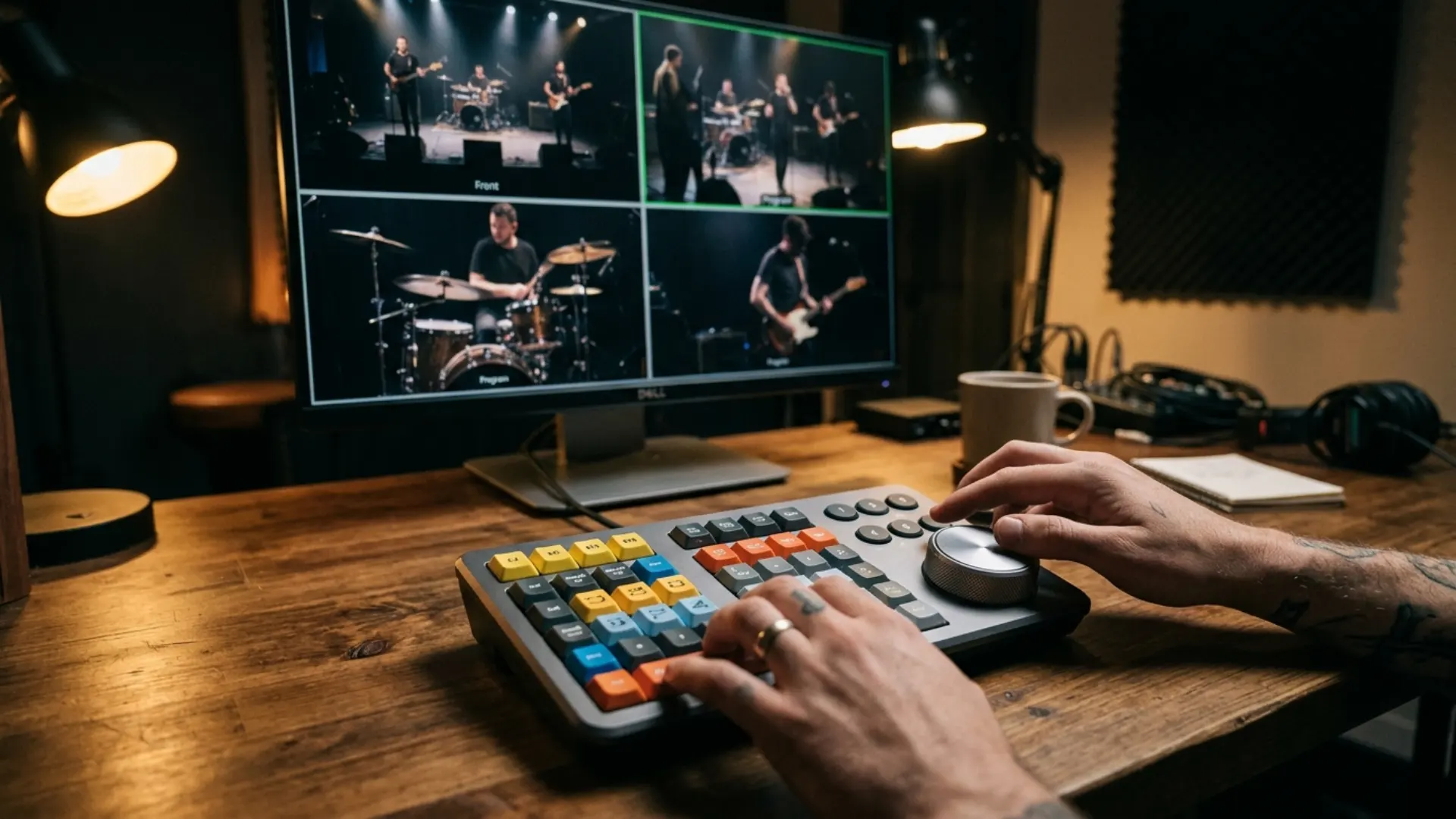
The Cut page really shines on long-form shows with a Speed Editor, where the CAM buttons switch angles like a vision mixer. Here’s how the two pages compare:
AI Multicam SmartSwitch (Studio Only)
How to run it:
- Create your multicam clip and check that every angle is in sync.
- Edit the multicam into a timeline.
- Right-click the multicam clip in the timeline and choose Multicam SmartSwitch. In Resolve 21.1 you can also click the SmartSwitch button at the lower left of the source viewer while it’s in Multicam mode.
- Adjust the settings and click Analyze.
Treat the result as a first pass. I’d review it in three rounds: speaker accuracy first (is the right person on screen?), then pacing (does it cut too often?), then continuity (hands, props, eyelines). If you’re deciding whether Studio is worth it for this alone, our comparison of DaVinci Resolve Free vs Studio breaks down what else the license unlocks.
Multicam Workflows for Podcasts, Music Videos and Events
Podcasts and Interviews
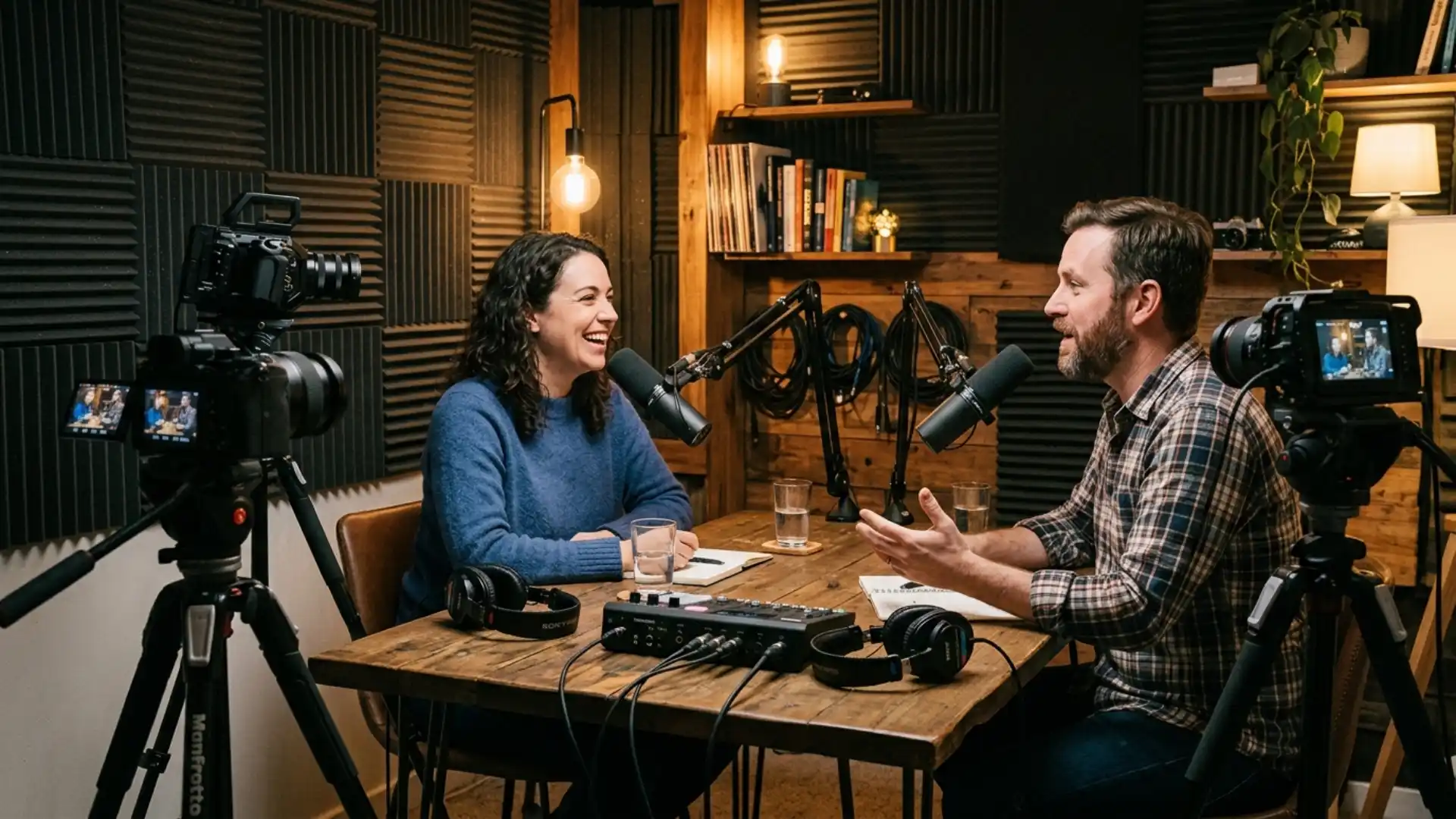
For a podcast or interview, make the recorder’s audio its own angle, choose Reference Audio/Angle 1, and switch video only. That way the sound stays on the clean mix no matter which camera you’re on.
- With Reference Audio/Angle 1, Resolve uses the first audio-only angle as the multicam’s audio, so drop the recorder file in with your camera clips.
- Switch video only in the multicam viewer, so a click never swaps your podcast mics for a camera’s scratch track.
- For multi-mic shows, choose All Angles instead. Each mic lands on its own track, ready for levels, EQ and noise cleanup.
- Turn on auto-scale audio waveforms (Resolve 21.1) to check sync on a quiet guest mic.
- If you have Studio, SmartSwitch was built for exactly this kind of conversation.
Once the cut is done, the mix happens on the Fairlight page, and our guide to mixing multicam audio in Fairlight walks through it.
Music Videos and Concerts
For music videos, sync every performance take to the master track by sound and treat each take as an angle. You can then switch between takes as if they were cameras, while the song itself never changes.
- Play the master track out loud on set so every camera records it. That gives sound sync a strong signal on every take.
- Add the master track as an audio-only angle and use Reference Audio/Angle 1, so the song stays locked under every switch.
- Mark the beat with timeline markers before you start switching, so your cuts land on the music.
- For concerts with lots of cameras, a 4×4 grid and the 21.1 shortcuts for up to 25 angles keep everything within reach.
Music videos are also where stylized transitions earn their place. Luminous Light Leak Transitions is a pack of 80 pre-rendered light leak and film burn transitions up to 4K, and it sits on a track above your multicam cut, so switching angles underneath doesn’t disturb it. ✨
Events and Weddings
For events and weddings, turn on Detect clips from same camera so every clip from each camera stays on its own angle, and check drift on anything long. Event cameras stop and restart constantly (battery swaps, card changes, the occasional overheated body).
- Set Camera # or Angle metadata on every clip during prep, then let Detect clips from same camera group them.
- Use Split multicam at gaps when every camera stopped at once, like the break between a ceremony and the speeches. You get one multicam per segment instead of one with long empty stretches.
- On a long ceremony, jump to the end and check lip sync on each angle before you start cutting.
- If an officiant or speaker wore a separate lav recorder, treat it like podcast audio: give it its own angle and switch video only.
How to Fix DaVinci Resolve Multicam Sync Problems
- Right-click the multicam clip in the Media Pool and choose Open in Timeline.
- To fix an angle, select its clip and nudge it a frame at a time with the comma and period keys until the waveforms line up.
- To add an angle, add a new video track, drop the missing clip on it, and line it up by waveform or by a visual cue.
- Go back to your edit timeline. The changes carry through to every segment that uses the multicam.
Color Grading and Finishing a Multicam Edit
Each angle inside a multicam has its own grade. Open the multicam with Open in Timeline and grade each angle there, and every segment that uses that angle picks it up. Grading individual segments in your edit timeline is still handy for a shot where a cloud rolled over the sun.
Before any creative look, match the cameras so switches don’t jump in color or exposure. Our guide on how to color match footage from different cameras covers the full process.
Should you flatten? Flattening turns multicam segments into regular clips, and Resolve offers two grade options when you do it:
- Copying Multicam Grades keeps the grades you applied to the multicam segments in the timeline.
- Retaining Grades from Angles keeps the grades applied to the angles inside the multicam.
Users on the Blackmagic Forum report that flattening throws away Transform changes, so duplicate your timeline before you flatten (trust me, you’ll want that safety net). In most cases you can finish without flattening at all.
Titles and graphics go on tracks above the multicam, so they stay put no matter how many times you switch angles underneath. For a show open or chapter cards, Dramatic Movie Title Templates For DaVinci Resolve give a multicam documentary or concert film a big-screen feel.
DaVinci Resolve vs Premiere Pro vs Final Cut Multicam
Conclusion
When the cut is locked, give it a finish that matches the effort: open with Dramatic Movie Title Templates For DaVinci Resolve and add a glow between scenes with Luminous Light Leak Transitions. (Your multicam deserves a big entrance 🎬)
Wrap Up
- Prep decides how smooth the sync goes: clap on set, match frame rates, convert variable frame rate phone clips, and set Camera # or Angle metadata.
- Pick the sync method from what you recorded: timecode for jam-synced setups, sound for scratch audio, In or Out points and markers for visual cues.
- Choose the Multicam Audio option by where your best audio lives: Reference Audio/Angle 1 for a single recorder, All Angles (new in Resolve 21) for multi-mic shows.
- On the Edit page, a click cuts and switches, while Option-click or Alt-click switches the current segment without a new cut.
- The Cut page Sync Bin needs common timecode and pairs well with a Speed Editor for fast first cuts of long shows.
- Resolve 21.1 adds 25-angle shortcuts, gap splitting with timecode sync and a SmartSwitch button in the source viewer.
- SmartSwitch is Studio only and works best as a first pass you review.
- Grade the angles inside the multicam, and if you flatten, duplicate the timeline first and do it last.
Disclaimer : If you buy something through our links, we may earn an affiliate commission or have a sponsored relationship with the brand, at no cost to you. We recommend only products we genuinely like. Thank you so much.
Blog Label:



Write for us
Publish a Guest Post on Pixflow
Pixflow welcomes guest posts from brands, agencies, and fellow creators who want to contribute genuinely useful content.
Fill the Form ✏