How to Record Professional Audio with Your Phone: Microphones, Apps, and Settings
- Why Phone Audio Usually Sounds Bad
- Step 1: Fix Your Recording Environment First
- Step 2: Choose the Right Microphone for Your Phone
- Step 3: Add an Audio Interface for XLR and Pro Mics
- Step 4: Pick a Recording App with Manual Control
- Step 5: Dial In Your Settings (Levels, Format, and Sample Rate)
- Step 6: Master Your Mic Technique
- Recording Music and Vocals on Your Phone
- Bringing It All Together
Here’s the thing: the phone in your pocket is genuinely capable of professional-grade audio. You just need the right microphone, the right app, and the right settings, and to know a few tricks the pros use every day. In this guide, we’ll walk through exactly how to record clean, broadcast-ready sound with your phone, leading with iPhone and covering Android along the way, so your mobile videos finally sound as good as they look.
This article is part of our complete guide to mobile filmmaking, so once your audio is dialed in, you’ll have the full picture.
Why Phone Audio Usually Sounds Bad
- The mics are tiny. Small capsules struggle to capture the low-end warmth of a human voice, which is exactly why raw phone audio can sound thin and boxy.
- They pick up everything. The built-in mics are omnidirectional, so they grab your voice, the traffic, the air conditioner, and the neighbor’s dog with roughly equal enthusiasm.
- Native apps compress heavily. The default camera and voice apps squash your audio to save space, stripping out detail before you ever get to edit.
- No manual control. You can’t set levels or monitor the signal, so you’re basically hoping it turns out fine.
The fix isn’t one magic setting. It’s a stack of small, deliberate choices. Let’s build that stack.
Step 1: Fix Your Recording Environment First
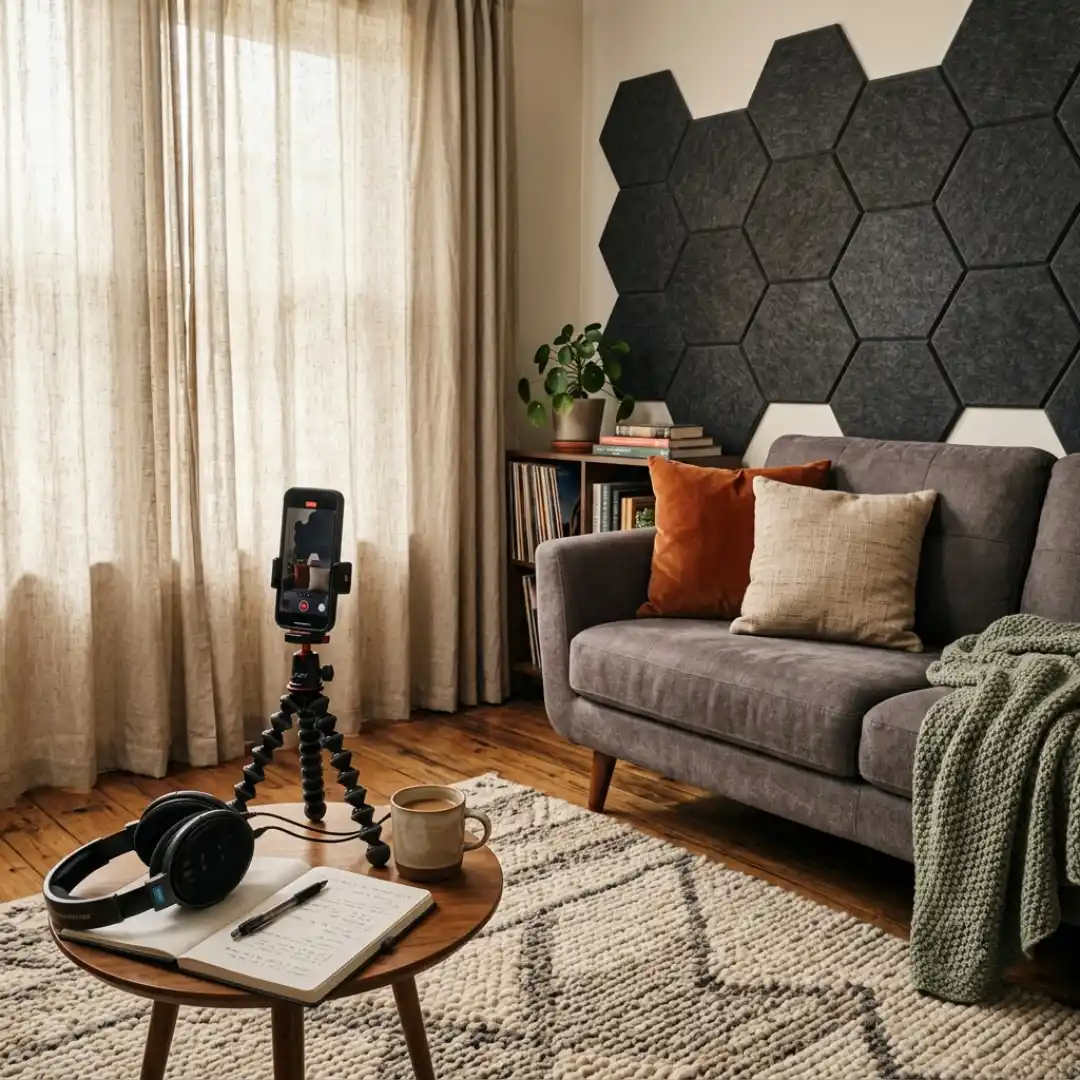
- Find the quietest spot you can. No fans, no AC, no laundry machine, no pizza guy at the door. If you shoot voiceovers, early morning or late night usually gives you the calmest background.
- Tame the echo. Hard floors and bare walls bounce sound straight back into the mic and muddy it up. Record in a room with carpet, curtains, a couch, or anything soft. In a pinch, recording under a blanket genuinely works, and it’s a trick you’ll hear countless creators swear by from their early days.
- Take your phone out of its case. A bulky case can partially muffle the mic. Removing it gives you a cleaner path to the capsule.
- Clean the mic port. On most phones the main mic sits on the bottom edge next to the charging port, and it collects lint and dust over time. A gentle pass with a soft brush or a paperclip (carefully) can noticeably clear things up.
Quiet room plus a soft, non-reflective space beats an expensive mic in a bad room almost every time. Environment first, gear second.
Step 2: Choose the Right Microphone for Your Phone
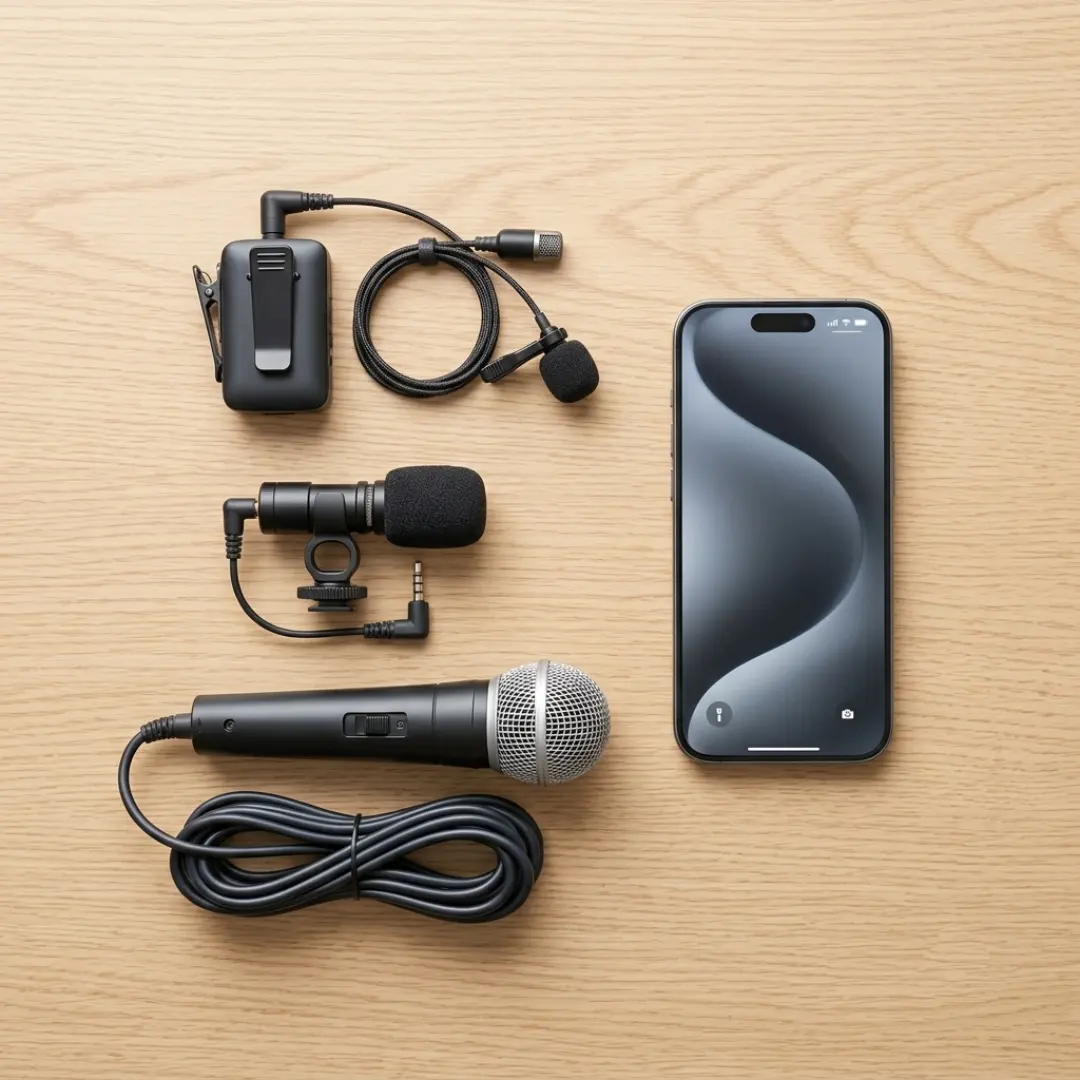
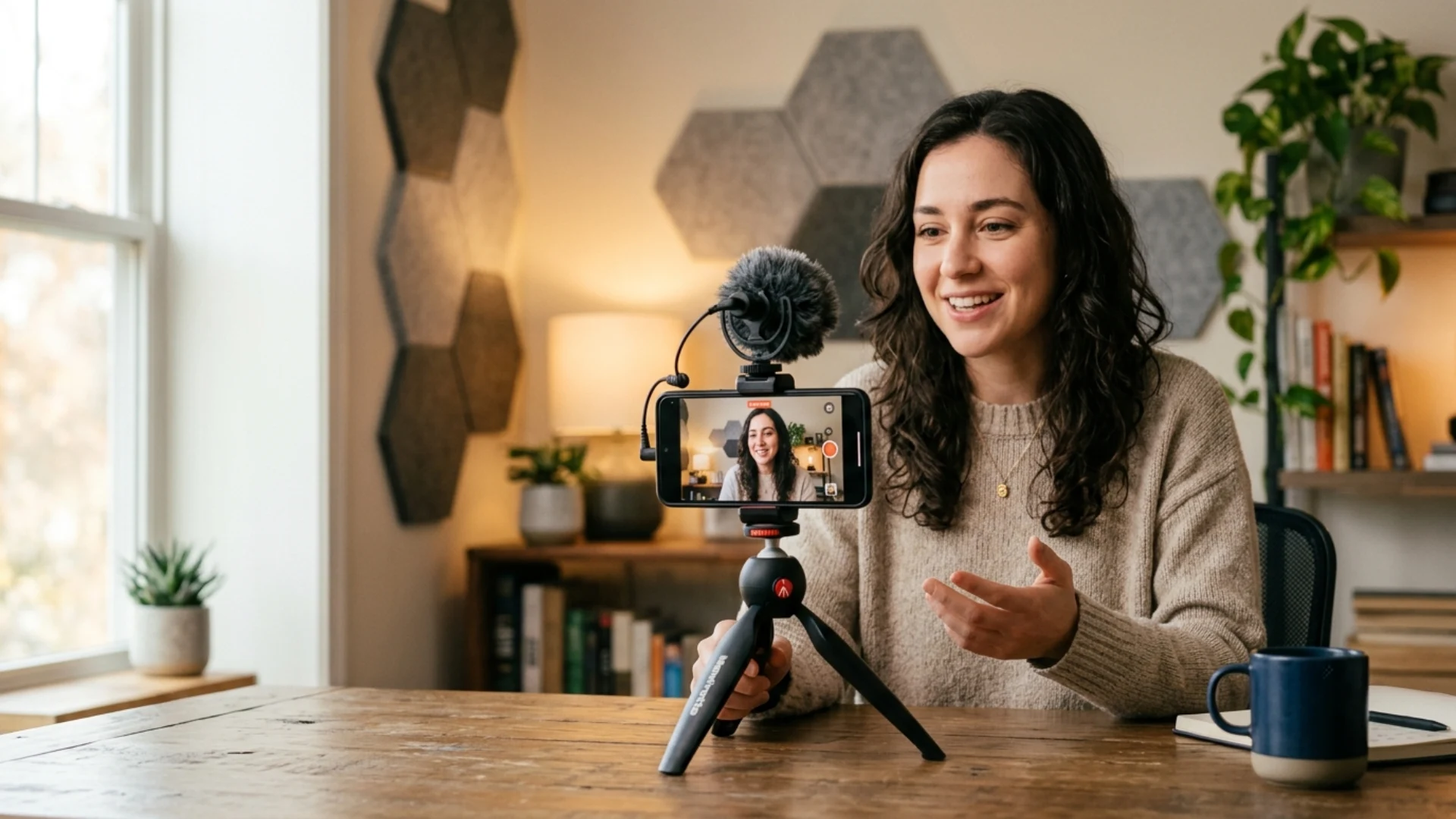
- Wireless lav mics clip to your shirt and let you roam. Kits like the Rode Wireless Pro can reach hundreds of feet and connect instantly, which is ideal for interviews and walk-and-talk vlogs. Many also record a safety track internally in 32-bit float, so a clip that’s too loud or too quiet can still be rescued later.
- Plug-in mics like the Shure MV88 pop straight into your USB-C or Lightning port. They’re perfect when you can’t easily clip a mic on, or when you want clean voiceover audio to lay under B-roll.
- On-camera shotgun mics are great for capturing a subject in front of the phone while rejecting some of the sound off to the sides.
For a broader roundup of phone-friendly options, Engadget maintains a solid annual guide. A good mic also pairs beautifully with a smart accessory setup, which we cover in our guide to mobile filmmaking accessories under $100.
iPhone vs Android: getting the connection right
Since we’re leading with iPhone, here’s how connections shake out:
- iPhone (USB-C, iPhone 15 and newer): Plug USB-C mics and receivers in directly. This is the simplest, most reliable route.
- iPhone (Lightning, older models): You’ll need a Lightning version of your mic or interface, or a certified adapter.
- Android: Almost all modern Androids use USB-C, so USB-C mics work directly. Samsung Galaxy phones even let you pick your audio source in Pro Video mode.
- 3.5mm mics: These use a TRRS plug (the one with the extra ring made for phones), which is different from the TRS plug used by traditional cameras. If your mic is TRS, you’ll need a TRS-to-TRRS adapter for it to work with a phone.
Step 3: Add an Audio Interface for XLR and Pro Mics (Optional but Powerful)
Why bother with an interface?
- Manual gain control. You set the input level yourself instead of leaving it to the phone.
- Split-track recording. Many interfaces let you record two mics onto separate channels, which is gold for interviews.
- Better mic support. You can run a dynamic mic like a Shure SM58, which naturally rejects room noise and is very forgiving in untreated spaces.
This is the route to take when you’re recording a podcast, a two-person interview, or music, and you want full control over the signal before it hits your phone.
Step 4: Pick a Recording App with Manual Control
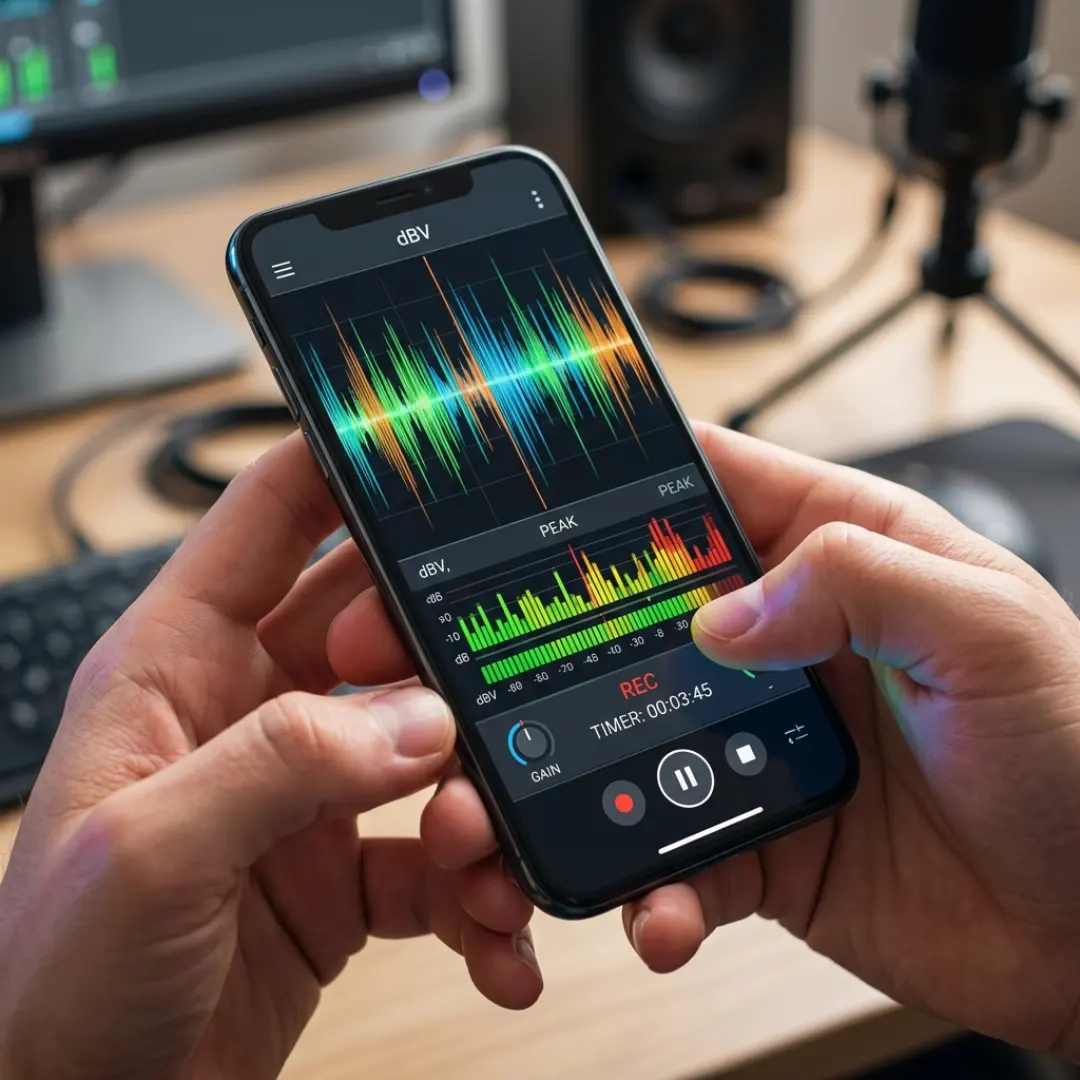
- On iPhone, switch Voice Memos to Lossless. Go to Settings > Apps > Voice Memos > Audio Quality and choose Lossless. The default compressed setting is a big reason stock recordings sound flat, and this one toggle makes an immediate difference.
- On Android, skip the stock recorder if it sounds muffled. A third-party app like Easy Voice Recorder or RecForge II gives you uncompressed formats and a real level meter so nothing gets over-processed on the way in.
For a full breakdown of mobile editing tools to pair with your recordings, see our guide to the best mobile video editing apps in 2026.
Step 5: Dial In Your Settings (Levels, Format, and Sample Rate)
A note on sample rate: 48 kHz is the sweet spot for video, while music production often uses 44.1 kHz. If you want to understand the reasoning, RedShark News has a clear explainer on audio sample rates for video. And if your mic supports 32-bit float recording, take advantage of it: it captures such a wide dynamic range that even a level you set too low or too high can be recovered in post without audible damage.
Step 6: Master Your Mic Technique
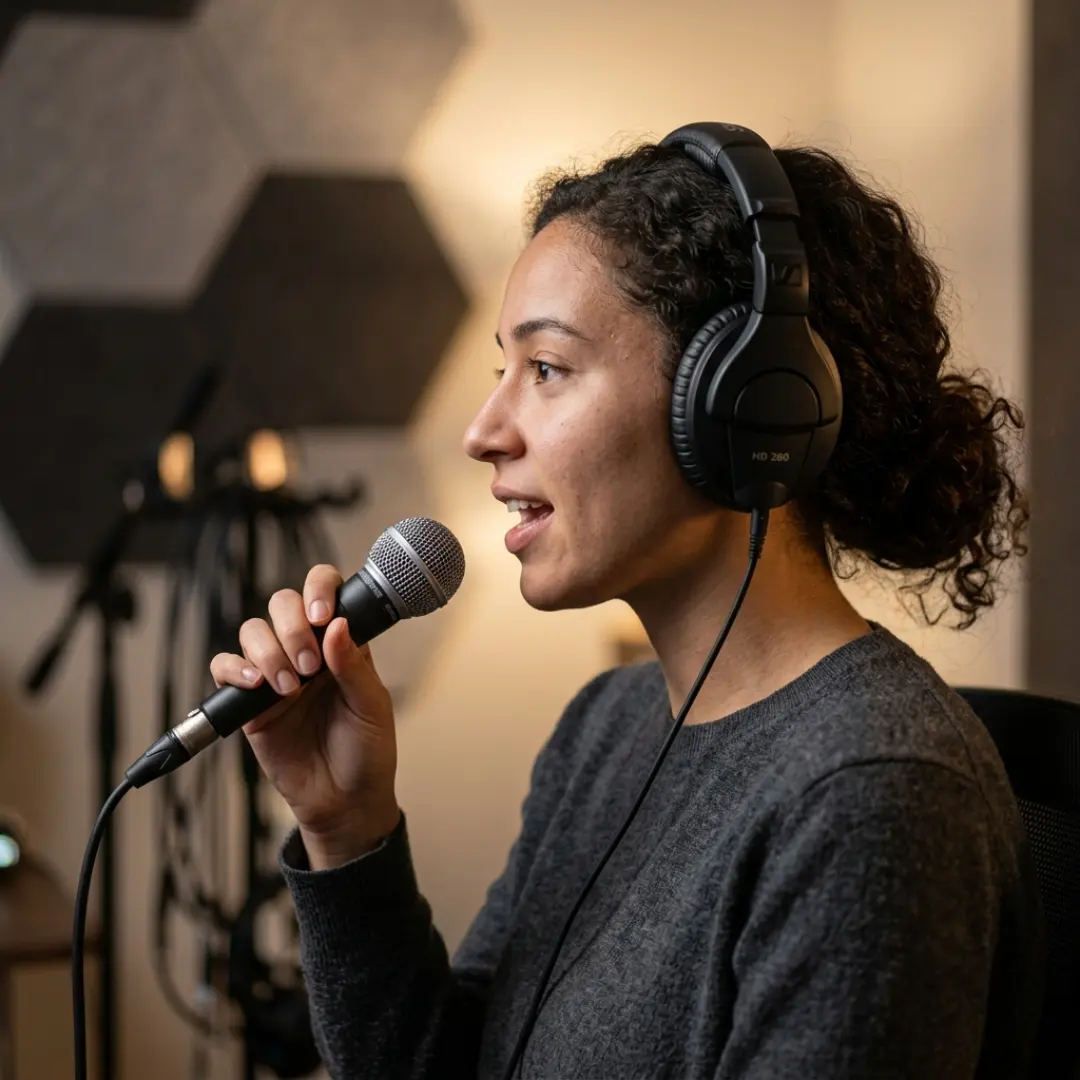
- Mind the distance. For a handheld or clip mic, roughly 3 to 6 inches (about a hand’s width) from your mouth is the sweet spot. Too close and you get boomy, distorted, plosive-heavy sound. Too far and it turns thin and echoey, and any noise reduction later will drag up background hiss.
- Aim it at the source. Point the mic toward your mouth or the instrument, not off to the side.
- Stay consistent. Try to keep the same distance throughout a take so your levels don’t jump around. If a moment gets loud, pull the mic back slightly to avoid peaking.
- Use a windscreen outdoors. That little foam or furry cover tames wind rumble that would otherwise ruin an outdoor recording.
- Monitor with wired headphones. Plug in and listen while you record so you catch problems in the moment. Wired avoids the Bluetooth latency that throws off your timing.
If you record separately from your camera app, clap once at the start of each take. That spike gives you an easy visual marker to line up audio and video later. Our guide on syncing audio and video in Premiere Pro walks through the whole process.
Recording Music and Vocals on Your Phone
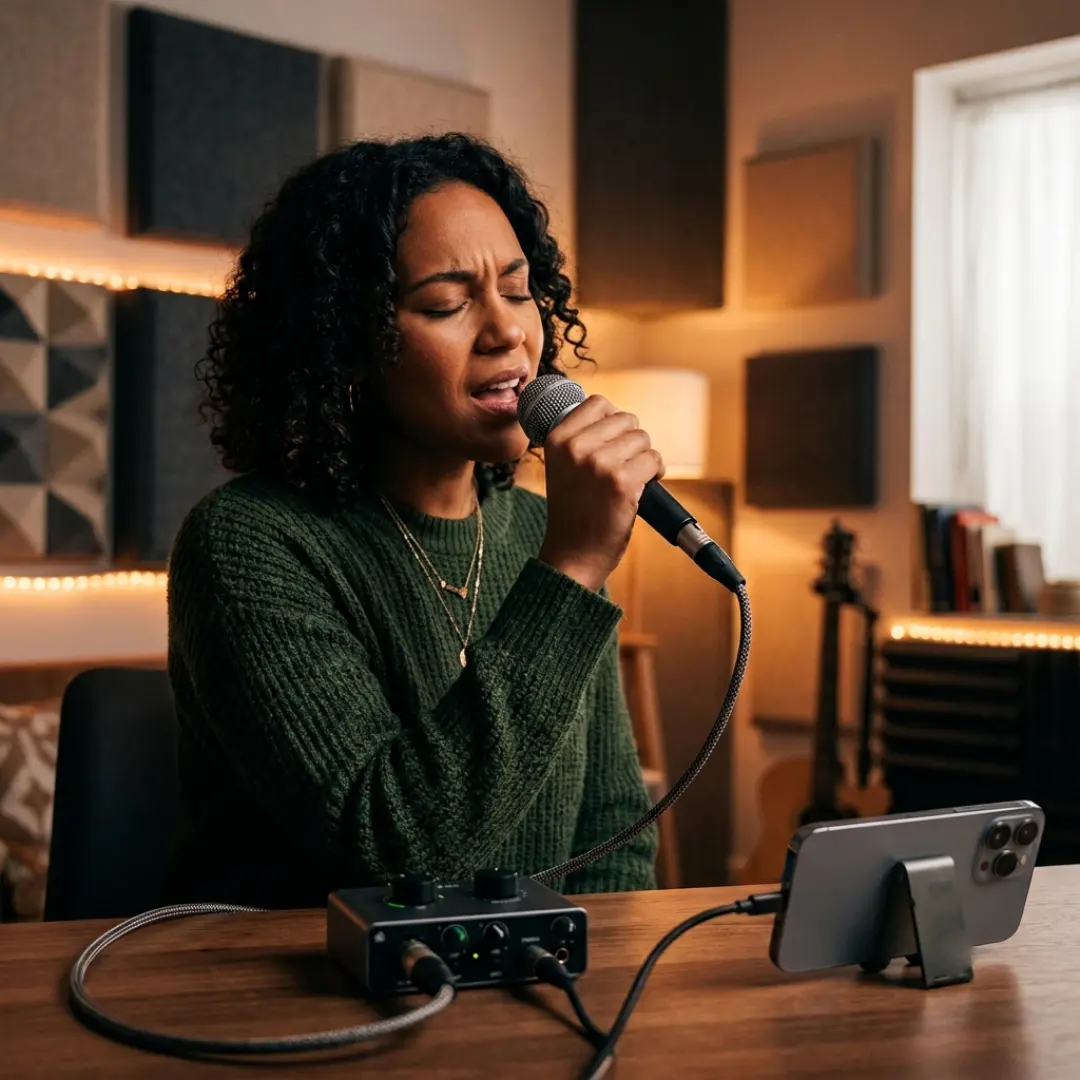
- Reach for a dynamic mic. A dynamic mic like a Shure SM58 mainly picks up what’s close to it and rejects room noise, which makes it far more forgiving than a sensitive condenser in an untreated bedroom. Pair it with a phone-compatible interface (Step 3) and you’re set.
- Treat the room, or improvise one. Vocals expose echo even more than speech. Soft furnishings help, and the classic blanket-fort trick still delivers a surprisingly tight sound.
- Monitor and play the backing track separately. Phones usually won’t play music while recording a voice memo, so run your instrumental through a second device into wired headphones while you sing.
- Keep the raw take clean. Less is more. The cleaner your recording, the better it processes. Apps like BandLab even include one-tap voice cleanup to remove noise and room echo before you add effects.
Once your track is recorded, a little post polish goes a long way, and if you’re building an actual music video around it, our Music Video Titles pack makes it easy to add professional, customizable titles to match your sound.
Fixing and Polishing Your Audio in Post
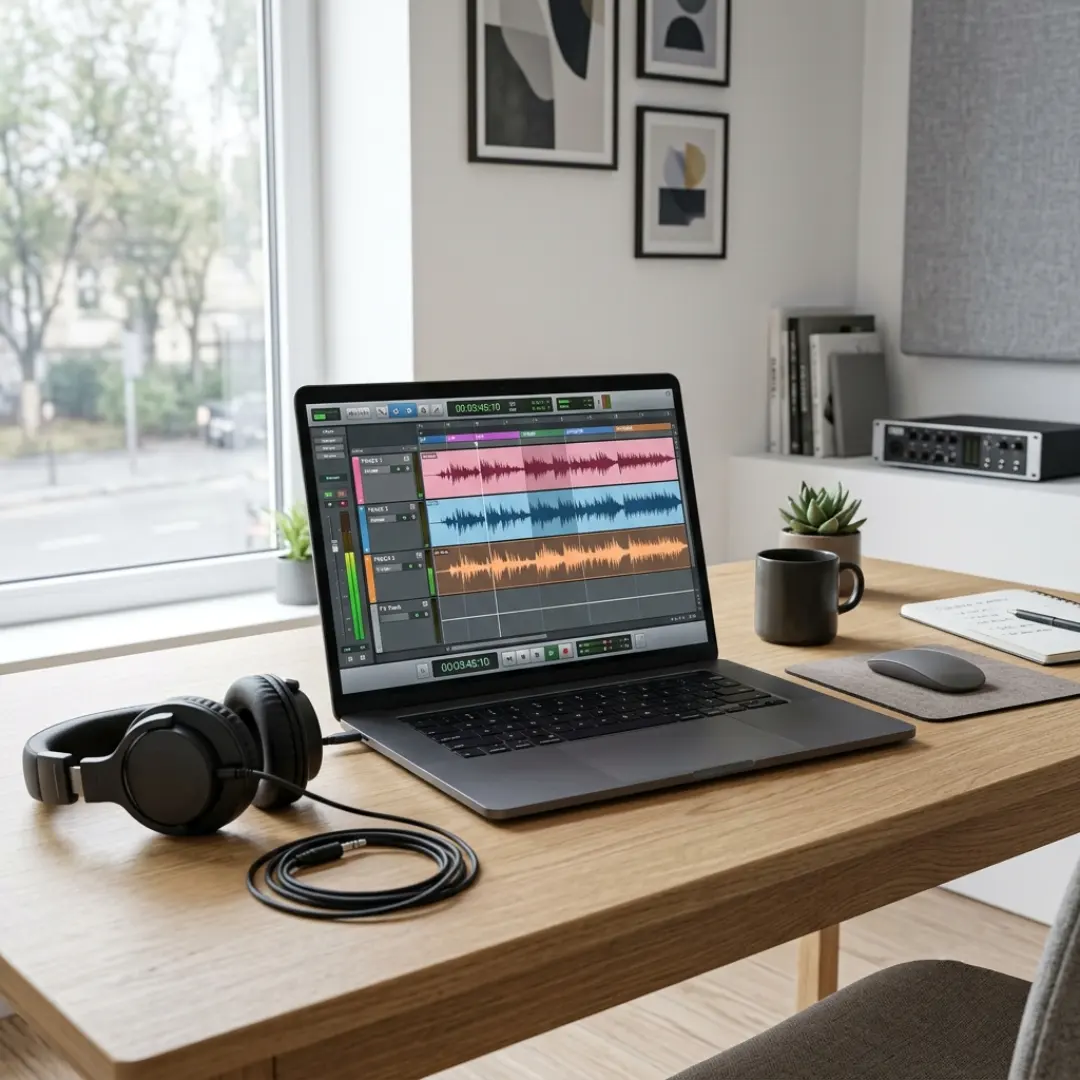
The manual route (free): Audacity is a free, beginner-friendly editor. A reliable workflow looks like this:
- Record a couple of seconds of silence at the start so you have a sample of the room tone.
- Use noise reduction to sample that silence and remove the background hiss from the whole track.
- Add gentle compression to even out the volume and bring out detail.
- Use EQ to add a little low-end body (phone mics are weak on bass) and clean up harsh mids.
- Normalize to a consistent level.
The AI route (fastest): Tools like Adobe Podcast Enhance can take a rough phone recording and make it sound close to studio quality in one upload. It’s remarkable for spoken-word content and takes seconds.
If you edit on desktop, you have even more power. Our step-by-step guides on removing background noise in Premiere Pro and mixing dialogue, music, and sound effects will help you finish the job like a pro.
Bringing It All Together
Start with the free wins (environment, lossless settings, mic distance) today, then add an external mic when you’re ready. Your viewers, and your watch time, will thank you.
Audio is only half the story, of course. To make your visuals match, pair these tips with our guide to the best iPhone camera settings for cinematic video, and explore the full mobile filmmaking playbook for everything else you need. And if you’re building out a channel, our YouTube Packs give you ready-to-go openers, lower-thirds, and title scenes so your finished videos look as polished as they sound.
Disclaimer : If you buy something through our links, we may earn an affiliate commission or have a sponsored relationship with the brand, at no cost to you. We recommend only products we genuinely like. Thank you so much.
Blog Label:



Write for us
Publish a Guest Post on Pixflow
Pixflow welcomes guest posts from brands, agencies, and fellow creators who want to contribute genuinely useful content.
Fill the Form ✏